Update time: March 16, 2026
Have you ever published a PDF guide, an ebook, or a software installer on your website and wondered how many people actually downloaded it? GA4 can track file downloads automatically without a single line of custom code. Just enable Enhanced Measurement, and it sends a built-in file_download event every time someone clicks a supported download link.
But here’s the catch. The default tracking is enough for basic needs, but what if you want to track only specific file types, use a custom event name, or send extra parameters? What if the download button doesn’t even point directly to a file?
In this guide, you’ll learn two ways to track file downloads in GA4:
- Method 1: Enhanced Measurement No Code, Covers Most Sites)
- Method 2: Custom Tracking via GTM (More Control)
Method 1: Enhanced Measurement (No Code, Covers Most Sites)
GA4’s Enhanced Measurement feature already tracks file downloads out of the box. Once turned on, GA4 automatically fires a file_download event any time a visitor clicks a link pointing to a recognized file type.
Here are the file types GA4 recognizes automatically: pdf, xls/xlsx, doc/docx, txt, rtf, csv, exe, key, ppt/pps/pptx, 7z, pkg, rar, gz, zip, avi, mov, mp4, mpeg/mpg, wmv, mid/midi, mp3, wav, wma, and similar.
When a download is tracked, GA4 automatically captures these parameters:
| Parameter | What it captures |
|---|---|
file_name |
The downloaded file’s name |
file_extension |
The file extension (e.g., pdf, zip) |
link_url |
The full download URL |
link_text |
The anchor text of the link |
link_domain |
The domain of the download link |
link_id |
The HTML ID attribute of the link |
link_classes |
The CSS classes of the link |
How to enable it: In GA4 click「Admin 」——「Data Streams 」——「Web streams」,
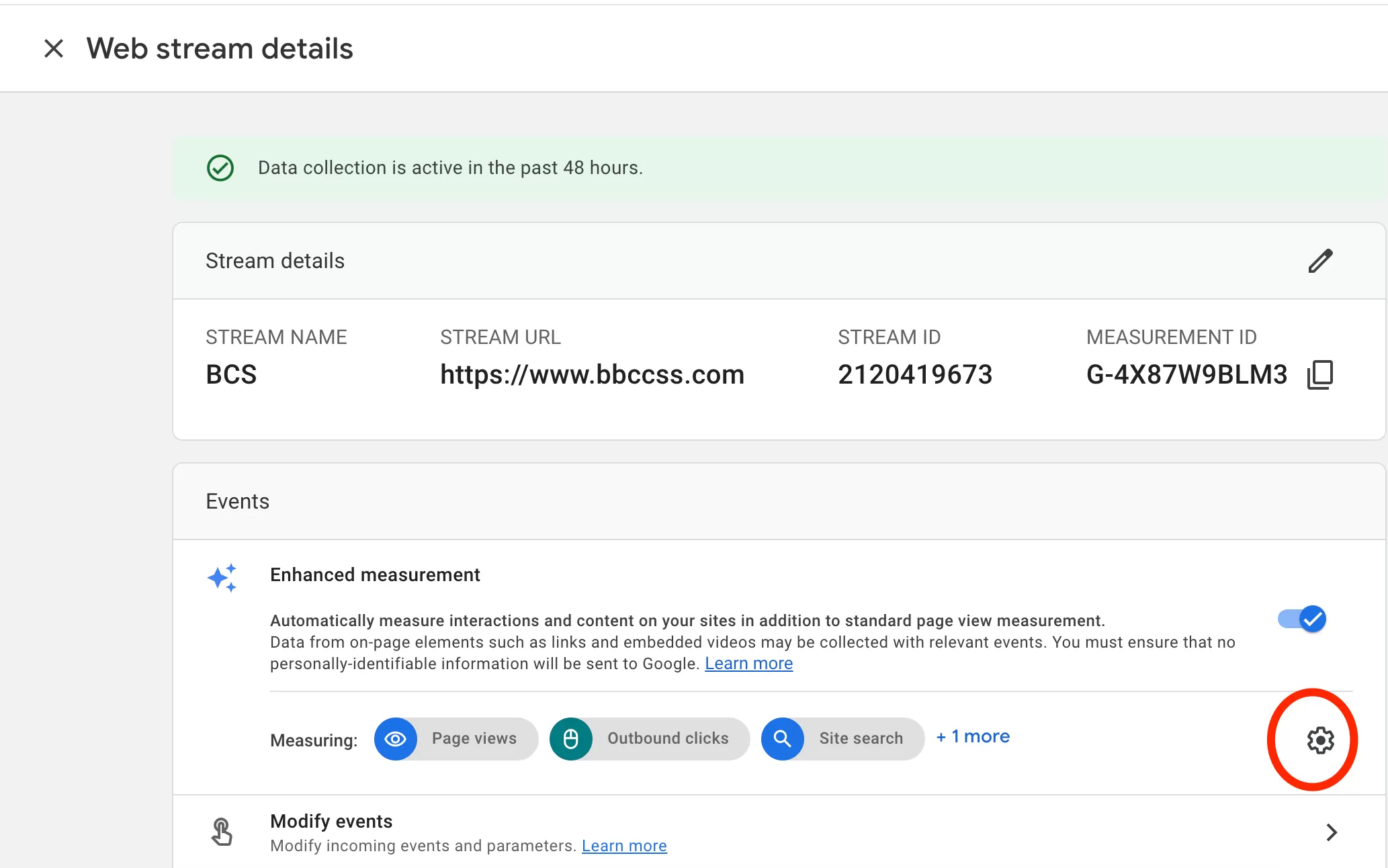
Find the Enhanced measurement section and click the gear icon.
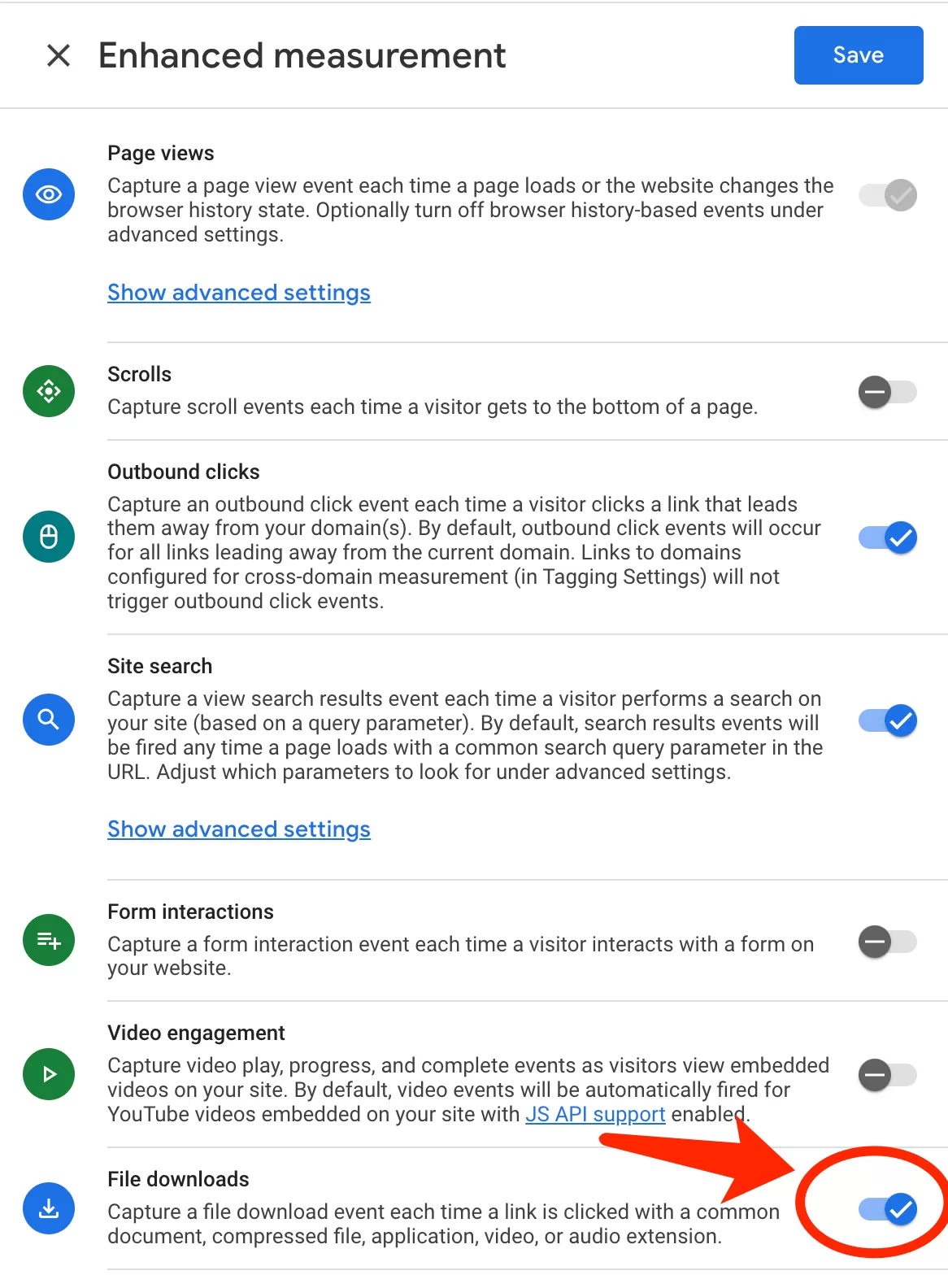
Make sure File downloads is toggled on.
That’s it. Once enabled, GA4 will track file downloads automatically. No additional configuration needed.
When to use this method: Stick with Enhanced Measurement if you just need to know that downloads are happening, the standard parameters are enough, and you don’t need to filter, rename, or add custom data. For most websites, this is all you’ll ever need.
Method 2: Custom Tracking via GTM (More Control)
Enhanced Measurement is great until it’s not. Here’s when I switch to a custom GTM setup:
- Track only specific files — not every download site-wide
- Use a custom event name instead of file_download
- Send additional parameters beyond what Enhanced Measurement captures
- Track a download that doesn’t point directly at a file — like a button that triggers a script
Step 1 — Enable built-in Click variables
First, GTM needs access to click data.
In GTM , click「Variables」——「Configure」,check the click-related built-in variables:
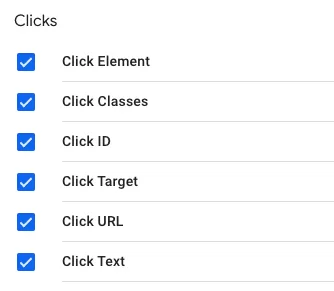
These capture attributes of whatever element was clicked so you can reference them in the trigger.
Step 2 — Create the trigger
Let’s say you want to track file downloads from a link like this one:

Inspect the HTML source code of the download link:

he HTML reveals two useful attributes:
- Click URL is https://www.bbccss.com/wp-content/uploads/2019/11/2025011405111591.zip
- Click Text is Download File Demo
Now set up the trigger, click「Triggers」——「New」——「Choose a trigger type to begin setup…」——「Click – All Elements」,Name it ” Click – File Download”, and configure the trigger conditions based on the Click URL or Click Text.
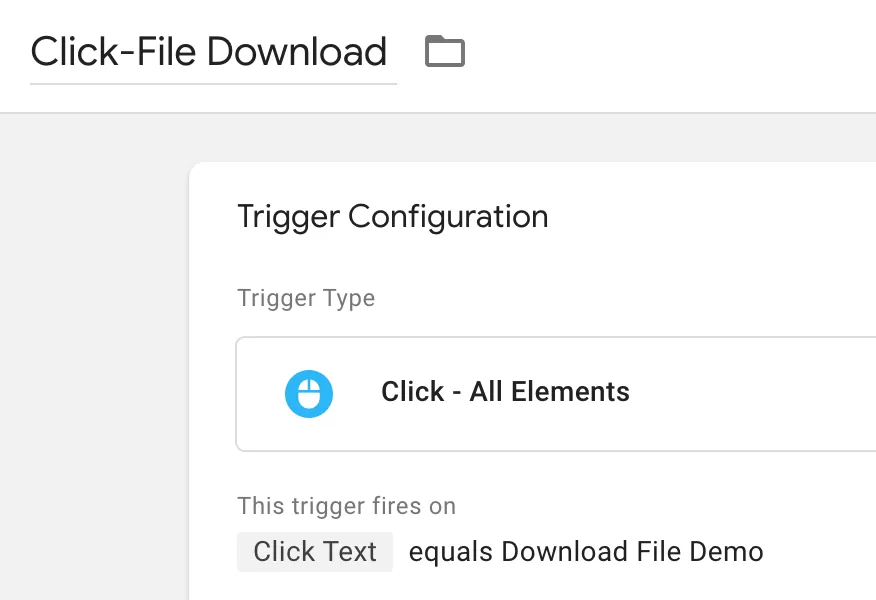
You can get creative here — match by URL pattern, file extension, CSS class, link text, or any combination.
Step 3 — Create the GA4 Event Tag
Now create the tag that will send the data to GA4.
In GTM , click「Tags」——「New」——「Choose a tags type to begin setup…」——「Google Analytics: GA4 Event」,Name it “GA4-Event-File Download”, and make the following settings:
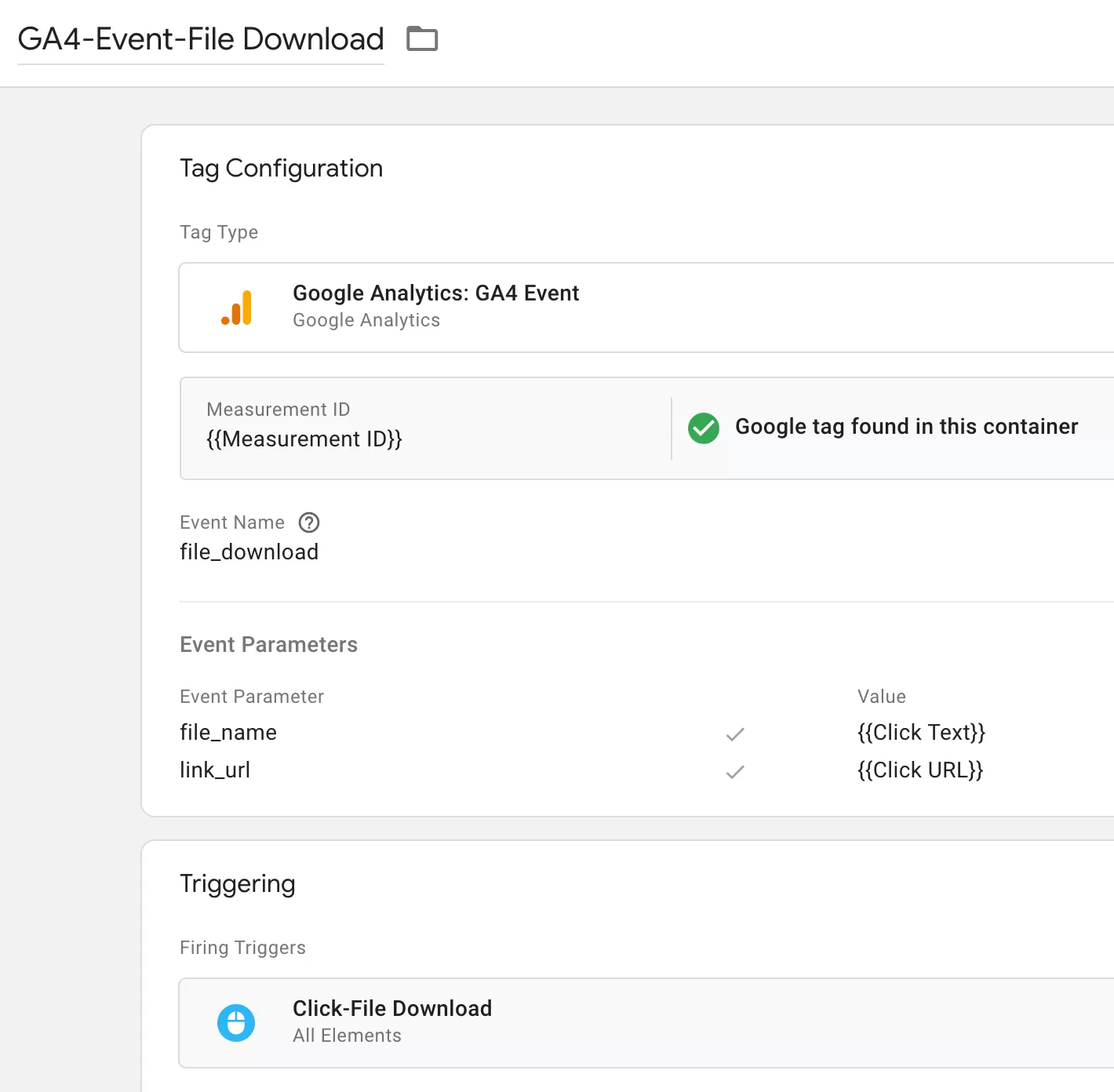
To keep your data consistent with GA4’s built-in download tracking, consider sending the same parameters that Enhanced Measurement would send. This way, your custom implementation aligns with GA4’s standard reporting structure.
Step 4 — Preview and publish
Open Preview mode to launch Tag Assistant, click the download link on the live/preview site, and confirm the tag fired with the correct parameter values in the tag’s summary panel.
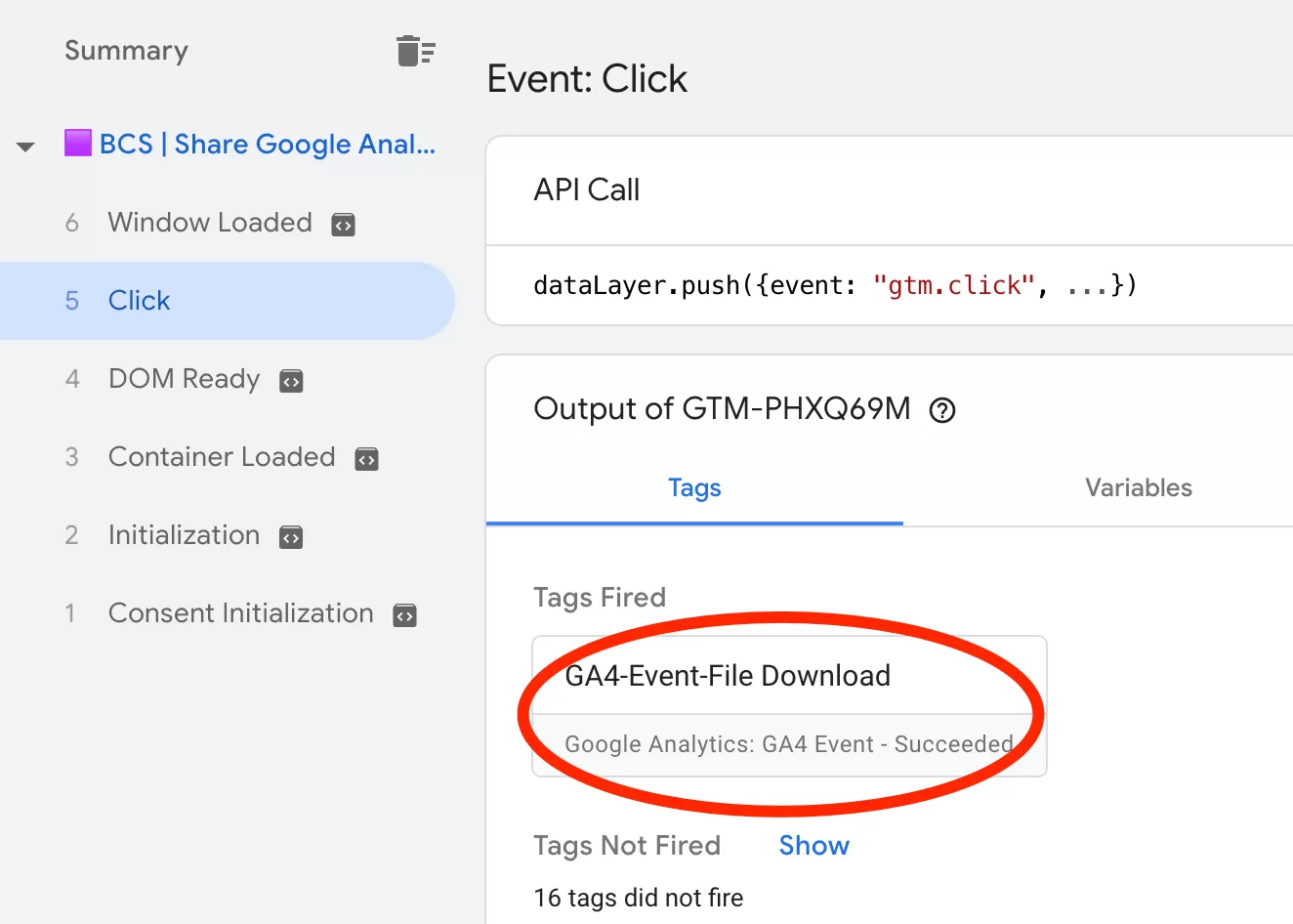
Check the triggered tag’s summary to verify the event parameters are correct.
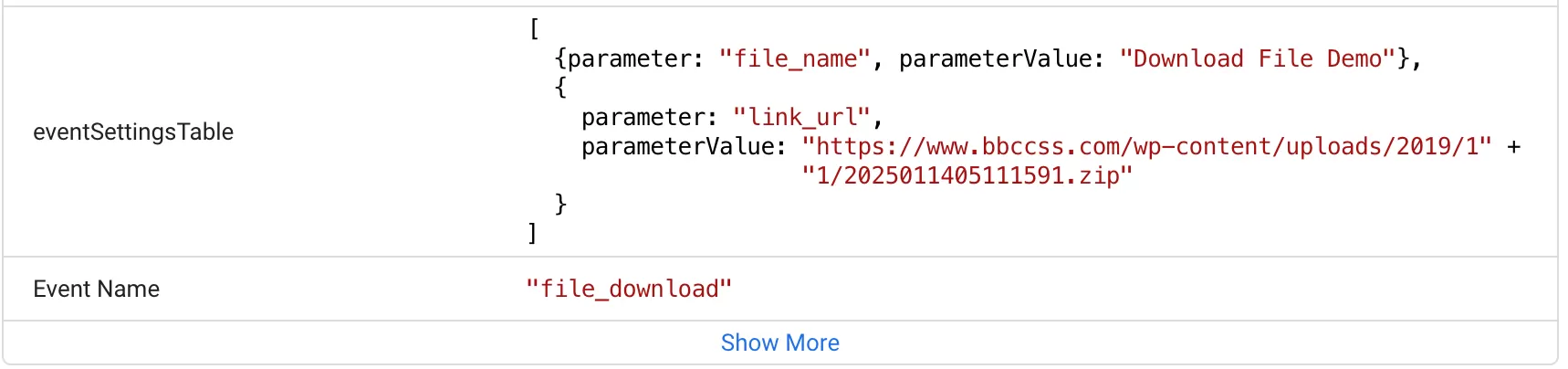
Once everything looks good, publish the container.
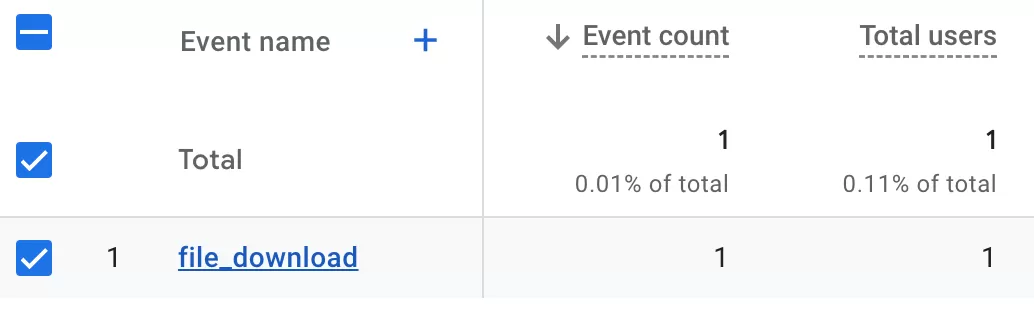
Step 5 — Verify in GA4
It typically takes up to 24 hours before the data appears in your GA4 reports. Once it does, you can validate it in Event Reports:
Which method should you use?
| Scenario | Recommended Method |
|---|---|
| Track standard file downloads | Enhanced Measurement |
| Track only specific files | GTM |
| Send additional parameters | GTM |
| Use a custom event name | GTM |
| No coding required | Enhanced Measurement |
For most websites, Enhanced Measurement is the simplest and recommended solution. If your tracking requirements are more advanced, Google Tag Manager gives you complete control over triggers, event names, and parameters.
Final Words
Tracking file downloads in GA4 doesn’t have to be complicated. For the majority of cases, Enhanced Measurement handles everything you need without any extra work. And when you do need to go beyond what the default offers, GTM has you covered with the flexibility to track exactly what matters to your business.