If you’ve been using GTM’s built-in click and form triggers, you’ve probably run into situations where they just don’t cut it. Maybe the element is dynamically generated. Maybe you need to pass custom parameters like product type or page type. Or maybe you’re working with an SPA where page changes don’t trigger new clicks.
That’s where dataLayer.push() comes in.
In this guide, I’ll walk you through how to use `dataLayer.push()` for custom event tracking and send that data to GA4 via GTM — step by step, from code to reports.
Why Use dataLayer.push() for Event Tracking?
GTM’s built-in triggers work great for basic setups, but they have limitations. Relying only on GTM click or form triggers can get tricky when:
- The element is dynamically generated
- You need to pass custom parameters (e.g. product type, page type)
- You want consistent tracking across multiple templates
- You’re working with e-commerce or SPA (Single Page Application) behavior
Using dataLayer.push() solves all of these problems. It lets developers explicitly send structured data into GTM, giving you full control over what gets tracked and when.
How dataLayer.push() Works
The process works like this: When a user interaction occurs (e.g., a click), a custom event is pushed into the data layer. GTM then listens for this event using a Custom Event Trigger, and finally sends the data to GA4 via a configured tag.
Here’s the flow at a high level:
- A user interaction happens (e.g., a click)
- A custom event is pushed into the data layer via dataLayer.push()
- GTM listens for this event using a Custom Event Trigger
- A configured tag sends the data to GA4
Simple, right? Let’s walk through a real example.
Use Case Example
Let’s say we want to track clicks on a specific element on our website. Here’s the element we’re working with:

We’ll modify this element to send a custom event when clicked. Let me show you exactly how.
Step 1: Implement dataLayer.push() in the Code
First, we need to add a dataLayer.push( call to the element. Here’s what we want to push:
dataLayer.push = ({
    'event': 'test',
    'pageType': 'product'
});
Now add that as an `onclick` handler on the element:
<a onclick="dataLayer.push({'event': 'test','pageType': 'product'});">dataLayer.push demo test</a>

Here’s what each parameter means:
- event: ‘test’ → defines the custom event name that GTM will listen for
- pageType: ‘product’ → sends additional contextual data we can use in GTM
That’s all we need on the development side. Now let’s move to GTM.
Step 2: Create a Data Layer Variable in GTM
To capture the pageType value from the data layer, we need to create a Data Layer Variable in GTM:
In GTM, click「 Variables」——「New」——「Choose a variable type to begin setup…」——「Data Layer Variable」, name it “dlv-Page Type”, and then set as follows:
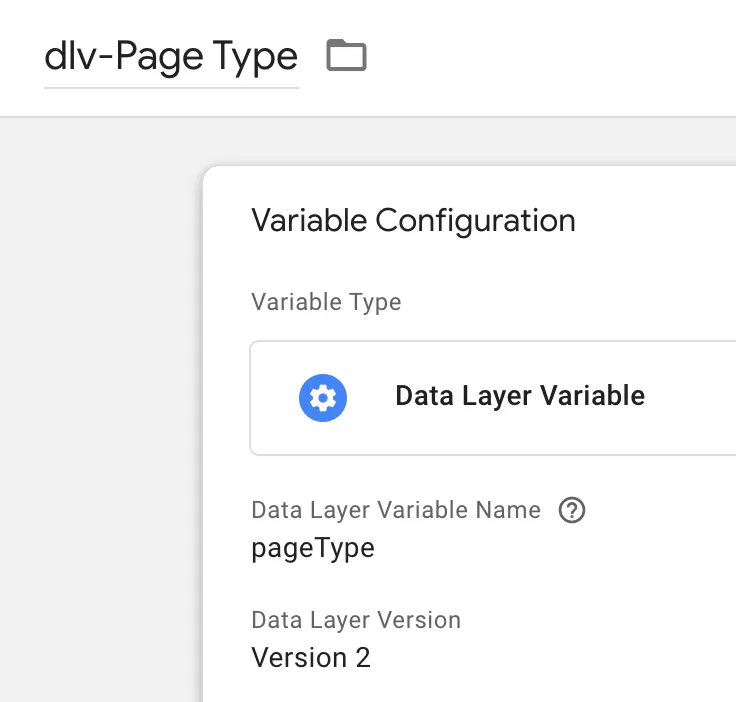
This tells GTM: “whenever pageType appears in the data layer, grab its value and make it available in tags and triggers.”
Step 3: Create a Custom Event Trigger
Now we need GTM to listen for our custom event.
In GTM , click「Triggers」——「New」——「Choose a trigger type to begin setup…」——「Custom Event」,Name it “dataLayer.push demo”, and make the following settings: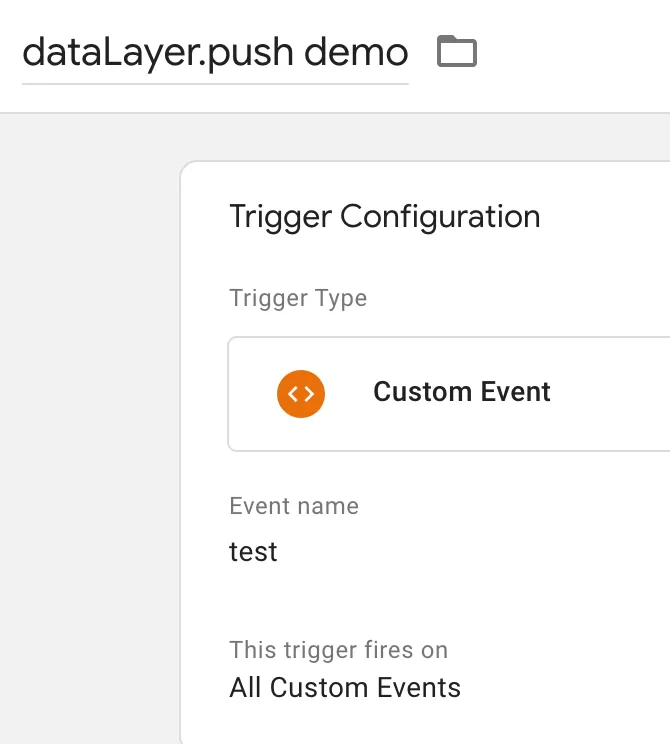
The trigger is now watching for any dataLayer push where event: ‘test’.
Step 4: Create a GA4 Event Tag
Time to connect everything to GA4.
In GTM , click「Tags」——「New」——「Choose a tags type to begin setup…」——「Google Analytics: GA4 Event」,Name it “GA4-Event-dataLayer.push”, and make the following settings:
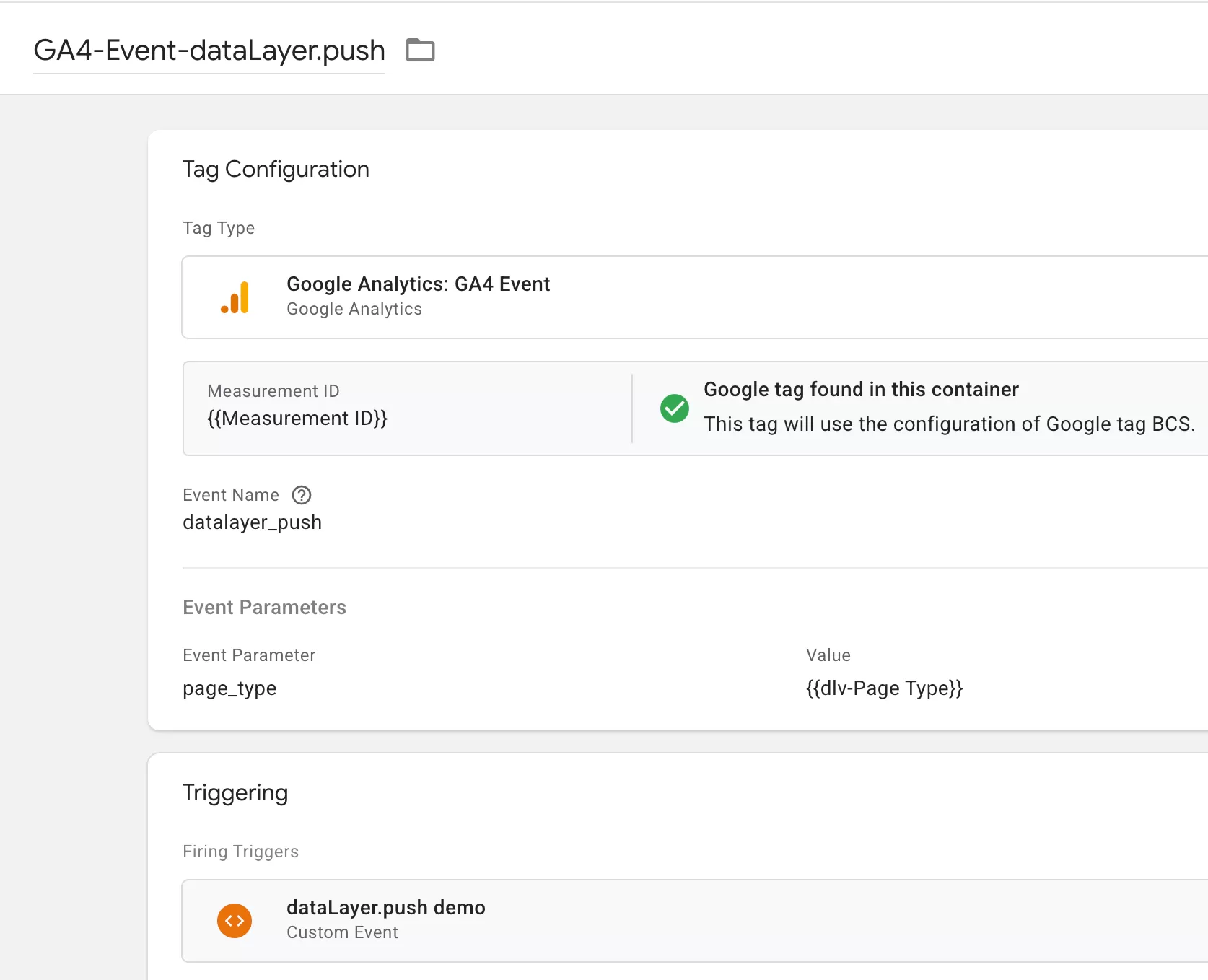
Step 5: Debug and Validate in GTM Preview Mode
Before publishing, always test in Preview mode
- 1. Click Preview in GTM
- 2. Open your website and click the element
- 3. In the Preview pane, you should see your `GA4-Event-dataLayer.push` tag fire
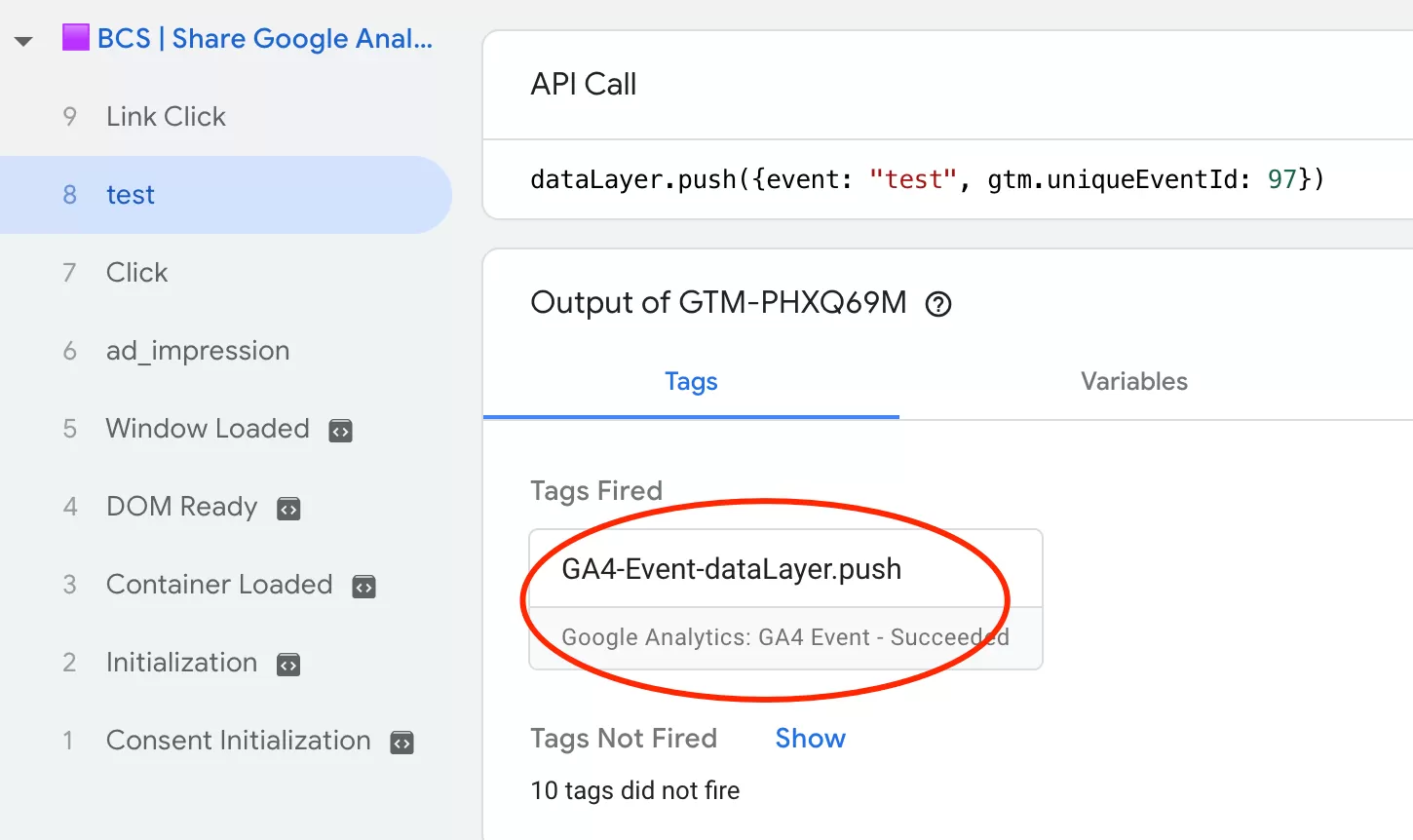
- 4. Click the tag to inspect the event parameters: check that the `pageType` value is `product`. If it looks correct :
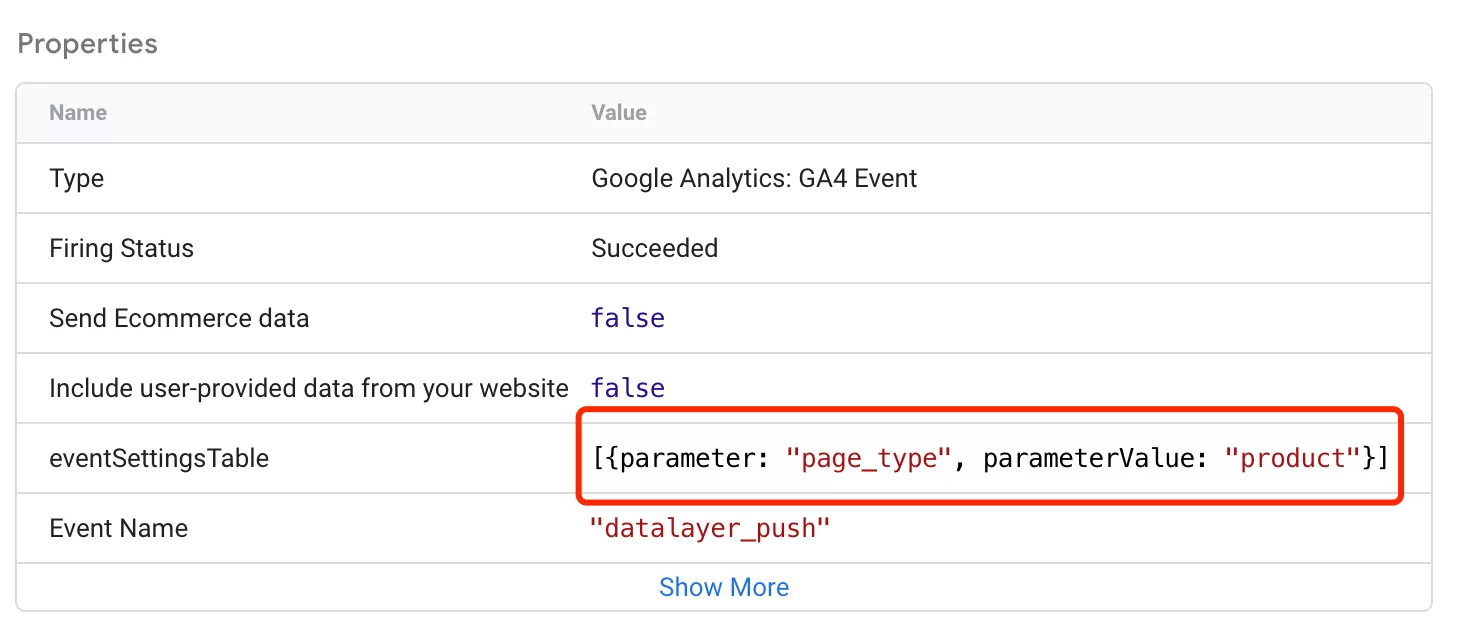
Congratulations, you’re ready to publish.
Step 6: Register Custom Dimension in GA4
Now that the data is flowing into GA4, there’s one more step. If you want to use pageType in your GA4 reports and explorations, you need to register it as a custom dimension.
In GA4,click「Admin」——「Custom definitions」——「Create custom dimension」, then do the following configuration:
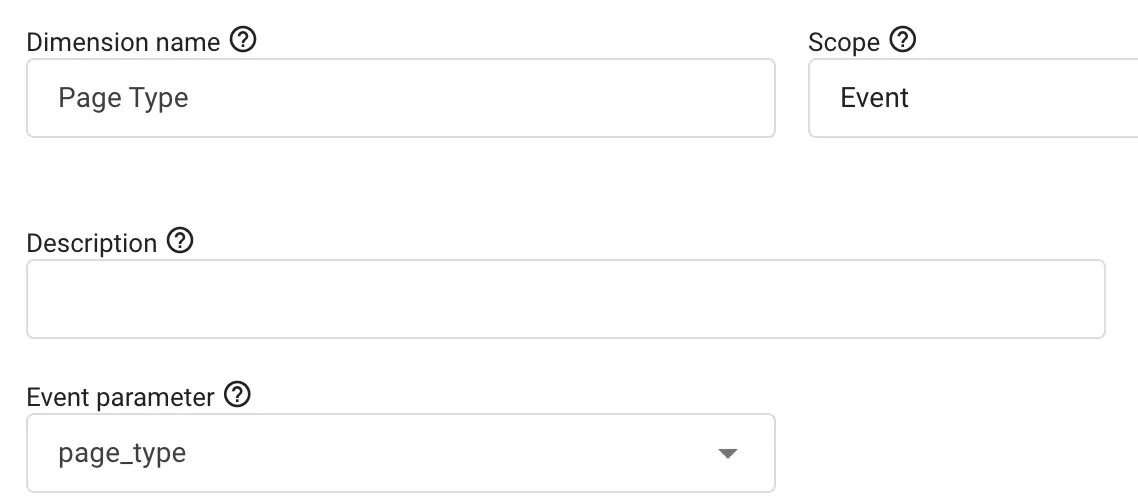
Step 7: Verify Data in GA4 Reports
After registration, it typically takes up to 24 hours before the data appears in your GA4 reports. Once it does, you can validate it in Event Reports:
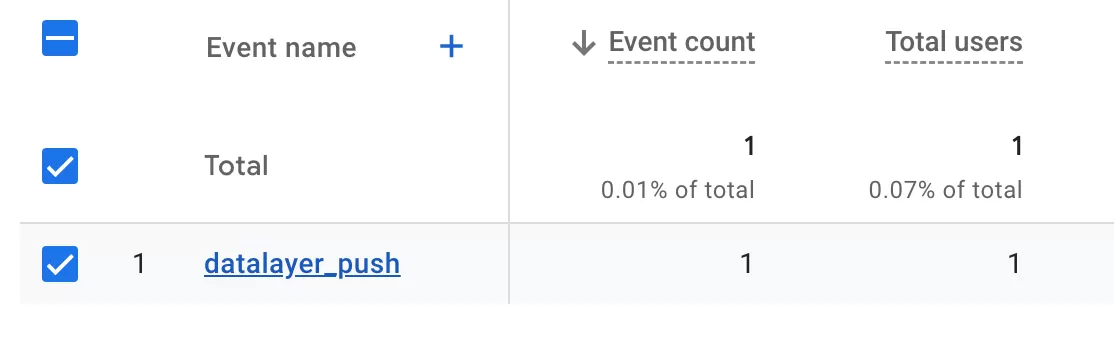
Final Words
Using dataLayer.push() for custom event tracking gives you a level of flexibility that GTM’s built-in triggers alone can’t match. Whether you’re dealing with dynamic elements, complex parameters, or SPA behavior, it’s a technique that will serve you well in almost any implementation.
Here’s a quick recap of the workflow:
- Developer adds `dataLayer.push()` in the code with a custom event name and parameters
- GTM captures the data with a Data Layer Variable
- A Custom Event Trigger listens for the event
- A GA4 Event tag sends the data to GA4
- You register the parameter as a custom dimension in GA4
- After 24 hours, the data appears in your reports
I hope this guide helped you understand how to use dataLayer.push() with GTM and GA4. If you have questions about a specific use case or ran into issues during implementation, feel free to leave a comment and I’ll do my best to help.