Updated: December 19, 2025
You set up the BigQuery export from GA4, excited to run some custom queries on your historical data. You open your dataset and notice something disappointing: there are only 60 daily events_ tables. Anything older than that is just gone.
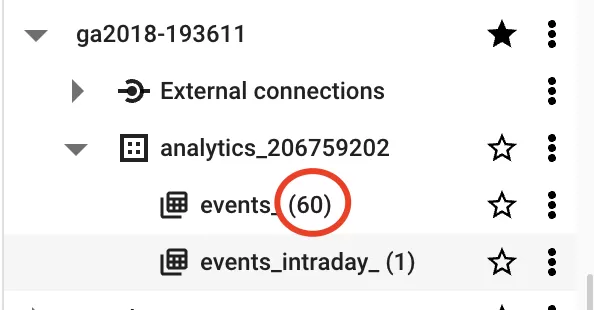
If you’re on the free tier of BigQuery, this is expected behavior — not a bug, and not something you misconfigured. In this article, I’ll explain why it happens and how to fix it.
Why Does GA4 BigQuery Data Only Last 60 Days?
The cause is simple: the free version of BigQuery has a default table expiration of 60 days. Each day’s GA4 export creates a new events_ table, and when that table reaches 60 days old, BigQuery automatically deletes it.
If you want to keep your data longer than 60 days, you’ll need to upgrade to the paid version of BigQuery (which charges for storage and queries but gives you full control over retention).
How to Extend BigQuery Data Retention
Once you’ve upgraded to the paid tier, extending the retention period takes just a few clicks.
Step 1: In BigQuery, open the dataset that contains your GA4 export.
Step 2: Click Edit Details in the dataset information panel.
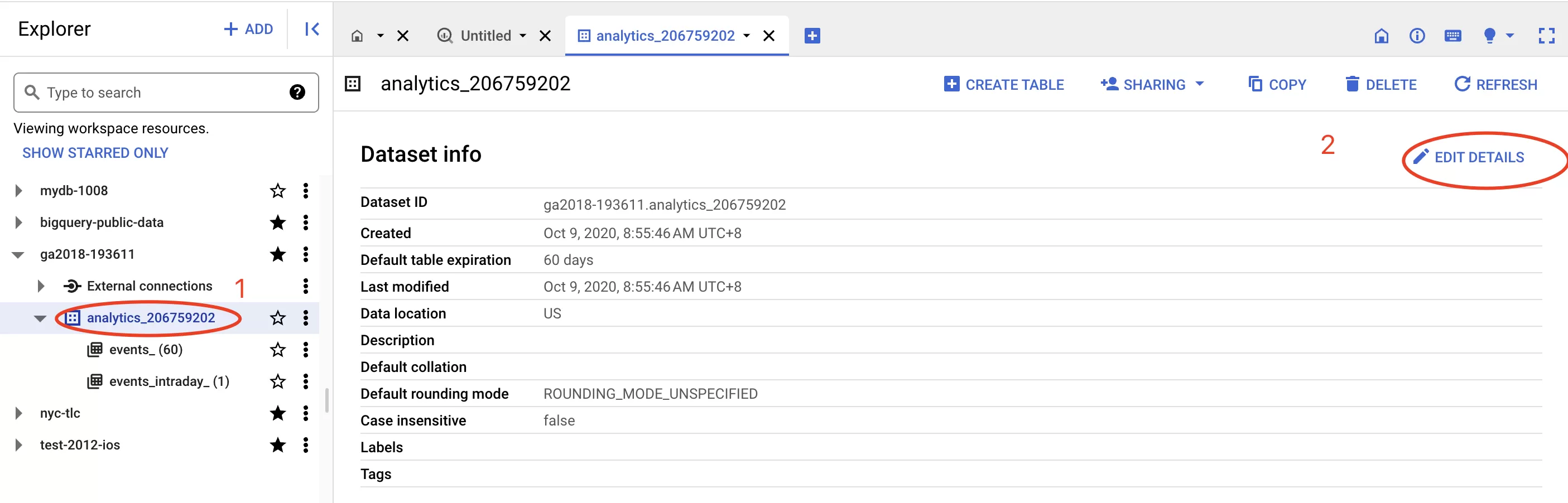
Step 3: Adjust the Table Expiration setting. You can set it to:
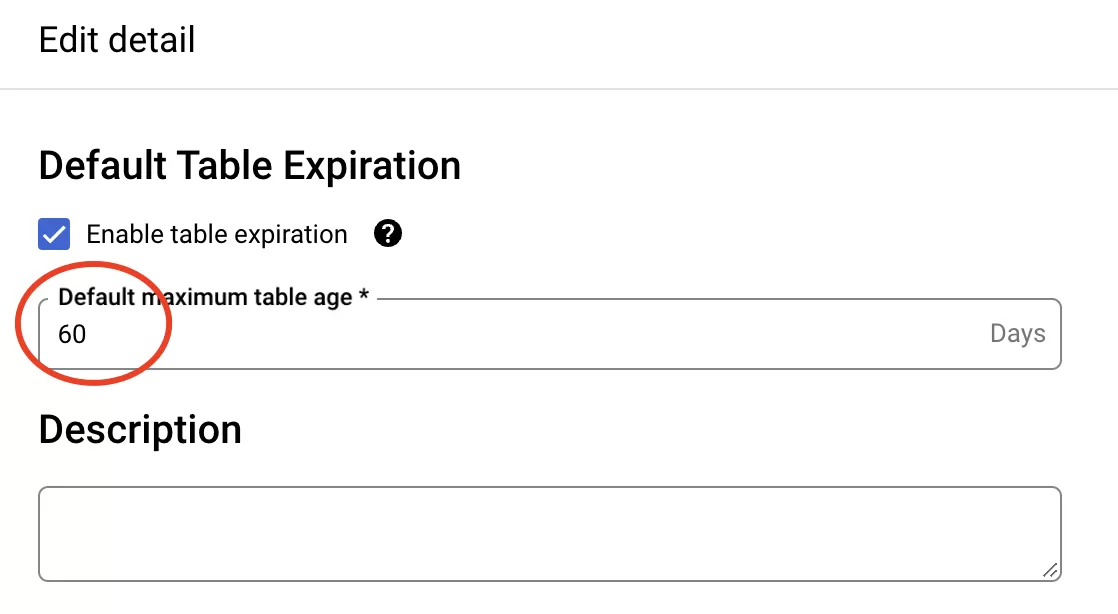
Step 4: Click Save to apply the changes.
Note that this only affects new tables going forward — existing tables that have already expired won’t come back. But from this point on, your data will stick around for as long as you’ve configured.
GA4 BigQuery Data Retention: Final Words
It’s a small thing, but it catches a lot of people off guard — especially when they realize they’ve lost months of data they assumed would be there indefinitely. If you’re relying on BigQuery for long-term analysis, upgrading to the paid tier is essentially required.