Updated: April 21, 2026
If you’ve ever tried to add someone to your GA4 property and found yourself staring at permission options wondering what “Marketer” vs “Analyst” actually means — you’re not alone. GA4’s permission system can feel unnecessarily complicated, especially if you’re used to Universal Analytics where things were more straightforward.
In this guide, I’ll walk through the permission structure first (because it matters), and then show you exactly how to add a user at both account and property levels.
Let’s get into it.
GA4 Permission Structure
Before you start adding users, it helps to understand how permissions actually work in GA4. There are two things you need to keep in mind:
Permission Levels
GA4 permissions are assigned at two levels:
- Account level — applies to the entire account and all properties under it.
- Property level — applies to a specific property only.
Permissions follow an inheritance model. If you give someone Analyst access at the account level, they’ll have Analyst access on all properties under that account — unless you specifically override it at the property level.
Effective Permissions
Here’s where it gets slightly more nuanced. Effective permissions are made up of two independent components:
- Direct role — defines what actions a user can perform.
- Data restrictions — limits access to sensitive metrics like cost and revenue data.
These two settings work independently. You could give someone Editor access but restrict them from seeing revenue data. Or give someone Viewer access with no restrictions at all. It’s up to you.
Here’s the catch: if data restrictions are enabled, certain financial metrics (revenue, cost, etc.) will simply be hidden from that user. They won’t know the data exists — it just won’t show up.
Permission Overview
Here’s a quick reference for all the roles:
| Role | What They Can Do |
|---|---|
| Administrator | Full control. Can manage users (add/remove, assign roles and restrictions) at both account and property levels. |
| Editor | Full control of property-level settings. Cannot manage users. Includes all Analyst permissions. |
| Marketer | Can create, edit, and delete audiences, events, and key events. Can configure attribution settings. |
| Analyst | Can create and share explorations. In GA360, can request unsampled explorations. |
| Viewer | Can view configuration and data. Can modify report views (comparisons, secondary dimensions). Can access shared assets via UI or APIs. |
| None | No access to the resource. The user may still have access to other resources. |
And for data restrictions:
| Restriction | What It Hides |
|---|---|
| No Cost Metrics | Hides cost-related data |
| No Revenue Metrics | Hides revenue-related data |
Step-by-Step: Adding a User
Let’s walk through a real example. Say I want to grant Editor access to [email protected].
Account Level
In GA4, click「Admin」——「Account」——「Account access management」——「+」——「Add Users」, and then make the following settings:
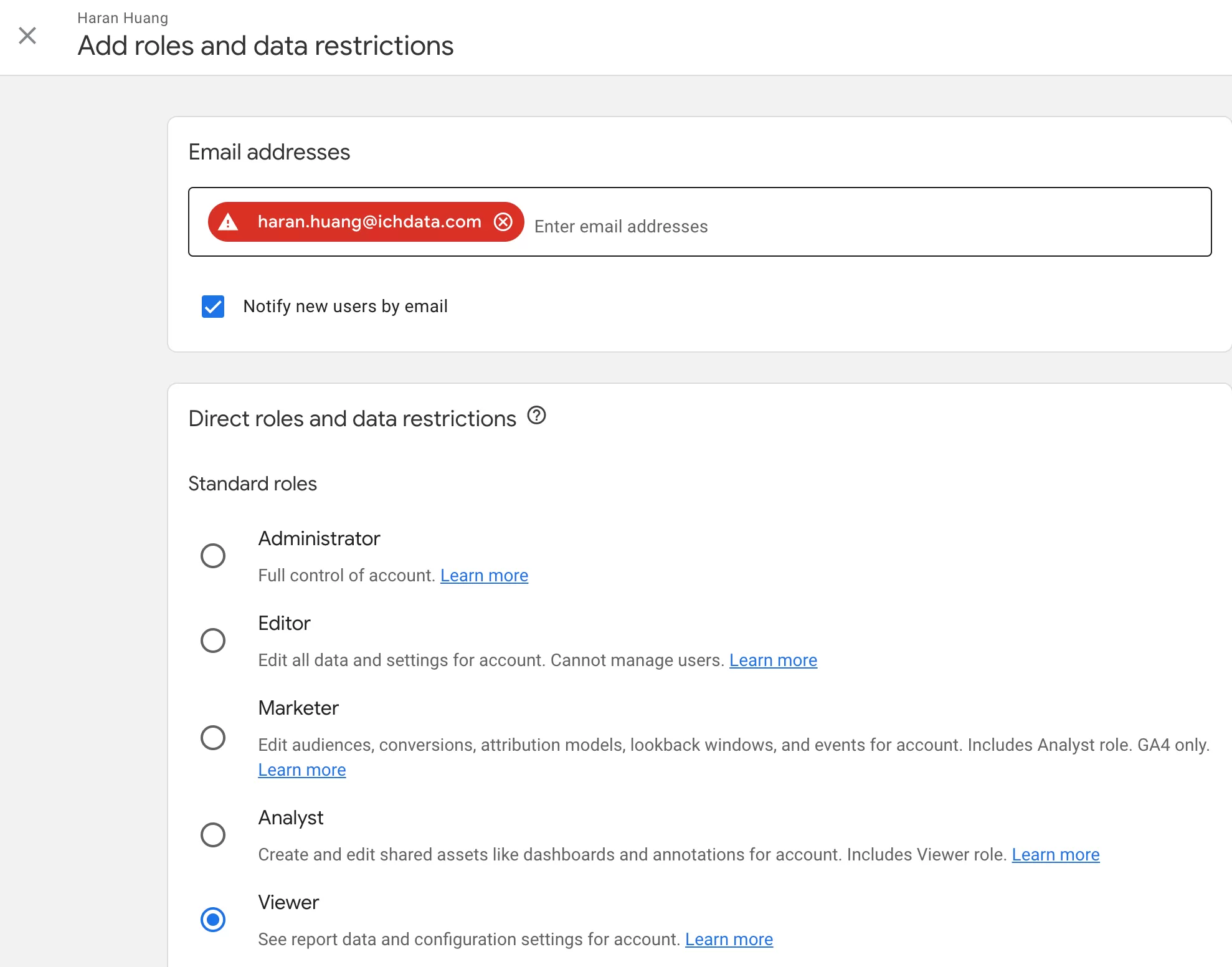
If you want to restrict cost or revenue data, check the appropriate boxes under data restrictions.
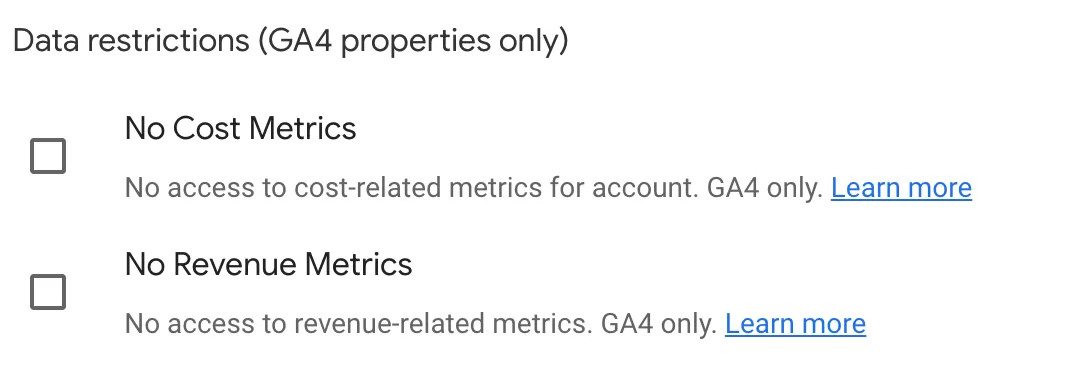
Once saved, the user will appear in the access list and receive an email notification automatically.
Property Level
In GA4, click「Admin」——「Property」——「Property access management」——「+」——「Add Users」, and then make the following settings:
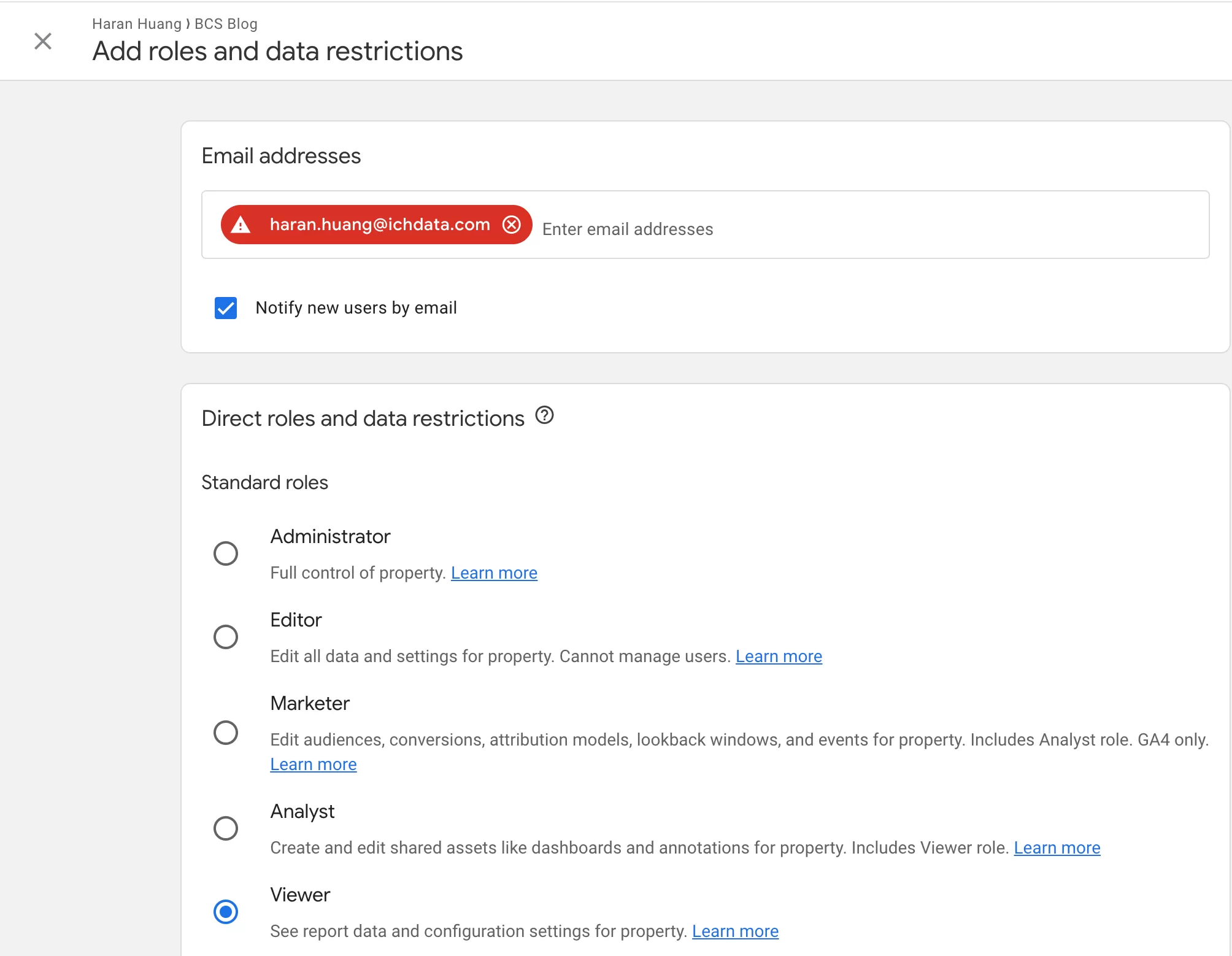
Apply data restrictions if needed.
Same deal — they’ll be listed and notified by email.
Common Errors (And How to Fix Them)
Error 1: “This email doesn’t match a Google Account”
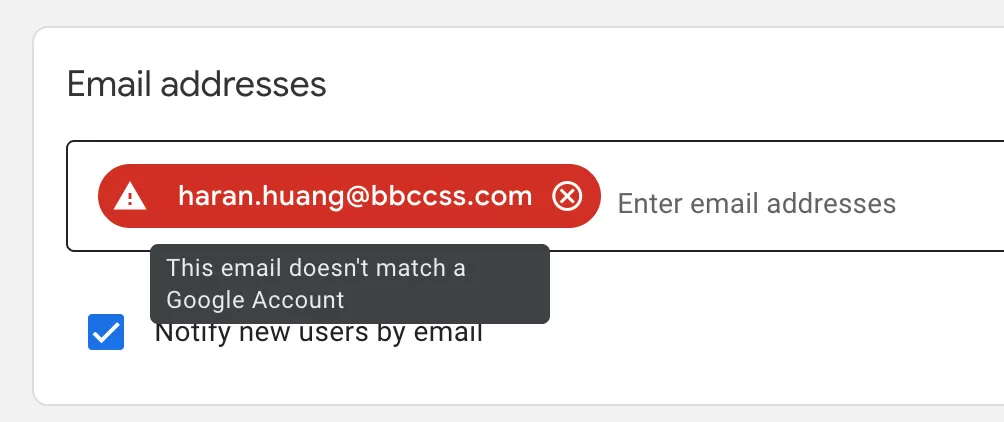
Reason: The email address isn’t registered as a Google account.
Solution: The user needs to register that email as a Google account first. Once they do, you can resend the invitation.
Error 2: “This user did not satisfy this organization’s user policy”
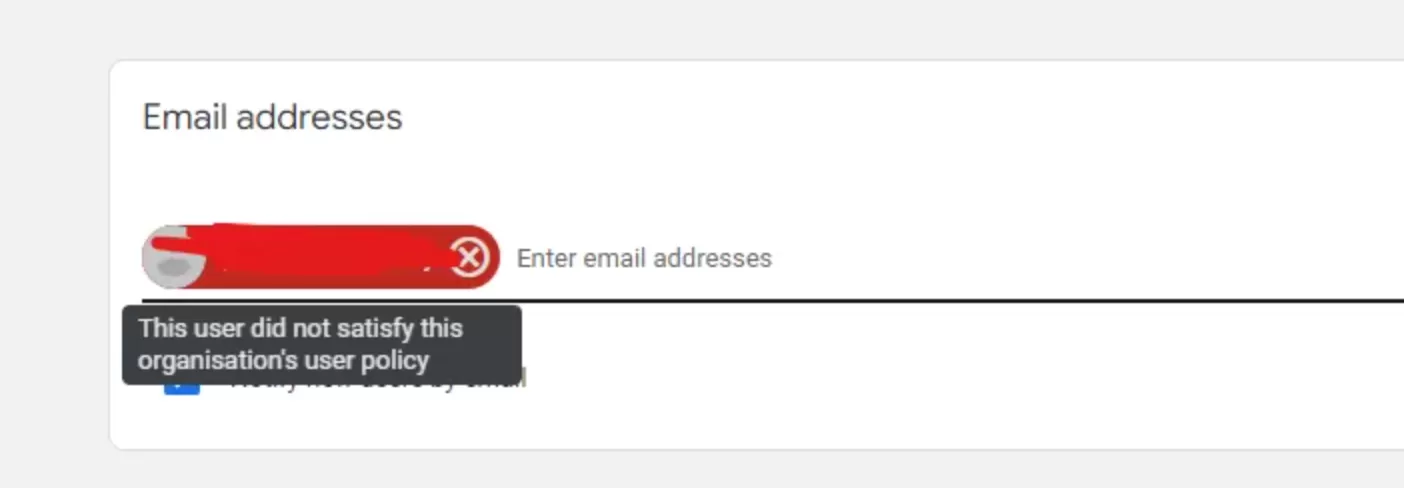
Reason: Your organization restricts GA4 access to approved email domains. If the user’s email domain isn’t on the allowed list, GA4 blocks the invite.
Solution: Update the organization’s user policy.
In Google Marketing Platform Home page: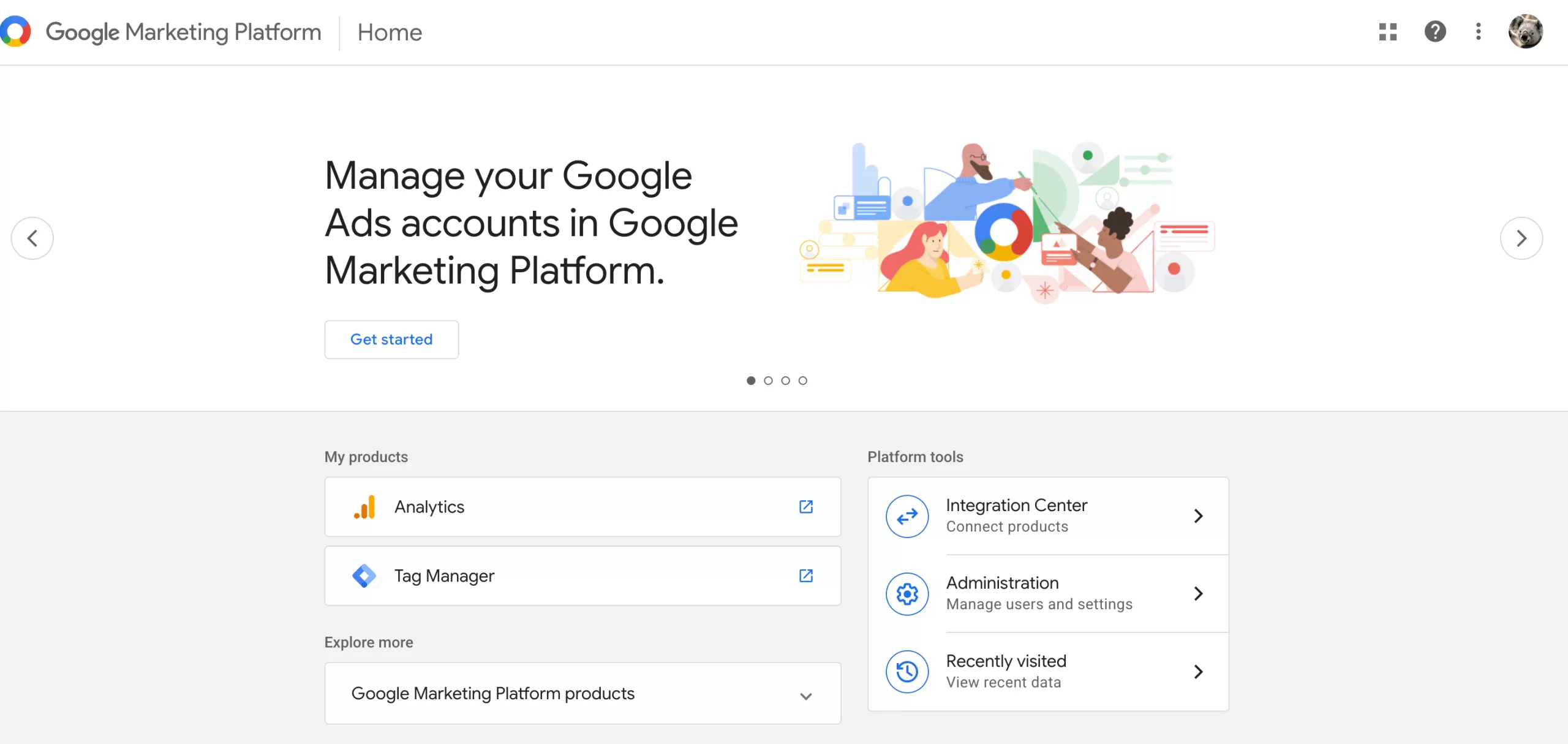
Click「Administration」——「User policy」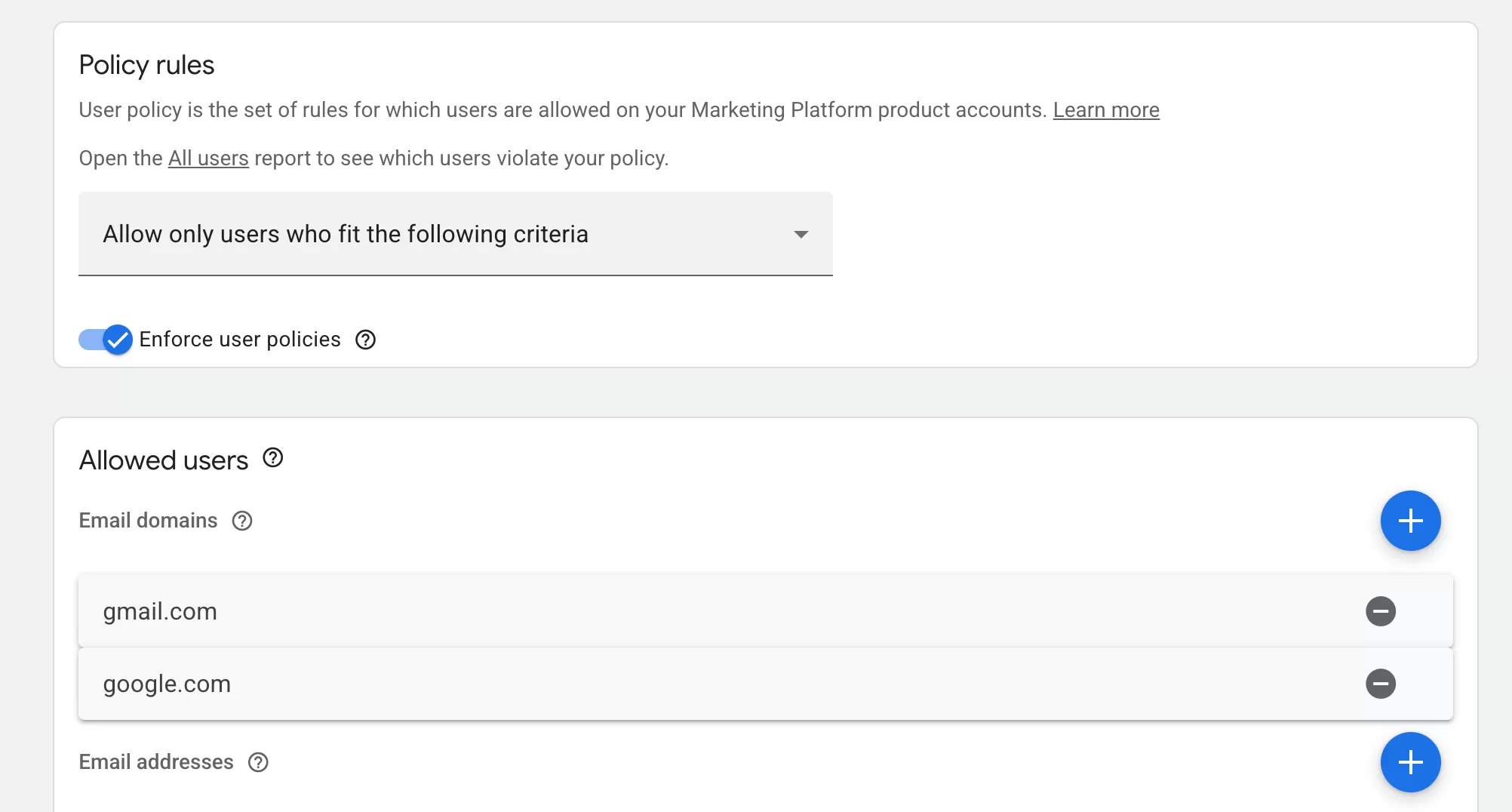
Add your email domain name.
After that, the invite should go through.
Final Words
GA4’s permission system isn’t the most intuitive thing in the world, but once you understand how levels, roles, and data restrictions work together, it’s actually pretty flexible. The key thing to remember: Administrator can manage users, Editor can’t. And if you need to hide revenue data from certain users, data restrictions are your friend.