Update time: January 11, 2025
If you’re looking at the Pages and Screens report in GA4 expecting to see your blog, products, and support pages neatly grouped — and instead you just see “(not set)”
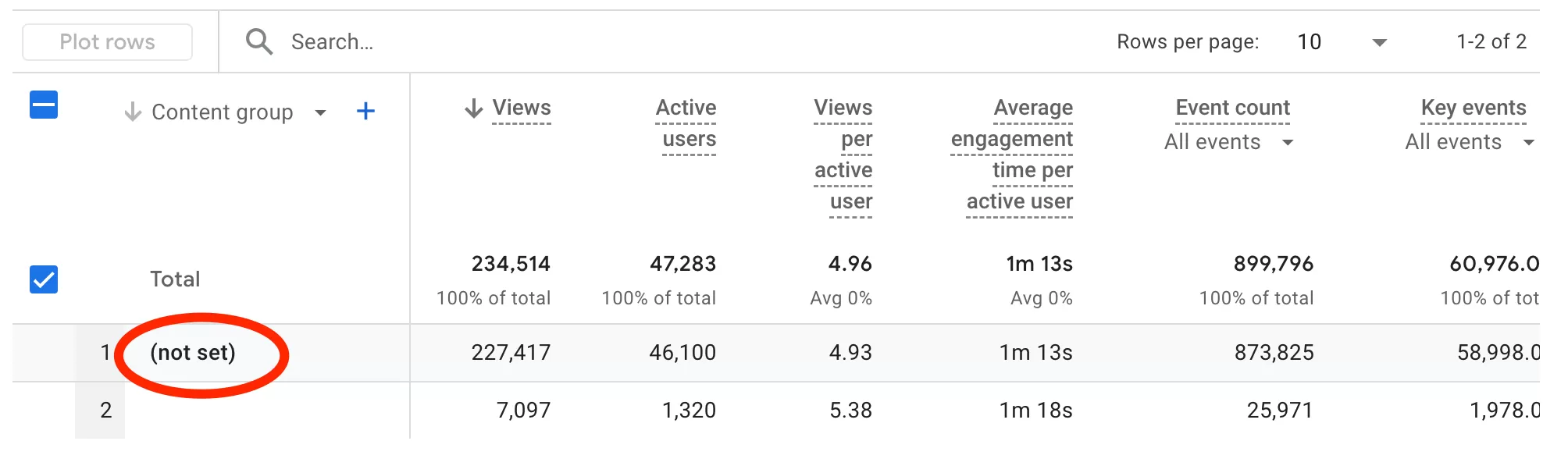
Staring back at you — you’ve run into the same wall most people do. Content grouping in Google Analytics 4 sounds like it should just work, but GA4 won’t create content groups on its own. You have to send the data yourself.
What is content grouping in GA4?
Content Groups — also called Content Grouping — are a built-in GA4 dimension that lets you classify pages into logical categories. Think of it as a way to bucket your URLs so you can analyze performance by section instead of hunting through individual page paths.
Here’s a concrete example of how GA4 content groups work:
| Page URL | Content Group |
|---|---|
| /blog/google-tag-manager | Blog |
| /blog/ga4-events | Blog |
| /products/ga4-course | Products |
| /support/contact | Support |
IWith this setup, you can answer questions like “Which content type drives the most conversions?” or “Is my blog section underperforming compared to my product pages?” — all without digging through individual URLs.
Why is GA4 content group showing “(not set)”?
You open the Pages and Screens report, add the Content group dimension, and every row says “(not set)”. Here’s why:
GA4 provides the dimension, but you need to send the content group parameter yourself.
How to set up GA4 content group using GTM
Step 1: Group Pages Using a RegEx Table Variable
You need a way to map every page on your site to a content group. My recommendation: a RegEx Table Variable in GTM. It’s simple, maintainable, and you don’t need to touch code.
Create a new RegEx Table Variable and map your URL patterns:
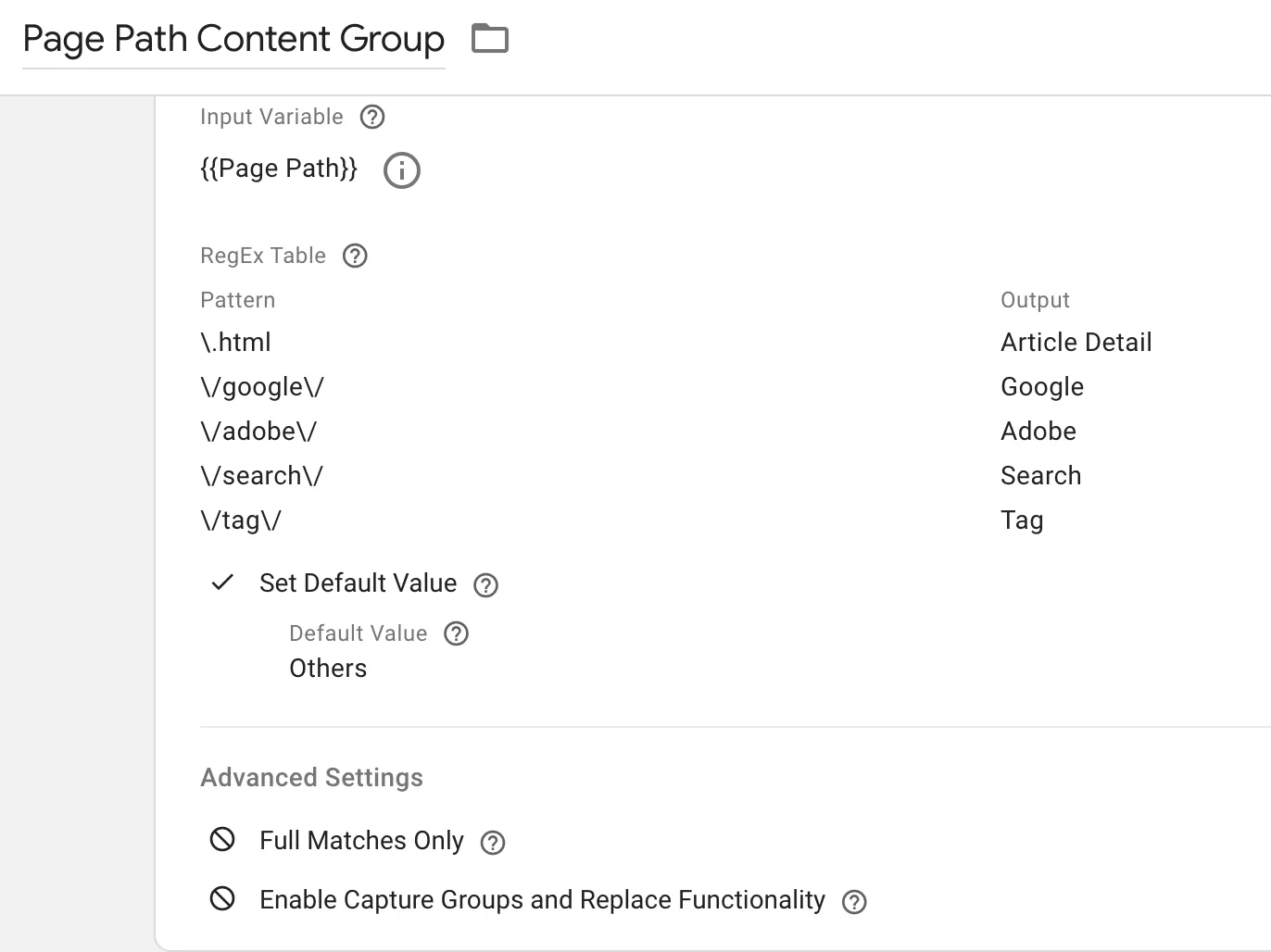
That last catch-all pattern is important — it ensures every page gets a content group, even the ones you didn’t think about.
Step 2: Send content_group to GA4
Open your GA4 Configuration Tag (or Google Tag) in GTM. Add a new parameter:
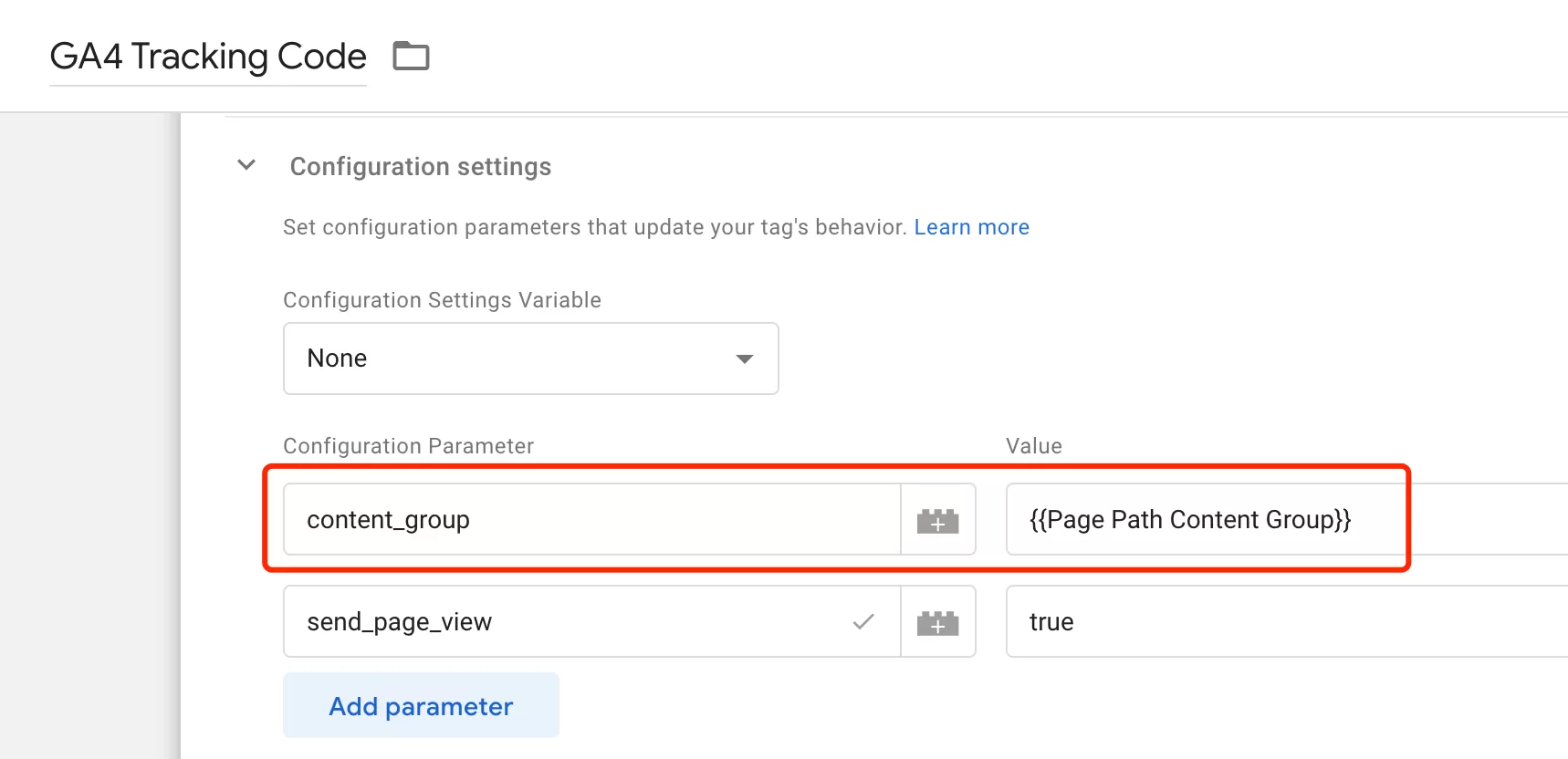
Don’t make this mistake: configure it in your base GA4 page tag, not just in individual event tags like click or form submit. If you only add content_group to a click event tag, the Pages and Screens report will still show “(not set)” for page views. I’ve seen this trip people up more times than I can count.
Step 3: Test in Preview Mode and Publish
Before publishing, enable GTM Preview Mode, open Tag Assistant, navigate across different page types, check that the content_group parameter shows the correct value for each page:
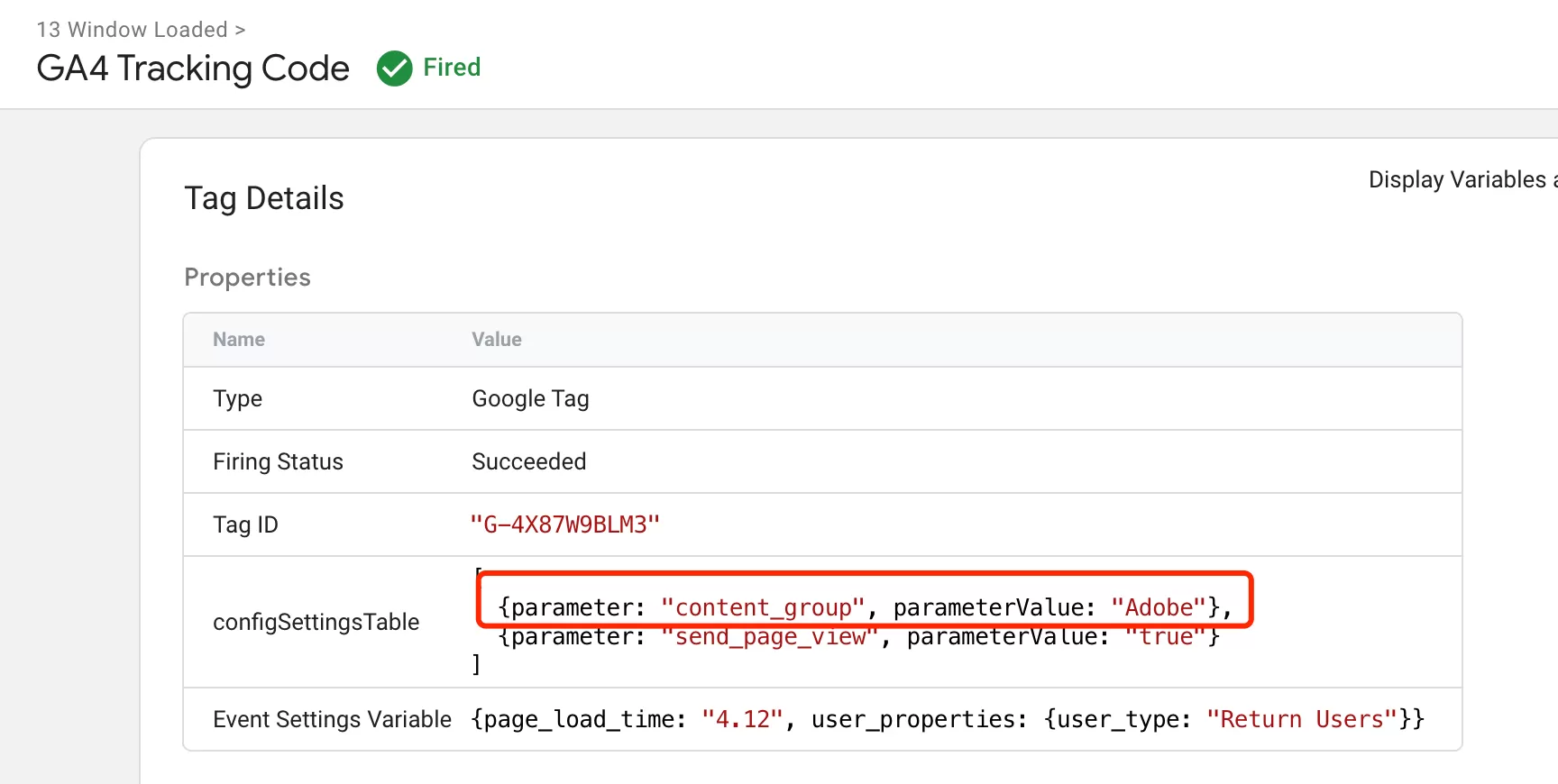
If everything looks right, publish your container.
Step 4: Verify in GA4 Reports
Wait a few hours for data to process, then go to「Reports」——「Engagement 」——「Pages and Screens」,Add the Content group dimension.
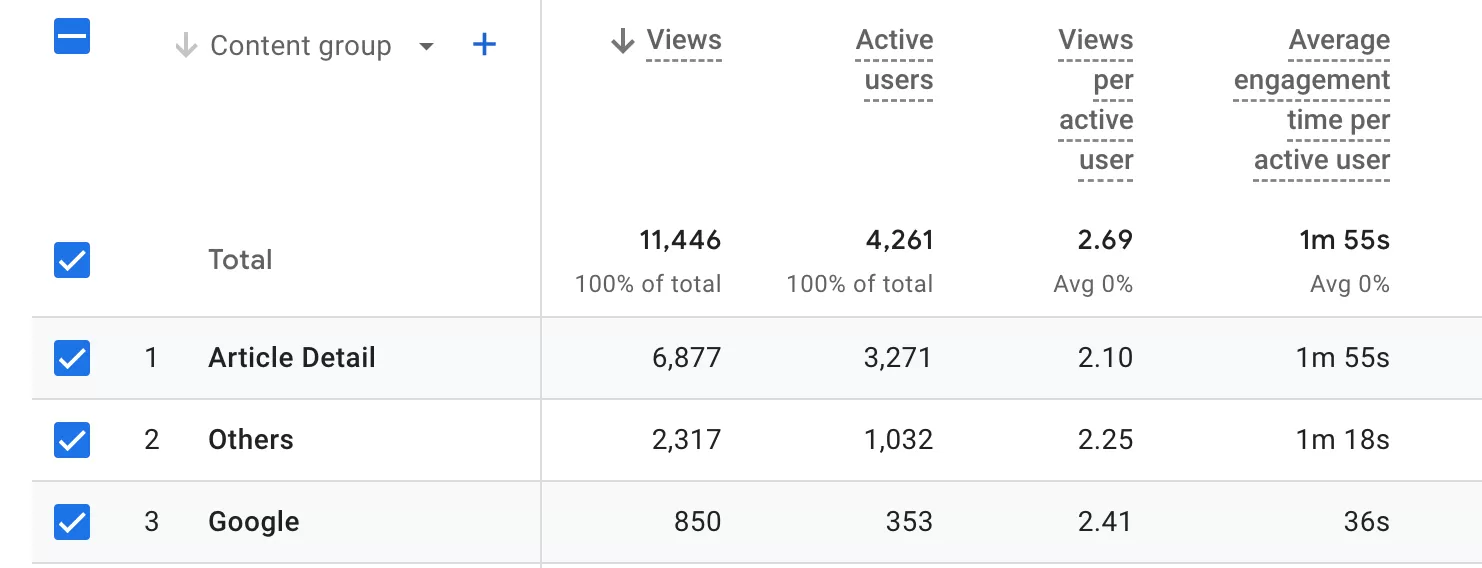
You should see your grouped values instead of “(not set)”. If you do, the GA4 content group setup is working.
Best practices for content grouping
A few things I’ve learned from running content grouping on multiple sites:
- Use clear, short category names. “Blog” works better than “Website Blog Content Section”.
- Keep naming consistent. Don’t use “Blog” on some pages and “Articles” on others — they’ll show up as separate content groups and defeat the purpose.
- Stick to URL-based rules whenever possible. Content type is almost always predictable from the URL path. URL rules are easy to debug and maintain.
- Test every rule in Preview Mode before publishing. One misplaced regex character and suddenly your product pages are grouped under “Blog”. Ask me how I know.
- Update your rules when you add new sections. New site sections mean new URL patterns. Add them to your RegEx Table Variable before you forget — because “(not set)” won’t remind you.
Final Words
Content grouping in GA4 is one of those quick wins that makes your reporting significantly more useful. Once you have it running, you’ll wonder why you didn’t set it up sooner. Instead of staring at a flat list of URLs, you can compare content types at a glance and actually understand which sections of your site are driving results.