Update time: June 10, 2025
If your website spans multiple domains — say, `example.com` for your main site and `checkout.example-pay.com` for payments — you’ve probably noticed something strange in your GA4 reports. Users seem to appear twice. Sessions break when they move from one domain to another. And conversion attribution? Completely off
Without cross-domain tracking, GA4 treats each domain as a separate website. That means a single customer who browses your main site and checks out on your payment domain gets counted as two different users.
That’s where cross-domain tracking comes in.
In this guide, I’ll walk you through what GA4 cross-domain tracking is, how it works, how to configure it step by step, and the most common reasons it fails — so you can avoid the same mistakes I’ve seen people make.
What Is Cross-Domain Tracking in GA4?
Cross-domain tracking allows GA4 to recognize the same visitor as they move between multiple domains. Instead of creating a new session when a user arrives at a second domain, GA4 continues the existing session from the first domain.
Here’s what that means in practice:
- Without cross-domain tracking: `www.a.com → http://www.b.com` = 2 sessions, 2 users
- With cross-domain tracking: `www.a.com → http://www.b.com` = 1 session, 1 user
This gives you:
- Accurate user counts — no more double-counting
- Continuous sessions — a single session spanning multiple domains
- Correct conversion attribution — credit goes to the right marketing channel
- Complete customer journey reporting — see the full path across domains
How GA4 Cross-Domain Tracking Works
GA4 maintains user identity across domains by passing tracking information through the destination URL.
Here’s what happens technically: when a visitor clicks a link from A.com to B.com, GA4 automatically appends a special parameter called `_gl` to the destination URL.
The resulting URL looks something like this:
https://B.com&_gl=1*1gske1c*_gcl_au*MTExMTEwOTU5MS4xNzQ4MzA2ODk3*_ga*Njk4MzAyOTIwLjE3NDgzMDY4OTg.*_ga_HZ4RDGTX66*czE3NDk1MTkyODQkbzQwJGcwJHQxNzQ5NTE5Mjg0JGo2MCRsMCRoMjQzMzcyODg1
The `_gl` parameter contains encoded information — including the client ID and session data — that allows GA4 to recognize the visitor after they arrive on the second domain.
When GA4 detects this parameter on the destination domain, it restores the visitor’s existing session instead of starting a new one.
Parameters Used in Cross-Domain Tracking
Several identifiers work together to preserve the session across domains. Here’s what each one does:
_gl
he `_gl` parameter is the core of GA4 cross-domain tracking. It’s the parameter that gets appended to the destination URL when a user clicks a link between configured domains.
Example:
_gl=1*1gske1c*...It contains encoded information such as:
- Client ID
- Session ID
- Session timestamps
_ga
The `_ga` cookie stores the encrypted value of the Client ID. During cross-domain navigation, GA4 transfers this identifier so both websites can recognize the same visitor.
Example value:
_ga*Njk4MzAyOTIwLjE3NDgzMDY4OTg...
_ga_HZ4RDGTX66
This is the session cookie. It allows GA4 to continue reporting events within the same session after users move between domains.
Example:
_ga_HZ4RDGTX66*czE3NDk1MTkyODQkbzQwJGcwJHQxNzQ5NTE5Mjg0JGo2MCRsMCRoMjQzMzcyODg1
If all three of these align correctly across your domains, cross-domain tracking is working as expected.
How to Configure Cross-Domain Tracking in GA4
The setup process is surprisingly simple. Here’s what you need to do.
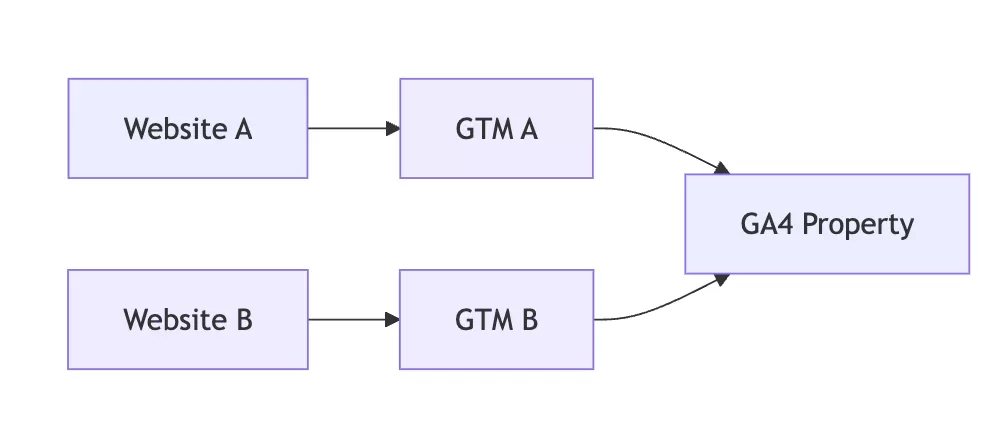
Step 1. Install GTM on Every Domain
Each website should have its own GTM container (or share one, depending on your setup). The key requirement is that all containers send data to the same GA4 property.
Step 2. Configure Cross-Domain Linking
In Web stream details,click「Configure tag settings」——「Cross-domain Linking Configuration」,add every domain that users navigate between, for example:
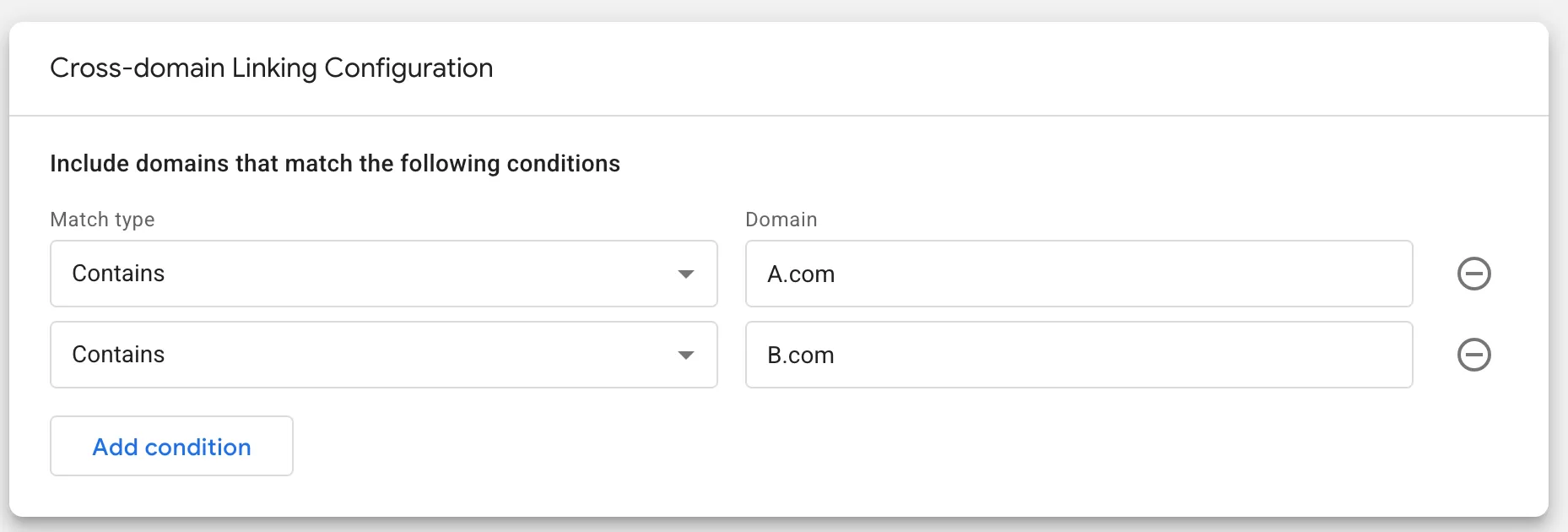
That’s it. GA4 will automatically append the `_gl` parameter whenever users navigate between the configured domains.
How to Verify Cross-Domain Tracking
The easiest way to test your configuration is to click a link from one domain to another and inspect the resulting URL.
If everything is working correctly, the destination URL should contain a long `_gl` parameter:
https://B.com&_gl=1*1gske1c*_gcl_au*MTExMTEwOTU5MS4xNzQ4MzA2ODk3*_ga*Njk4MzAyOTIwLjE3NDgzMDY4OTg.*_ga_HZ4RDGTX66*czE3NDk1MTkyODQkbzQwJGcwJHQxNzQ5NTE5Mjg0JGo2MCRsMCRoMjQzMzcyODg1
This tells you GA4 is transferring user and session information to the destination domain.
You can also inspect the cookies on both domains. If cross-domain tracking is working correctly, the Client ID stored in the `_ga` cookie should be **identical** on both websites after navigation.
Common Reasons Cross-Domain Tracking Fails
In my experience, cross-domain tracking usually fails for one of these reasons:
URL Redirects Remove the _gl Parameter
f the destination page performs a redirect or strips unknown query parameters, the `_gl` parameter may disappear before GA4 can read it. When that happens, GA4 starts a new session on the destination domain and the visitor looks like a new user.
JavaScript Conflicts
GA4 adds the `_gl` parameter by listening for click events on links. If another JavaScript library intercepts or overrides the click event before GA4 processes it, the linker parameter may never be added to the URL in the first place.
Incorrect Domain Configuration
All participating domains must be added to the Cross-domain Linking configuration. If users navigate between A.com and B.com, both domains must be included. Missing one will cause session breaks in that direction.
Cookies or Tracking Are Blocked
Some browsers and privacy tools restrict tracking technologies, including Safari’s Intelligent Tracking Prevention (ITP), ad blockers, privacy extensions, and strict browser cookie settings. These restrictions may prevent GA4 from reading or writing the identifiers required for cross-domain tracking.
Final Words
Cross-domain tracking is one of those things that seems complicated until you actually set it up. The configuration in GA4 is straightforward — add your domains to the list and you’re done. But the debugging can be tricky because there are several things that can go wrong silently.
Here’s what I want you to remember:
- Add all participating domains to the Cross-domain Linking configuration
- Verify by checking for the `_gl` parameter in the destination URL
- Confirm that the `_ga` Cookie ID is **identical** on both domains after navigation
- Watch out for redirects, JavaScript conflicts, and privacy restrictions — these are the most common culprits when it breaks
I hope this guide helped you understand GA4 cross-domain tracking. If you’ve run into a specific issue that I didn’t cover here, feel free to leave a comment and I’ll do my best to help.