Updated: January 12, 2025
If you’ve been working with GA4 for a while, you’ve probably noticed something: an event name like `click_banner` or `purchase` tells you *that* something happened, but it doesn’t tell you much else. Which banner? Which product? On which page?
That’s where event parameters come in.
In this guide, I’ll walk you through everything you need to know about GA4 event parameters — what they are, why they matter, the different types, and how to register custom ones step by step.
What Are Event Parameters in GA4?
Every GA4 event has two parts:
- Event Name — describes what happened (e.g., `click_banner`, `purchase`, `page_view`)
- Event Parameters — provide additional details about that event (up to 25 per event)
Here’s a concrete example:
| Item | Value |
|---|---|
| Event Name | click_banner |
| Event Parameter | banner_name = Homepage Hero |
When visitors click different banners on your site, you can reuse the same `click_banner` event while sending different parameter values.
Think about the old way of doing this — you’d probably create separate events for each banner:
- click_banner_1
- click_banner_2
- click_banner_3
With event parameters, you only need one event:
Event Name=click_banner
banner_name = Homepage Hero
banner_name = Summer Sale
banner_name = Black Friday
See the difference? Your implementation becomes cleaner, easier to maintain, and much more scalable. One event, many variations.
Why Are Event Parameters Important?
Here’s the thing: without event parameters, you only know that an event *occurred*. You don’t know the details that actually matter for analysis.
For example, a click_banner event alone doesn’t tell you:
- Which banner was clicked
- Which page the click happened on
- Which campaign the banner belonged to
- Which product the user viewed
Adding parameters gives you the context you need for:
- More detailed reports — break down performance by specific dimensions
- Audience segmentation — create audiences based on specific actions or values
- Funnel analysis — understand exactly where users drop off and why
- Ecommerce reporting — track product views, add-to-carts, and purchases with full context
- Google Ads optimization — feed granular conversion data back into your ad campaigns
Without parameters, your reports quickly become too generic to support meaningful analysis. It’s like knowing someone visited your store but having no idea what they looked at or bought.
Types of GA4 Event Parameters
GA4 supports two types of event parameters: default and custom.
Default Event Parameters
Default parameters are collected automatically by GA4 for every single event. You don’t need to do anything — they just show up.
Web Data Streams (5 parameters):
- page_location(No more than 1000 characters)
- language
- page_referrer (No more than 420 characters)
- page_title (No more than 300 characters)
- screen_resolution
App Data Streams (3 parameters):
- app_version
- firebase_screen_id
- firebase_screen_class
Custom Parameters
Custom parameters are the ones you define yourself. They don’t appear in GA4 reports automatically — you need to register them first.
Custom parameters come in two flavors:
- Text Parameters:register as an Event-scoped Custom Dimension. Maximum 50 per property, up to 40 characters per value.
- Numeric Parameters:register as an Event-scoped Custom Metric. Maximum 50 per property, up to 100 characters per value.
Best Practices for Event Parameters
Over the years, I’ve seen plenty of implementations go sideways because of poor parameter naming. Here are a few rules I’ve learned to follow:
Reuse parameter names
Instead of creating separate parameters for every context:
homepage_button
checkout_button
footer_button
Use reusable names:
button_name
button_location
The same parameter can be reused across many events. This keeps your implementation clean and your reports consistent.
Use built-in parameters first
Before creating a custom parameter, check if GA4 already collects that information as a default parameter. There’s no need to duplicate what’s already there.
Keep naming consistent
Good examples: button_text、member_level、banner_name
Poor examples: BTN、abc、test
Consistent naming makes your life easier when you’re building reports or debugging an implementation six months later. Trust me.
How to Register Custom Event Parameters
Alright, let’s get practical. Suppose your website sends this dataLayer push:
dataLayer.push = ({
    'event': 'test',
    'pageType': 'product'
});
You want to see `pageType` in your GA4 reports, which means you need to register it as an Event-scoped Custom Dimension.
In GA4,click「Admin」——「Custom definitions」——「Create custom dimension」, then do the following configuration:
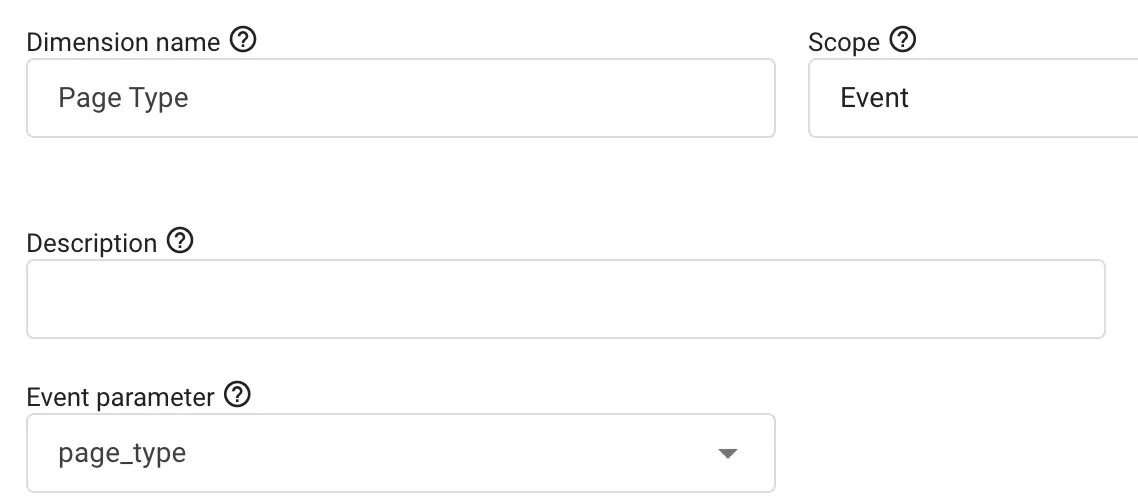
That’s it. You’ve registered your first custom parameter.
One thing to keep in mind: after registration, it typically takes up to 24 hours before the data becomes available in Reports and Explorations. Don’t panic if you don’t see it right away — it’s normal.
Final Words
Event parameters are one of those GA4 concepts that seem simple on the surface but make a huge difference once you start using them properly. Without them, your events are just labels. With them, your events tell a complete story.
Here’s what I want you to remember: use parameters to add context, reuse parameter names across events, and always register custom parameters before expecting them to appear in reports. Start with the defaults that GA4 gives you for free, then layer in custom parameters where you need more detail.
I hope this guide helped you make sense of GA4 event parameters. If you have questions about a specific parameter or use case I didn’t cover, feel free to leave a comment and I’ll do my best to help.