Update time: June 14, 2025
If you’ve ever needed to pull GA4 data into a spreadsheet for reporting, you know the usual options: use the GA4 API directly, write a script, or copy-paste from the interface. All of them work, but none of them are particularly fast.
That’s where Google Sheets comes in.
With the right add-on, you can pull GA4 data directly into a Google Sheet, schedule automatic refreshes, and build reports without writing any code.
In this blog post, I’ll walk you through how to export GA4 data using the GA4 Reports Builder for Google Analytics™ add-on — from installation to running your first report.
Available Add-Ons
Google Analytics 4 data can be exported to Google Sheets using a few different add-ons. The two most common ones are:
- GA4 Reports Builder for Google Analytics™:This is provided by Google,
- GA4 Google Analytics™ connector by SyncWith:This is provided by SyncWith
In this guide, I’ll use the first option — the one provided by Google — since it’s free and doesn’t require a third-party account.
Step 1:Install Add-ons
Let’s start by installing the add-on.
Open Google Sheet, click「Extensions」——「Add-ons」——「Get Add-ons」, and search for “GA4 Reports Builder for Google Analytics™”:
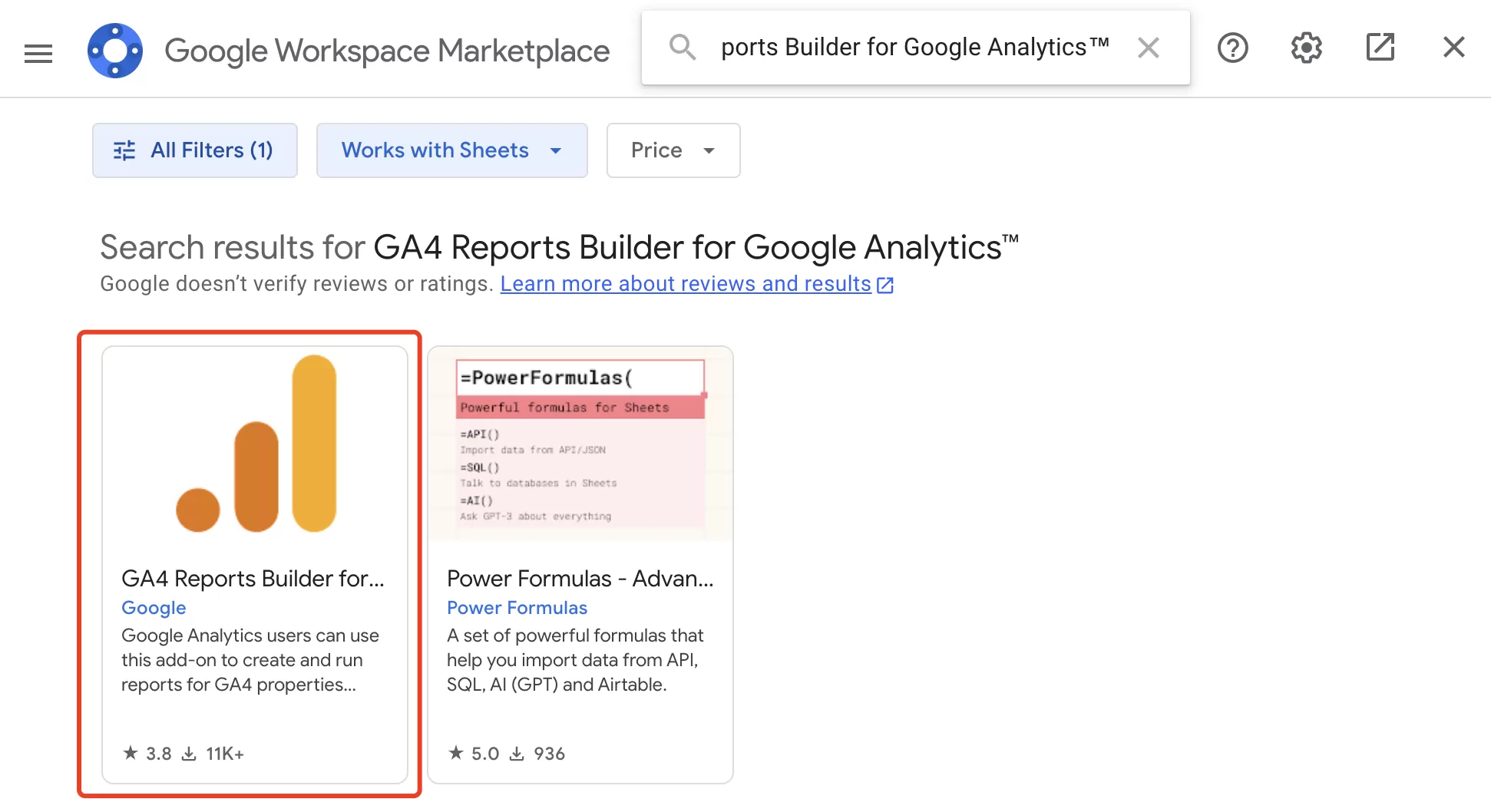
Then click Install, and login authorization will be required during the installation process.
The installation only takes a minute. Once it’s done, you’ll see a new GA4 Reports Builder for Google Analytics™ option under the Extensions menu.
Step 2:Create a Google Sheet Report
Now let’s create a report.
Click「Extensions」——「GA4 Reports Builder for Google Analytics™」——「Create new reports」, and the following setting interface will be opened. Here is mainly the basic information of creating reports, because the follow-up You can also modify it in the configuration:
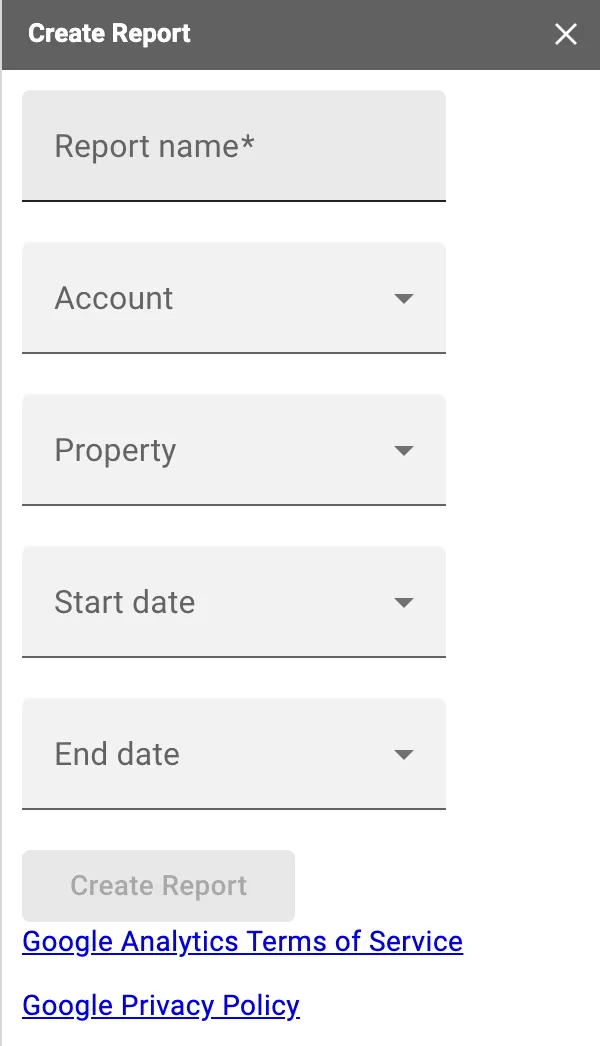
- Property Name: the name of the sheet that will be generated
- Account: select your GA4 account
- Property: select your GA4 property
- Start date: set the date range
- End date: set the date range
For example, suppose I want to export Users and Sessions for the last 7 days, make the following settings:
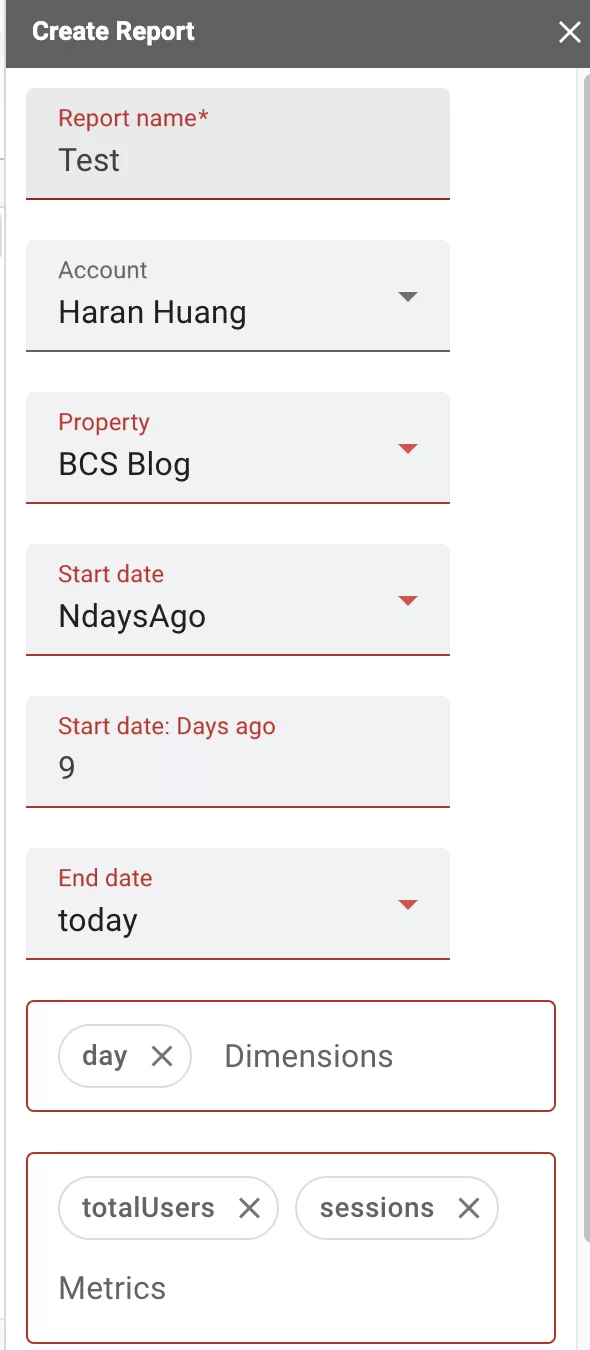
Click 「Create Report」, the sheet will be generated with the data structure in place:
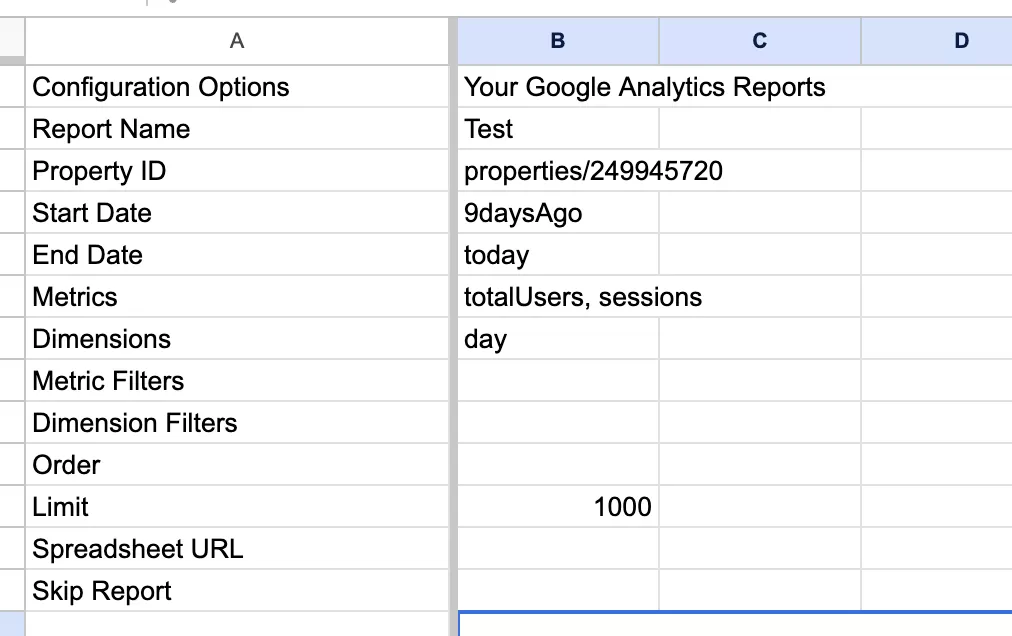
Note: Metrics Filters and Dimension Filters are not yet supported in this add-on, so you’ll need to pre-filter your data in GA4 or apply filters in Sheets manually.
Step 3:Run Report
Once the report is created, you can fetch the actual data, click「Extensions」——「GA4 Reports Builder for Google Analytics™」——「Run reports」 , Google Sheet will automatically run the report, and the data will be stored in each Sheet:
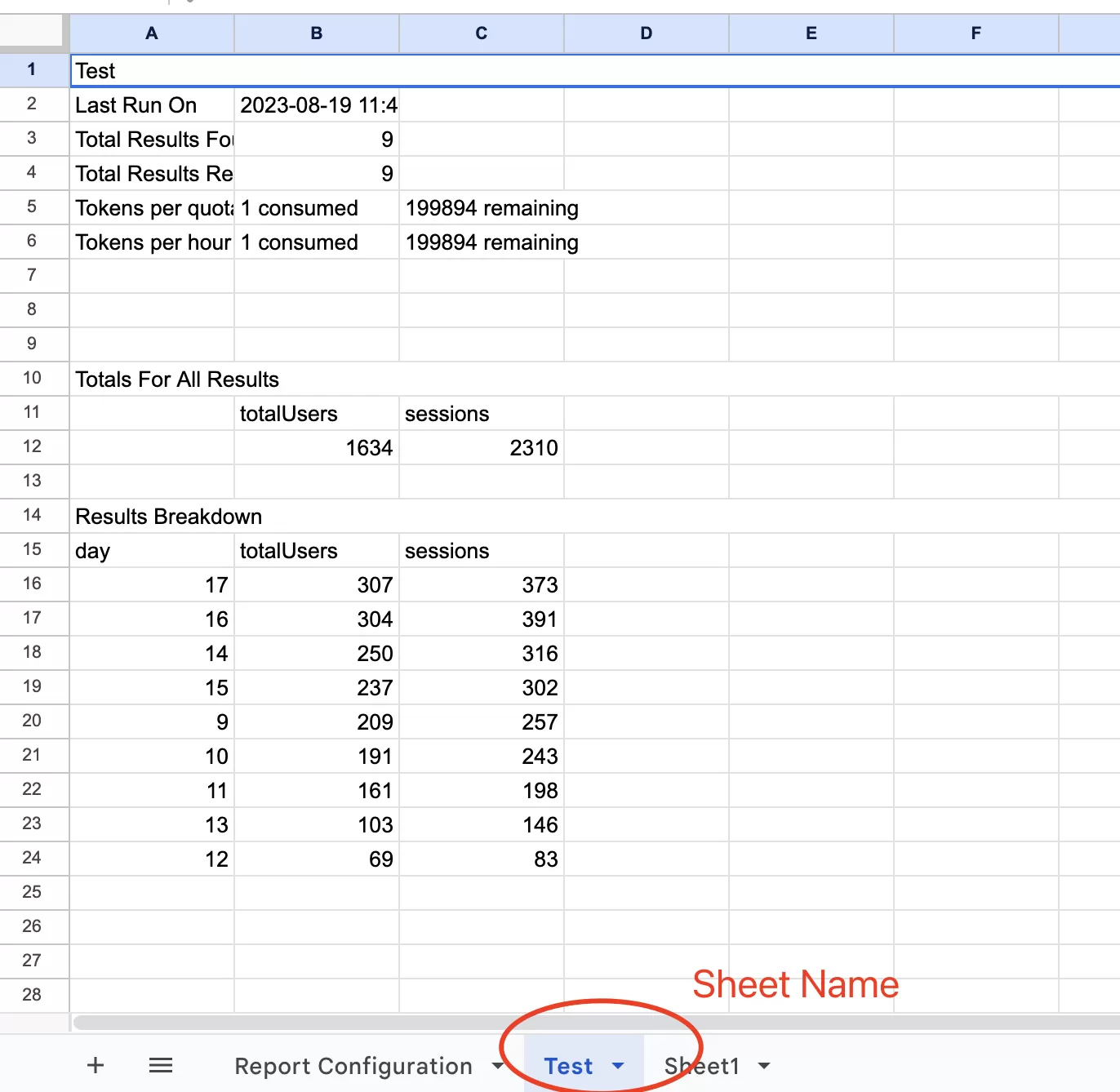
One thing to keep in mind: using Google Sheets to pull GA4 data consumes your GA4 API token quota. Every report run counts toward your property’s daily limit. If you hit the limit, the report will fail until the quota resets. I’ve covered this in more detail in a separate post::Looker Studio Reports an Error: GA4 Data API Quotas
Final Words
The GA4 Reports Builder add-on is a practical tool for pulling GA4 data into Google Sheets without writing code. It’s not as flexible as using the API directly, but for quick reports and ad-hoc analysis, it gets the job done.
Here’s a quick recap:
- Install the add-on from Extensions > Add-ons > Get Add-ons
- Create a report by selecting your account, property, date range, and metrics
- Run the report to populate the data
- Watch your API token quota — frequent refreshes can consume it quickly
I hope this guide helped you get started with GA4 data in Google Sheets. If you’ve run into issues with the add-on or know of other useful tricks, feel free to share them in the comments