Update time: January 14, 2025
User-Defined Variables are one of the most powerful features in Google Tag Manager (GTM). They allow you to capture dynamic values, reuse data across multiple tags, and customize your tracking implementation without modifying your website’s source code.
Whether you’re implementing Google Analytics 4 (GA4), Google Ads, Meta Pixel, or other marketing platforms, User-Defined Variables help make your GTM container more flexible, maintainable, and scalable.
In this guide, you’ll learn:
- What User-Defined Variables are
- How to create User-Defined Variables
- All User-Defined Variable types available in Web containers
- Common use cases for each variable type
- Best practices for using User-Defined Variables
What Are User-Defined Variables?
User-Defined Variables are variables that you create manually in GTM to retrieve, calculate, or store values specific to your tracking requirements.
Unlike Built-In Variables, which are provided by GTM, User-Defined Variables let you collect information from various sources, including:
- URLs
- Cookies
- JavaScript
Once created, a User-Defined Variable can be reused across multiple tags, triggers, and even other variables, making your GTM implementation cleaner and easier to maintain.
Built-In Variables vs. User-Defined Variables
Although both types of variables are used throughout GTM. they serve different purposes.
| Built-In Variables | User-Defined Variables |
|---|---|
| Created by Google Tag Manager | Created manually by the user |
| Only need to be enabled | Must be configured |
| Cannot be customized | Fully customizable |
| Best for common tracking values | Best for custom business logic |
| Minimal setup required | May require JavaScript, Data Layer, or custom configuration |
In practice, most GTM implementations use both Built-In Variables and User-Defined Variables together.
How to Create a User-Defined Variable
To create a User-Defined Variable in GTM, click 「Variables」——「New」——「Choose a variable type to begin setup…」: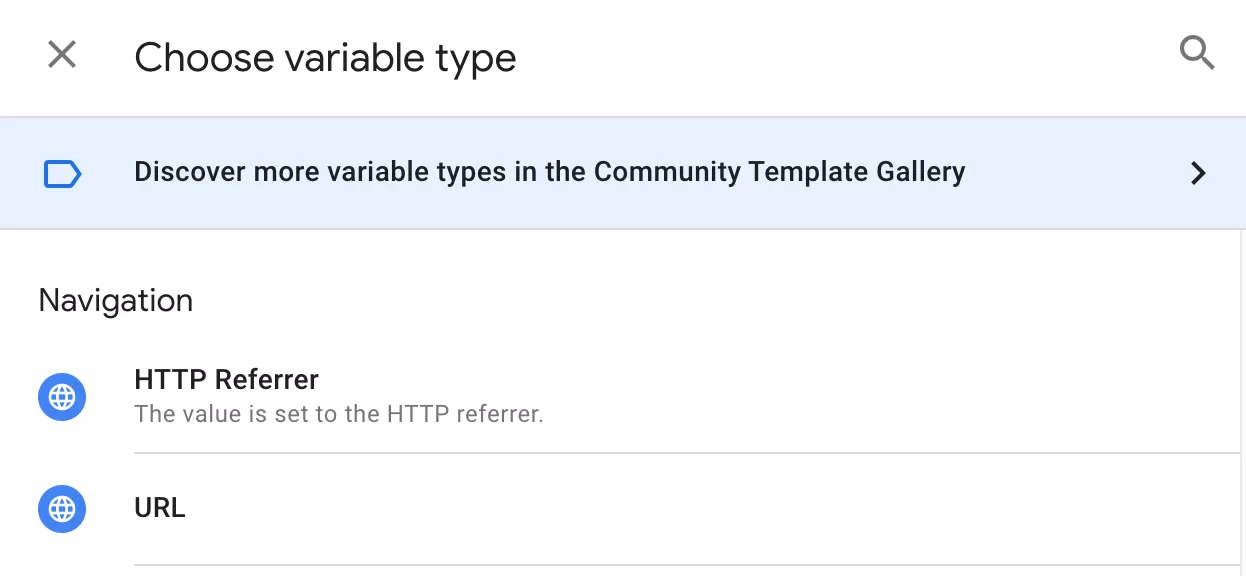
Each variable type has its own configuration options depending on the information you want to retrieve.
User-Defined Variable Categories
The available User-Defined Variables depend on your container type (Web, Server, AMP, iOS, Android, etc.).
This article focuses on Web containers, which currently provide 23 User-Defined Variable types across five categories.
Let’s look at each category.
Navigation
Navigation extract information from either the current page URL or the referring page URL.
There are two URL-related variables.
HTTP Referrer
The HTTP Referrer variable returns information about the previous page that brought the visitor to the current page.
Available URL components include:
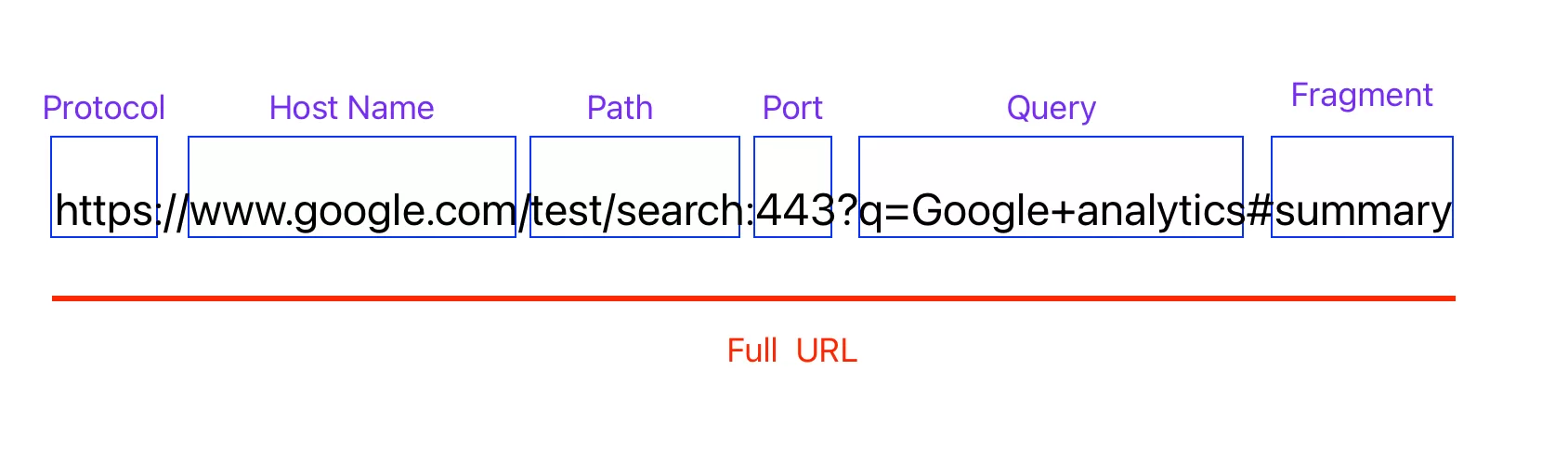
- Full URL:Returns the complete referring URL (excluding the hash fragment)
- Protocol:Returns the protocol (typically
httporhttps) - Host Name:Returns the domain name without the port number
- Port : Returns the port number (typically 80 for HTTP and 443 for HTTPS)
- Path:Returns only the URL path
- Query:Returns the entire query string
- Fragment:Returns the value after #
URL
The URL variable extracts different components from the current page URL.
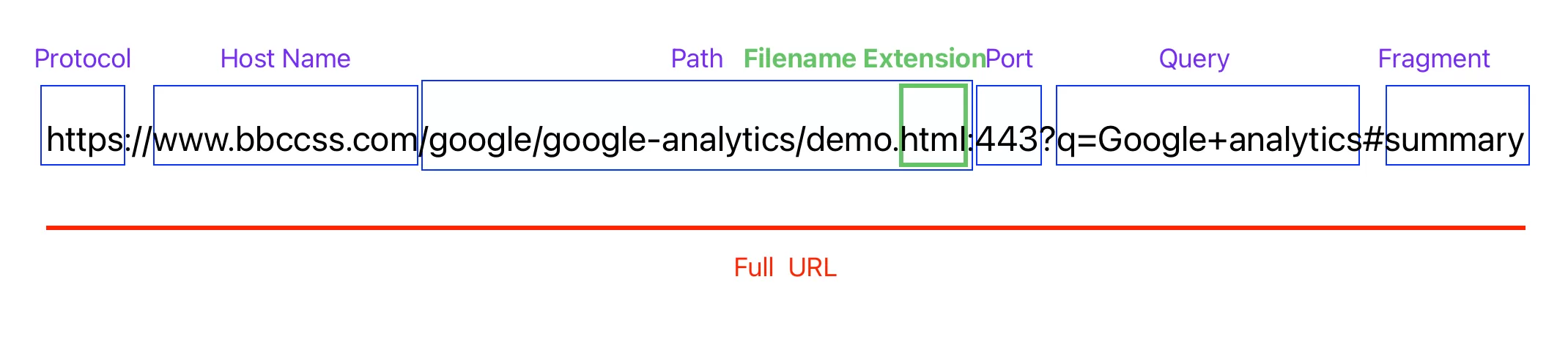
- Full URL:Returns the complete referring URL (excluding the hash fragment)
- Protocol:Returns the protocol (typically
httporhttps) - Host Name:Returns the domain name without the port number
- Port : Returns the port number (typically 80 for HTTP and 443 for HTTPS)
- Path:Returns only the URL path
- Filename Extension : File type, such as html, zip
- Query:Returns the entire query string
- Fragment:Returns the value after #
Page Variables
These variables retrieve values from cookies, JavaScript, or the Data Layer.
There are four variable types.
1st Party Cookie
Returns the value of a first-party cookie by specifying its cookie name.
Custom JavaScript
Executes a custom JavaScript function whenever the variable is evaluated.
The function’s return value becomes the variable’s value.
This variable is useful for performing calculations or combining multiple values that aren’t available through standard GTM variables.
Data Layer Variable
Retrieves values pushed into the Data Layer using dataLayer.push().
This is one of the most commonly used variables when implementing GA4, Enhanced Ecommerce, and custom event tracking.
Two Data Layer versions are available:
- Version 1: allow dots in key names. For example, for
dataLayer.push("a.b.c": "value"), interpret the name of the key as “a.b.c” (i.e.{"a.b.c": "value"}). - Version 2: interpret dots as nested values. For example, interpret
dataLayer.push({"a.b.c": "value"})as three nested levels:{a: {b: {c: "value"}}}
JavaScript Variable
The value is set to that of the global JavaScript variable you specify.
Page Elements
These variables retrieve information from page elements or browser interactions.
There are three variable types.
Auto-Event Variable
Returns information about the element that triggered an automatic event such as:Clicks、Form submissions、Element visibility、History changes
Available values include:
- Element: Returns the element object. Can be treated like an object for custom JavaScript, e.g.
{{Element}}.title, or in CSS selectors, e.g. {{Element}} matches CSS Selectordiv.foo. - Element Type: Returns the value
element.tagName, e.g. “A”, “BUTTON”, “IMG”. - Element Attribute: Specify an attribute name and this option will return the value of that attribute.
- Element Classes: Returns the list of classes found in the element’s
classattribute. - Element ID: Returns the value of the
idattribute. - Element Target: Returns the value of the
targetattribute, e.g. “_blank”. - Element Text: Returns the value of the text content of the element.
- Element URL: Returns the URL of the element, gathered from the
hreforactionattribute. - History New URL Fragment: Returns the new URL fragment from browser history, e.g. “#summary”.
- History Old URL Fragment: Returns the old URL fragment from browser history, e.g. “#intro“.
- History New State: The new history state object, controlled by the site’s calls to
pushState. - History Old State: The old history state object, controlled by the site’s calls to
pushState. - History Change Source: Returns the event that caused a history change, e.g. “pushState”, “replaceState“, etc.
This variable is commonly used with Click, Form Submission, Element Visibility, and History Change triggers.
DOM Element
Extracts text or attribute values directly from HTML elements using CSS selectors.
Typical uses include:
- Product names
- Product prices
- Shopping cart values
- Hidden form fields
Whenever possible, use Data Layer Variables instead of DOM scraping, as they are generally more reliable.
Element Visibility
Returns information about whether a specified DOM element is currently visible on the page.
This variable is commonly used for:
- Scroll tracking
- Banner exposure
- Impression tracking
- Lazy-loaded content
Utility Variables
Utility Variables store fixed values, perform lookups, or transform data.
There are eleven utility variables.
Analytics Storage
The Analytics Storage variable retrieves values stored by Google Analytics from analytics storage.
It can return the following values:
- Client ID – The unique identifier assigned to a browser or device.
- Session ID – The identifier for the current session.
- Session Number – The number of the current session for the user.
Constant
Returns a fixed value that you specify.
Common examples include:
- GA4 Measurement ID
- Google Ads Conversion ID
Custom Event
Returns the name of the custom event pushed into the Data Layer.
Example:
dataLayer.push({
  event: "purchase_complete"
});
The variable returns: purchase_complete
Environment Name
Returns the current GTM Environment name.
Google Analytics Settings
This variable was used by Universal Analytics (UA).
It has been deprecated and should no longer be used in new implementations.
Google Tag: Configuration Settings
Google Tag: Event Settings
Lookup Table
Returns different output values based on another variable’s value.
A Lookup Table is commonly used when one input should produce different outputs.
Example:
| When {{url}} contains | Set {{Conversion ID}} to |
|---|---|
| /thanks/buy1.html | 12345 |
| /thanks/buy2.html | 34567 |
| /thanks/buy3.html | 56789 |
Random Number
Returns a random integer between 0 and 2,147,483,647.
No configuration is required.
RegEx Table
A RegEx Table works similarly to a Lookup Table but supports regular expressions, making it ideal for matching multiple patterns.
Example:
| Pattern | Output |
|---|---|
.*/page[1-3]\.html.* |
foo |
.*/page[4-6]\.html.* |
bar |
.*/page[7-9]\.html.* |
baz |
The output value of the variable will be as follows:
RegEx Tables evaluate patterns from top to bottom and return the first matching value.
Undefined Value
Returns the JavaScript undefined value.
User-Provided Data
Configures user-provided data for supported Google tags, including Enhanced Conversions and other privacy-focused measurement features.
Container Data
Container Variables return information about the current GTM container.
There are three variable types.
Container ID
Returns the GTM Container ID.
Example:GTM-XXXXXXX
Version Number
Returns the current container version.
Debug Mode
Returns:
- true when Preview Mode is active.
- false when Preview Mode is not active.
Common Uses of User-Defined Variables
User-Defined Variables are commonly used in both triggers and tags.
- Use Variables in Triggers: Variables help define the conditions that determine when a tag should fire.. Example: Fire a pageview trigger when the url variable is “example.com/index.html”.
- Use Variables in Tags:Variables allow tags to capture dynamic values.. Example: Capture and apply the transaction value and products purchased to a key events tag.
Best Practices
When working with User-Defined Variables, consider the following best practices:
- Use clear and descriptive variable names.
- Reuse variables instead of creating duplicates.
- Prefer Data Layer Variables over DOM Element Variables whenever possible.
- Keep Custom JavaScript Variables simple and efficient.
- Test all variables using GTM Preview Mode before publishing.
FAQ
What is the difference between Built-In Variables and User-Defined Variables?
Built-In Variables are provided by Google Tag Manager and only need to be enabled.
User-Defined Variables are created manually to retrieve or calculate values specific to your tracking implementation.
Which User-Defined Variables are used most often?
The most commonly used User-Defined Variables include:
- Data Layer Variable
- URL Variable
- Constant
- Lookup Table
- DOM Element
- Custom JavaScript Variable
Can User-Defined Variables be used in triggers?
Yes.
User-Defined Variables can be used in triggers, tags, and even other variables, allowing you to build flexible and reusable tracking logic.