Updated: December 12, 2025
If you’ve ever tried to grab the GA4 Client ID and pass it somewhere — a tool, a hidden form field, or a custom dimension — you’ve probably gone through the same journey I did. First you try reading the _ga cookie directly. Then you try window.gaGlobal.vid. Then maybe some custom JavaScript that parses the cookie string yourself. And one by one, they all return “not set” at the worst possible moment.
I’ve been there. Spent an afternoon testing approaches that should have worked but didn’t. The Client ID looks like it should be easy to access — it’s right there in the browser — but GA4 doesn’t make it straightforward. And here’s the thing: some methods work reliably, and some only work in very specific conditions. This article will save you the trial and error.
Let’s get into it.
The Wrong Approaches (and Why They Fail)
Before I show you what works, let me quickly cover what doesn’t — because I see these recommended in forums all the time, and they’ll waste your time.
- First-party cookie parsing. Yes, the
_gacookie exists, and yes, it contains the Client ID. But GA4’s gtag.js library can update this cookie asynchronously. If you read it too early — which happens easily — you get the wrong value or nothing at all. window.gaGlobal.vid. This property holds the Client ID in some GA4 implementations, but it’s not guaranteed to exist. In my testing, it’s inconsistent across browsers and ad-blocking scenarios.- Custom JavaScript that parses the cookie yourself. Same timing problem as the first approach, plus you’re duplicating logic that GA4 already handles internally. If Google changes the cookie format (and they have before), your code breaks silently.
customTaskfrom Universal Analytics. If you’re coming from UA, you might remembercustomTask— it was a reliable way to grab the Client ID. GA4 doesn’t support it. At all. Don’t go down this road.
So, what actually works? It depends on how you deployed GA4.
Option 1: Hard-Coded gtag() — Use the gtag('get') API
If you deployed GA4 by pasting the tracking snippet directly into your site, you have access to gtag() — and that’s your best option.
gtag() is essentially a wrapper around the Google Tag API. It only works if gtag.js has been loaded on the page. Here’s how you use it:
gtag('get', 'YOUR_MEASUREMENT_ID', 'client_id', (client_id) => {
    // do something with client_id
})
The callback fires once the Client ID is available, so you don’t have to worry about timing. It works.
But here’s the catch: if you’re deploying GA4 through GTM instead of hard-coded gtag.js, gtag() is not loaded by default. Calling it will give you a “gtag is not defined” error. I’ve seen people try to work around this by defining gtag globally:
function gtag() { dataLayer.push(arguments); }
This gets rid of the error, but it introduces timing issues — the function pushes to the data layer, but there’s no guarantee GA4 has processed it yet when you try to read the result. In practice, I’ve found this approach unreliable. If you’re using GTM, skip this method entirely.
Option 2: GTM — Use Analytics Storage (The Recommended Way)
If you’re using GTM, this is the approach I recommend. GTM has a built-in variable type called Analytics Storage that reads the Client ID, Session ID, and Session Number directly from the GA4 client. No custom code, no timing headaches.
In GTM, click「Variables」——「New」——「Choose a variables type to begin setup…」——「 Analytics Storage」,Name it “Client ID“, and make the following settings: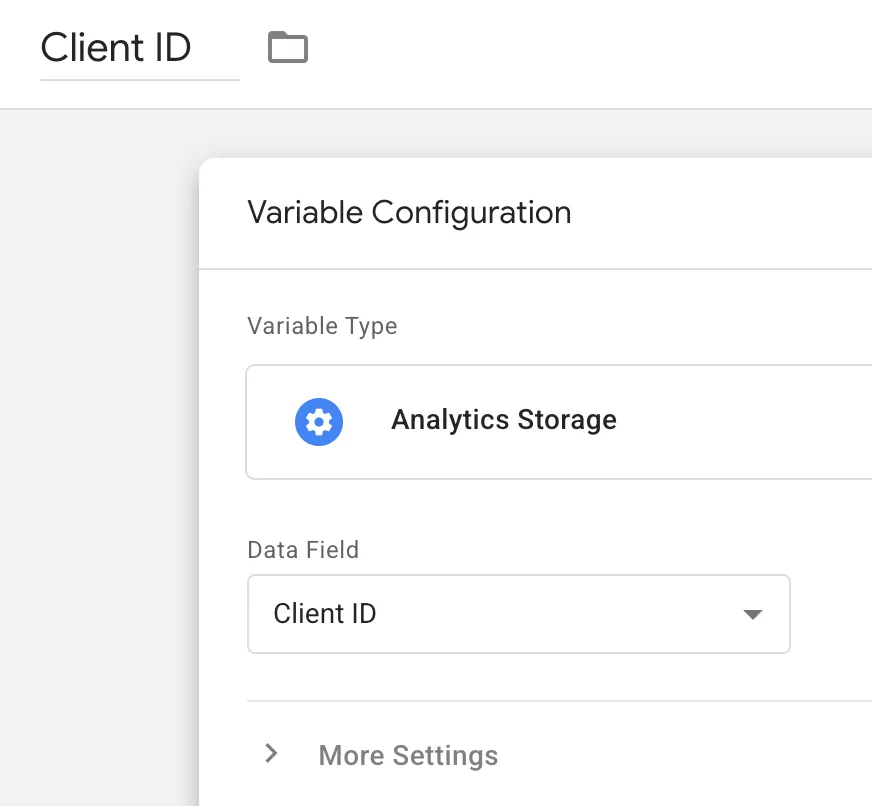
That’s it. The variable will return the Client ID whenever it’s called — as long as the GA4 client has already initialized. In my experience, this works reliably across browsers and setups. I’ve tested it with consent modes, ad blockers, and server-side tagging, and it held up in every scenario.
Option 3: GTM — Use the readAnalyticsStorage API (When You Need More Control)
This is a newer option, and it’s the most flexible — but it requires a custom template.
readAnalyticsStorage is a GTM API that gives you programmatic access to the Client ID and Session ID. It works inside a custom variable template, which means you need to create or import one before you can use it.
The cleanest way to get started is with a pre-built template. There’s one available on GitHub from Luratic that wraps the API nicely:https://github.com/luratic/ga4_get_client_id_and_session_info。
Download the template file from the GitHub repo import it into「 Variable Templates」 under 「Templates」in GTM:
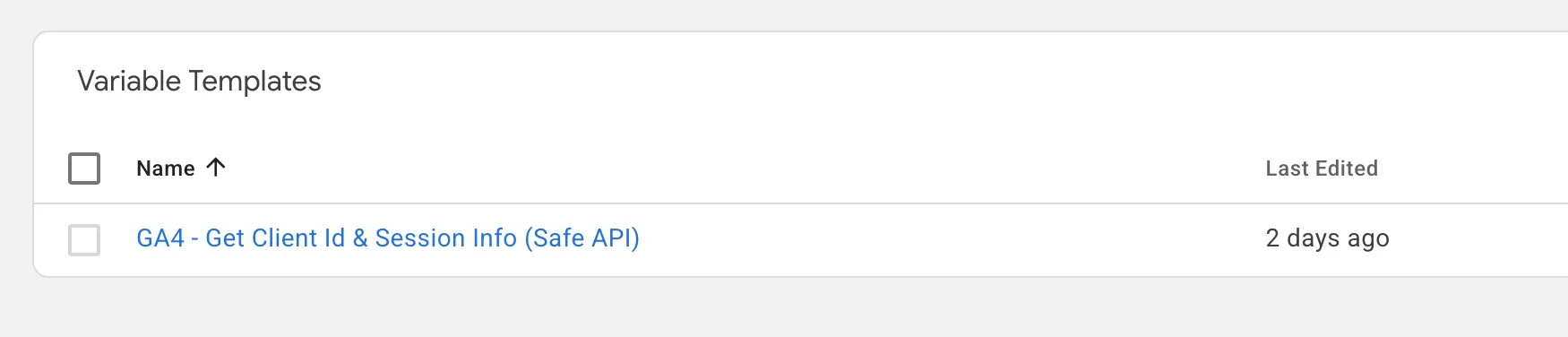
Once imported, you can create a variable using it, in GTM, click「Variables」——「New」——「Choose a variables type to begin setup…」——「GA4 – Get Client Id & Session Info (Safe API)」,Name it “Client ID“, and make the following settings: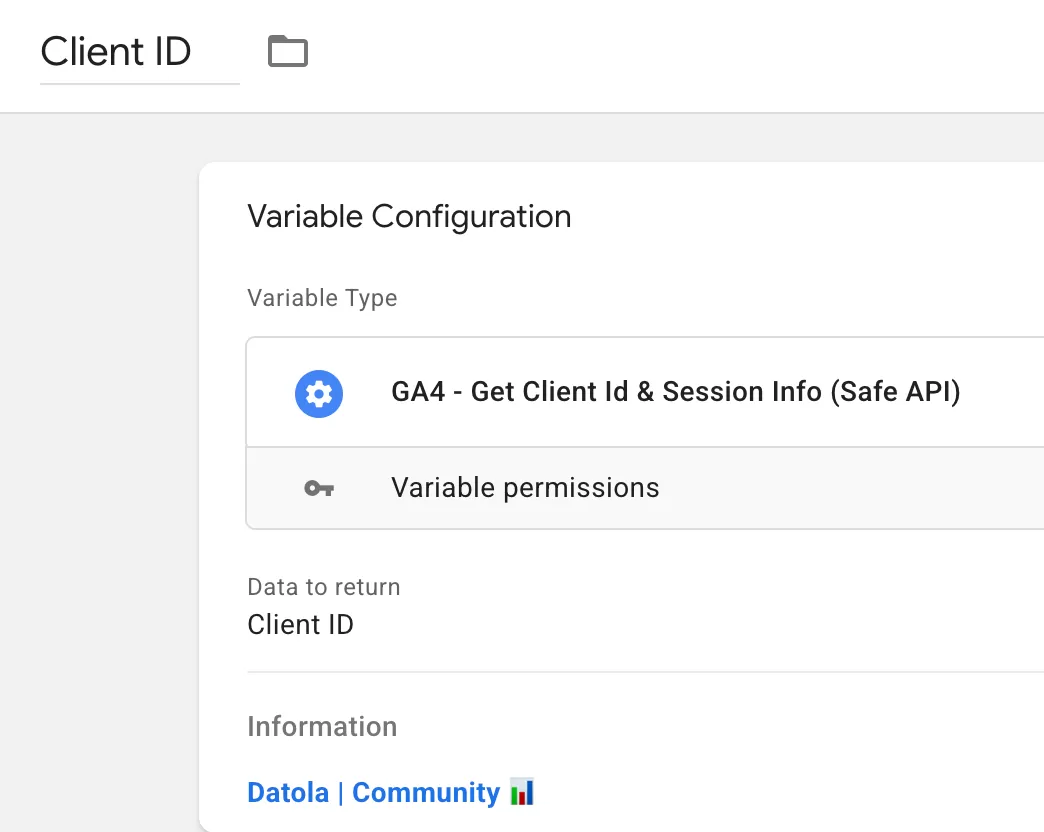
This approach gives you more control than Analytics Storage. For example, you can handle errors gracefully, set fallback values, or combine it with other logic inside the template. If you’re building something complex — like passing the Client ID to a third-party tool via a Custom HTML tag — this is the method I’d recommend.
Which Method Should You Use?
Here’s my quick decision tree:
- Hard-coded gtag.js? → Use
gtag('get', ...). It’s built-in and reliable. - GTM, simple use case? → Use Analytics Storage. It takes 30 seconds and requires no code.
- GTM, complex use case? → Use the readAnalyticsStorage API via a custom template. You’ll appreciate the extra control.
Final Words
Getting the GA4 Client ID into a variable shouldn’t be as hard as it is. But between timing issues, deprecated approaches, and the gtag/GTM split, it’s easy to waste time on methods that look right but don’t work. I’ve been through all of those dead ends so you don’t have to.