Updated: November 20, 2025
If you run a website that serves users in mainland China, you’ve probably faced this dilemma: you need Google Analytics 4 for cross-region analysis and advertising attribution, but you also need Baidu Tongji because it’s fast within China, has stable network connectivity, and is often required for Baidu Ads campaigns.
Running both analytics systems is common, but managing them separately is a headache. That’s where Google Tag Manager comes in — it lets you deploy and manage Baidu Tongji alongside GA4 without touching your website code.
Why Use GTM to Install Baidu Tongji
ou could paste Baidu Tongji’s code directly into your website’s <head>. A lot of people do. But here’s what that looks like in practice:
| Problem | What happens |
|---|---|
| No central management | Tracking snippets scattered across pages |
| No version control | Changes can’t be rolled back |
| Hard to align with GA4 | Different event structures, no shared dataLayer |
| Slow deployment | Every change needs developer involvement |
| Cross-department friction | Marketing needs engineering for every update |
That’s where GTM saves the day. With GTM, you get one-click deployment, unified tag management, shared dataLayer, preview mode, and version control.
What You Need Before Installing Baidu Tongji
A Baidu Tongji account,Log in to Baidu Tongji,Click “使用设置” → “+新增网站” to create a website and obtain the hm.js code:
<script>
var _hmt = _hmt || [];
(function() {
  var hm = document.createElement("script");
  hm.src = "https://hm.baidu.com/hm.js?86e39c295c390b79e347ea7a9cd47fe3";
  var s = document.getElementsByTagName("script")[0];
  s.parentNode.insertBefore(hm, s);
})();
</script>
Deploying Baidu Tongji Base Code (hm.js) via GTM
In GTM , click「Tags」——「New」——「Choose a tags type to begin setup…」——「Custom HTML」,Name it “Baidu Tongji”, and make the following settings:
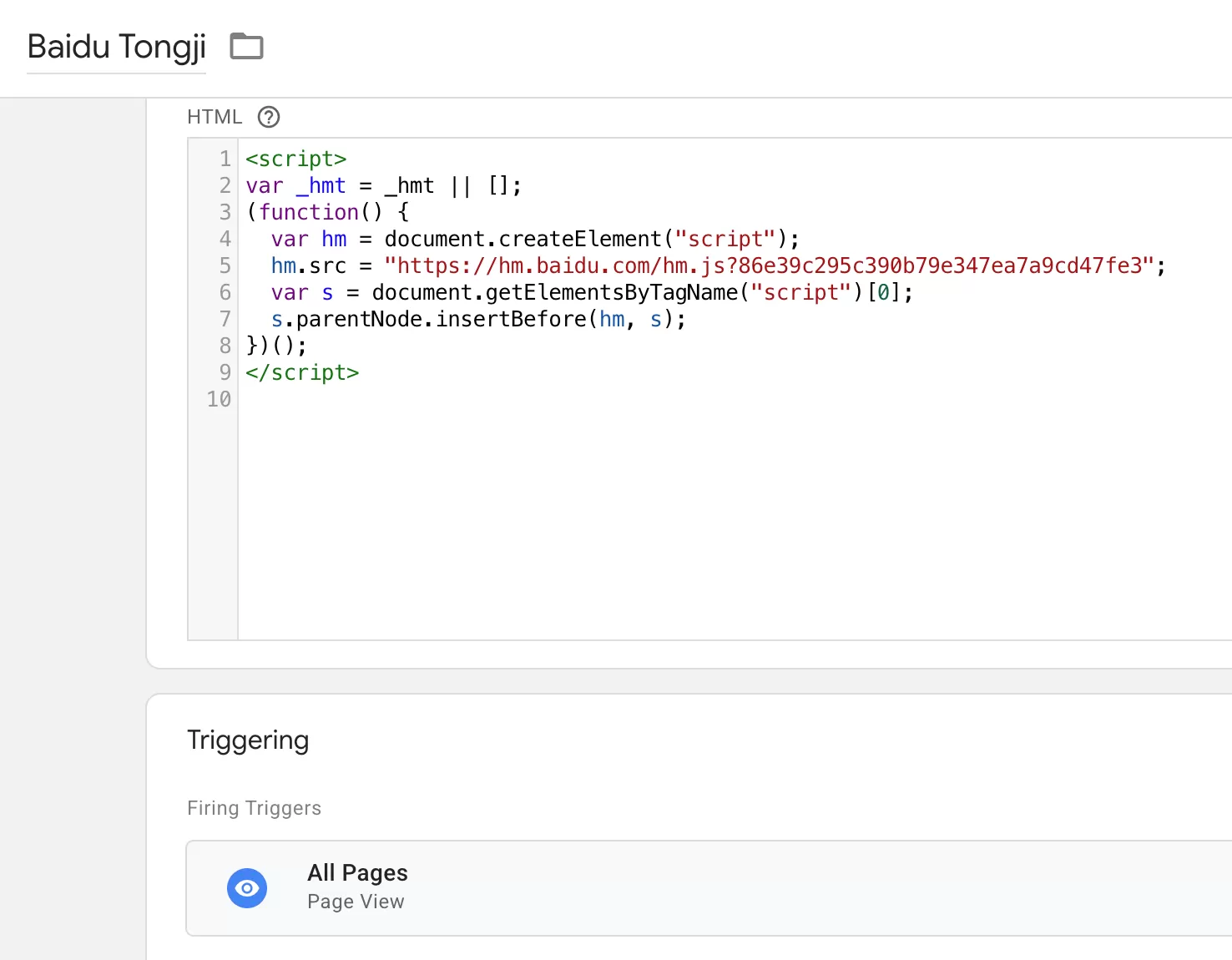
This completes the basic deployment of Baidu Tongji.
Setting Up Baidu Event Tracking in GTM
The structure of Baidu Tongji events is completely different from GA4. The format is as follows:
_hmt.push(['_trackEvent', category, action, label, value]);
Field Description:
| Field | Description | Example |
|---|---|---|
| category | Group | button |
| action | Action | click |
| label | Label content | “Buy Now Button” |
| value | Value, optional | 1 |
Example: Tracking Comment Button Clicks
Create a Click trigger for your comment button. Then create a Custom HTML tag:
_hmt.push(['_trackEvent', 'link',' click_comments', 'label', 1]);
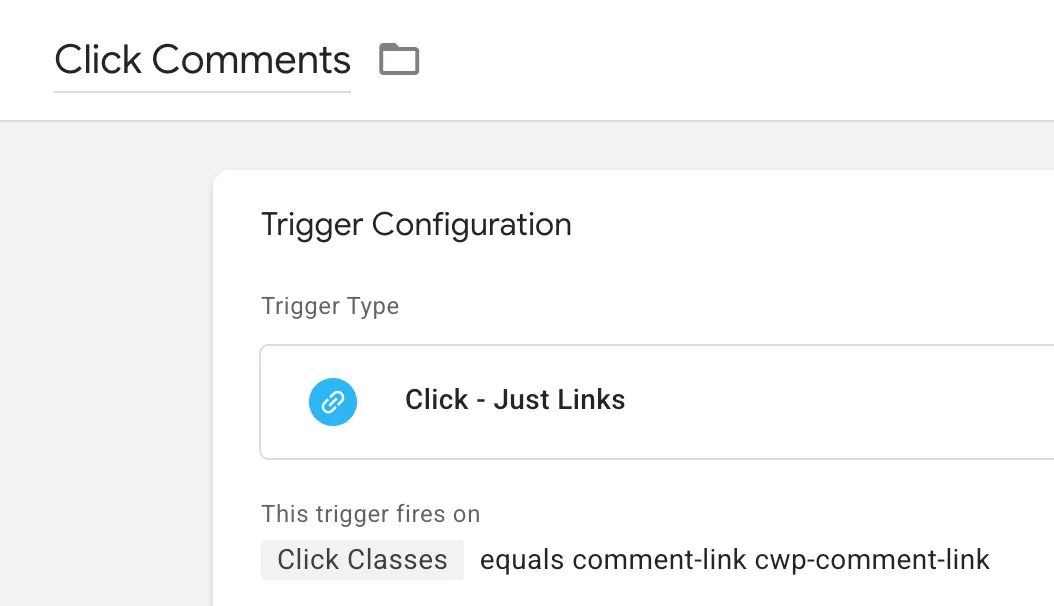
Set Up the Triggers
Set triggers according to the click location:
Set Up the Tags
In GTM , click「Tags」——「New」——「Choose a tags type to begin setup…」——「Custom HTML」,Name it “Baidu Event-click_comments”, and make the following settings: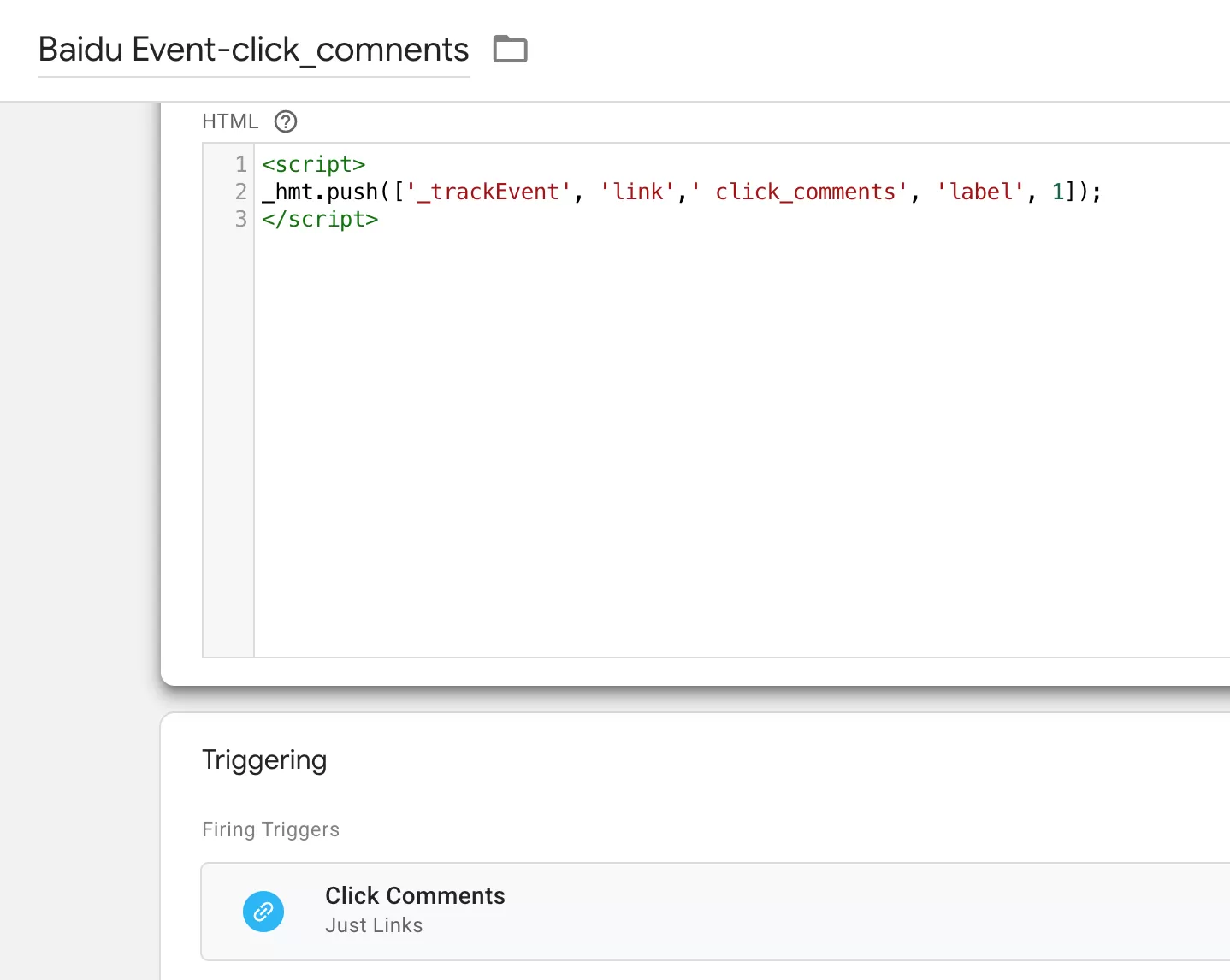
How to Verify Baidu Events Are Sending
Using the Baidu Event click_comments as a validation example for event tracking.
GTM Tag Assistant Debug
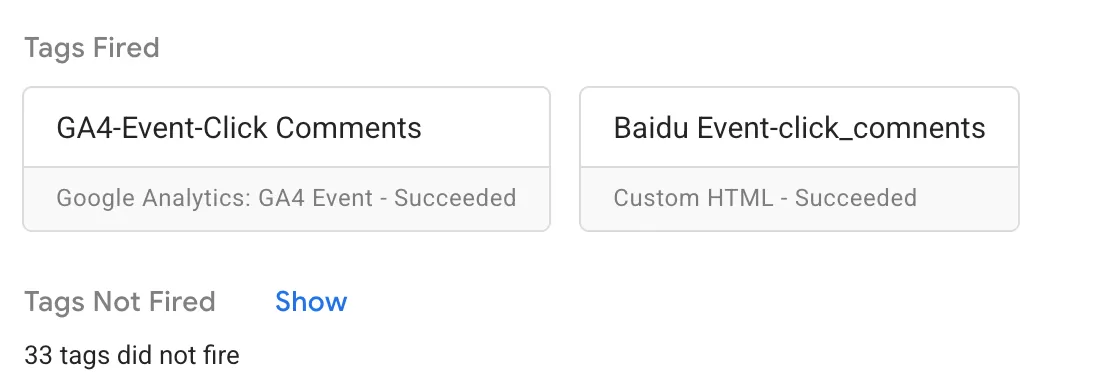
Use the GTM preview mode and click the comment button,check in Tag Assistant that the tag (Tags) fired correctly
Check Requests in Network
Open browser → F12 → Network → search for “hm.gif”, this is the Baidu Tongji tracking request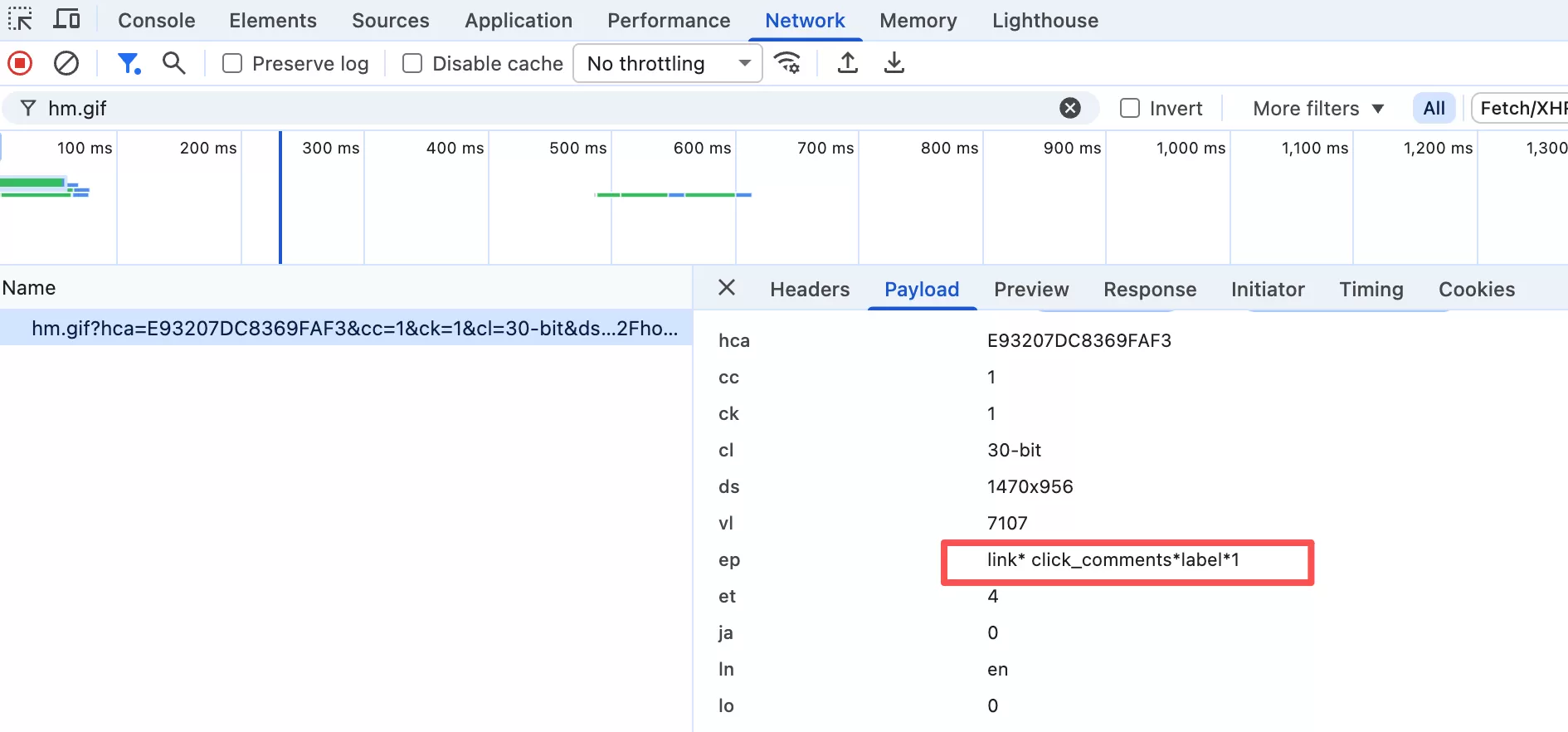
Click to see the event details, confirming that the event was successfully sent and received by Baidu Tongji
Final Words
Running both GA4 and Baidu Tongji is a reality for many sites serving mainland China, and GTM makes managing both much more practical.