Update time: Decembe 18, 2025
In this guide, I’ll walk you through what Recommended Events are, the different categories Google provides, and a step-by-step case study of how to implement the `login` event using GTM and `dataLayer.push()`.
What Are Recommended Events?
Recommended Events are predefined events created by Google. They come with fixed event names and fixed event parameters — Google has already decided what to call them and what data they should carry.
The beauty of using Recommended Events is that once you send data to these events, it automatically shows up in the relevant GA4 reports. No custom dimensions to register, no manual report configuration. Google’s reports are built to expect these events, so the data just work
Recommended Events Categories
Recommended Events are organized by industry and use case. Google has four categories:
- For all properties : Available across all industries.
- For online sales : Designed for retail, e-commerce, education, real estate, and travel industries. These events feed into e-commerce reporting.
- For lead generation:Useful for B2B sales, automotive, insurance, or any scenario where conversions happen offline.
- For games:Tailored for the gaming industry.
Let’s look at each category.
For all properties
These events work across any industry. Here are the ones Google recommends:
| Event | Trigger when |
|---|---|
| ad_impression | a user sees an ad impression, for app only |
| earn_virtual_currency | a user earns virtual currency (coins, gems, tokens, etc.) |
| join_group | a user joins a group to measure the popularity of each group |
| login | a user logs in |
| purchase | a user completes a purchase |
| refund | a user receives a refund |
| search | a user searches your content |
| select_content | a user selects content |
| share | a user shares content |
| sign_up | a user signs up to measure the popularity of each sign-up method |
| spend_virtual_currency | a user spends virtual currency (coins, gems, tokens, etc.) |
| tutorial_begin | a user begins a tutorial |
| tutorial_complete | a user completes a tutorial |
For online sales
If you’re running an e-commerce site or any business where users browse and buy products, this is the category you’ll use most.
| Event | Trigger when |
|---|---|
| add_payment_info | a user submits their payment information |
| add_shipping_info | a user submits their shipping information |
| add_to_cart | a user adds items to cart |
| add_to_wishlist | a user adds items to a wishlist |
| begin_checkout | a user begins checkout |
| generate_lead | a user submits a form or a request for information |
| purchase | a user completes a purchase |
| refund | a user receives a refund |
| remove_from_cart | a user removes items from a cart |
| select_item | a user selects an item from a list |
| select_promotion | a user selects a promotion |
| view_cart | a user views their cart |
| view_item | a user views an item |
| view_item_list | a user sees a list of items/offerings |
| view_promotion | a user sees a promotion |
For lead generation
If your business tracks leads that convert offline — B2B sales, insurance quotes, automotive inquiries — these events will help you track the full lead lifecycle.
| Event | Trigger when a user… |
| generate_lead | submits a form online or submits information offline |
| qualify_lead | is marked as fitting the criteria to become a qualified lead |
| disqualify_lead | is marked as disqualified to become a lead for one of several reasons |
| working_lead | contacts or is contacted by a representative |
| close_convert_lead | became a converted lead (a customer) |
| close_unconvert_lead | is marked as not becoming a converted lead for one of several reasons |
For games
For gaming apps and websites, these events cover the full player lifecycle — from starting the game to leveling up and spending virtual currency.
| Event | Trigger when |
|---|---|
| earn_virtual_currency | a user earns virtual currency (coins, gems, tokens, etc.) |
| join_group | a user joins a group to measure the popularity of each group |
| level_end | a user completes a level in the game |
| level_start | a user starts a new level in the game |
| level_up | a user levels-up in the game |
| post_score | a user posts their score |
| select_content | a user selects content |
| spend_virtual_currency | a user spends virtual currency (coins, gems, tokens, etc.) |
| tutorial_begin | a user begins a tutorial |
| tutorial_complete | a user completes a tutorial |
| unlock_achievement | a user unlocks an achievement |
Case Study: Tracking the login Event
Let’s make this practical. Suppose you want to track the `login` event in GA4. This event fires whenever a user logs into your website or app.
The login event has one parameter:
| Event Parameter Name | Type | Required | Example value | Description |
|---|---|---|---|---|
method |
string |
No | The method used to login. |
The `method` parameter tells you how the user logged in — Facebook, Google, Email, Phone, etc. You replace it with whatever login methods your users actually use.
Let me walk you through the implementation step by step.
Step 1: Push Event to the Data Layer
When a user logs in, you need to push the event into the data layer using `dataLayer.push()`:
dataLayer.push({"event": "login", "method": "Google" });
This is the same `dataLayer.push()` method I covered in detail in the GA4 Custom Event Tracking with dataLayer.push, so if you need a refresher on how this works, that’s a good place to start.
Step 2: Create a Data Layer Variable
In GTM, we need to capture the method value so we can send it to GA4.
In GTM, click「 Variables」——「New」——「Choose a variable type to begin setup…」——「Data Layer Variable」, name it “dlv-method”, and then set as follows:
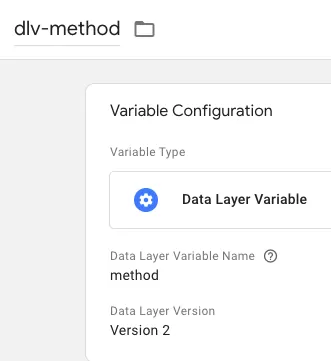 Note:
Note: dlv stands for Data Layer Variable.
Step 3: Create a Trigger
Now we need GTM to listen for the login custom event.
In GTM, click 「Trigger」——「New」——「Choose a trigger type to begin setup…」——「Custom Event」 name it “Custom Event-Login”, and then set as follows:
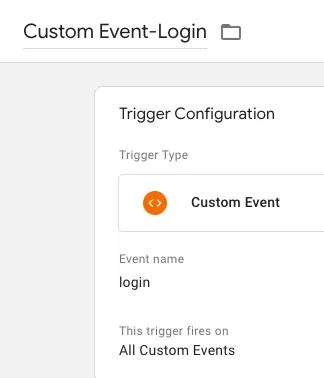
Set the event name to login (matching the dataLayer event)
Step 4: Create a GA4 Event Tag
Now let’s send everything to GA4.
In GTM, click 「Tags」——「New」——「Choose a tag type to begin setup…」——「Google Analytics: GA4 Event」, name it “GA4-Event-Login”, and then do as follows set up:
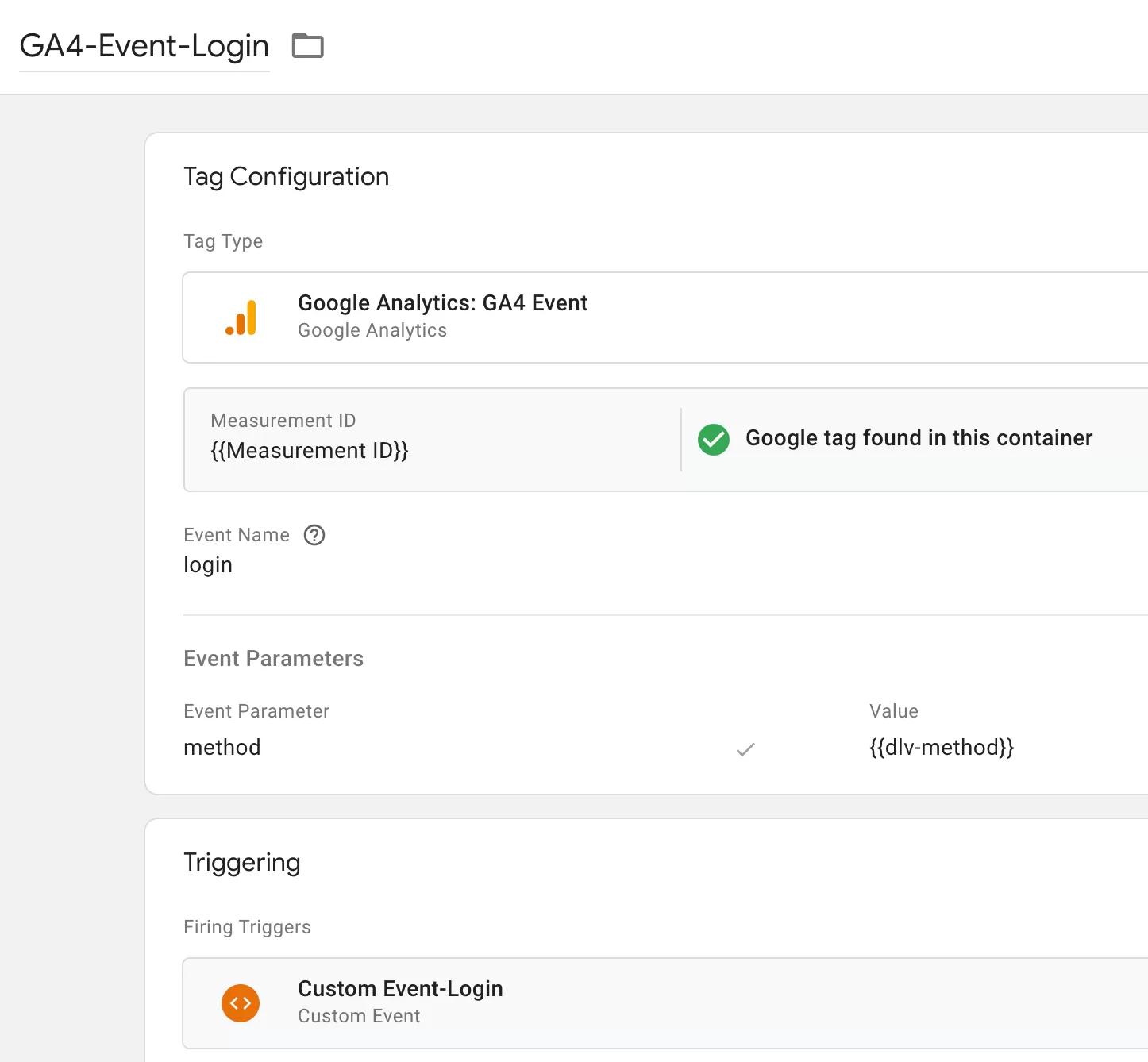
Step 5 : Preview and Publish
Before publishing, test in GTM Preview mode. Log in to your site and check that the `GA4-Event-Login` tag fires correctly with the `method` parameter.
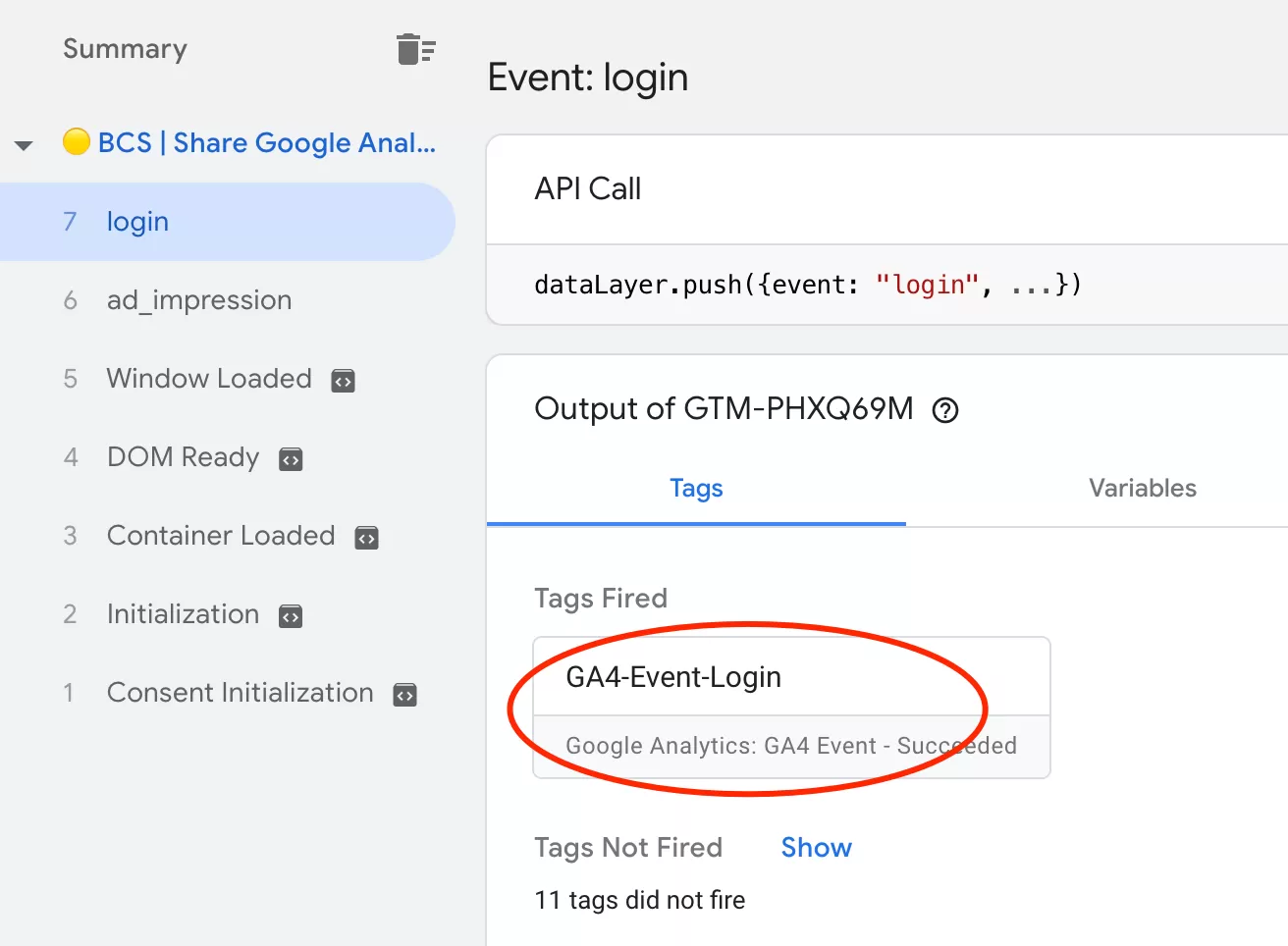
If everything looks good, publish your container.
Step 6 :Verify Data in GA4 Reports
After registration, it typically takes up to 24 hours before the data appears in your GA4 reports. Once it does, you can validate it in Event Reports:

Final Words
Recommended Events are one of those features that make GA4 feel more structured compared to Universal Analytics. Instead of making up your own event names and hoping they show up in reports, Google has already defined a standard set of events that plug directly into the reporting interface.
Here’s what I want you to remember: if there’s a Recommended Event for what you’re tracking, use it. You get automatic report population, consistent naming, and less work setting up custom dimensions. The `login` case study above is a perfect example — one event name, one parameter, and you’re done.
I hope this guide helped you understand GA4 Recommended Events and how to implement them. If you have questions about a specific event category or ran into issues during setup, feel free to leave a comment and I’ll do my best to help.