Update time: April 7, 2026
If you landed on this page, you’ve (most likely) heard about GA4 Measurement Protocol and want to start sending server-side data to GA4. Maybe you’re trying to connect offline conversions, send events from a CRM system, or track interactions that happen outside the browser.
Whatever the reason, you’ve come to the right place.
In this article, I’ll walk through what Measurement Protocol is, how it differs from the UA version, how to set it up step by step, and the most common pitfalls I’ve seen (and hit myself). By the end, you’ll have everything you need to start sending server-side events to GA4 without pulling your hair out.
What Is Measurement Protocol?
Measurement Protocol (MP) is a set of HTTP APIs that lets you send event data directly to GA4 without relying on JavaScript on your website or an App SDK on your mobile app. Think of it as a backdoor into GA4 — one that gives you full control over what data you send and when.
It’s especially useful for scenarios like:
- Connecting online and offline behavior — A customer buys something in your physical store. You can send that offline purchase event to GA4 and tie it back to their online session
- Server-to-server tracking — Your backend system generates events that never touch the browser
- IoT and non-standard devices — Smart kiosks, watches, or any device that can’t run gtag.js or Firebase SDK
- Offline conversions — A user fills out a form on your site, then later completes the purchase over the phone. You can send the conversion event from your CRM
One thing worth noting: MP is often compared with GA4 Data Import, but they serve different purposes. Data Import enriches existing data in GA4 (like uploading cost data). Measurement Protocol sends new events, which means your data shows up in Realtime Reports almost instantly.
A Quick Note:During the GA4 beta, this feature was called the Measurement Protocol API. After the official release, Google standardized the name to Measurement Protocol (MP) — but some parts of the GA4 interface still call it Measurement Protocol API. If you see both names, don’t worry. They’re the same thing.
What’s Changed From Universal Analytics Measurement Protocol?
If you’ve used Measurement Protocol in Universal Analytics before, you’ll notice some significant differences. Here are the three big ones.
#1. API Secret Is Now Required
UA’s Measurement Protocol was fairly open — as long as you had the tracking ID, you could send data. GA4 added an API Secret that must be included with every request, along with the Measurement ID.
This change was a welcome one: it helps reduce spam and unauthorized data injection.
#2. JSON Payload Format
UA used a URL-encoded query string format. GA4 requires a JSON payload sent via HTTP POST. This means you’ll need some actual code to generate and send requests — you can’t just craft a URL and paste it into a browser.
#3. HTTPS POST Only
UA supported GET requests. GA4 does not. HTTPS POST only. That’s it.
How to Create an API Secret
Before you can send anything, you need an API Secret. Here’s how to create one:
- Step 1:Go to your GA4 property and navigate to 「Data Streams」
- Step 2:Select the data stream you want to send data to
- Step 3:Scroll down to 「Measurement Protocol API Secrets」 and click it
- Step 4:Click 「Create」 in the top-right corner
That’s it. You’ll get something that looks like this:
rMu_1piLSBahnqpSa-ItLw
Along with your Measurement ID (the G-XXXXXXXXXX identifier), this is all you need to authenticate your requests.
If you want the data to be associated with existing users, you’ll also need to pass a Client ID (from the _ga cookie) or a User ID (if your users are logged in).
How to Send Data Using Measurement Protocol
You can send Measurement Protocol requests from the browser or from a server. The underlying mechanism is the same: an HTTPS POST with a JSON body.
One important limit: a single request can be at most 16 KB.
Here’s a minimal example using JavaScript’s fetch:
| Parameter | Required? | What it does |
|---|---|---|
| measurement_id | Yes (URL) | Identifies your GA4 data stream. Format: G-HZ4RDGTX66 |
| api_secret | Yes (URL) | Authenticates the request. Without it, events return 204 but get silently dropped |
| client_id | Yes (body, one of three) | Identifies the user/browser. Taken from the _ga cookie. Format: XXXXXXXXXX.YYYYYYYYYY |
| user_id | Yes (body, one of three) | Your own persistent user ID. Enables cross-device user association |
| app_instance_id | Yes (body, one of three) | Used for Firebase/App-based tracking instead of client_id |
| events.name | Yes (body) | The event name, e.g., purchase, add_to_cart. Case-sensitive |
| timestamp_micros | Strongly recommended | Event time in microseconds. Without it, GA4 uses the server receive time |
| session_id | Strongly recommended | Ties the event to a GA4 session. Without it, traffic goes to Unassigned |
| engagement_time_msec | Strongly recommended | User engagement time in ms. Without it, engagement metrics stay at 0 |
| non_personalized_ads | Optional | true/false. Used for ad personalization compliance |
The example above is the bare minimum — it sends a single event with no parameters and no user properties. For real use cases, you’ll want to include event parameters, session data, and more.
How to Validate Measurement Protocol Events
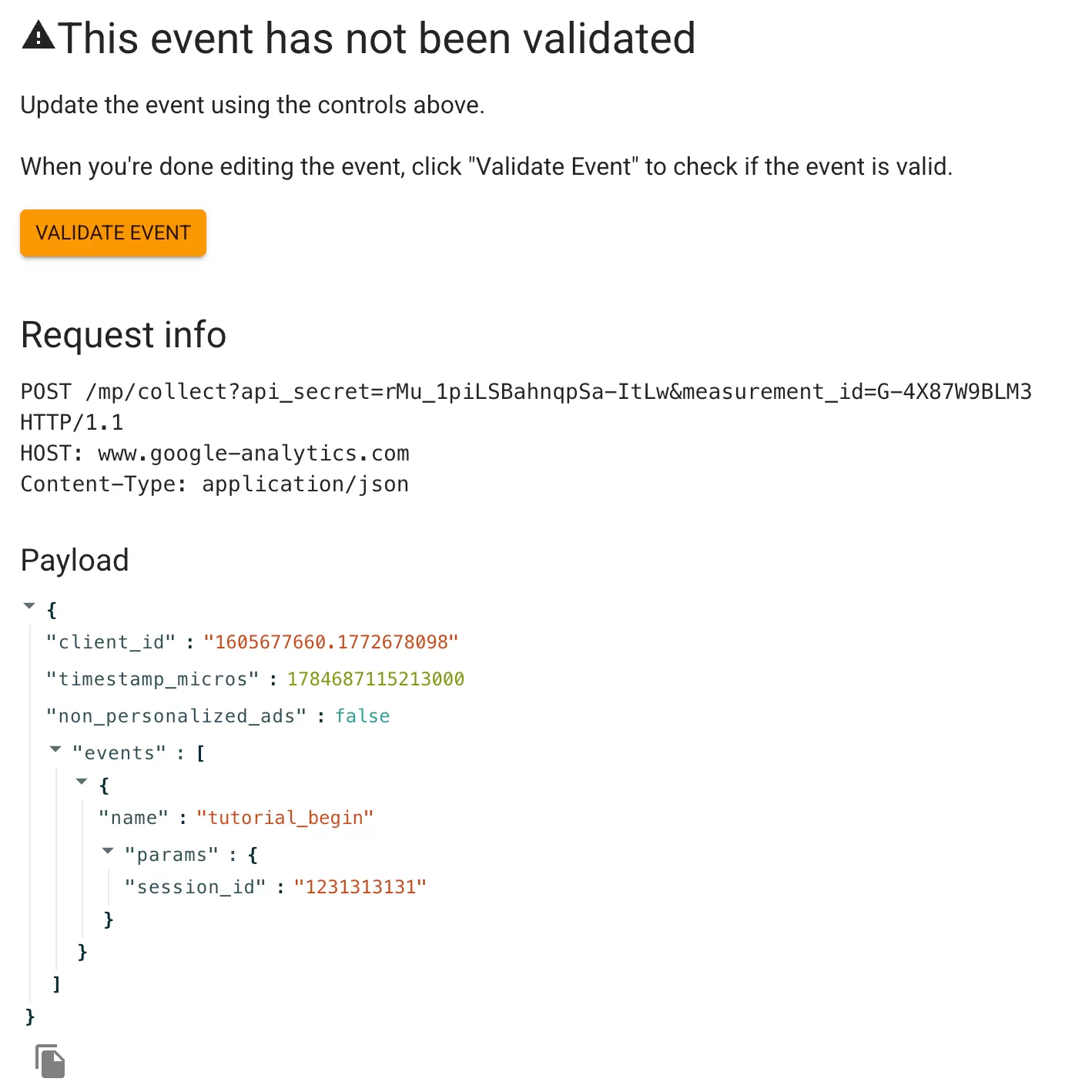
Before you start coding, I highly recommend using Google’s official GA4 Event Builder. It’s a handy tool that lets you:
- Validate your event JSON format
- Check whether the structure is correct
- Send test events directly to GA4
You can configure your event, click Validate event:
If the structure is valid, click the send button to fire it off: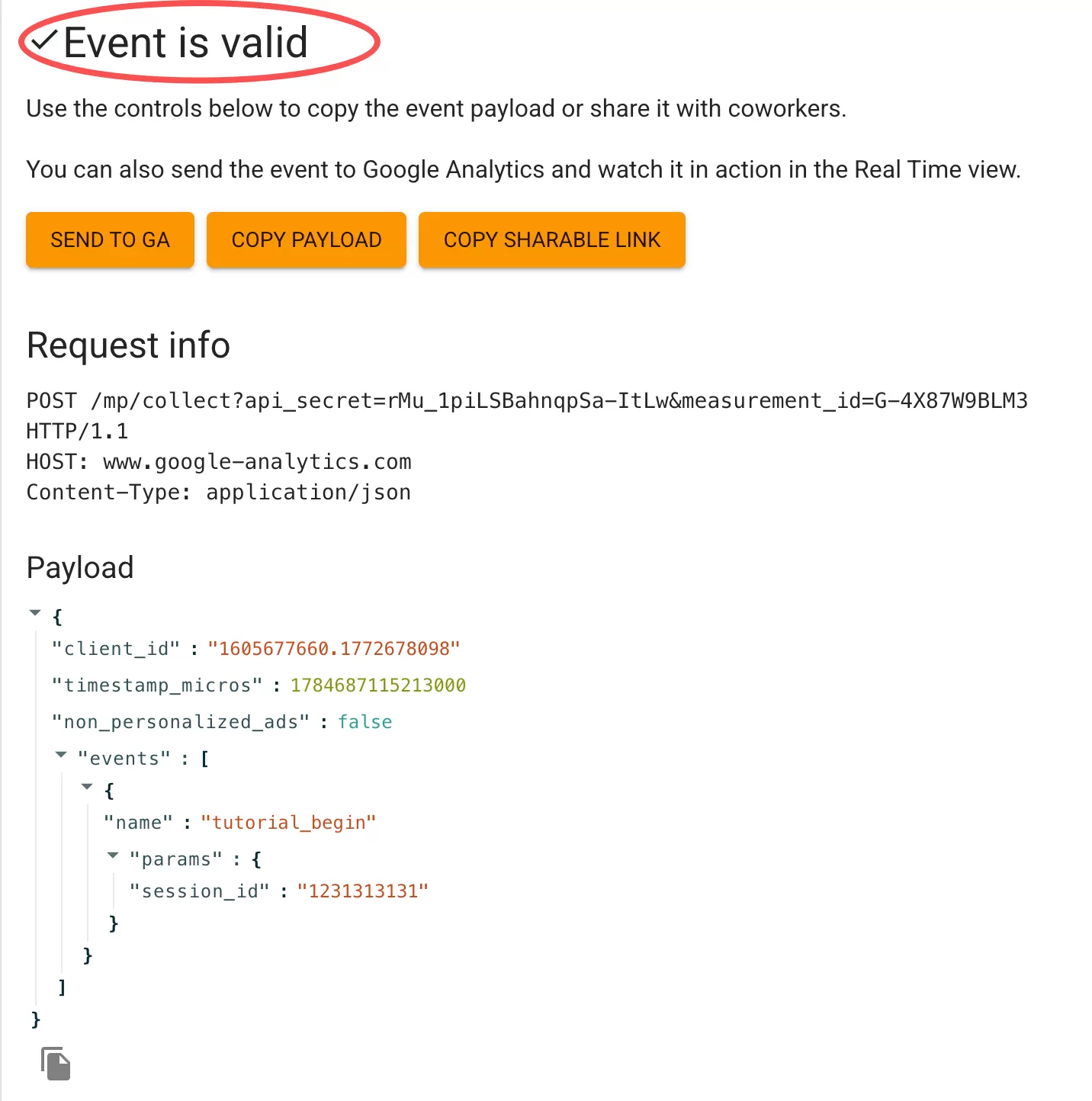
Then check the Realtime report in GA4 to see if it landed.
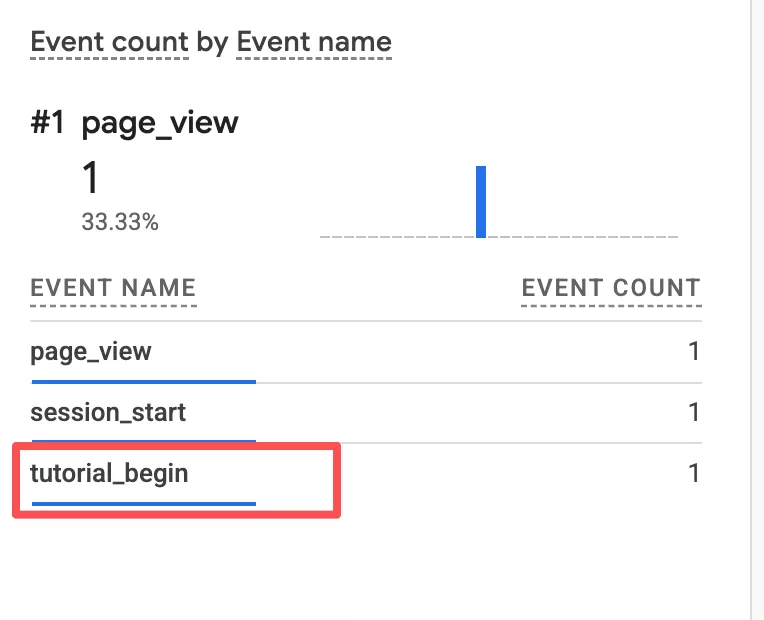
It’s a great way to test your event structure before writing production code.
FAQ: Common GA4 Measurement Protocol Issues
Q1: My request returns a 204, but no events appear in GA4. What’s going on?
204 means Google received your request, but that doesn’t guarantee the data will show up in reports. Two things I’d check first:
- Invalid or missing api_secret:This is the most common culprit. If your api_secret is missing, incorrect, or expired, GA4 will silently drop your events. The 204 response might trick you into thinking everything is fine, but the data never makes it into the reports. Double-check your API secret in the Data Stream settings under Measurement Protocol API Secrets.
- Events sent after 72 hours:GA4 only processes events within a 72-hour window. If the timestamp_micros in your request points to a time beyond that, the event is ignored. No error, no warning — it just disappears. Always make sure your timestamps are within the last 72 hours.
Q2: Events show up in Realtime, but engagement metrics are always zero.
Measurement Protocol does not calculate engagement time automatically. That’s on you. If you don’t include engagement_time_msec in your event parameters, GA4 has no way to know how long someone was engaged, so it defaults to zero.
"params": {
  "engagement_time_msec": "1000"
}
Even 1000ms (one second) is enough to register engagement. Adjust it based on your use case.
Q3: Why is all my data showing as (not set) / (not set)?
This is one of the most common issues I see. The culprit is almost always two missing parameters: session_id and engagement_time_msec.
Many developers copy the bare-minimum example from Google’s docs, send the request, see a 204, and call it done. But without a session_id, GA4 can’t associate the event with a session. Without engagement_time_msec, engagement metrics won’t populate. The result? Everything lands as (not set).
A safer starting structure looks like this:
{
  "timestamp_micros": "1712345678000000",
  "events": [{
    "name": "purchase",
    "params": {
      "session_id": "1234567890",
      "engagement_time_msec": "1000"
    }
  }],
  "client_id": "XXXXXXXXXX.YYYYYYYYYY"
}
Q4: I’m seeing duplicate events in GA4. How do I stop that?
If you’re running both client-side tracking (like web GTM) and server-side tracking (Measurement Protocol), the same event can fire twice. I’ve seen this a lot with purchase events.
A few ways to handle it:
- Decide which source is canonical for each event type and stick with it
- If both sources are necessary, add a source parameter (source: “mp” or source: “client”) so you can filter and deduplicate in reports
Q5: My events are showing up at the wrong time or not at all.
This is almost always a timestamp issue. GA4 expects timestamp_micros in microseconds, and there are three mistakes I see over and over:
- Using seconds — A standard Unix timestamp like
1712345678will be treated as microseconds, placing your event decades in the past - Using milliseconds —
Date.now()returns milliseconds. Multiply by 1000 to get microseconds - Wrong format — Make sure it’s an integer or string representing microseconds since epoch
Quick conversions:
| Source | Correct conversion |
|---|---|
| JavaScript | Date.now() * 1000 |
| Python | int(time.time() * 1000000) |
| Ruby | (Time.now.to_f * 1000000).to_i |
Q6: Country, City, and Device Category are all (not set). Why?
This is actually expected. Measurement Protocol does not automatically collect IP-based location or device/browser information the way client-side tracking does. If you want geo or device data, you have to explicitly pass it yourself through event parameters or user properties. The protocol only sends what you tell it to send.
Q7: My Measurement Protocol traffic is all grouped under “Unassigned” channels.
Missing ga_session_id is the usual suspect. GA4 uses ga_session_id to tie events to a session. Without it, the traffic can’t be attributed to any channel, so it defaults to Unassigned.
The ga_session_id is typically stored in the _ga_<container-id> cookie on the client side. Extract it and include it in your event parameters:
"params": {
  "ga_session_id": "1234567890"
}
Q8: Custom dimensions show as (not set) even though I defined them in GA4.
If you defined a custom dimension in your GA4 property but forgot to include the corresponding parameter in your Measurement Protocol request, GA4 has nothing to populate it with. Unlike client-side tracking where some parameters are collected automatically, Measurement Protocol requires you to be explicit about everything. Go through your event payload and make sure every custom dimension you need is actually being sent.
Q9: New Users is stuck at zero. What’s wrong?
If your setup relies entirely on Measurement Protocol and you see New Users = 0, there’s a good reason for that. GA4 calculates new users based on the first_visit and first_open events. These events are automatically collected by GA4 and cannot be sent manually through Measurement Protocol.
So if you’re only sending events via MP, GA4 has no way to identify new users. The New Users metric will sit at zero. To fix this, you need client-side tracking (gtag.js or GTM) to fire those first-visit events, and let Measurement Protocol handle everything else.
Q10: Can I track email opens with GA4 Measurement Protocol?
Not directly. GA4 Measurement Protocol requires POST requests, so you can’t just drop a tracking pixel with a URL like you could with Universal Analytics.
The workaround is a proxy server:
- Embed a tracking pixel in your email that points to your server
- Your server receives the request and extracts the relevant parameters
- Your server converts the data into Measurement Protocol format
- Your server sends the event to GA4 using a POST request
This approach also gives you more control over data formatting, security, and validation.
Final Words
Measurement Protocol is a powerful tool for getting data into GA4 from places the browser can’t reach — CRM systems, offline systems, IoT devices, and more. But it has a learning curve, and most of the frustration comes from small details that are easy to overlook: the right timestamp format, the importance of session_id and engagement_time_msec, and the fact that GA4 won’t guess anything for you.
I will not cover all the possible scenarios (there are still many unknowns), but hopefully this article sheds at least some light on the most common issues.