Update time: May 9, 2025
If you’ve ever looked at an event name in GA4 and thought “that’s not very helpful” — you’re not alone. Outbound clicks in Enhanced Measurement, for example, use the event name `click`. Which tells you someone clicked something, but not that they left your site. Not exactly intuitive, right?
That’s where Modify Event comes in.
In this guide, I’ll walk you through what Modify Event does, how to use it to rename events and tweak parameters, and I’ll share a real example: renaming the Enhanced Measurement `click` event to something more meaningful like `outbound_link_click`.
What Is Modify Event?
Modify Event is a GA4 feature that lets you change existing events directly from the GA4 interface — no code, no GTM, no developer needed. Here’s what you can do with it:
- Rename existing events — Change an event name if you’ve identified a better or more accurate one
- Modify event parameters — Adjust or add parameters to existing events for more specific data
- Create new events from existing ones — Generate new events based on conditions met by existing events
You can modify up to 50 existing events per property.
Think of it as a find-and-replace for your GA4 events. The original event still exists — GA4 just applies your modifications before storing the data.
Example Use Case: Renaming the click Event
Here’s a scenario I’ve run into myself. The default event name for outbound clicks in GA4 Enhanced Measurement is `click`. And honestly? I don’t think that’s very intuitive. When I see `click` in my reports, I have no idea whether it was an internal link, an outbound link, or something else entirely.
I want to rename it to `outbound_link_click` so it’s immediately clear what the event represents.
Step 1 :Modify event
Let me walk you through how to set this up.
In GA4, click「Admin」——「Property settings」——「Data display」——「Events」:
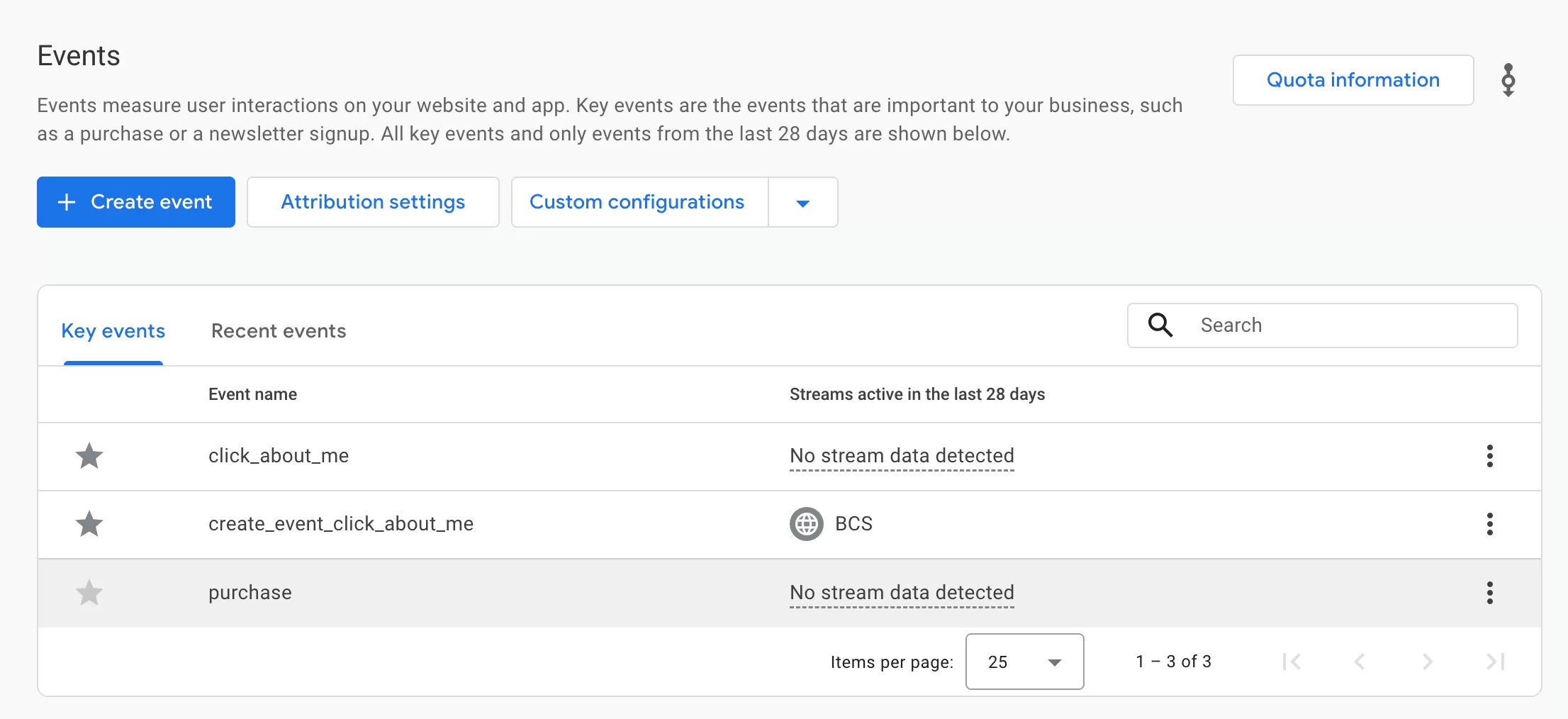
Then click「Custom configurations」——「Modifications 」: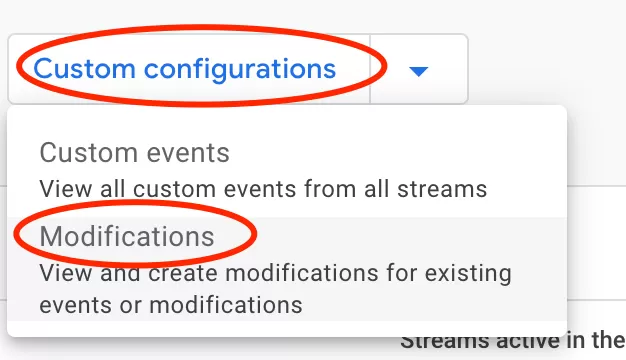
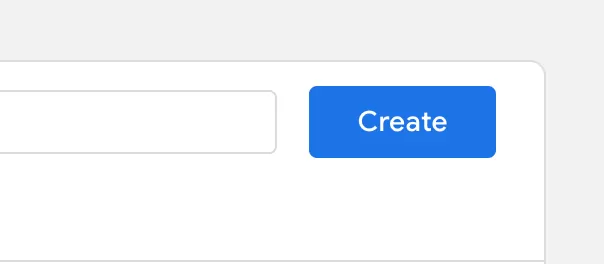
Then make the following settings:
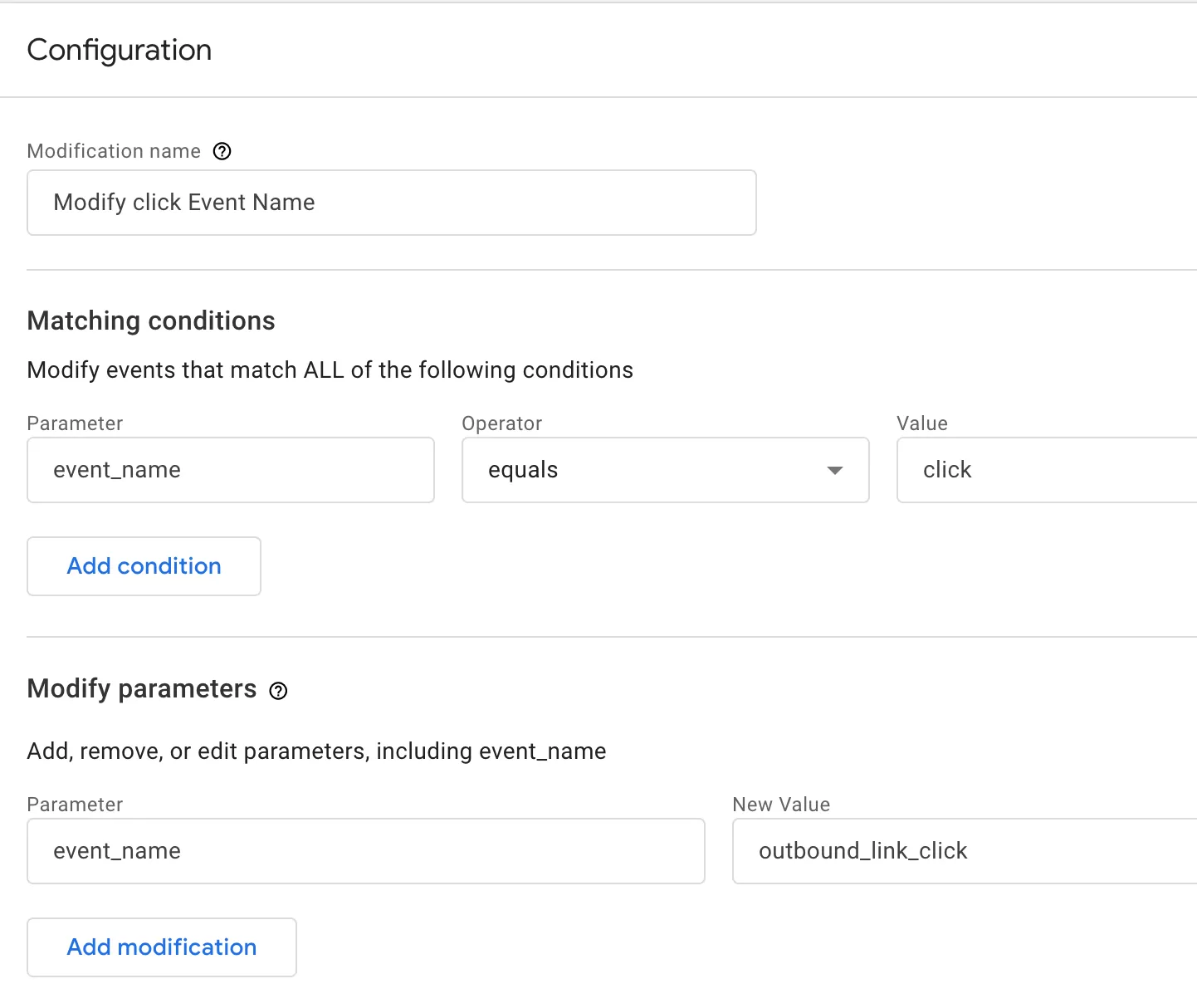
- Modification name: here named “Modify click Event Name”
- Matching conditions:Set the conditions to trigger this event
- event_name equals click — this identifies the click event from Enhanced Measurement
- Modify parameters:
- event_name outbound_link_click :— this tells GA4: when you see a `click` event, rename it to `outbound_link_click`
That’s it. The modification is now active.
Step 2 : Testing
After setting up the modification, you’ll want to make sure it’s working before relying on the data.
The quickest way to test is using GA4’s Real-time report. Open it, click an outbound link on your site, and check whether the `outbound_link_click` event appears instead of `click`.
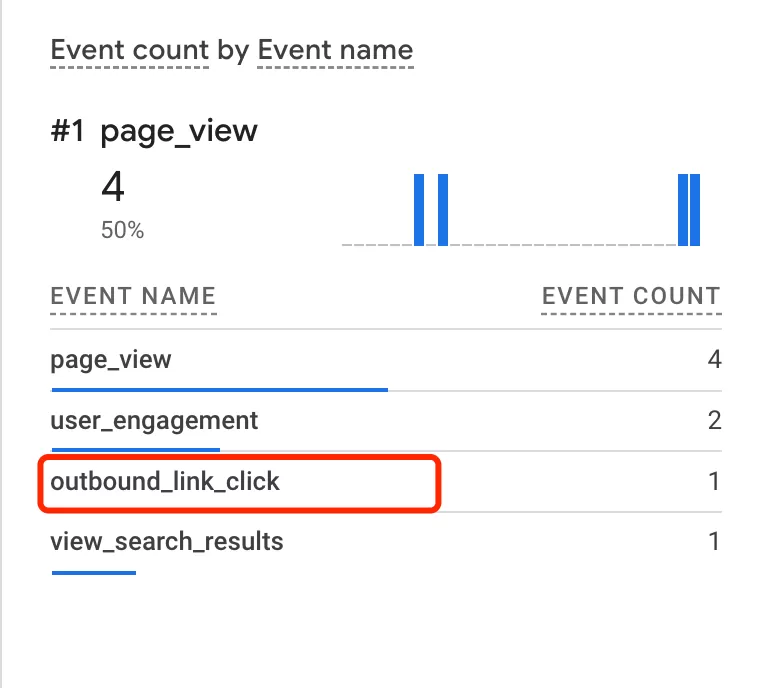
Step 3 : Verify Data in GA4 Reports
After publishing, it typically takes up to 24 hours before the event appears in your GA4 reports. Once it does, look for `outbound_link_click` in your events list under Event Reports:

Final Words
Modify Event is one of those GA4 features that’s easy to overlook but surprisingly useful once you know it exists. Being able to rename events and adjust parameters without touching any code is a genuine time-saver — especially when you inherit a GA4 property with messy event names.
Here’s a quick recap:
- You can modify up to 50 events per property
- Modifications apply going forward, not retroactively
- Always test in Real-time or DebugView after setting up a modification
- Be careful about modifying critical events like `page_view`
- Use consistent naming — event names are case-sensitive
I hope this guide helped you understand GA4’s Modify Event feature. If you have questions about a specific use case or ran into issues during setup, feel free to leave a comment and I’ll do my best to help.