Update time: May 9, 2025
If you’ve ever needed to track a specific subset of an existing GA4 event — like page views for just one URL — you know the usual options: ask a developer to push a custom `dataLayer.push()`, create a GTM tag with complex triggers, or write custom code. All of them work, but they all require someone to touch the code.
That’s where Create Event in GA4 comes in.
In this guide, I’ll walk you through what Create Event is, how it works, and a step-by-step example of creating a custom event from `page_view` using only the GA4 interface — no GTM, no code, no developers.
What is “Create Event” in GA4?
Create Event is a codeless event-building feature in GA4 that lets you generate new events based on existing ones — all from within the GA4 interface.
Here’s the key distinction: you’re not collecting new data from your website. Instead, GA4 takes an existing event, applies a filter to it, and creates a new derived event based on that filter.
So technically:
- Source event:page_view (all page views)
- New event:A filtered version of page_view that only matches certain conditions
For example, if you want to track only visits to your `/contact-me` page, you don’t need to add any code to that page. You just tell GA4: “create a new event from `page_view` where the URL contains `/contact-me`.”
GA4 allows up to 50 created events per property, which is plenty for most setup
Example Use Case
Let’s say I want to track visits to this specific page:
https://www.bbccss.com/contact-me
Instead of asking a developer to push a custom event, I’ll use GA4’s Create Event feature to create a custom event called `created_event_click_about_me` that fires only when someone visits that URL.
Let me walk you through this step by step.
Step 1: Create a New Event in GA4
In GA4, click「Admin」——「Property settings」——「Data display」——「Events」:
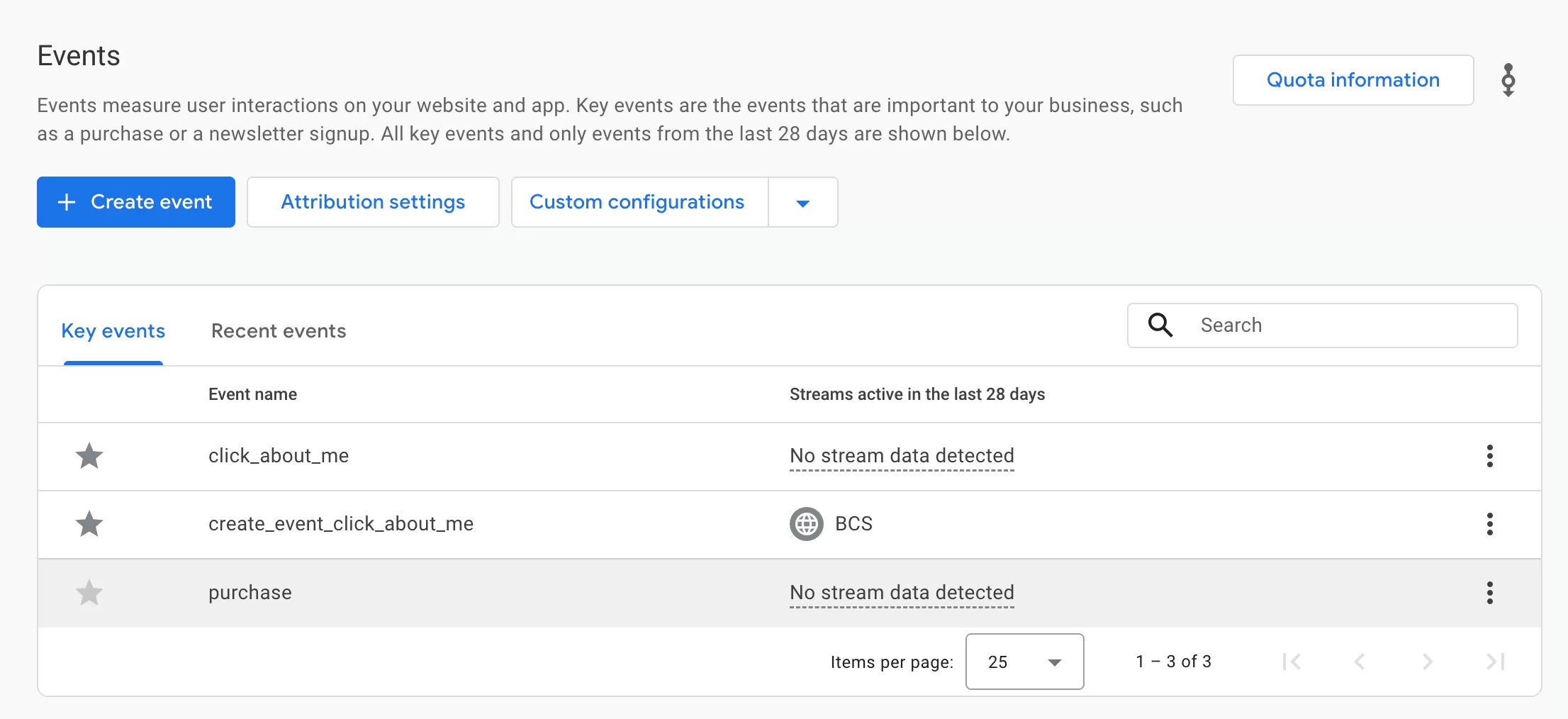
Then click「Custom configurations」——「Custom events 」: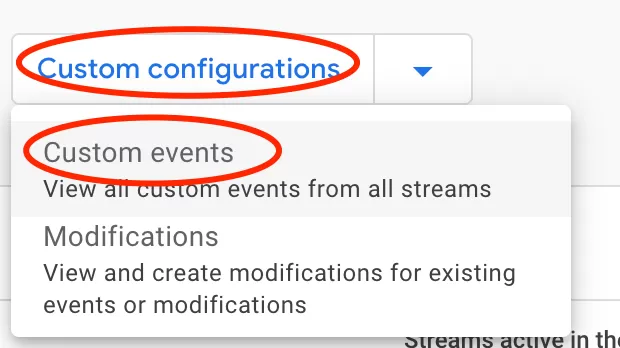
Then click「Create」——「View more options」:
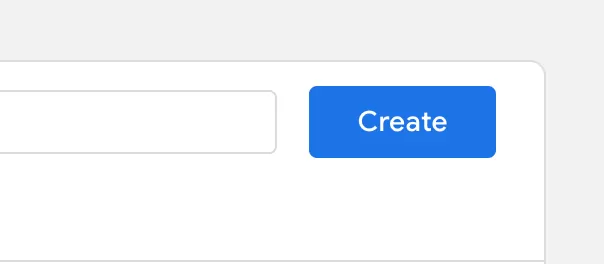
Then configure the event as follows:
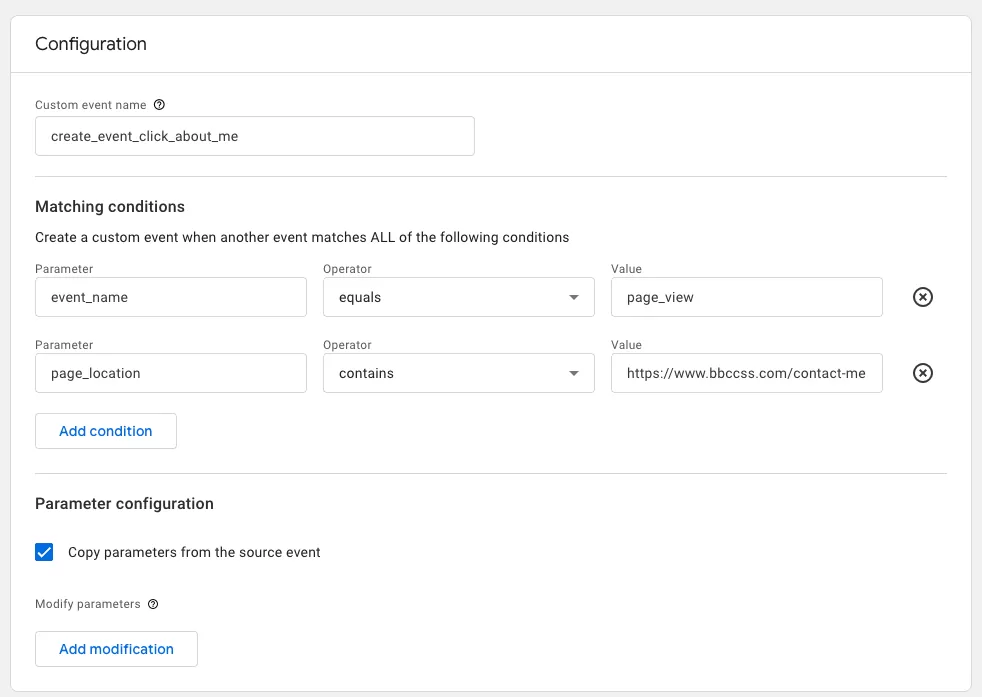
- Custom event name: “created_event_click_about_me”
- Matching conditions:Set rules to define when this event should be triggered (This ensures we only capture page views for that specific URL):
- event_name equals page_view
- page_location contains https://www.bbccss.com/contact-me
- Parameter configuration:Check “Copy parameters from the source event” ,This ensures all parameters from the original page_view event (such as page URL, referrer, device info, etc.) are inherited by the new event.
That’s it. The event is now configured in GA4. No code, no GTM, no developer needed.
Step 2: Testing the Event
After creating the event, you can validate it using browser developer tools or GA4 DebugView.
The easiest way is to open your browser’s developer tools and check the **Network** tab while visiting the `/contact-me` page. Look for the `created_event_click_about_me` event in the GA4 requests.
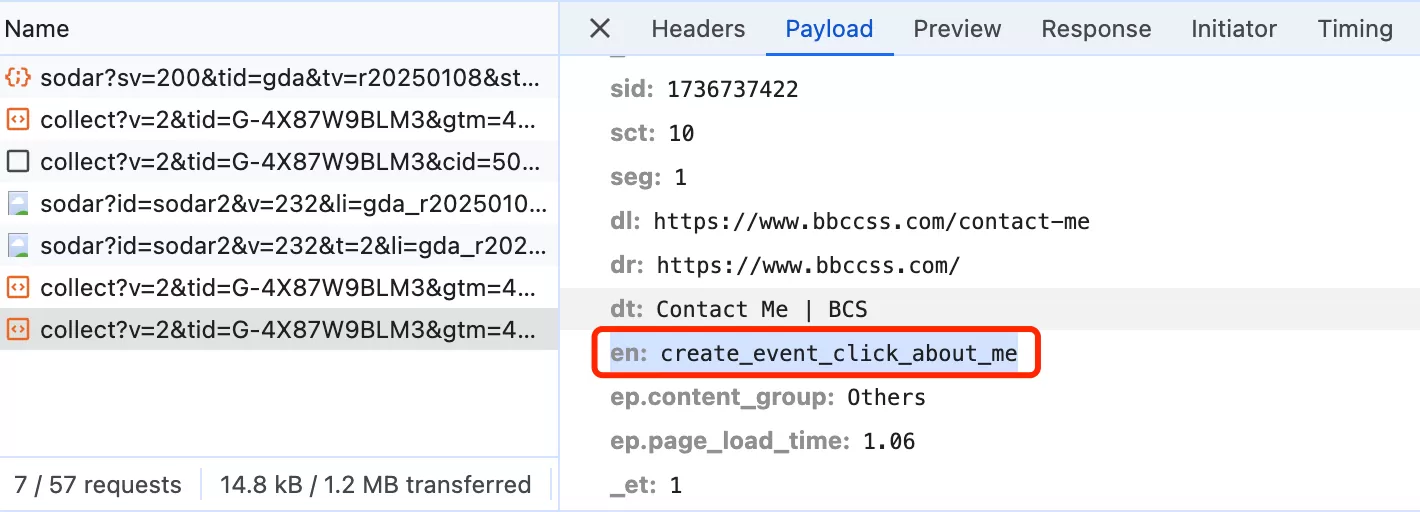
If the event appears, your configuration is working correctly.
Step 3: Verify Data in GA4 Reports
After publishing, it typically takes up to 24 hours before the event appears in your GA4 reports. Once it does, look for `created_event_click_about_me` in your events list under Event Reports:
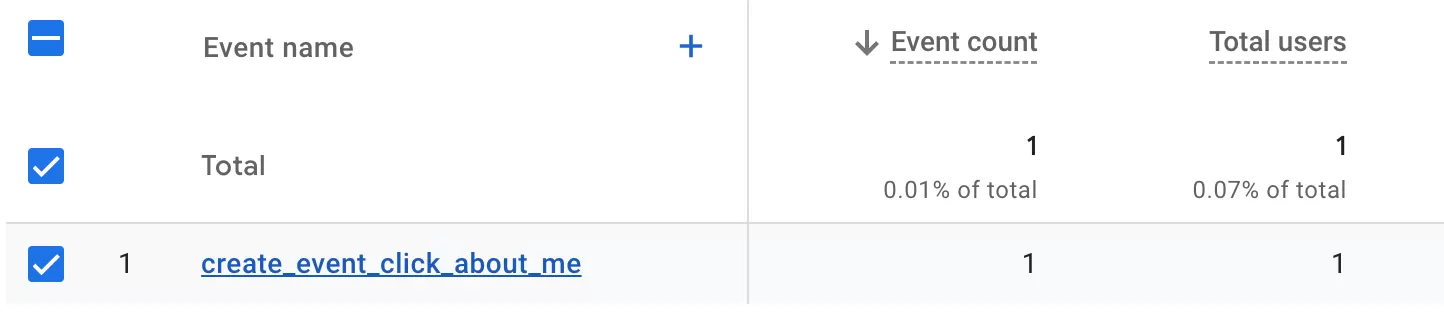
From there, you can use it in explorations, audiences, or any other GA4 feature.
Final Words
The Create Event feature is one of those underrated GA4 tools that can save you a lot of time. Instead of asking a developer to add code or setting up complex GTM configurations, you can create filtered versions of existing events directly in the GA4 interface — no engineering support required.
Here’s what I want you to remember:
- Create Event works by filtering existing events, not collecting new data
- You can create up to 50 custom events per property
- Always check “Copy parameters from the source event” so your new event inherits useful data
- It takes up to 24 hours for new events to appear in reports
It’s not a replacement for all custom tracking — sometimes you really do need `dataLayer.push()` or a GTM tag. But for simple use cases like tracking page-specific visits, it’s a lightweight solution that just works.
I hope this guide helped you understand GA4’s Create Event feature. If you have questions about a specific use case, feel free to leave a comment and I’ll do my best to help.