Update time: January 13, 2025
If you’ve ever tried tracking a non-standard interaction in GA4 — a keyboard shortcut, a drag-and-drop action, a bookmark button rendered by a JavaScript framework — you’ve probably hit a wall with GTM’s built-in click triggers. They work great for standard clicks. But for everything else? Not so much.
That’s where addEventListener() comes in.
In this guide, I’ll walk you through how to use addEventListener() inside GTM to track custom interactions, send them to GA4 via the data layer, and avoid the common pitfalls around DOM timing, SPA navigation, and trigger mismatches.
Why addEventListener Still Matters
You might be wondering: with all the improvements GTM has made to click triggers over the years, do I even need `addEventListener()` anymore?
The honest answer is yes — but only for specific cases. GTM’s built-in triggers handle standard click tracking really well. But they fall short when:
- Elements are dynamically rendered by frameworks like React, Vue, or Angular
- You need to track non-DOM-native interactions that don’t produce a click event
- GTM click triggers fail due to event bubbling issues
- You want custom logic before sending data to GA4 — like debouncing, validation, or data transformation
- You need to normalize inconsistent UI behavior across different pages
In all these scenarios, addEventListener() gives you full control. You decide what to listen for, when to fire, and what data to send.
Here’s the catch: with that control comes responsibility. You need to handle DOM timing correctly, clean up listeners on SPA page transitions, and make sure your events don’t fire multiple times. I’ll cover each of these as we go.
How It Works
The tracking flow looks like this:
User Interaction——>addEventListener (JavaScript)——>dataLayer.push({ event: "custom_event" })——>GTM Custom Event Trigger——>GA4 Event Tag——>GA4 Reports / DebugViewUse Case Example: Tracking a Bookmark Action
Let’s make this concrete. Suppose your website has a bookmark feature — users can press a keyboard shortcut (like `Ctrl+D` or `Cmd+D`) or click a “Bookmark This Page” button to save content. Neither of these is a standard click that GTM would easily recognize.
We’ll implement tracking using `addEventListener()` inside a Custom HTML tag in GTM.
Step 1: Create a Custom HTML Tag with the JavaScript Listener
First, we need to create the listener that captures the bookmark action.
In GTM , click「Tags」——「New」——「Choose a tags type to begin setup…」——「Custom HTML」,Name it “HTML-Boomark”, and make the following settings: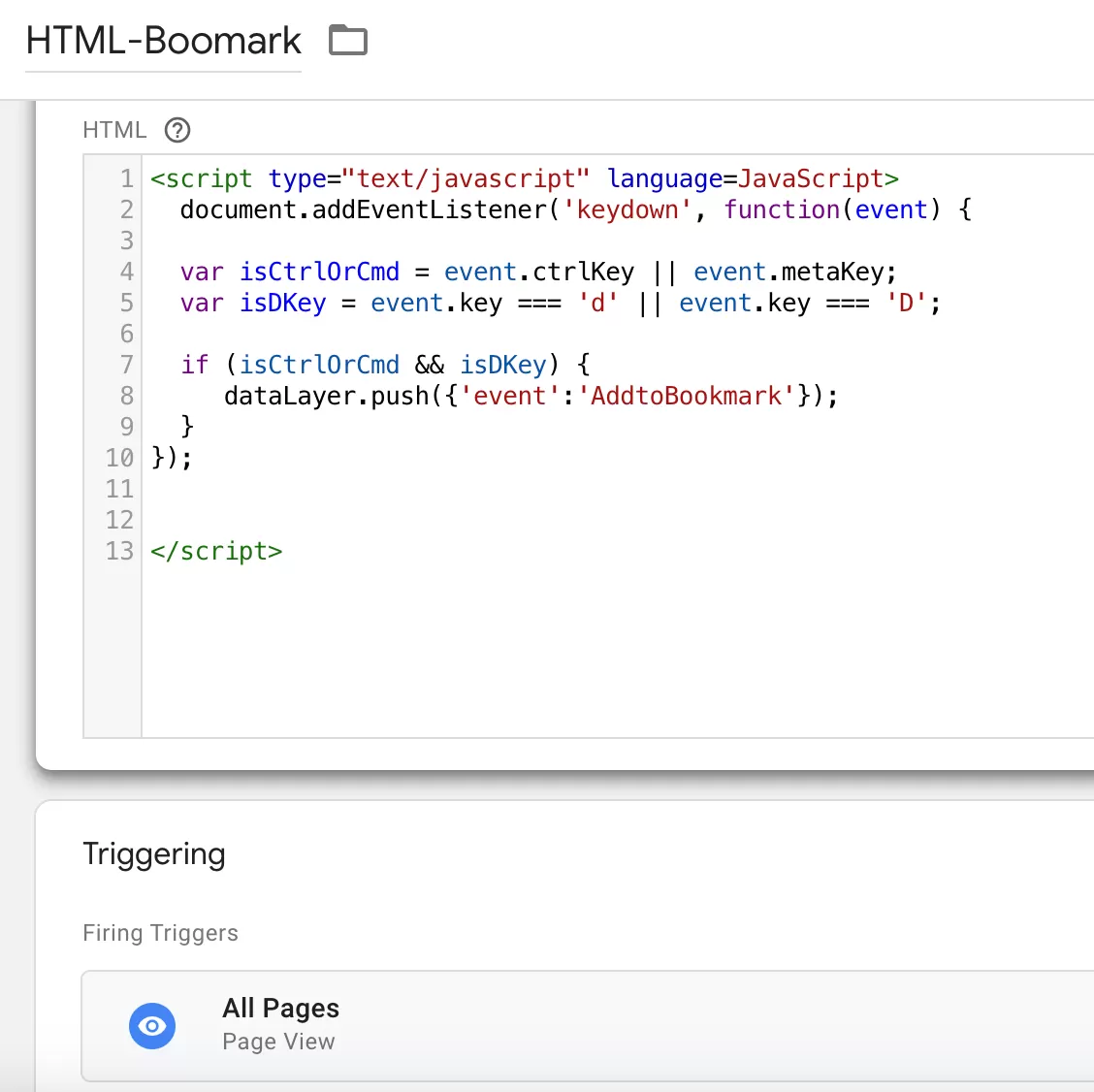
Let me explain what this code does:
It listens for the `keydown` event on the entire document. If the user presses `Ctrl+D` or `Cmd+D`, it prevents the browser’s default bookmark dialog and pushes a custom event to the data layer instead.
It also looks for a button with the class `bookmark-btn` on the page. If it exists, it attaches a click listener that pushes the same event with a different `bookmarkMethod` value.
A note on SPA navigation: If your site is a Single-Page Application, this listener will be loaded once when the page first loads. But when the “page” changes via JavaScript routing, new bookmark buttons might appear without the listener attached. To handle this, you’d need to re-run the listener logic on route changes. I’ll cover SPA-specific patterns in a future post.
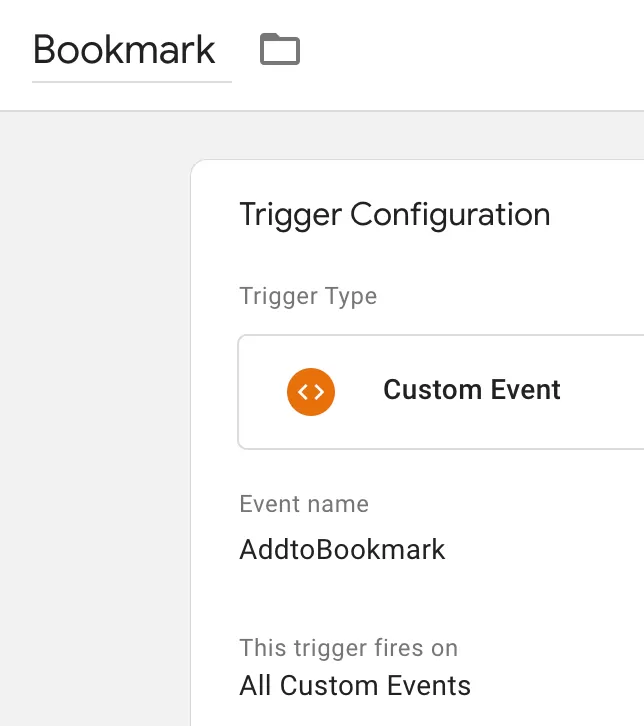
Step 2: Create a Custom Event Trigger
Now we need GTM to listen for our custom event.
In GTM , click「Triggers」——「New」——「Choose a trigger type to begin setup…」——「Custom Event」,Name it “Bookmark”, and make the following settings:
Step 3: Create the GA4 Event Tag
Time to connect everything to GA4.
In GTM , click「Tags」——「New」——「Choose a tags type to begin setup…」——「Google Analytics: GA4 Event」,Name it “GA4-Event-AddtoBookmark”, and make the following settings: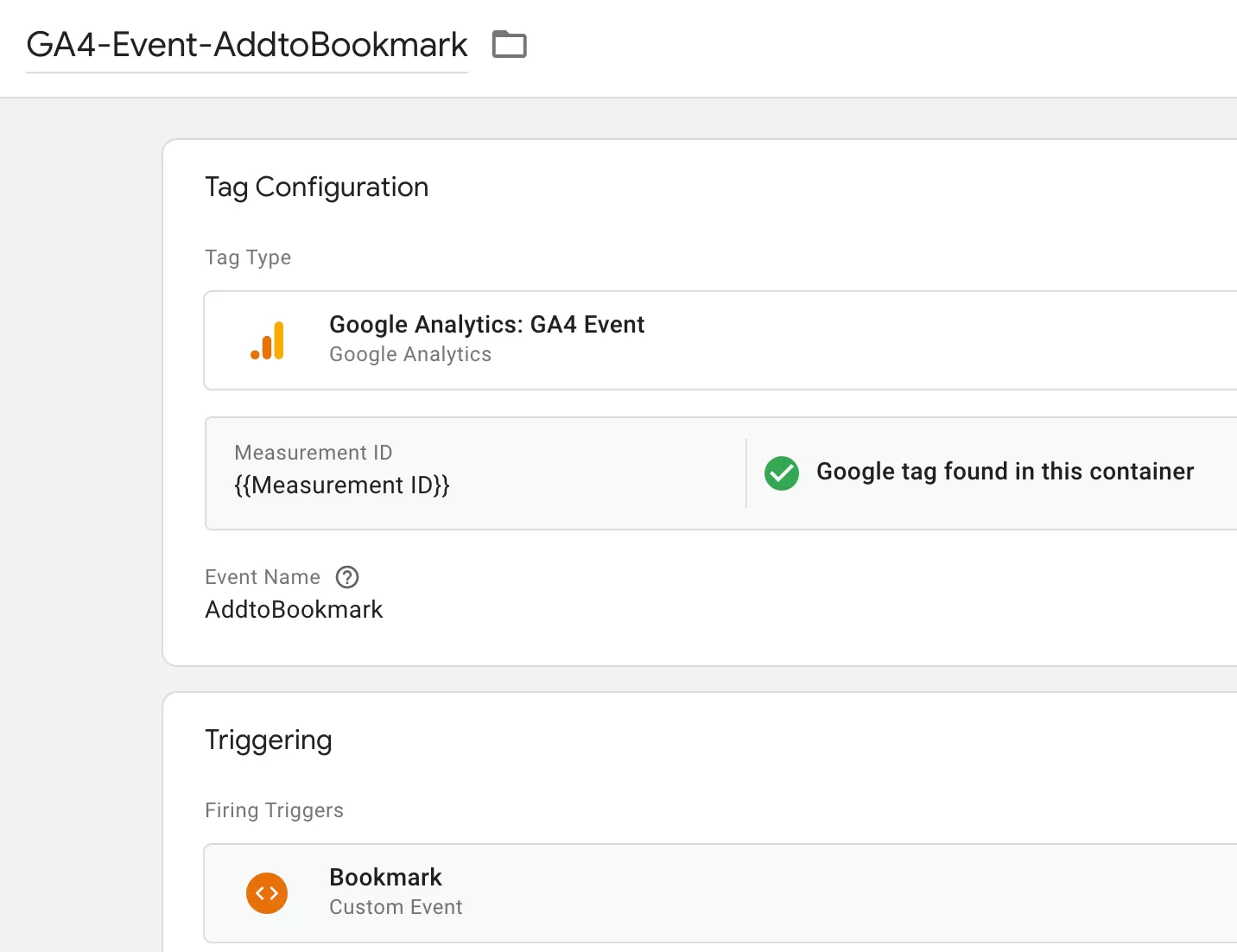
Step 4: Test Using GTM Preview Mode
Before publishing, let’s make sure everything works.
Next is preview debugging.
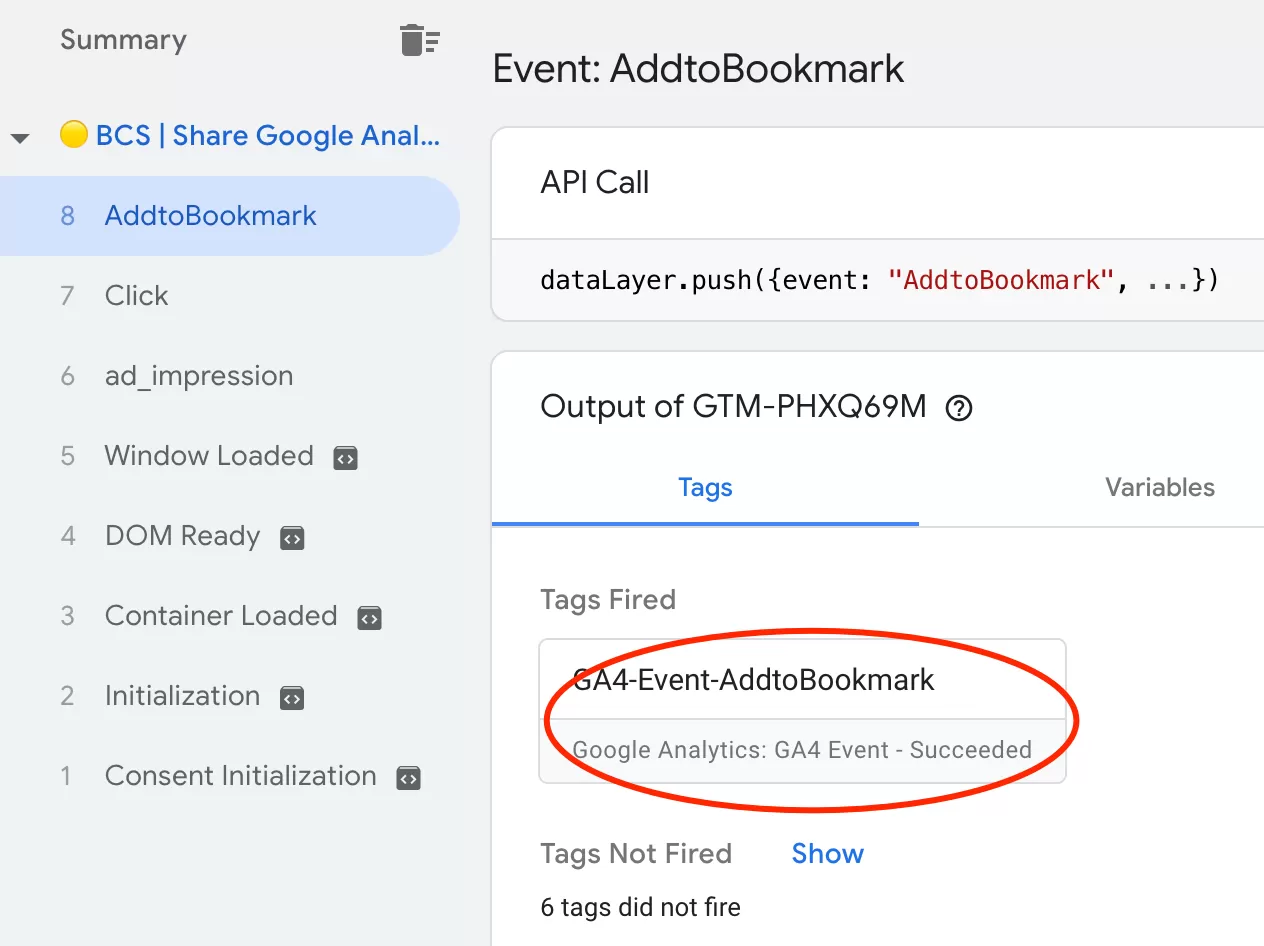
If the tag fires correctly with the right parameter, you’re good to publish.
Step 5: Verify Data in GA4 Reports
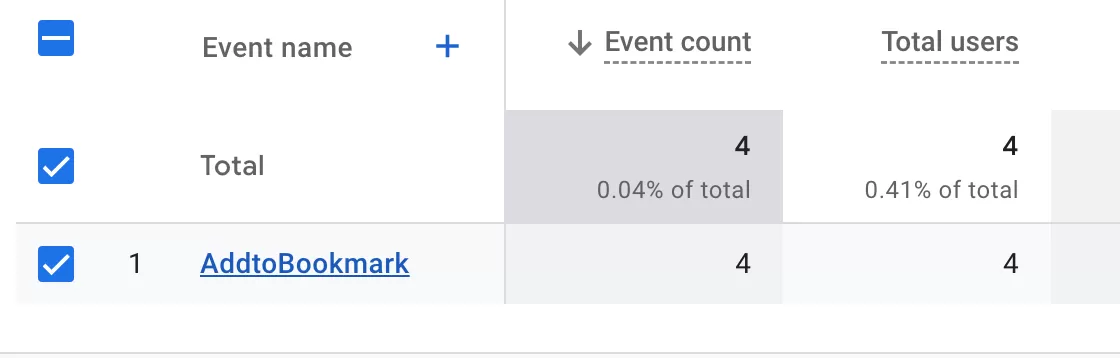
After publishing, it typically takes up to 24 hours before the event appears in your GA4 reports. Once it does, you can verify it in Event Reports:
Final Words
Using `addEventListener()` inside GTM gives you a level of control that GTM’s built-in triggers can’t match for non-standard interactions. Keyboard shortcuts, drag-and-drop, gesture-based actions, custom UI components — if it doesn’t produce a standard click event, `addEventListener()` is your answer.
But with that power comes some extra responsibility. You need to think about:
- DOM timing — is the element available when the listener runs?
- SPA navigation — do you need to re-attach listeners on route changes?
- Duplicate listeners — are you accidentally attaching the same listener twice?
- Default behavior — are you blocking the browser’s default action when needed? (like we did with `preventDefault()` for `Ctrl+D`)
I hope this guide helped you understand how to use `addEventListener()` for custom GA4 event tracking. If you have questions about a specific use case or ran into issues during implementation, feel free to leave a comment and I’ll do my best to help.