Update time: January 13, 2025
If you’ve got a newsletter signup, a contact form, or a lead generation form on your website, you probably want to track how many people are actually submitting it. The problem? Most forms don’t trigger a page view when they’re submitted — so you need GTM’s Form Submission trigger to catch them.
In this guide, I’ll walk you through exactly how to set it up, what requirements your form’s code needs to meet, and one setting that you should avoid (trust me on this one).
Before You Start: Form Requirements
Before GTM can track a form submission, your page’s HTML needs to meet two requirements:
- The HTML must include a
<form>tag. Both the browser and GTM’s trigger need this to recognize the element as a form. - There must be at least one
<input>or<button>element with itstypeattribute set tosubmit. This is what users click to submit the form.
If either condition isn’t met, the Form Submission trigger won’t work. So before diving into GTM, check your form’s code structure first.
Let’s use the subscription form on my blog as an example. The first thing I did was inspect the page source to see if it met the requirements:
<form id="subscription-form" class="subscribe-form">
  <input type="email" name="email" placeholder="Enter your email" required>
  <button type="submit">Subscribe</button>
</form>
We’ve got a <form> tag and a <button type=”submit”> — both requirements are satisfied.
If your form doesn’t meet these requirements, reach out to your development team to adjust the markup. Once it’s fixed, come back here and continue.
Use Case Example: Form Submission
Let’s look at a real example — the subscription form on my blog.
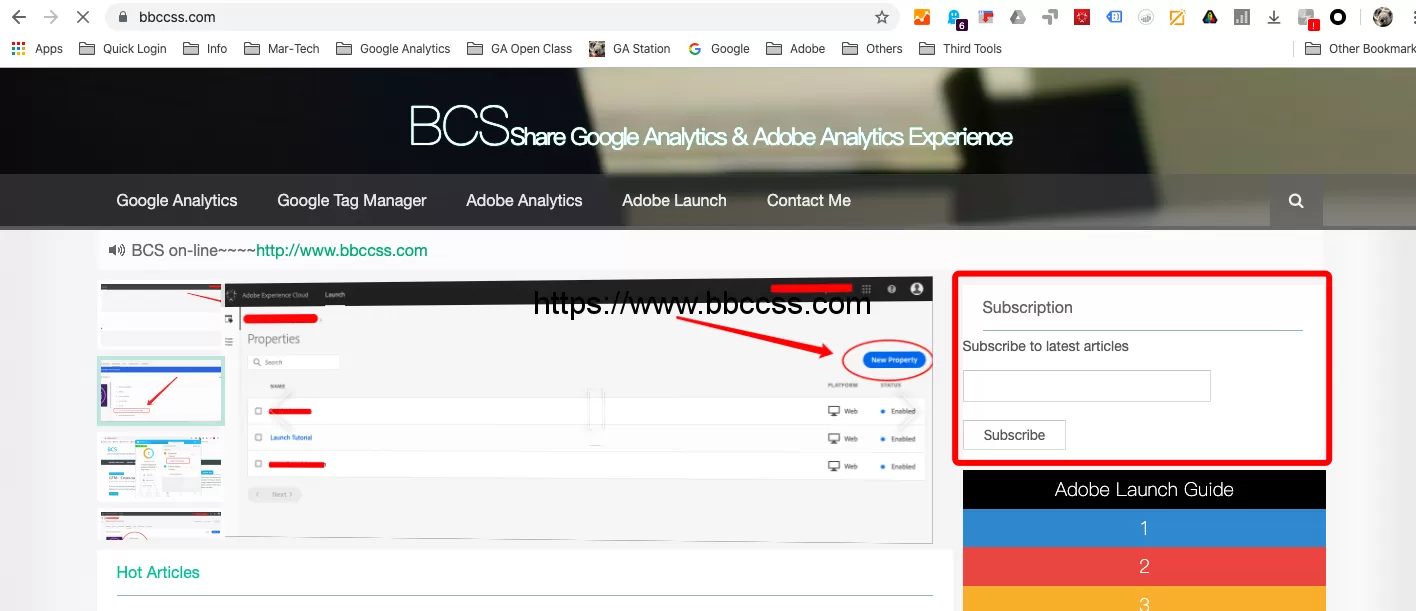
The first step is always the same: check the page source to see if it meets the two form requirements. Here’s what the code looks like:
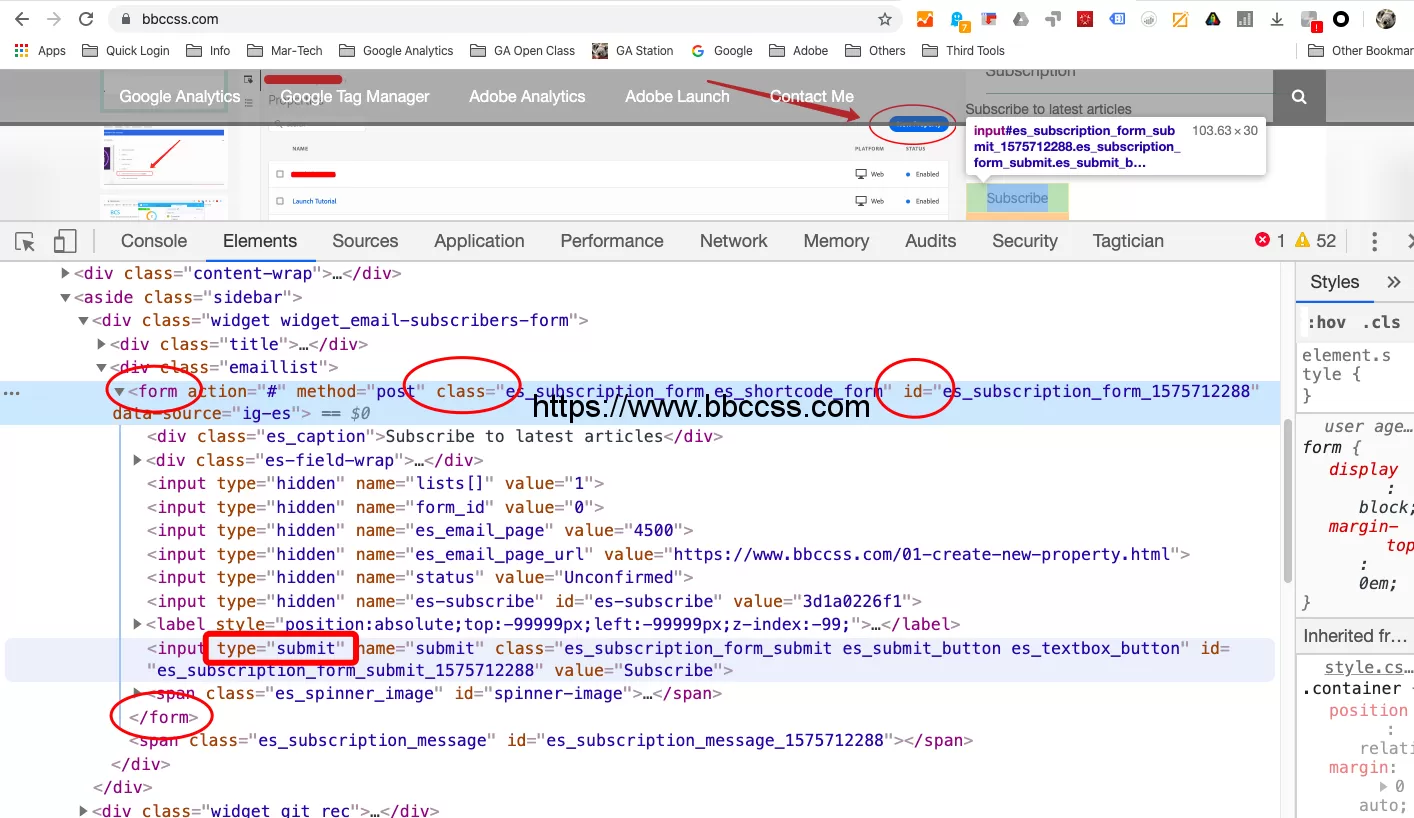
We’ve got a <form> tag and a <button type="submit"> — both requirements are satisfied. We’re good to go.
Step 1: Enable Built-In Variables
GTM comes with built-in variables specifically for form tracking. You just need to enable them.
In GTM , click「Variables」——「Configure」,Check these Built-In Variables of click:
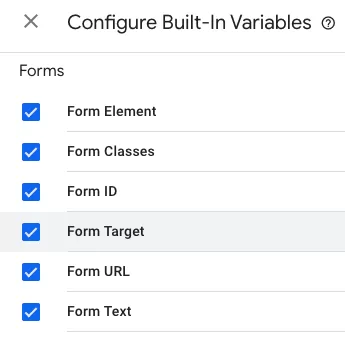
If you’ve already enabled these, skip this step. If not, go ahead and check them now — you’ll need them later.
Step 2: Set Up the Form Submission Trigger
In GTM,click「Triggers」——「New」——「Choose a trigger type to begin set-up」——「Form Submission」,name it “Form Submitted-Subscription”, and make the following settings:
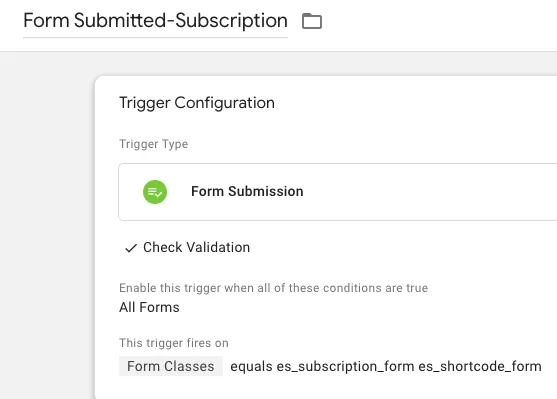
You’ll see two configuration options. Let me explain what each one does:
- Wait for Tags :When enabled, this delays the form submission until all dependent tags have fired — or until a 2000ms timeout is reached. Useful if you have other tags that need to fire before the form submits. For simple GA4 event tracking, you usually don’t need it.
- Check Validation:This option is supposed to fire the trigger only when the form successfully passes validation and submits. In theory, that sounds useful.
Here’s the catch: In practice, checking this option often breaks the trigger entirely. I’ve tested this extensively, and the trigger simply doesn’t fire — whether the form validates or not. I honestly can’t recommend using it.
So leave Check Validation unchecked, and keep Wait for Tags unchecked too unless you have a specific reason to use it.
Step 3: Create the GA4 Event Tag
In GTM , click「Tags」——「New」——「Choose a tag type to begin set-up」——「Google Analytics: GA4 Event」,named “ Event-Subscription”, and make the following settings:
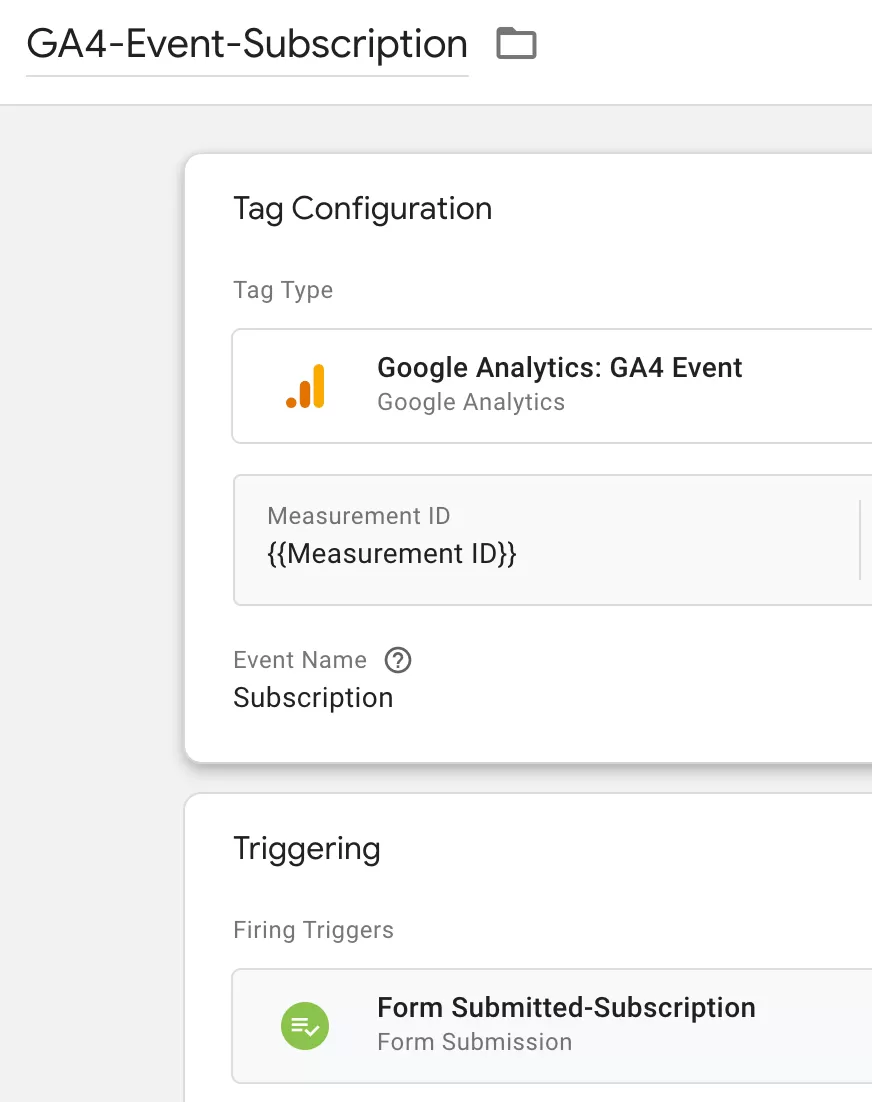
Optionally, add event parameters like {{Form ID}} or {{Form Text}} using the built-in variables from Step 1.
Save the tag — GTM side is done.
Step 4 : Preview and Publish
Click Preview in GTM, navigate to your form page, fill it out, and submit. In Tag Assistant, you should see:
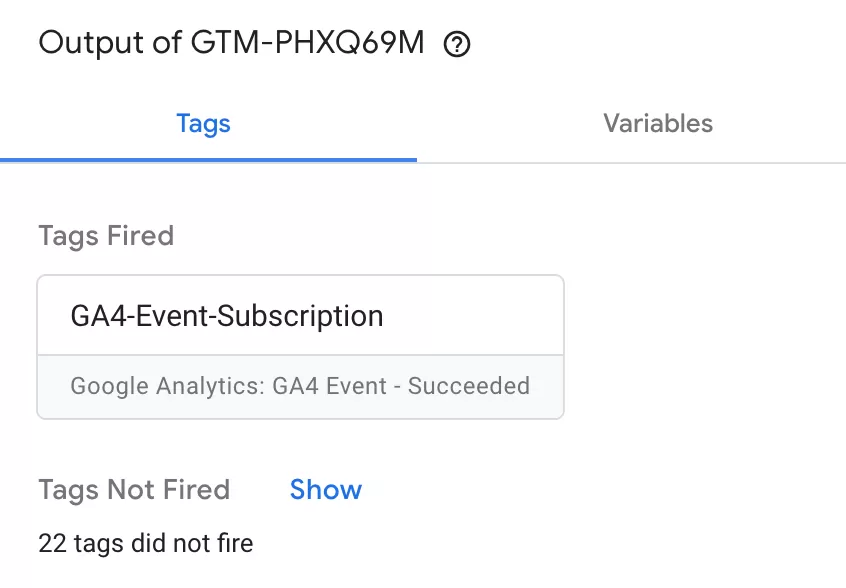
Once everything works, create a new version and publish.
Step 5 : Verify Data in GA4 Reports
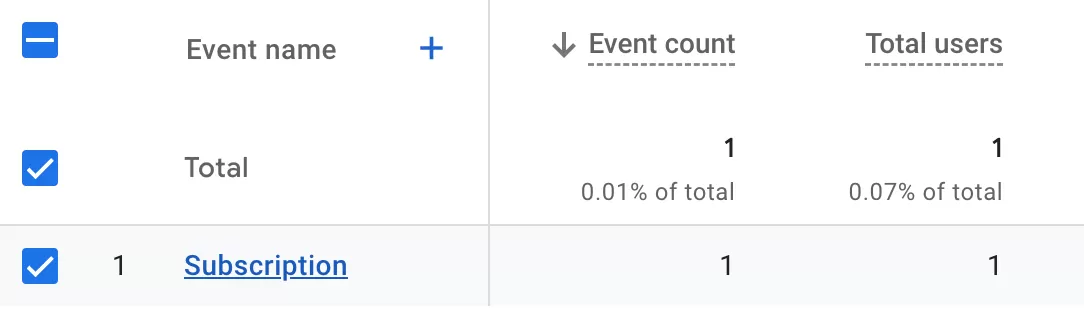
After publishing, give it about 24 hours — the typical delay before custom events appear in standard GA4 reports. Then find the subscription event in Event Reports:
Final Words
The Form Submission trigger is one of the simplest ways to track form completions in GTM. Check your form’s HTML, enable the built-in variables, set up the trigger (with Check Validation unchecked), and create your GA4 event tag. That’s it.
I’ve seen many cases where the trigger mysteriously doesn’t fire, and nine times out of ten, it’s either the form HTML missing a proper <form> tag or the Check Validation setting being enabled. So if something isn’t working, those are the first two things to check.