Update time: January 14, 2025
If you’ve opened Google Tag Manager and stared at the Variables section wondering what all those pre-checked boxes are for, you’re in the right place. Built-In Variables are one of the first things you’ll encounter in GTM, and understanding them well will save you a ton of time (and custom JavaScript) down the road.
What are Built-In Variables?
Built-In Variables are pre-configured variables that GTM gives you for free. They expose commonly used information from your website — like the current page URL, what someone clicked on, form data, scroll depth, and video interactions — without any custom configuration on your end.
Unlike User-Defined Variables, which you create manually, Built-In Variables are provided by Google. You just enable what you need, and they’re ready to use anywhere in your container.
Whether you’re setting up GA4, Google Ads, Meta Pixel, or anything else, Built-In Variables help you build flexible triggers, capture dynamic values, and simplify your tracking. They’re the foundation of almost every GTM implementation.
Built-In Variables vs. User-Defined Variables
Both types live in the same Variables section, but they serve different purposes. Here’s the short version:
- Built-In Variables — created by Google, just enable them, cannot be customized, minimal setup
- User-Defined Variables — created by you, must be configured, fully customizable, best for custom business logic
In practice, you’ll use both together. Built-In Variables handle the common stuff, and User-Defined Variables handle the edge cases and custom tracking needs.
How to Enable Built-In Variables
Most Built-In Variables are disabled by default. Here’s how to turn them on:
In GTM, go to「Variables」——「Configure」,You’ll see a list of available variables:
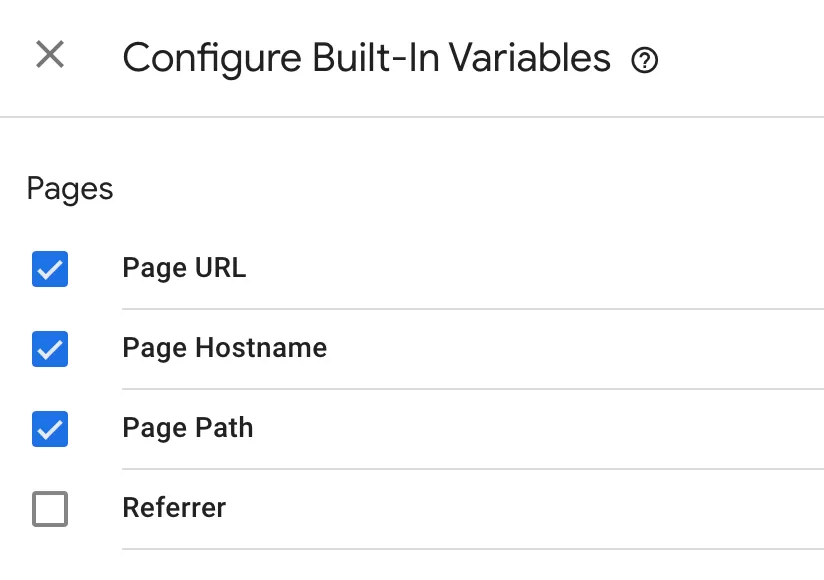
Just check the box next to the ones you need.
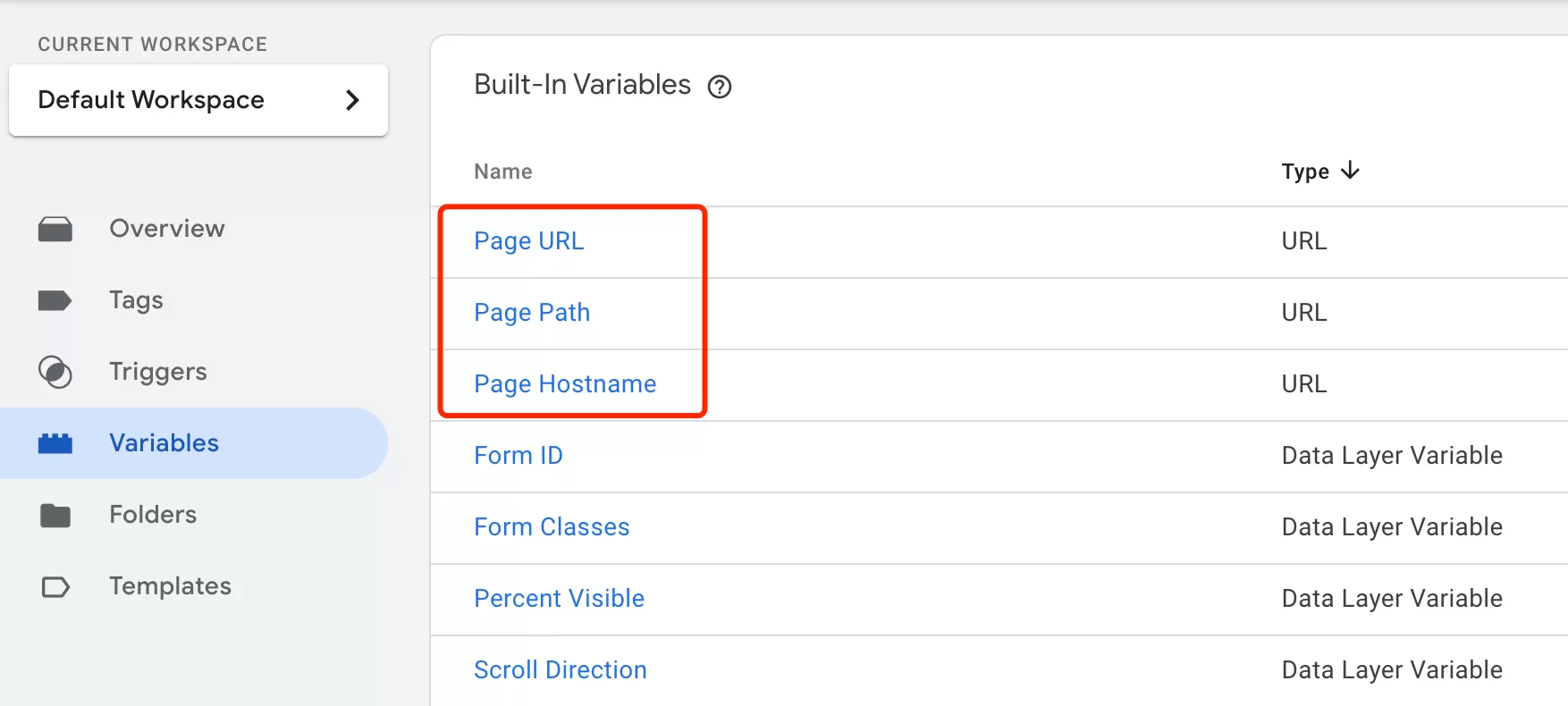
That’s it. Once enabled, they’re available across your entire container — tags, triggers, and other variables.
Built-In Variables Categories
The available variables depend on your container type (Web, Server, AMP, Android, iOS). This section covers Web containers, which have the most categories.
Pages Variables
These are the URL-related variables, and they’re some of the most frequently used in GTM. They tell you what page someone is on and where they came from.
There are four URL-related Built-In Variables.

- Page Hostname — the domain only. Example:
www.bbccss.com - Page Path — the path only. Example:
/google/google-analytics - Page URL — the full URL. Example:
https://www.bbccss.com/google/google-analytics - Referrer — the full URL of the previous page. Example:
https://www.google.com
Utilities Variables
These provide information about your GTM container, Data Layer, and debugging environment.
- Event — returns the name of the current Data Layer event. You’ll use this one constantly.
- Container ID — the public ID of your GTM container
- Container Version — the published version number
- Environment Name — the current GTM environment name
- Random Number — a random integer each time it’s evaluated. Handy for cache-busting
- HTML ID — the ID assigned to a Custom HTML tag, used with Tag Sequencing
- Analytics Client ID / Session ID / Session Number — GA4 identifiers for the current browser and session
Errors Variables
These capture JavaScript errors and work with the JavaScript Error Trigger.
- Error Message — the error text
- Error URL — the file where the error happened
- Error Line — the line number
- Debug Mode — returns
truewhen Preview Mode is active,falseotherwise
Clicks Variables
These are only available when you use Click Triggers. They tell you everything about what the user clicked.
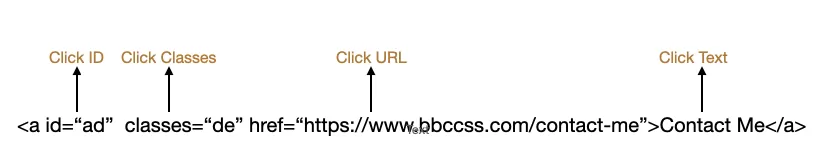
- Click Element — the DOM element itself
- Click Classes — the element’s
classattribute value - Click ID — the element’s
idattribute value - Click Target — the
targetattribute value - Click URL — the destination URL of the link
- Click Text — the visible text of the clicked element
Pro tip: Prefer Click ID over Click Text when you can. Button text changes all the time, but IDs tend to stay stable.
Forms Variables
These work with the Form Submission Trigger and capture information about submitted HTML forms.
- Form Element — the DOM element of the form
- Form Classes / Form ID / Form Target / Form Text / Form URL — attribute values for the form
One gotcha: the Form Submission Trigger only works with standard HTML <form> elements that have a submit control (<input type="submit"> or <button type="submit">). If your site submits forms via custom JavaScript without a real <form> tag, these variables won’t fire. In that case, use a Click Trigger or a custom Data Layer event instead.
History Variable
These work with the History Change Trigger and are primarily used for tracking Single Page Applications (SPAs) built with React, Angular, Vue, etc.
- History Source — what caused the history change
- New History Fragment — the URL hash after the change. Example:
#pricing - New History State / Old History State — before and after state objects
- Old History Fragment — the URL hash before the change
Videos Variables
These capture YouTube video engagement and work with the YouTube Video Trigger.
- Video Current Time — playback position in seconds
- Video Duration — total length in seconds
- Video Percent — percentage watched (0–100)
- Video Provider — always
YouTube - Video Status — current state (playing, paused, etc.)
- Video Title / Video URL / Video Visible — the video metadata and visibility flag
Scrolling Variables
These work with the Scroll Depth Trigger.
- Scroll Depth Threshold — the percentage or pixel value that triggered the event
- Scroll Depth Units —
percentorpixels - Scroll Direction —
verticalorhorizontal
Visibility Variables
These work with the Element Visibility Trigger and tell you how much of an element is actually on screen.
- Percent Visible — how much of the element is visible (0–100)
- On-Screen Duration — how long it’s been visible, in milliseconds
Best practices
A few things I’ve learned from running GTM implementations that are worth keeping in mind.
- Enable only what you need. Performance impact is minimal, but a clean workspace is easier to maintain and debug.
- Prefer Built-In Variables over custom code whenever possible. They’re maintained by Google and are generally more reliable than JavaScript scraping or DOM traversal.
- Choose the most stable option. Use Click ID over Click Text (text changes). Use Page Path over Page URL (fewer variations to match). Use Data Layer Variables over DOM-based variables when both are available.
- Always test in Preview Mode. Before publishing, verify that your variables return the expected values. It takes two minutes and saves hours of debugging later.
Final Words
Built-In Variables are one of those GTM features that seem simple on the surface but become more powerful the more you use them. Whether you’re tracking page views, button clicks, form submissions, scroll depth, YouTube videos, or SPA navigation, they handle the heavy lifting so you don’t have to write custom JavaScript.
If you’re new to GTM, start here. Master the Built-In Variables, and you’ll have a solid foundation for almost everything else.