Update time: January 13, 2025
If you’ve ever tried to track form submissions in GA4 using GTM’s built-in Form triggers, you might have noticed they’re not always reliable — especially when third-party scripts like Meta Pixel interfere with the form’s behavior. That’s where the Element Visibility trigger comes in.
Instead of listening for a form submission event that may or may not fire correctly, you track the success message that appears after the form is submitted. If the message is visible, the form was submitted. Simple.
In this blog post, I’ll walk you through what the Element Visibility trigger is, how it works, and a real example of using it to track a Contact Form 7 submission.
What Is Element Visibility?
The Element Visibility trigger in GTM fires when a selected element becomes visible in the browser’s viewport. It’s a simple concept but incredibly useful for tracking things like form confirmation messages, pop-ups, or any content that appears after a user action.
Here’s a quick overview of the settings:
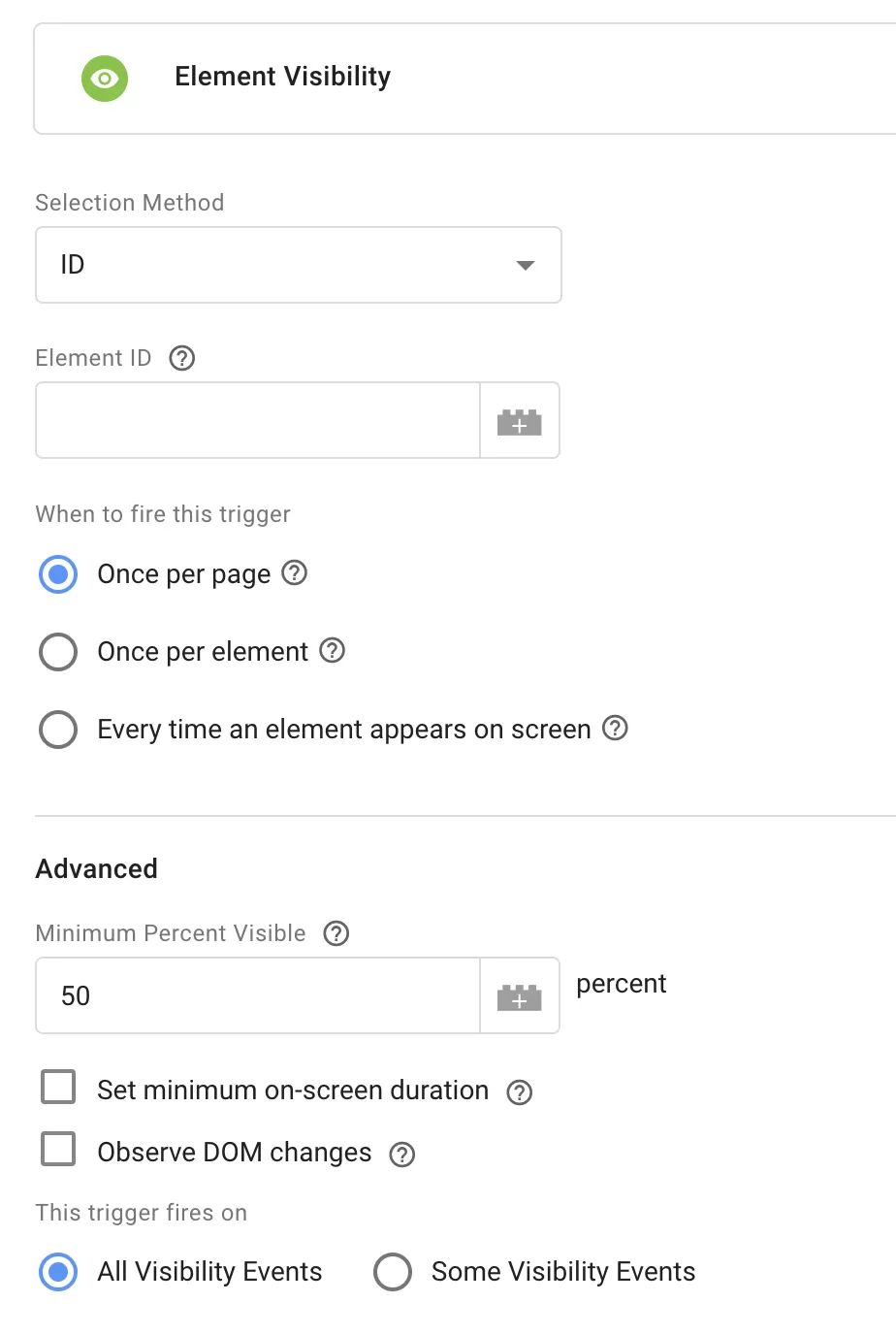
- Selection Method:choose how to locate the element::
- ID: Select a single element based on its ID attribute
- CSS Selector: Select one or more elements based on a CSS pattern
- When to fire this trigger:control how often the trigger fires:
- Once per page — fires the first time the element appears
- Once per element — fires once for each matching element
- Every time an element appears on-screen — fires every time the element scrolls into view
- Advanced:There are three advanced settings:
- Minimum Percent Visible: default is 50%. The element must be at least this percentage visible to trigger
- Set minimum on-screen duration: trigger only after the element has been visible for a set time (in milliseconds)
- Observe DOM changes: enable this to track elements that appear dynamically as the DOM changes
Case Presentation: Tracking a Form Submission
Let’s put this into practice. Suppose I want to track submissions on a Contact Form 7 form at https://www.bbccss.com/contact-form-7.
When the form is submitted successfully, a confirmation message appears:
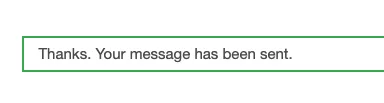
This confirmation message is the key. Instead of trying to track the form submission itself (which can be unreliable), I’ll track the visibility of this success message.
One important note: If your form doesn’t show a visible success message after submission (some forms just redirect or update silently), this method won’t work for you.
Step 1 : Set Up the Trigger
First, I need to find the element that contains the success message. Right-click the message, inspect the element, and look for a class or ID we can use
In this case, the success message has a class: `wpcf7-response-output`. Since this class is inside a `div`, I’ll use the CSS selector `div.wpcf7-response-output`.
In GTM , click「Triggers」——「New」——「Choose a trigger type to begin setup…」——「Custom Event」,Name it “Element Visibility—Submit Form”, and make the following settings: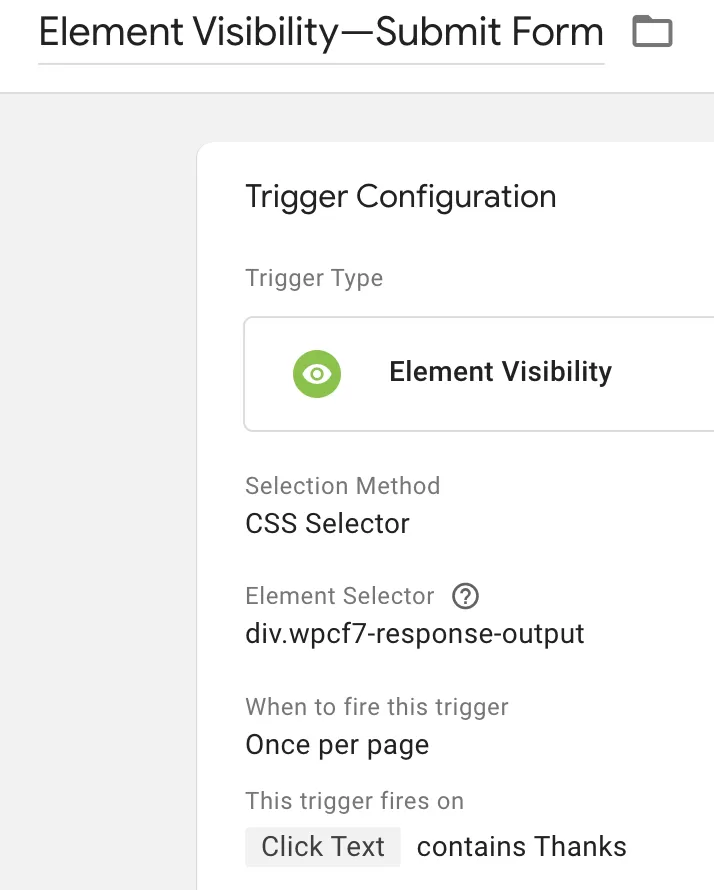
To make sure the trigger only fires when the form was actually submitted successfully (not just when the element appears for some other reason), I’ll add a text condition: the trigger should only fire when the message contains the word “Thanks.”
Step 2 : Set Up the GA4 Event Tag
Now let’s create the tag that sends the event to GA4.
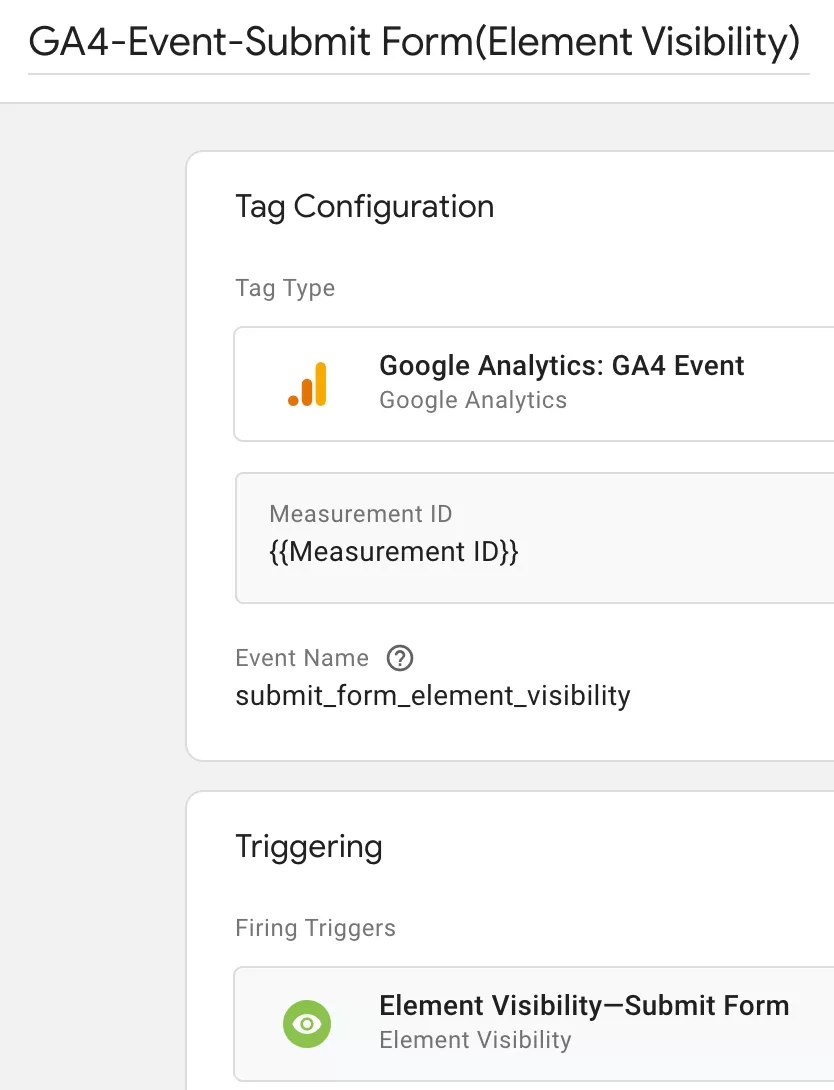
In GTM , click「Tags」——「New」——「Choose a tags type to begin setup…」——「Google Analytics: GA4 Event」,Name it “GA4-Event-Submit Form(Element Visibility) “, and make the following settings:
Step 3 : Preview and Publish
Before publishing, test in GTM Preview mode. Submit the form on your test page and check that the `GA4-Event-Submit Form (Element Visibility)` tag fires when the success message appears.
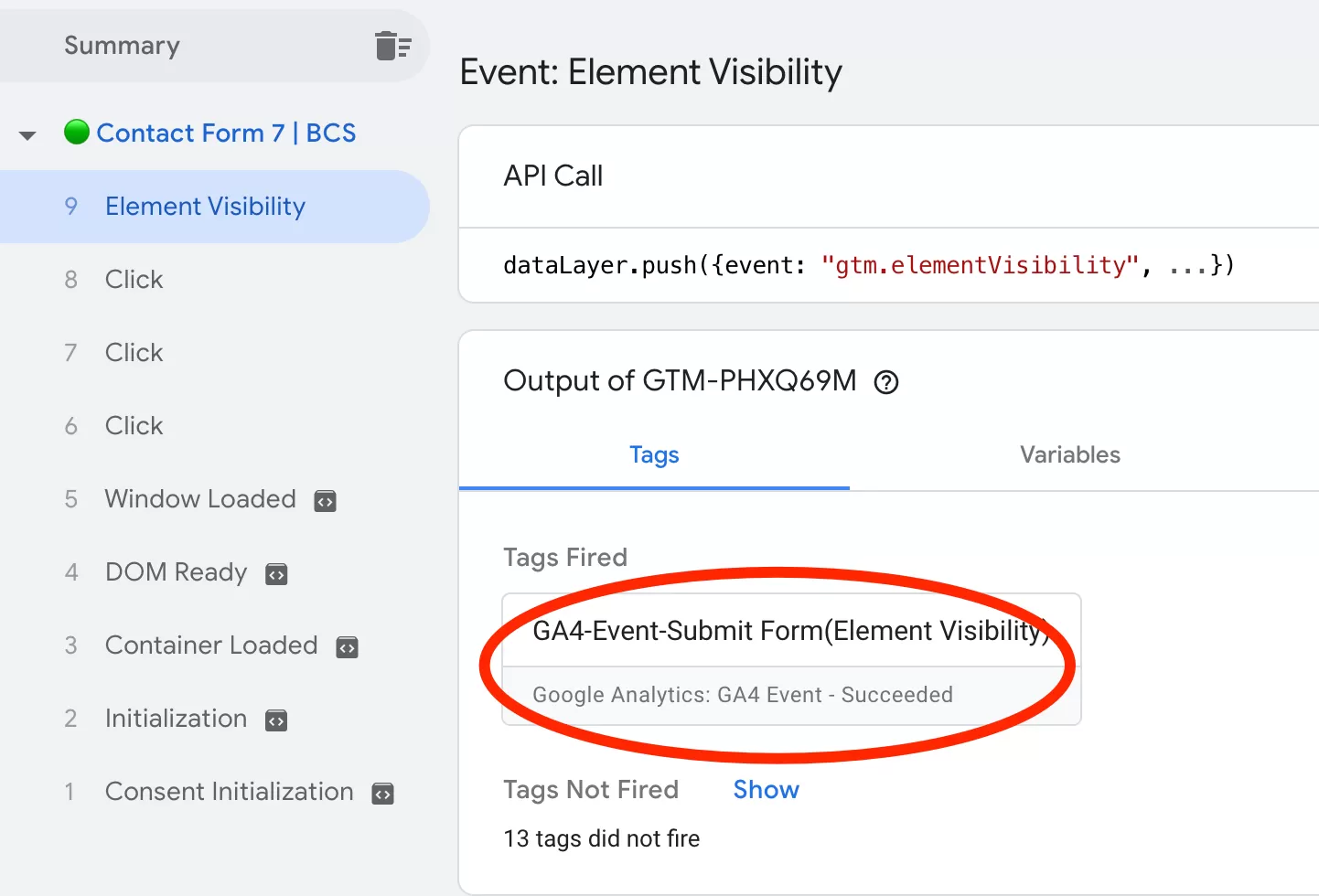
If everything looks correct, publish your container.
Step 4 : Verify Data in GA4 Reports
After publishing, GA4 typically takes up to 24 hours to process and display new events. Once the data is available, look for `submit_form_element_visibility` in your Events report.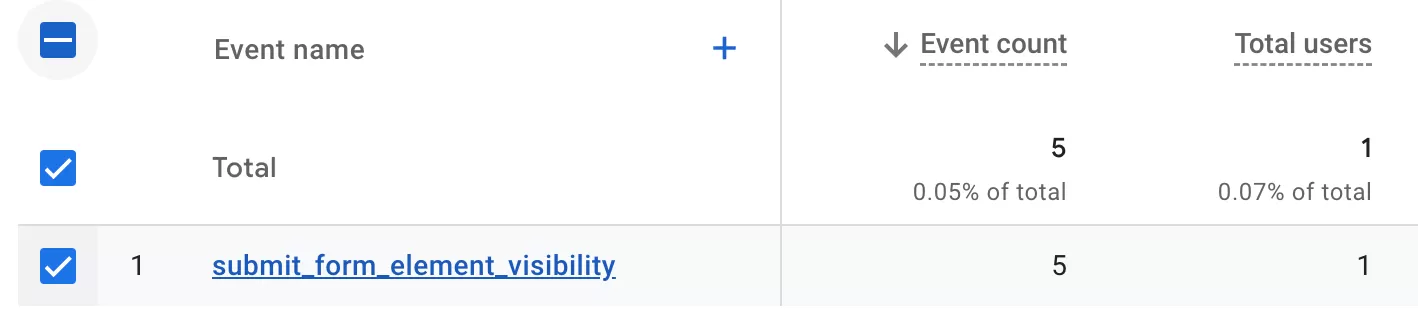
Final Words
The Element Visibility trigger is one of those GTM features that’s incredibly handy once you know about it. Instead of fighting with unreliable form triggers or complex dataLayer.push() setups, you can simply track the success message that appears after a form submission.
Here’s a quick recap:
- Use the Element Visibility trigger to track elements that appear dynamically on the page
- CSS Selector is usually the most flexible targeting method
- Check Observe DOM changes if the element is added dynamically
- Add a text condition (like “contains Thanks”) to make sure you’re tracking the right state
- This only works if your form shows a visible success message
I hope this guide helped you understand how to use Element Visibility for form tracking. If your form doesn’t show a success message or you’re working with a different setup, feel free to leave a comment and I’ll do my best to help.