Update time: April 8, 2026
You embedded a YouTube video on your website. Looks great. Would be nice to know if anyone actually watches it.
That’s the kind of thing GA4’s video tracking can tell you — how many people hit play, how far they get, and whether they watch the whole thing. There are two ways to set it up, and neither one is particularly difficult. In this article, I’ll walk through both, using this YouTube test page on my site as a real example.
Method 1:Using GA4 Enhanced Measurement Events
If you want the quickest setup possible, GA4’s Enhanced Measurement already includes built-in video engagement tracking. It works for YouTube videos that have the JS API enabled (most do by default), and it tracks three events automatically:
- Events:video_start, video_progress, video_complete
- Event Parameters:video_current_time, video_duration, video_percent, video_provider, video_title, video_url, visible (boolean)
No code, no triggers, no tag managers. Here’s how to turn it on.
In GA4 ,go to 「Admin」——「Data Streams」, and open your web stream details: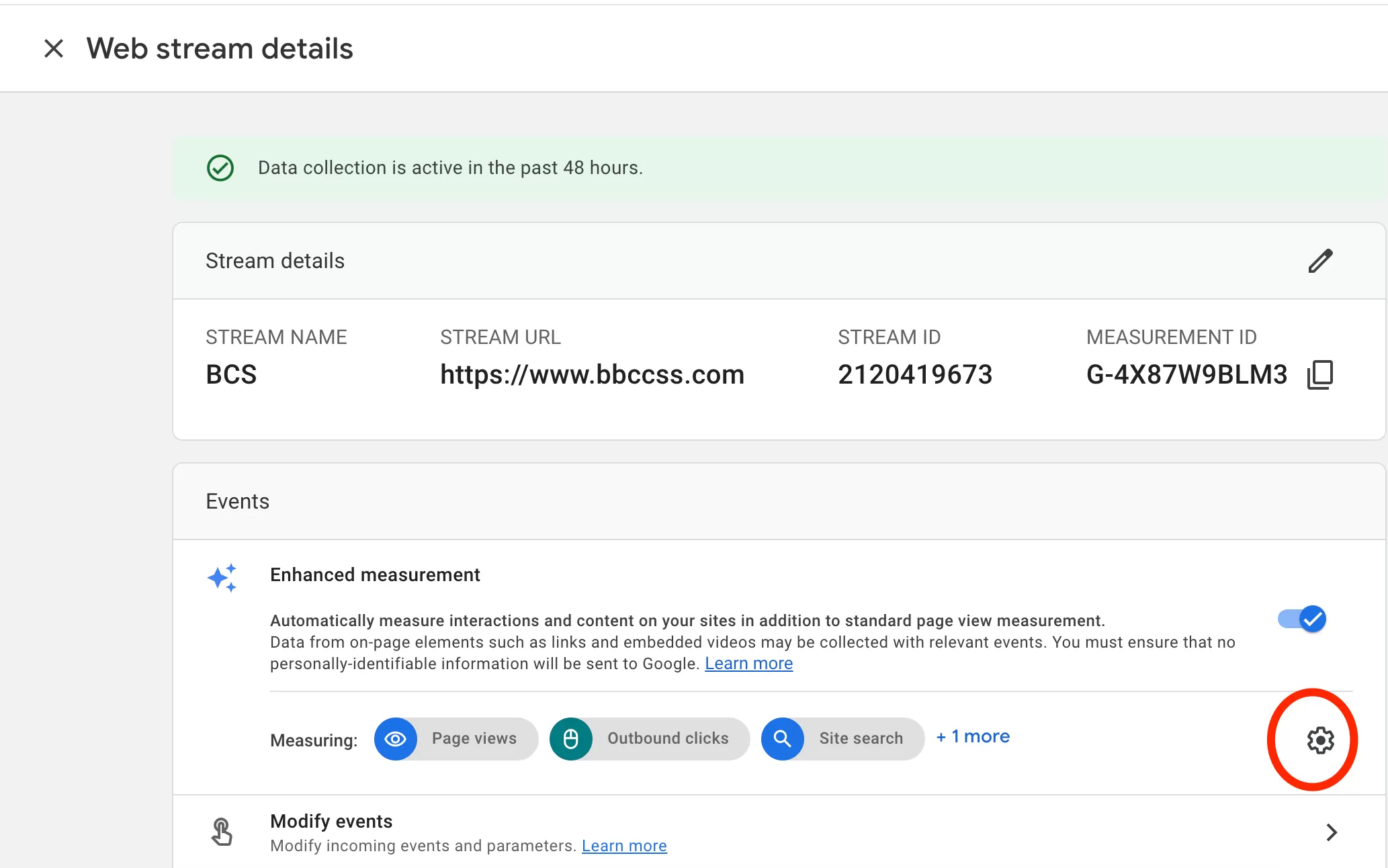
Under Enhanced Measurement, click the settings icon
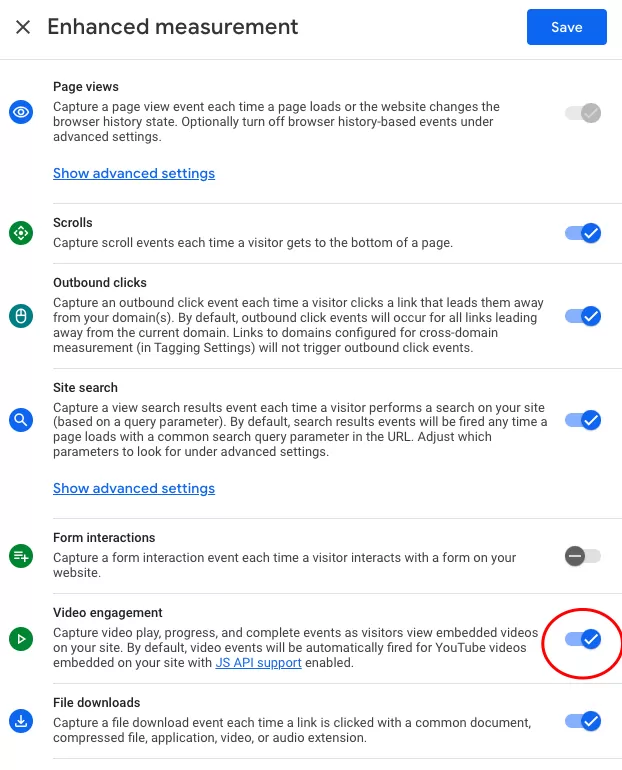
Enable Video Engagement and click Save.
That’s it. From this point on, GA4 will automatically track YouTube video interactions on your site.
Method 2: Using GTM YouTube Video Trigger
If you want more control — like firing specific tags at certain video progress points, or combining video events with other tracking — GTM’s built-in YouTube Video Trigger is the better choice. It takes a few more steps, but it gives you a lot more flexibility.
Step 1 : Enable Built-In Variables
In GTM , click「Variables」——「Configure」,Enable all Video-related Built-In Variables
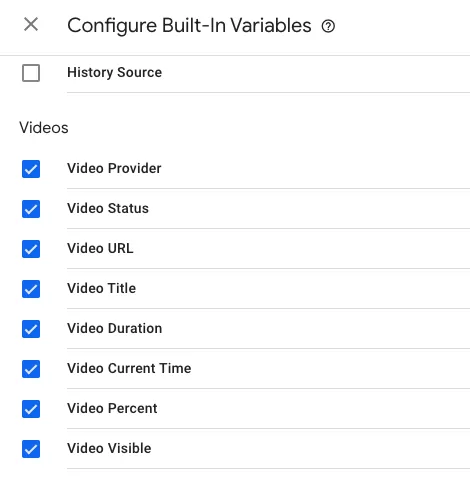
This lets GTM automatically capture attributes like video title, URL, duration, and status when a video interaction happens.、
Step 2 : Create the YouTube Video Trigger
In GTM , click「Triggers」——「New」——「Choose a trigger type to begin setup…」——「YouTube Video」,Name it “Youtube”, and make the following settings:
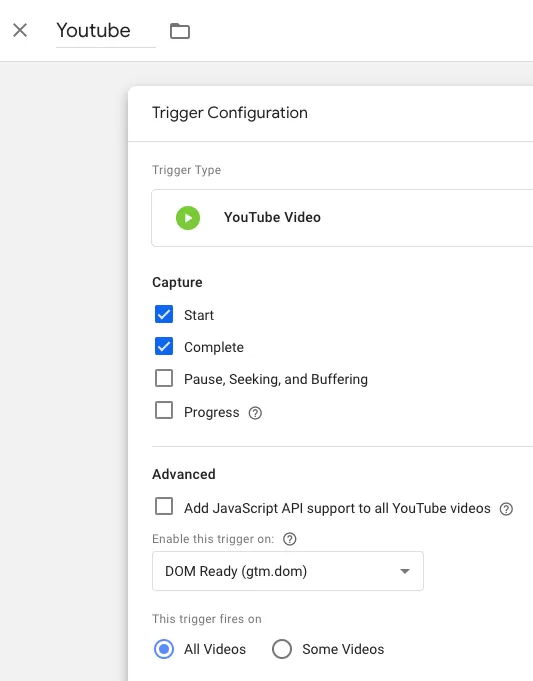
There are four capture options:
- Start: fires when the video starts playing.
- Complete: fires when the video ends.
- Pause, Seeking, and Buffering: fires when the video is paused, scrubbed, or buffering.
- Progress: fires at specific progress points. You can configure this by:
- Percentages: enter a comma-separated list, e.g.,
5, 20, 50, 80(fires at 5%, 20%, 50%, and 80%). - Time Thresholds: enter seconds as a comma-separated list, e.g.,
5, 15, 60, 120(fires after 5 seconds, 15 seconds, etc.).
- Percentages: enter a comma-separated list, e.g.,
- Advanced——Add JavaScript API support to all YouTube videos: Check this box to enable the YouTube iFrame Player API. If you are copying videos from Youtube, you don’t need to enable it.
- Enable this trigger on: the default is Window Load (gtm.load), which I’d recommend sticking with for best results:
- Container Load (gtm.js) fires as soon as the page starts loading.
- Window Load (gtm.load) (default) fires after all initial content has loaded.
- DOM Ready (gtm.dom) fires after the DOM is ready.
Step 3: Create the GA4 Event Tag
In GTM , click「Tags」——「New」——「Choose a tags type to begin setup…」——「Google Analytics: GA4 Event」,Name it “GA4-Event-Youtube Video Tracking”, and make the following settings:
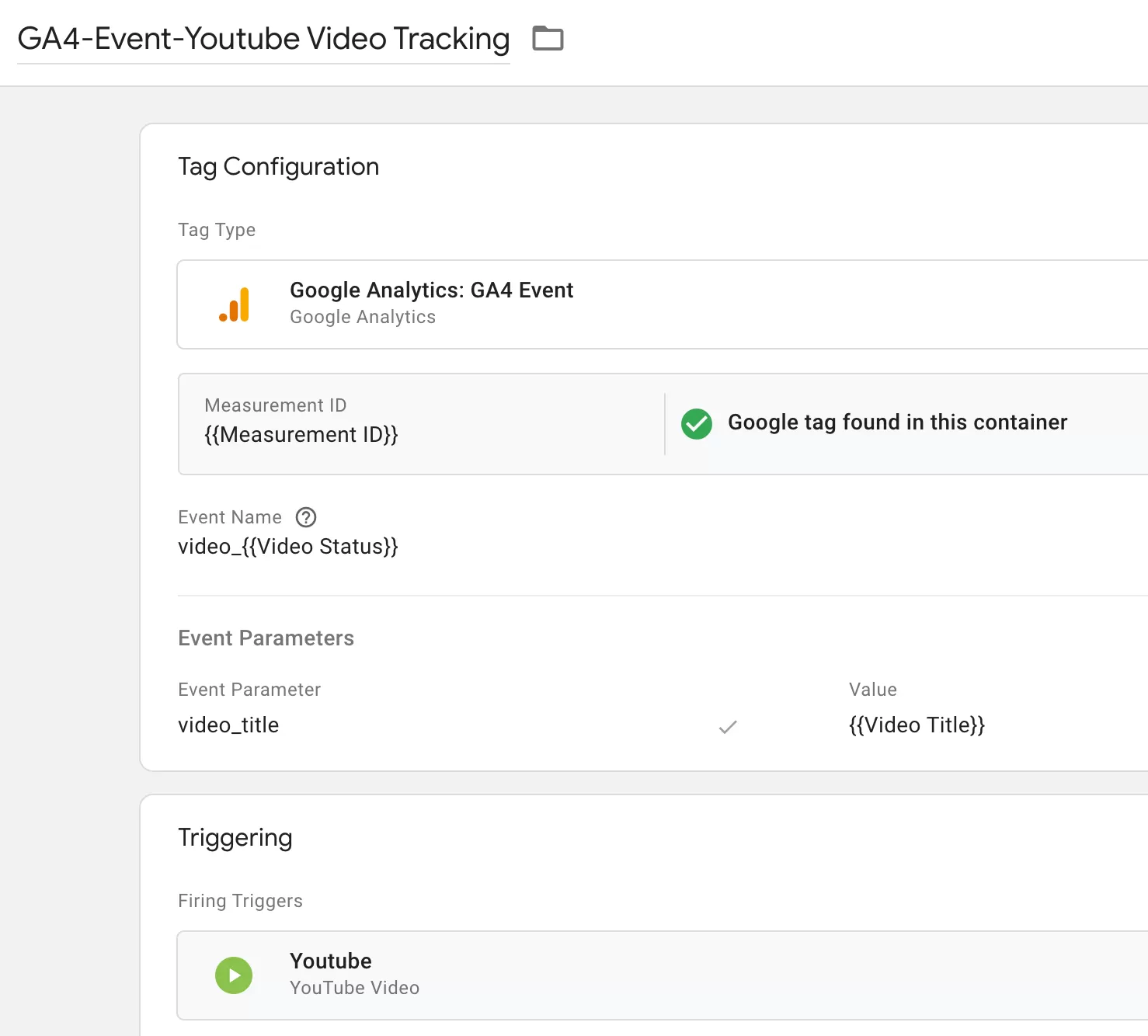
For the event name, I use a pattern like video_{{Video Status}}. The {{Video Status}} built-in variable dynamically outputs start, progress, complete, etc. So when a user starts playing a video, the event name becomes video_start. Clean and easy to find in reports.
I also recommend setting event parameters. At minimum, add video_title — but you can include any of the parameters that GA4’s Enhanced Measurement uses: video_current_time、video_duration、video_percent、video_provider、video_title、video_url、visible (boolean)
Step 4 : Preview and Publish
Open GTM’s Preview mode, navigate to a page with a YouTube video, and play it. Watch the debug panel — you should see your GA4 event tag fire at each configured trigger point.
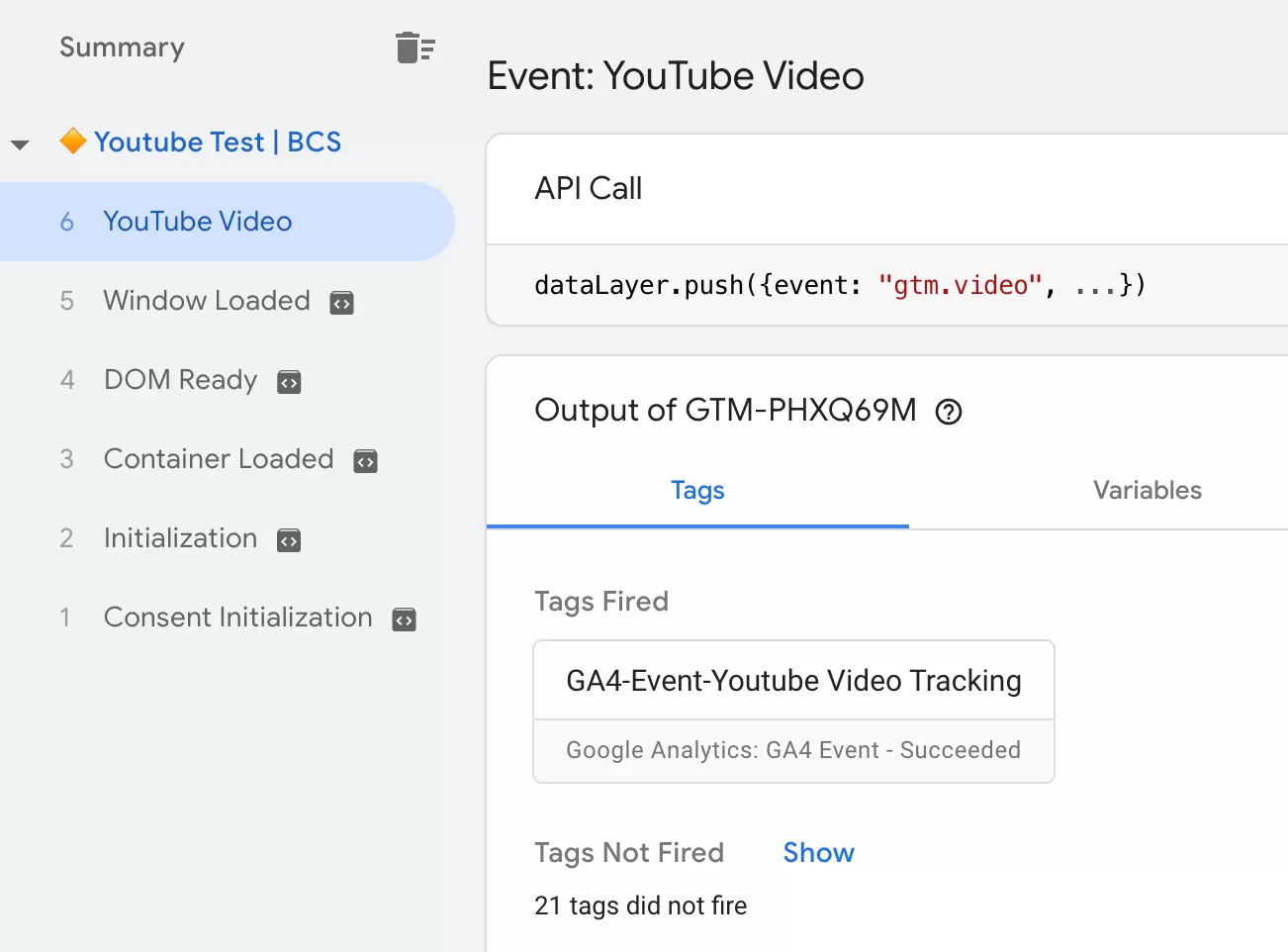
Once you’ve verified everything works, go ahead and publish the container.
Step 5: Register Custom Definitions in GA4
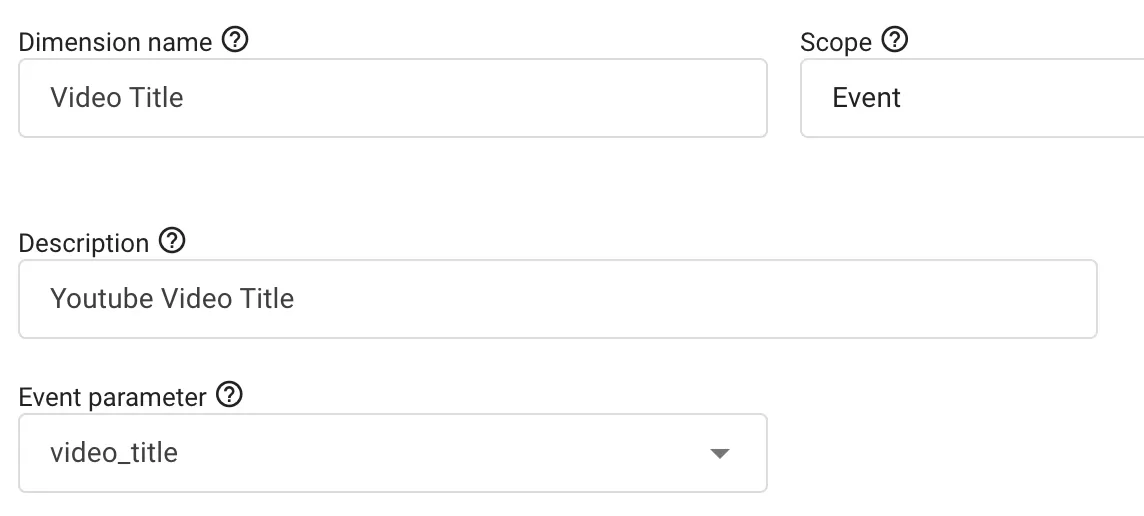
If you want to use video_title (or any other parameter) in your GA4 reports, you need to register it as a custom dimension first.
In GA4,click「Admin」——「Custom definitions」——「Create custom dimension」, then do the following configuration:
Step 6: Verify Data in GA4 Reports
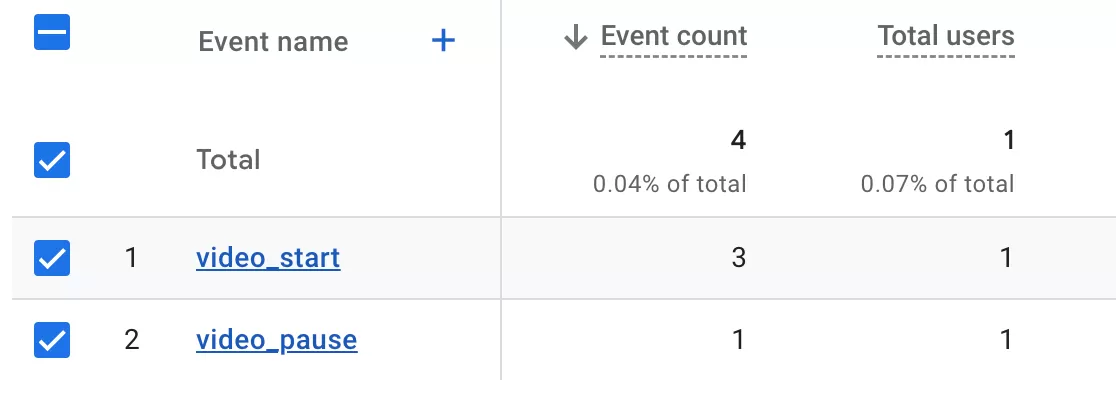
Generally, after 24 hours, we can see the data in GA4, such as:
Track YouTube Videos: Final Words
So which method should you use?
- Method 1 (Enhanced Measurement) is perfect if you want something quick and effortless. Enable it once and forget about it.
- Method 2 (GTM YouTube Trigger) is better if you need granular control — custom progress thresholds, specific event parameters, or integration with other GTM tags.
Both work well. I’ve used both across different projects, and honestly, the right choice comes down to how much control you need and whether you’re already using GTM for other tracking.