Update time: June 16, 2025
If you’ve been using GA4 for a while, you’ve probably run into the same frustration: the default dimensions and metrics only get you so far. You can see pageviews and sessions, but what about the data that’s specific to your business? The user’s membership tier, the product color they selected, or a custom conversion rate you actually care about?
That’s where Custom Definitions come in.
GA4 gives you three types of custom definitions — each designed for a different kind of data. In this article, I’ll walk you through all three, how they work, and when to use each one.
Custom Dimensions vs Custom Metrics vs Calculated Metrics
Before diving into each type, here’s the high-level distinction:
- Custom dimensions describe your data. They’re the rows in your report — like “which keyword drove the traffic,” “which city the user is in,” or “which product color was selected.”
- Custom metrics quantify your data. They’re the numbers — how many times something happened, how long it took, how many users did it.
- Calculated metrics let you create new metrics by combining existing ones — like a conversion rate or an average order value that GA4 doesn’t expose by default.
Let’s go through each one in detail.
Custom Dimensions
Custom dimensions come in three flavors, depending on the scope of data you want to capture.
| Type | Standard Property Limit | 360 Property Limit |
|---|---|---|
| User-scoped | 25 | 100 |
| Event-scoped | 50 | 125 |
| Item-scoped | 10 | 25 |
User-Scoped Custom Dimensions
User-scoped dimensions let you report on custom user properties — data that’s tied to the user rather than a single session or event.
For example, if you want to identify individual users in your GA4 reports, you can set a user property like client_id and register it as a user-scoped custom dimension. This lets you track and analyze behavior at the user level — something GA4 doesn’t expose by default in standard reports.
Event-Scoped Custom Dimensions
Event-scoped dimensions let you report on custom event parameters — additional data sent along with an event that describes the specifics of that interaction.
Event-scoped custom dimensions enable you to report on custom event parameters, which measure details about user actions captured through an event. Whether you’re identifying clicked links or video engagement, adding a custom event parameter to your recommended events or custom events allows for in-depth analysis of these interactions.
Example:suppose your website sends this dataLayer push:
dataLayer.push = ({
    'event': 'test',
    'pageType': 'product'
});
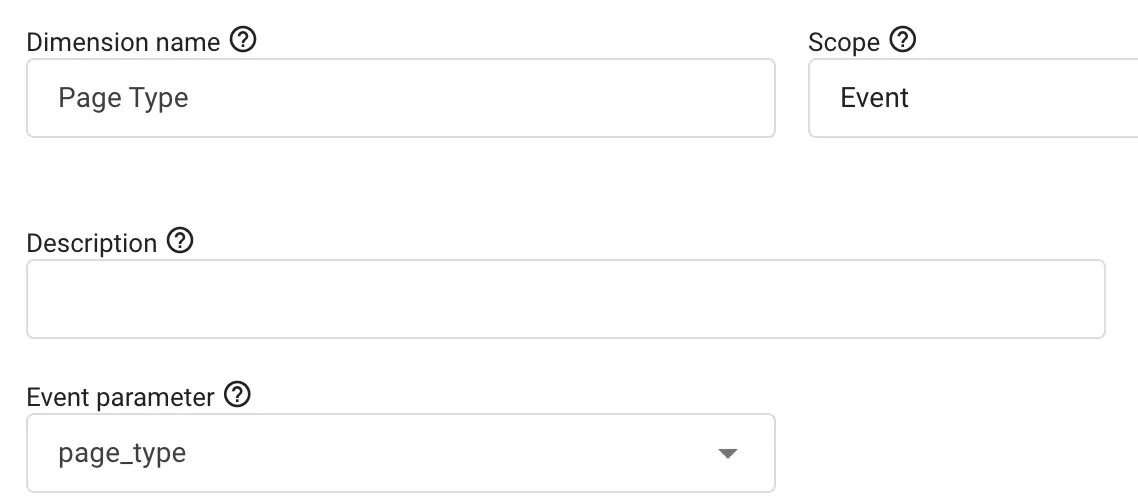
You want to see `pageType` in your GA4 reports, which means you need to register it as an Event-scoped Custom Dimension.
In GA4,click「Admin」——「Custom definitions」——「Create custom dimension」, then do the following configuration:
That’s it.
Item-Scoped Custom Dimensions
Item-scoped dimensions are only available for e-commerce events. By default, GA4’s e-commerce tracking includes a handful of standard item parameters — things like id, name, price, brand, category, variant, and position.
But what if you want to track something beyond those defaults? Say, the color of a product?
Here’s a standard removeFromCart event:
To add product color as an item-scoped dimension, you’d include
"color": "black" in the product object:Then you’d register
color as an item-scoped custom dimension in GA4’s admin panel. That’s it — now you can report on which product colors are selling best.
Custom Metrics
Custom metrics are the numeric side of the equation. They’re always event-scoped — meaning they’re tied to a specific event parameter that contains a numeric value.
| Type | Standard Property Limit | 360 Property Limit |
|---|---|---|
| Custom metrics | 50 | 125 |
Calculated Metrics
Calculated metrics let you combine one or more existing metrics (including custom metrics) to create a new metric that GA4 doesn’t provide out of the box.
| Type | Standard Property Limit | 360 Property Limit |
|---|---|---|
| Calculated metrics | 5 | 50 |
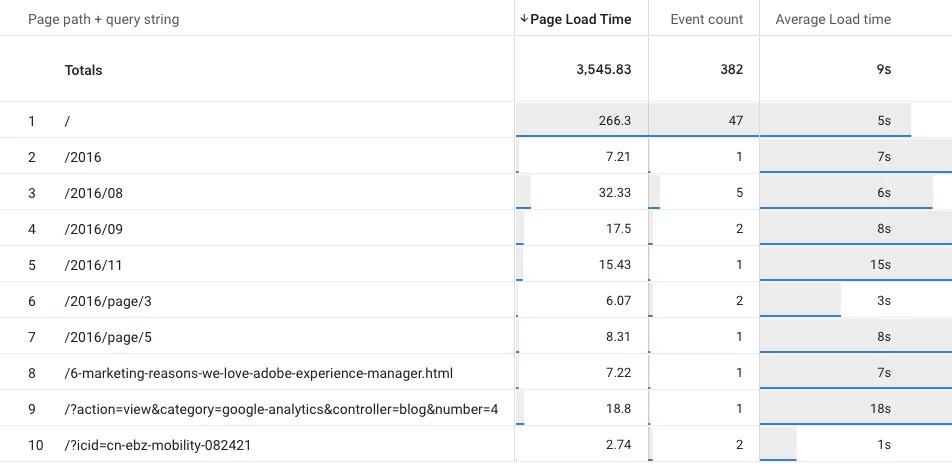
For example, in “How to Track Page Load Time in Google Analytics 4” we use Calculated Metrics to calculate the average page load time.
Formula: {Page Load Time} / {Event count}
The report will then show you the average load time per page — much more useful for performance analysis.
Final Words
Custom definitions are one of those features that separate basic GA4 usage from advanced, business-specific reporting. Default dimensions and metrics will only take you so far. Once you start adding custom dimensions for your user properties, custom metrics for your event parameters, and calculated metrics for your business KPIs, your GA4 reports will start telling a much more interesting story.