Update time: May 27, 2026
Seeing no data in GA4 can be frustrating. You’ve installed the tag, waited for reports to populate, but your GA4 property still looks empty.
In most cases, your data isn’t gone — there’s simply an issue with tracking setup, configuration, or reporting.
In this guide, I’ll walk you through the most common reasons why GA4 is not showing data and how to fix them.
Reason #1: Data Delay — The Most Common Culprit
Here’s a scenario I see all the time. Someone installs GA4, waits 10 minutes, refreshes the reports, and sees nothing. Panic sets in. They start digging into Network tab, questioning their GTM setup, wondering if they broke something.
The truth is much more boring: GA4 data isn’t real-time in standard reports.
Google officially says to expect a 24–48 hour processing delay for standard reports. In practice, data usually starts appearing within several hours or by the next day. But “instant” is not part of GA4’s vocabulary here.
Here’s the catch: Realtime reports are the exception. They update within seconds. So here’s what I recommend:
- After implementing GA4, open Realtime reports first. If you see events coming in, your setup is working.
- Check standard reports the following day. If there’s still nothing, then it’s time to dig deeper.
Reason #2: GA4 Tracking Code Was Removed
This one sneaks up on you. The tracking code was working fine for months, and then one day — nothing. No data. No obvious reason.
Here’s what often happened: someone on your team (or an external developer) made changes to the website — a redesign, a theme update, a CMS migration, a performance optimization — and the GA4 snippet got dropped along the way.
How to check:
Open Browser Developer Tools → Network tab.
- If you’re using direct gtag.js installation, filter requests by
gtag. If you don’t see agtag.jsrequest, the tracking code is gone. - If you’re using Google Tag Manager, filter by
v=2. GA4 collection requests usually containcollect?v=2. No such requests? Possible causes: the GA4 tag isn’t configured in GTM, the GTM container wasn’t published, or a trigger is misconfigured.
Reason #3: GTM Container Was Not Published
This is almost embarrasingly common, but hey, we’ve all done it. You configure a tag in GTM, test it in Preview Mode, it works beautifully, you pat yourself on the back — and then you forget to hit Publish.
Don’t get me wrong. Preview Mode is great for testing. But until you publish a new container version, live users are running the old configuration. They’ll never see your shiny new GA4 tag.
So before you go on a wild goose chase: check whether your GTM container has a published version that includes the GA4 tag. Sometimes that’s all it is.
Reason #4: GTM Configuration Errors
Even when GTM is installed and published, subtle configuration mistakes can silently kill your data.
- Wrong Measurement ID: You set up a GA4 tag with measurement ID G-A in GTM, but your property ID is actually G-B. Every hit goes to the wrong property. Meanwhile, G-A sits there empty. It happens more often than you’d think.
- Trigger Problems: A GA4 tag with no trigger (or a misconfigured trigger) means the tag fires exactly zero times. Check the Triggers tab in GTM — make sure your tag is associated with a trigger, and that the trigger conditions actually match real user behavior on your site.
Reason #5: GA4 Tracking Code Installation Errors
The code exists, but the implementation has issues. This is where things get a bit trickier.
- Manually deployed GA4: If you’re placing the gtag snippet yourself, a few things can go wrong:
- The code is inserted in the wrong location (it belongs in the
<head>, not the footer). - It’s only on some pages, not others.
- Template files are missing the snippet, so certain page types generate data while others don’t.
- The code is inserted in the wrong location (it belongs in the
- SPA and PWA websites: Single-page applications and progressive web apps have their own quirks. Developers often misunderstand how the data layer works in these frameworks. If events aren’t pushed correctly into the data layer, GA4 won’t receive them, even if the base tracking code is present.
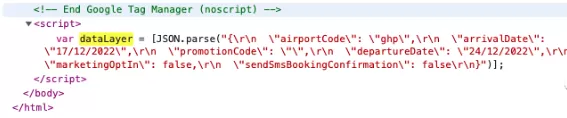
Your best diagnostic tool: filter by v=2 in the Network tab. If GA4 collection requests (collect?v=2) are missing entirely, the implementation needs fixing.
Reason #6: Payload Too Large
Here’s one that doesn’t get talked about enough. GA4 limits how much data you can send in a single request, the limit was about 16 KB .
If your event payload exceeds the limit, the entire request may fail. Silently.
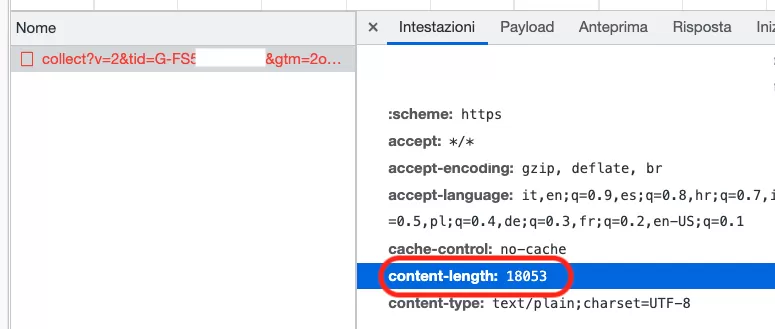
Common culprits: long parameter names, too many custom dimensions, oversized objects being passed as event parameters.
What to do: Trim your parameters. Shorten names. Remove unnecessary custom dimensions. If you’re passing large objects, consider breaking them into separate events.
Reason #7: Filter Configuration Issues
GA4’s internal traffic filter is a great tool — until it accidentally blocks your real users.
Here’s the scenario: you set up an internal traffic filter to exclude traffic from your office IP address. But you accidentally enter the wrong IP range, or you select the wrong data streams. Suddenly, legitimate user data gets filtered out.
Check your filters in GA4 admin. Make sure you’re filtering only the traffic you intended. Also verify that the filter is applied to the correct data streams.
Reason #8: Browser Extensions, CMP, and CSP Blocking
This is a big category, so let me break it down.
- Browser Extensions: Privacy-focused extensions like uBlock Origin, Ghostery, and others can block GA4 requests entirely. This is actually expected for users who install these tools. But during troubleshooting, it’s worth temporarily disabling extensions to see if GA4 data flows when they’re off.
- Consent Management Platform (CMP): If you’re using a CMP and users reject tracking consent, GA4 cannot legally collect data. This is expected behavior, not a bug.
- Content Security Policy (CSP): If GA4 suddenly stops working without any changes on your end, CSP could be the culprit. A strict CSP can block Google’s scripts from loading. Google officially documents the CSP requirements for GTM, but here’s a snippet you can add to your page header if you suspect CSP blocking:
<meta http-equiv="Content-Security-Policy" content="default-src 'self'; script-src 'self' www.googletagmanager.com www.google-analytics.com; connect-src 'self' www.google-analytics.com; img-src 'self' data: www.googletagmanager.com www.google-analytics.com; style-src 'self'; frame-src 'self' www.googletagmanager.com"> - Router, Firewall, or VPN: Some corporate networks and VPNs block Google Analytics domains entirely. If you’re troubleshooting from a corporate laptop, try from a personal device or a different network.
Reason #9: Viewing the Wrong Property
I know, I know — this sounds too simple. But you’d be surprised how often this is the actual answer.
You deployed the GA4 tracking code for Website A with measurement ID G-A. But you’re sitting in Property B in your GA4 account, staring at an empty report, wondering why there’s no data. The tracking is working fine — you’re just looking at the wrong dashboard.
I’ve done this myself, more than once. Always double-check the property selector in the top-left corner of GA4 before assuming something is broken.
Reason #10: Google-Side Server Issues or Bugs
This is rare — but it does happen. Sometimes the problem isn’t on your end.
You can check the status of Google Analytics services through Google’s official status dashboard.
Also, keep in mind that GA4’s cookie structure can change. In May 2025, GA4 changed its cookie formatting, which broke some Measurement Protocol implementations. So, if everything looks correct on your end and data still isn’t flowing, a Google-side change could be the reason.
I will not cover all the possible scenarios here (there are still many unknowns), but hopefully this section at least points you in the right direction.
Final Words
When GA4 shows no data, the problem is usually in one of these areas:
- tracking code is missing or was removed
- GTM container isn’t published
- implementation errors (wrong ID, wrong trigger, wrong placement)
- browser extensions or CMP/CSP blocking
- looking at the wrong property
- network or firewall restrictions
- plain old data delay
The fastest way to start troubleshooting: open Developer Tools, go to the Network tab, filter by v=2, and see whether collect?v=2 requests are being sent. If they’re missing, the issue is on the implementation side. If they’re present but data isn’t showing up in reports, check filters, delays, and Google-side issues.