Updated: March 25, 2026
Tracking how users engage with your YouTube videos — play, pause, end — is essential for understanding content performance. In this guide, you’ll learn how to capture those interactions using Adobe Launch (Tags) and Adobe Analytics.
We’ll walk through four implementation approaches, ranging from custom JavaScript to ready-made extensions.
Test page: https://www.bbccss.com/youtube-test
Method 1: Custom JavaScript (YouTube API)
This approach uses the YouTube Iframe API with your own JavaScript. It gives you full control but requires more technical know-how.
Step 1: Deploy the Tracking Code
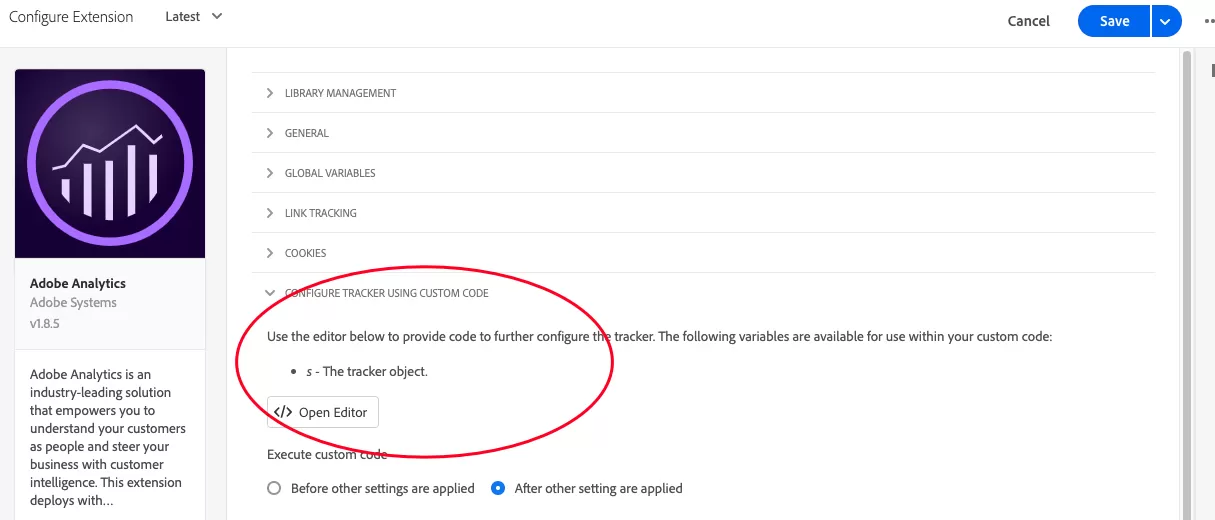
Add the following code under Configure Tracker Using Custom Code in the Adobe Analytics extension settings:
The following line triggers tracking events:
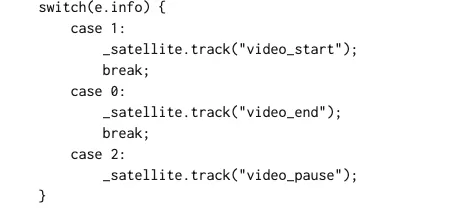
The _satellite.track() calls in the code above fire custom events. That means you need to create Direct Call Rules in Adobe Launch to catch them and map them to Analytics variables.
Step 2: Create a Rule (example: video_pause)
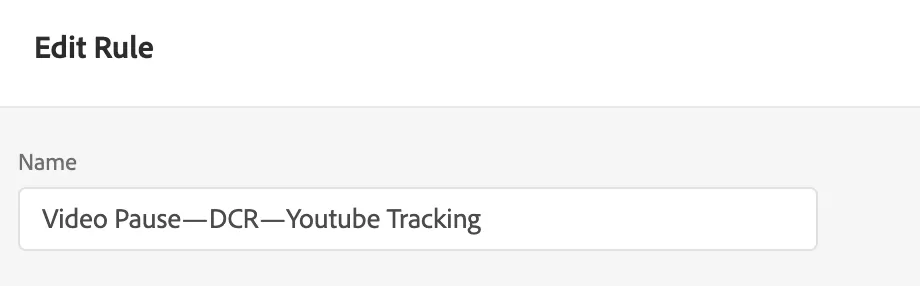
Create a rule and name it something like “Video Pause — DCR — YouTube Tracking”:
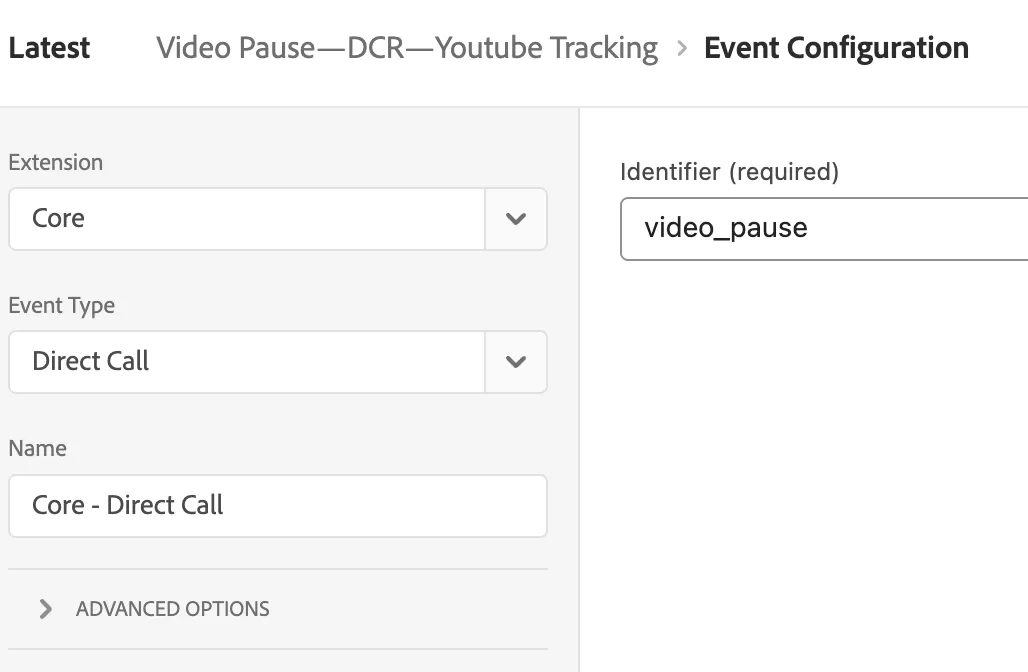
EVENTS
Configure a Direct Call Event that matches “video_pause” — the same string you used in _satellite.track(“video_pause”).
ACTIONS
ACTION 1:Set Adobe Analytics Event , e.g. map this to event12:
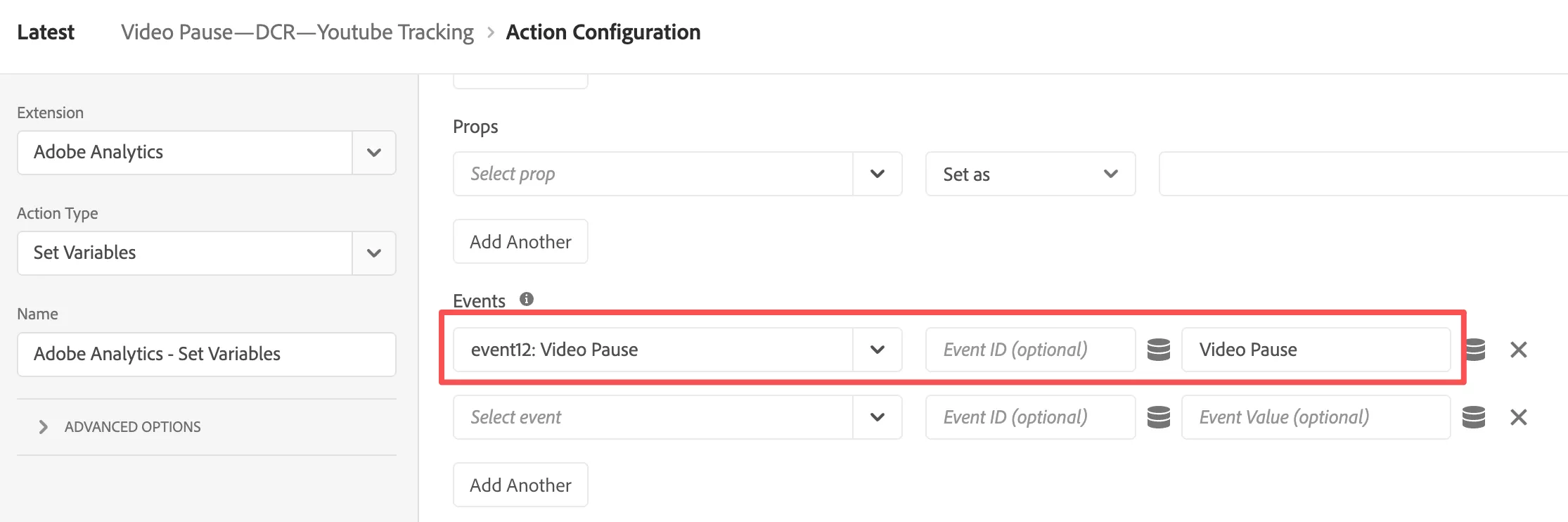
Action 2: Send Beacon,use s.t() (treat it as a page view).
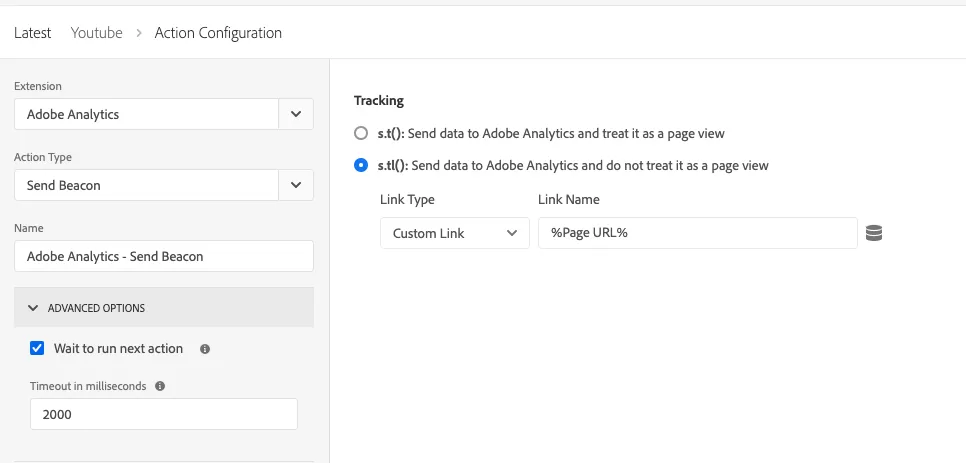
Action 3: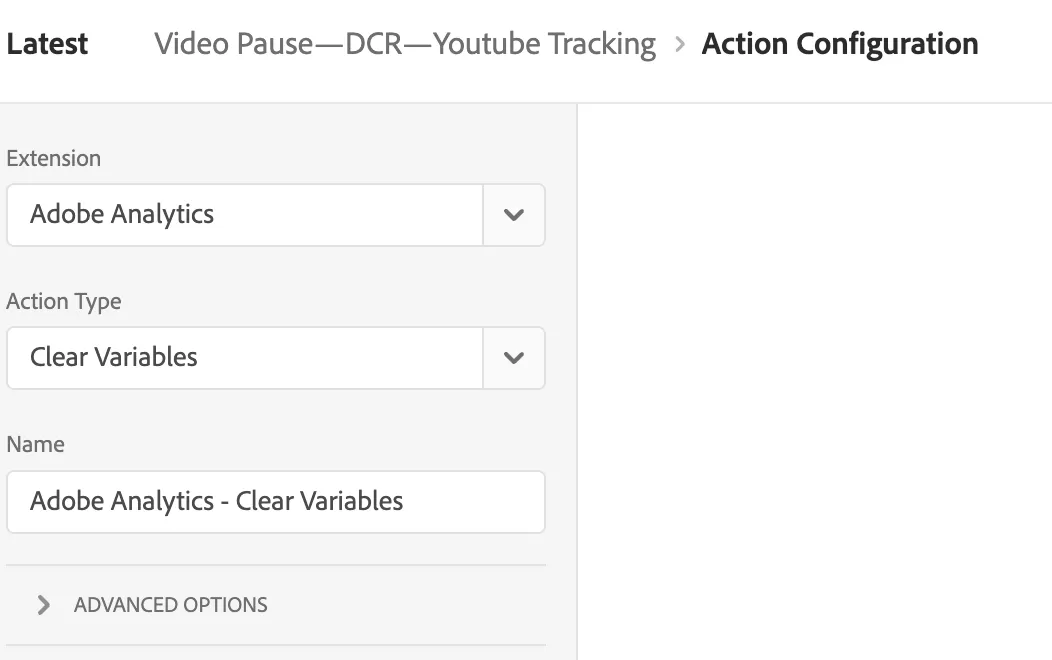
Final effect:
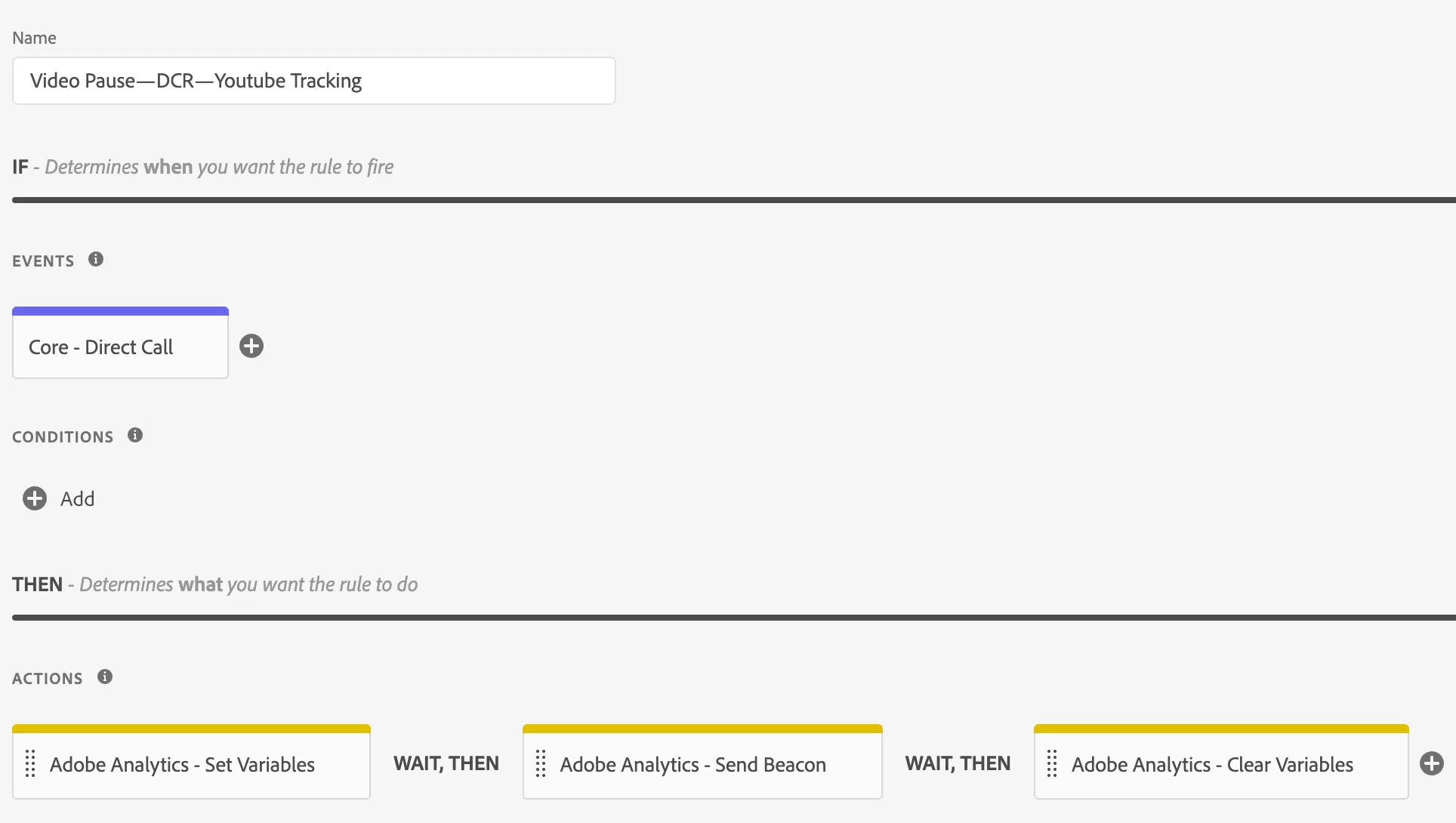
Save the rule and repeat for video_start and video_end as needed.
Step 3: Test & Publish
Build and publish a library. Open the test page, play and pause the video
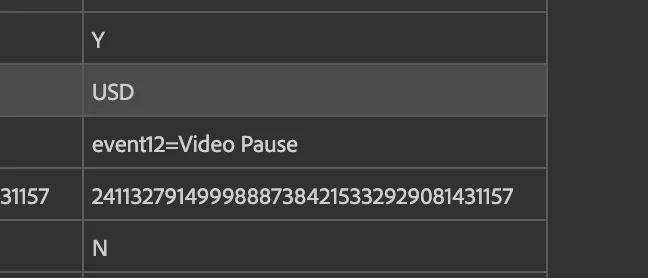
Then check Adobe Analytics to confirm event12 is firing.
Method 2: Video Tracking for YouTube (Adobe Extension)
This is a first-party extension from Adobe.
Step 1: Install the Extension
In Adobe Launch, go to「Extensions」——「 Catalog 」, search for “Video Tracking for YouTube”, and install it. No additional configuration is required.
Step 2: Create a Rule
Create a rule named “Video Pause — Video Tracking for YouTube — YouTube Tracking”:
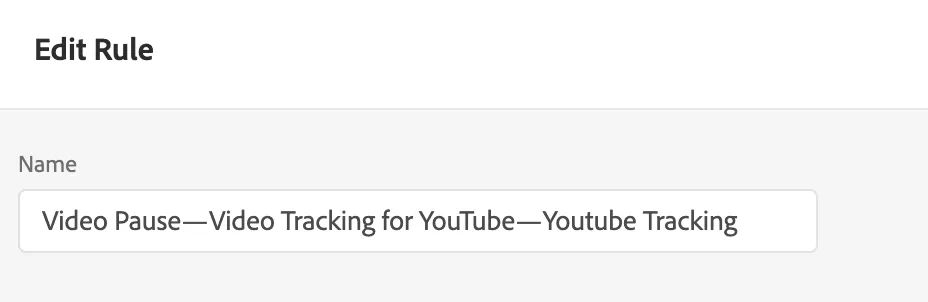
EVENTS
Use the event provided by the extension that fires on video pause.
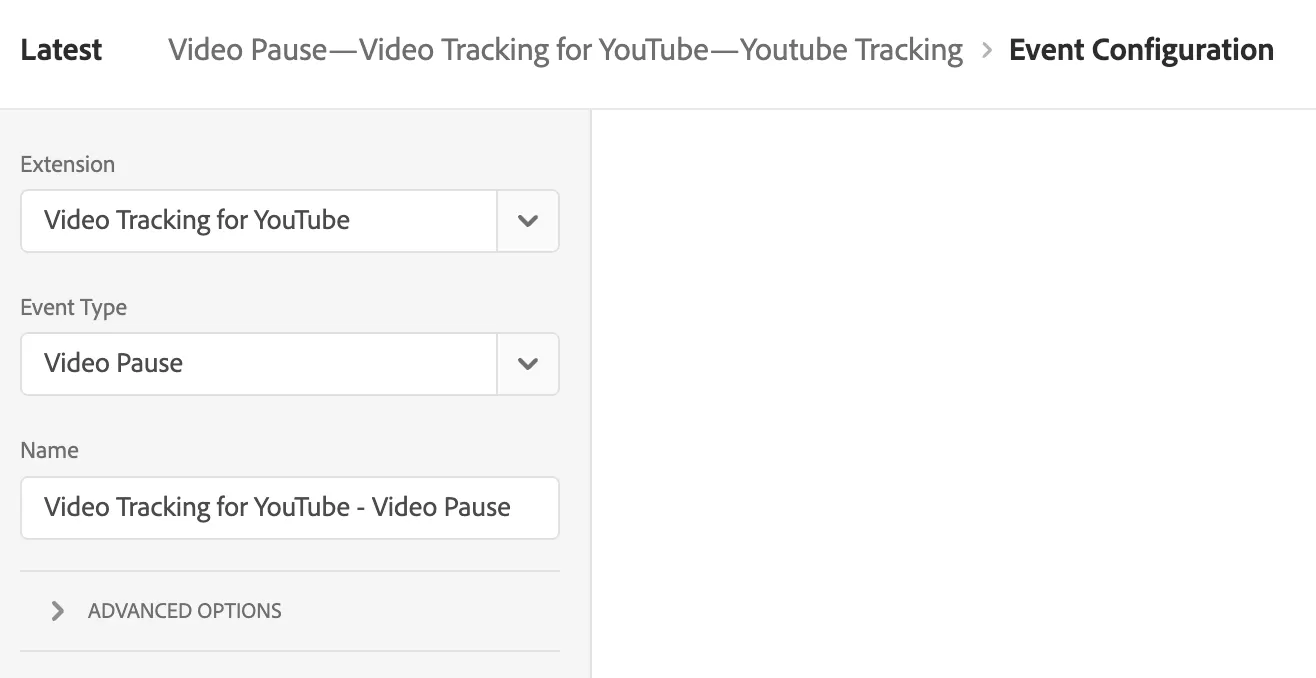
ACTIONS
ACTIONS 1:Set the Adobe Analytics event (e.g., event12).
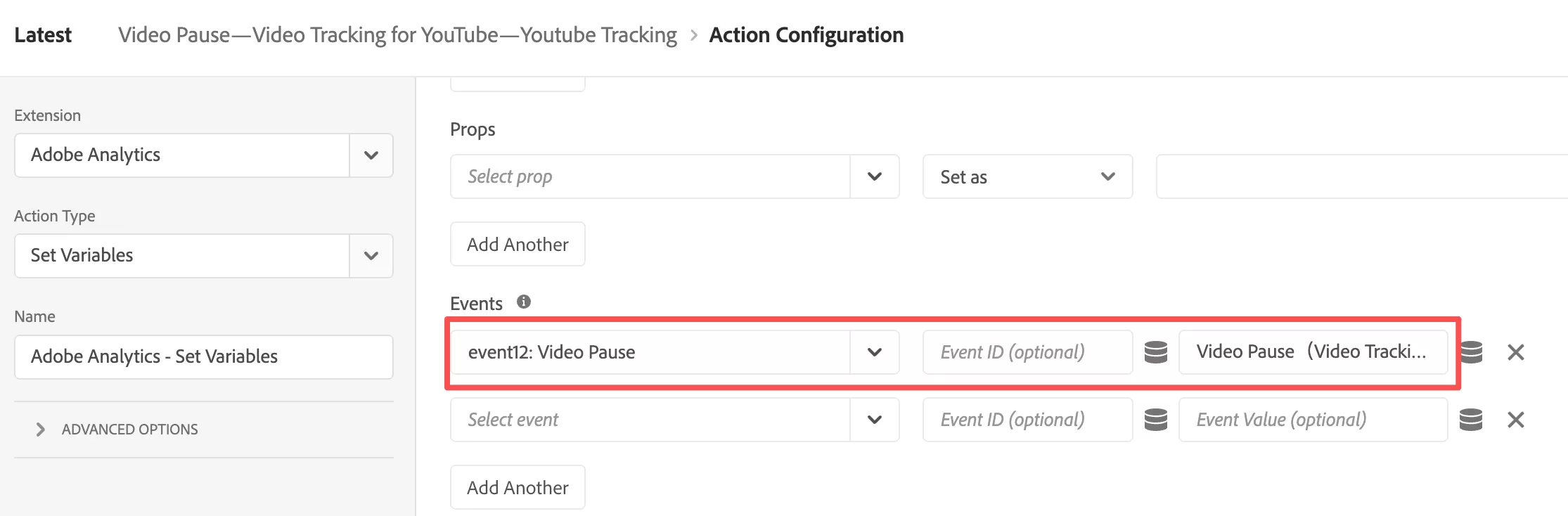
Action 2:Send a beacon with s.t().
Action 3:
Final effect: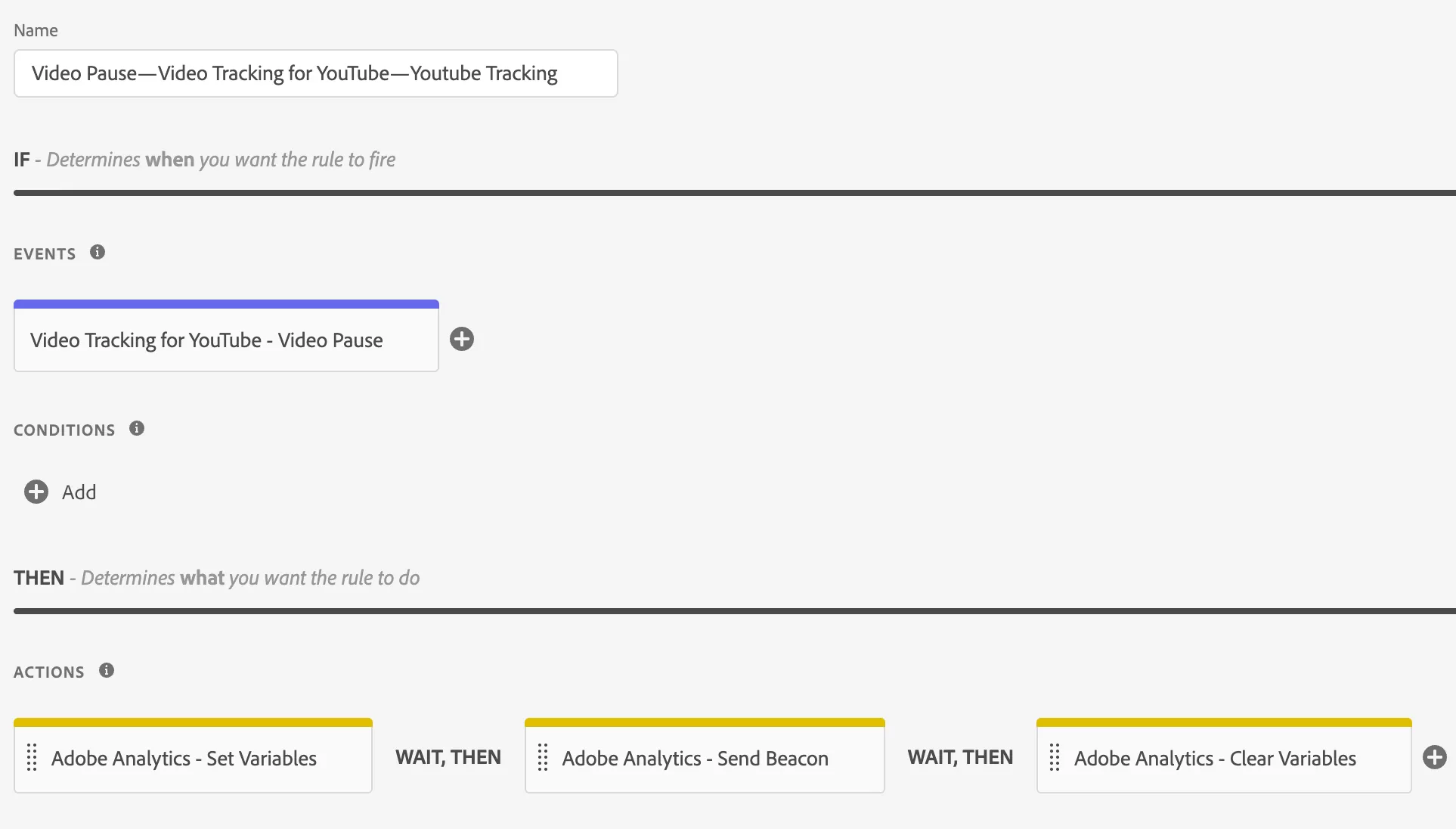
Save the rule.
Step 3: Test & Publish
Build and publish a library. Open the test page, play and pause the video
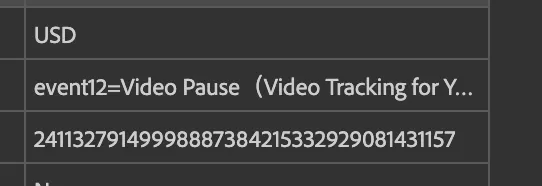
You should see event12 firing in Adobe Analytics
Method 3: YouTube Player Embed Extension (by 33Sticks — Not Recommended)
This extension is easier to implement than the custom code approach, but it’s limited in functionality. It no longer works reliably with recent versions of the YouTube player or Adobe Launch, so its use is discouraged.
Step 1: Install the Extension
In Adobe Launch, go to「Extensions」——「 Catalog 」, search for “YouTube Player Embed ”, and install it. No additional configuration is required.
Step 2: Create a Rule
Create a rule named “Video Pause — YouTube Player Embed — YouTube Tracking”:
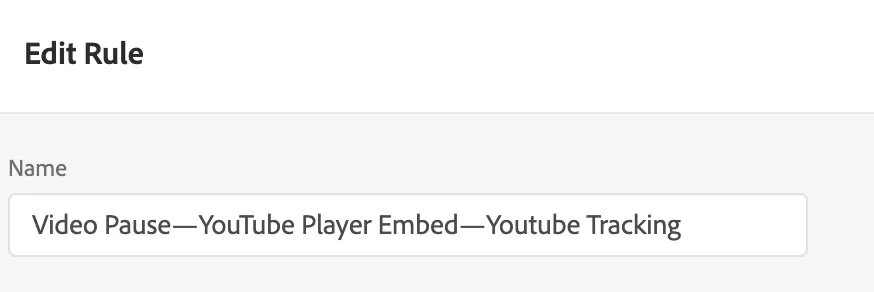
EVENTS
Select the YouTube Player Embed extension as the event source. You’ll see a configuration option:
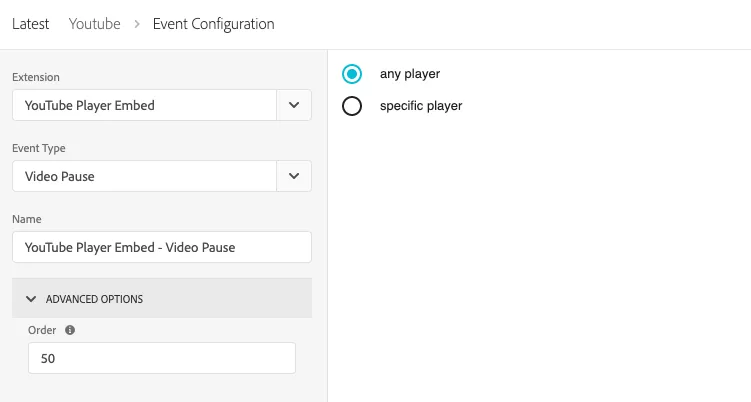
- Any player — tracks all YouTube videos on the page.
- Specific player — tracks only the video whose player ID you specify. The player ID is the string after /embed/ in the YouTube embed URL. For example, in https://www.youtube.com/embed/3fZmtnp2T5U, the player ID is 3fZmtnp2T5U.
ACTIONS
ACTIONS 1:Set the Adobe Analytics event (e.g., event12).
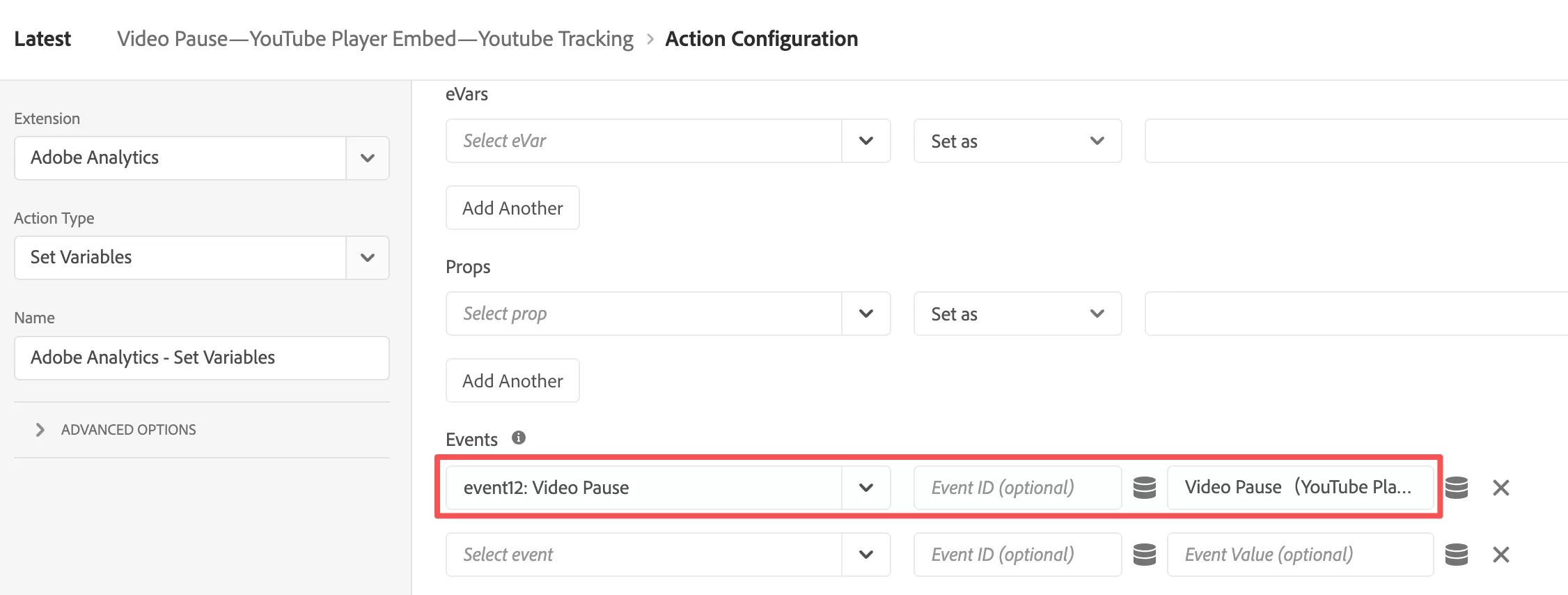
Action 2: Send a beacon with s.t().
Action 3:
Final effect: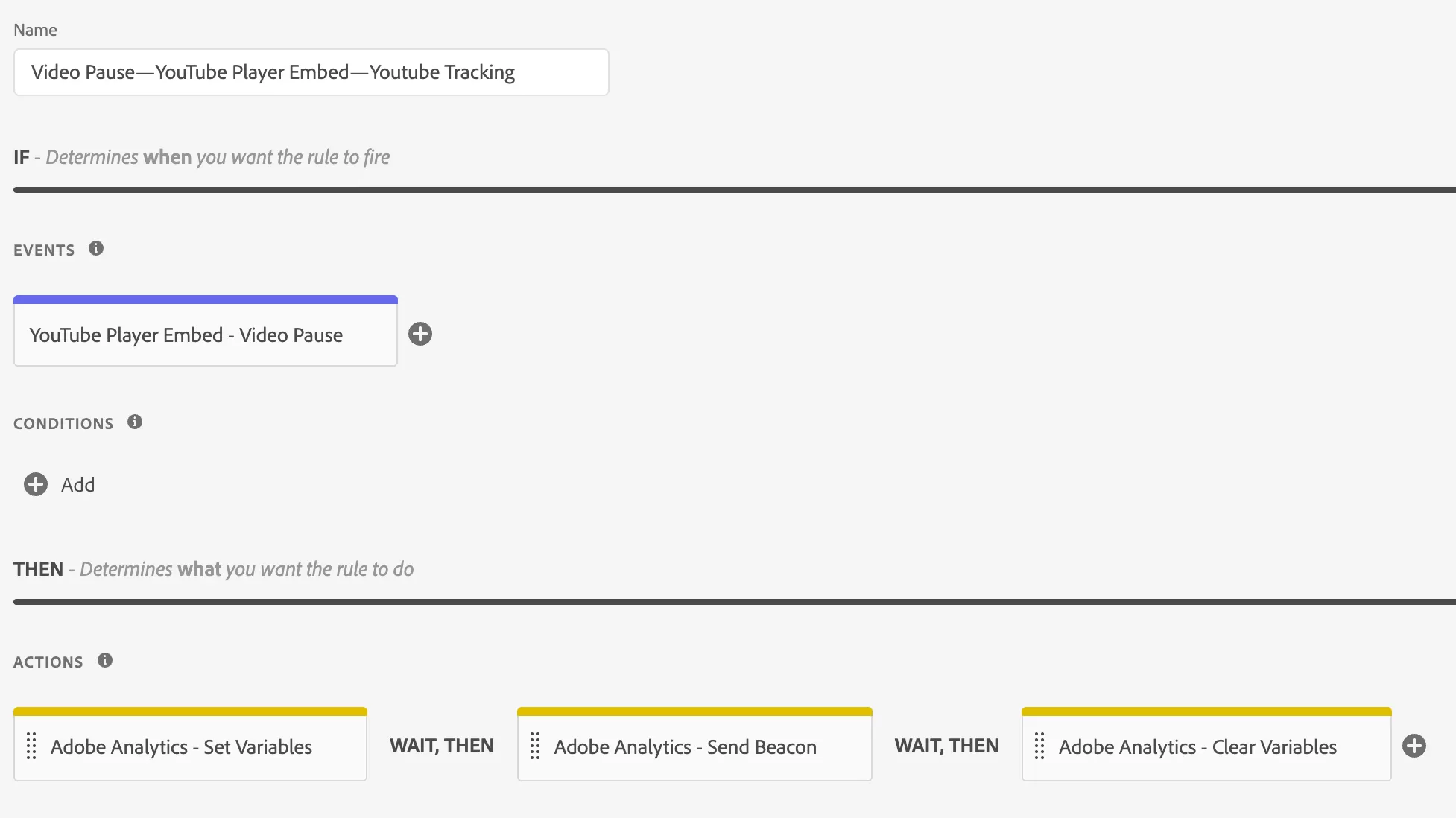
Save!!
Step 3: Test & Publish
Build and publish a library. Open the test page, play and pause the video
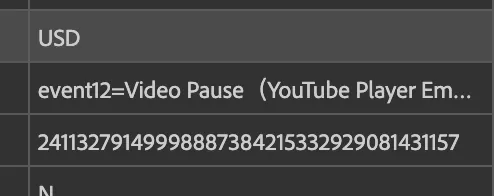
You should see event12 firing in Adobe Analytics
Method 4: YouTube Playback Extension (Recommended)
This is the most powerful and flexible option. It supports more event types (buffering, quality changes, progress milestones) and provides richer metadata than any of the other methods.
Caveat: This extension does not play well with Google Tag Manager’s native video tracking or with Google Analytics 4’s Enhanced Measurement. If you’re in a mixed-tag ecosystem, plan accordingly.
Step 1: Install Extensions
In Adobe Launch, go to「Extensions」——「 Catalog 」, search for “YouTube Playback”, and install it. No additional configuration is required.
Step 2: Enable Tracking (Rule 1 — Page-Level)
Add the YouTube Playback configuration to the Actions section of a page-view rule. This initializes tracking on all YouTube embeds found on the page.
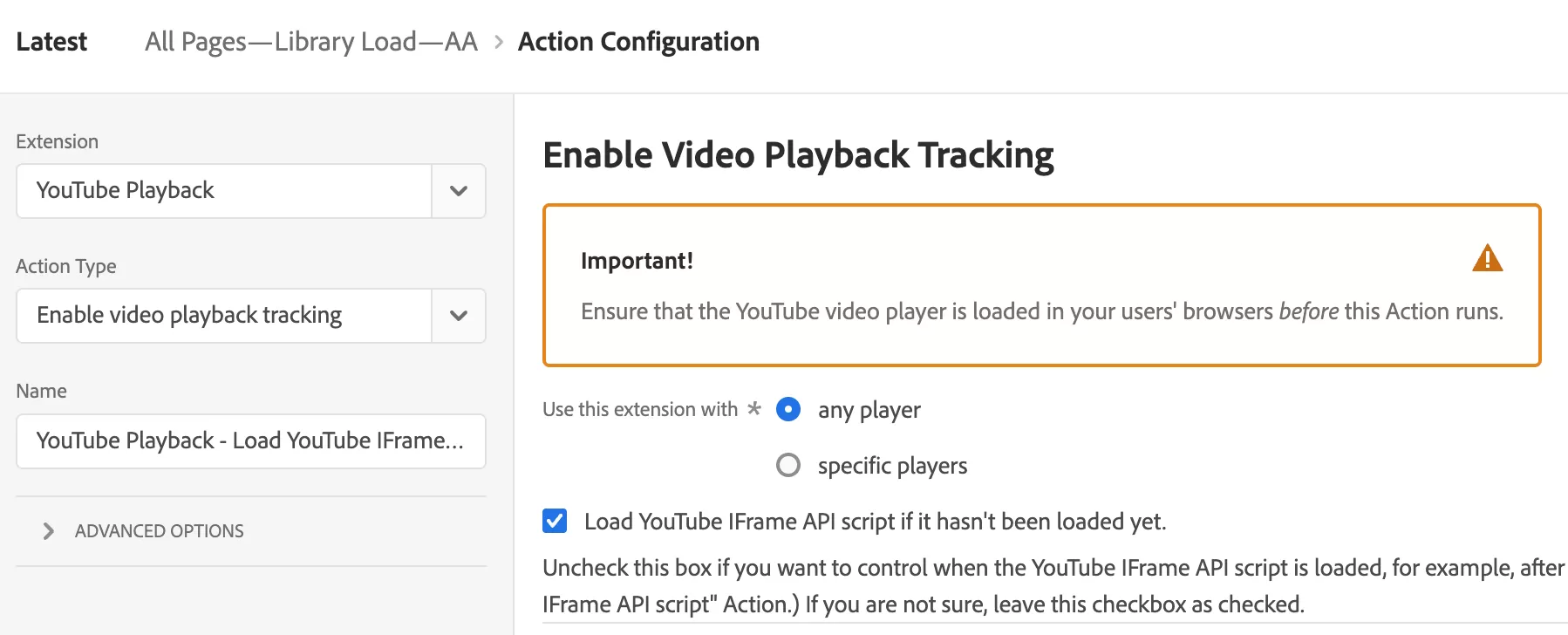
Step 3: Track Events (Rule 2 — Event-Level)
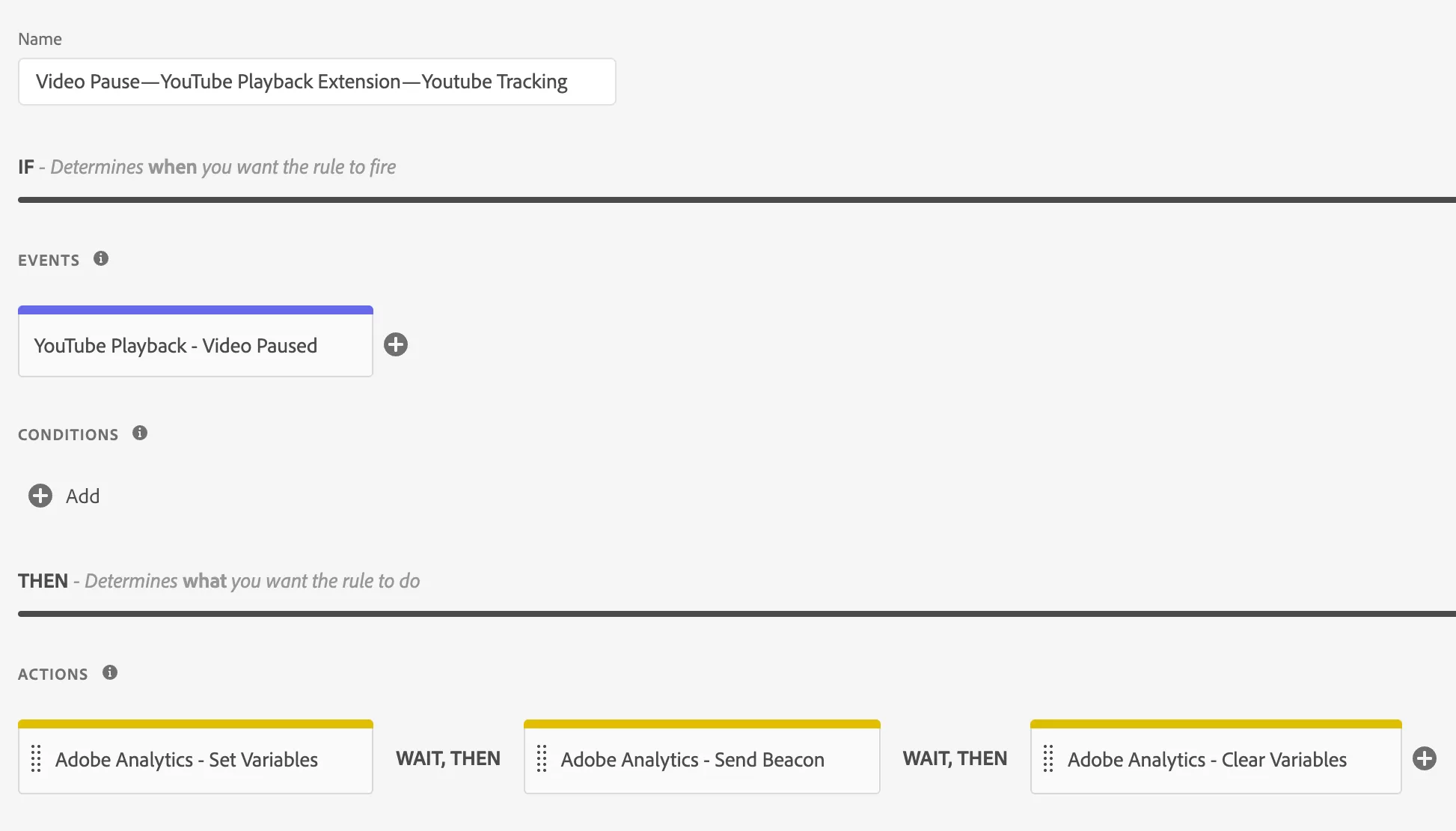
Create a rule named “Video Pause — YouTube Playback Extension — YouTube Tracking”:
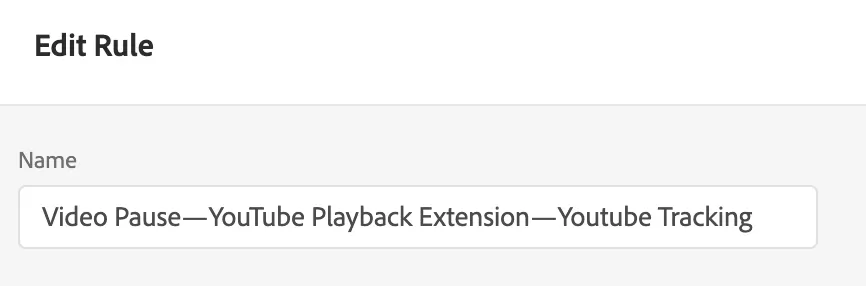
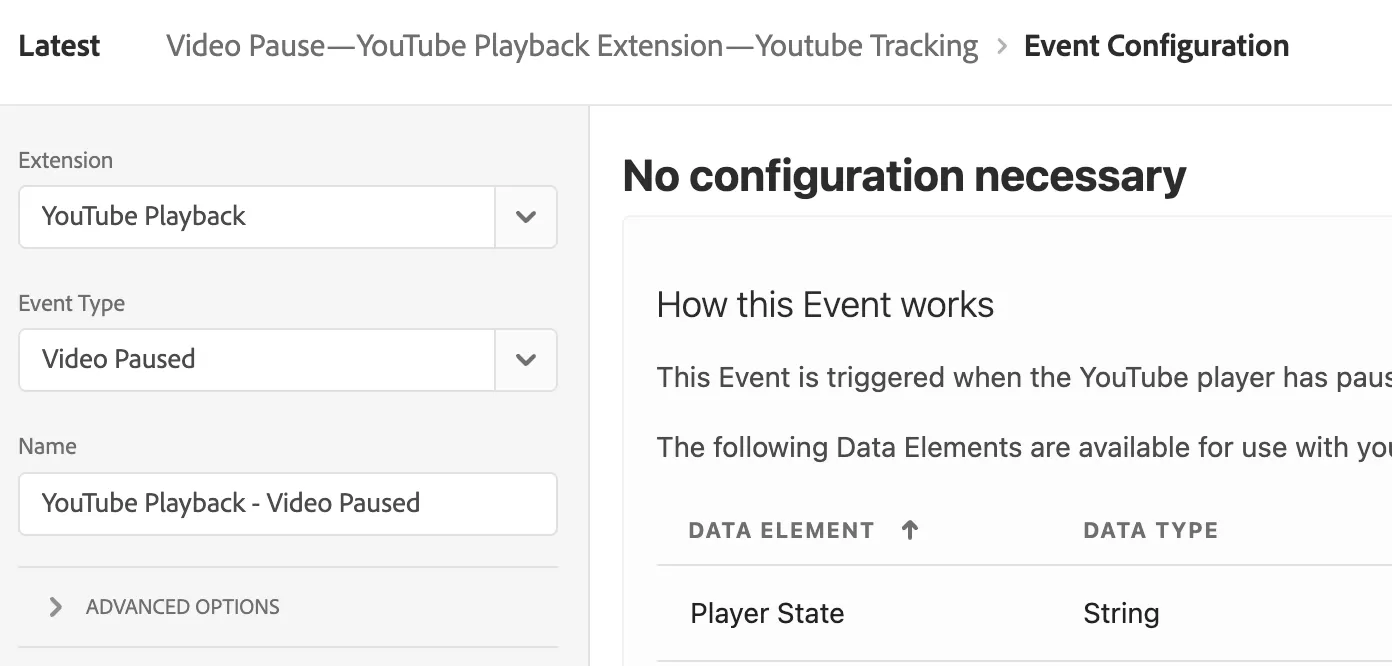
EVENTS
Select the YouTube Playback extension and pick the event type (e.g., Pause).
ACTIONS
Action 1: Set the Adobe Analytics event (e.g., event12).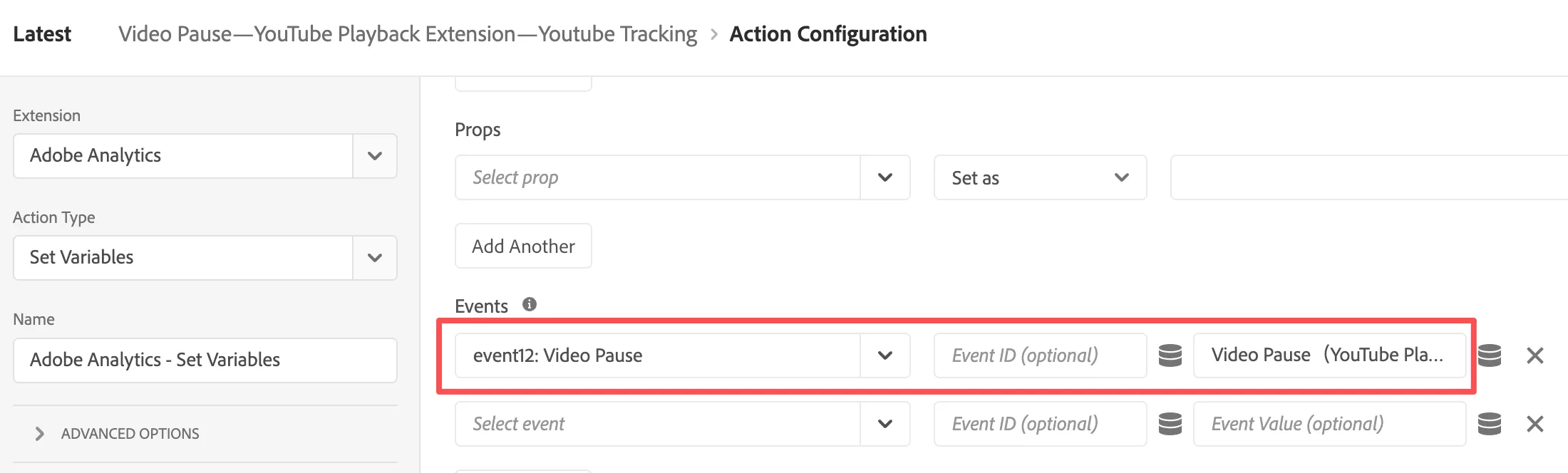
Action 2: Send a beacon with s.t().
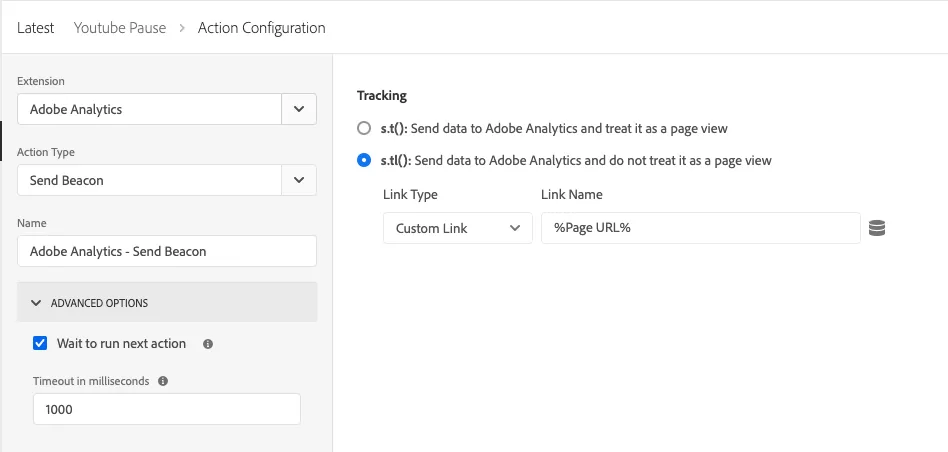
Action 3:
Final effect:
Step 4: Test & Debug
Build and publish a library. Open the test page, play and pause the video
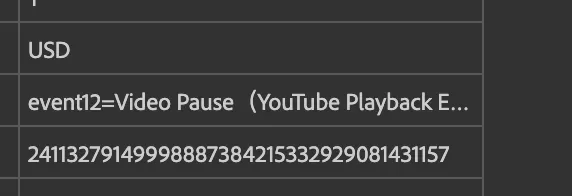
You can see that event12 is recorded.
Summary
| Method | Difficulty | Flexibility | Recommended? |
|---|---|---|---|
| Custom JavaScript (YouTube API) | High | Full | Good for custom setups |
| Video Tracking for YouTube (Adobe) | Low | Moderate | Decent, official extension |
| YouTube Player Embed (33Sticks) | Low | Limited | Not recommended — outdated |
| YouTube Playback Extension | Low | High | Recommended — best overall |
Go with the YouTube Playback Extension if you can. It supports more event types, surfaces richer data, and is easier to maintain.


