Updated: May 27, 2025
What We’re Dealing With
Before we jump into the setup, here’s what you need to know about how GA4 handles site search:
- The default event name is view_search_results
- The search keyword is stored in the parameter search_term
That’s it. Now, how you get GA4 to fire that event depends entirely on how your website handles search URLs. Let’s go through each scenario.
Method 1: Enhanced Measurement (Recommended for Standard Websites)
This is the simplest approach and the one you should try first, and could solve your problem in under 60 seconds with this method.
When to use it
Use Enhanced Measurement if your search URLs contain query parameters like this:
https://www.bbccss.com/?search=gtm
Here, search=gtm is the query-based search structure. GA4 automatically detects common query parameters like q, s, search, query, and keyword. When it finds one, it fires:
- Event: view_search_results
- Parameter: search_term
No GTM required. No custom code. It just works.
Configuration steps
Go to your Web stream details,click the gear icon to open Enhanced Measurement settings.
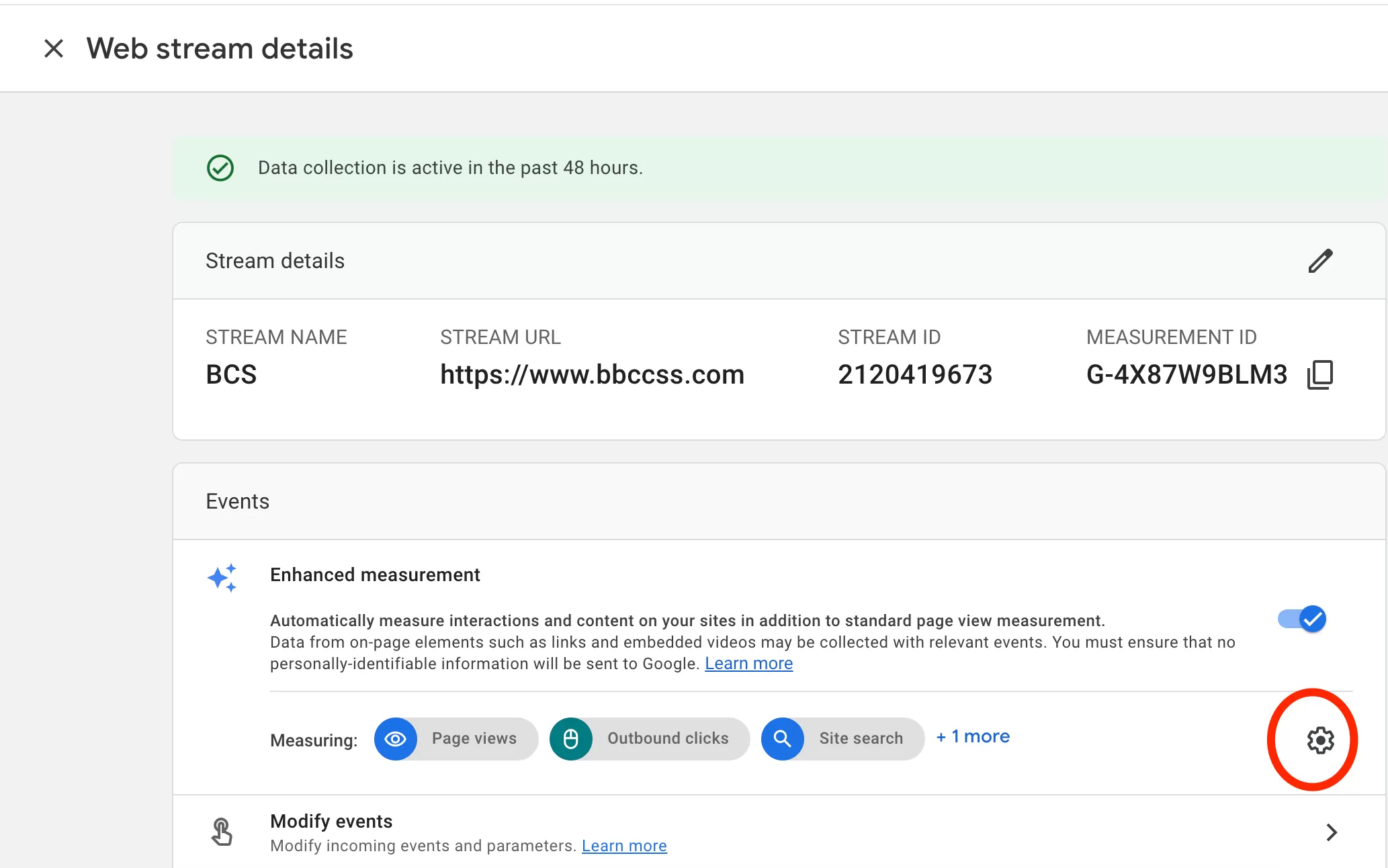
Then check Site search:

You can also define up to 10 additional query parameters, separated by commas. So if your site uses something unusual like ?kw=gtm instead of ?search=gtm, you can add kw to the list and GA4 will pick it up.
Method 2: Custom Events Via GTM
Enhanced Measurement is great, but it only works when the search term lives in the URL as a query parameter. If your search URL looks like this instead:
https://www.bbccss.com/search/GTM
…then the search term is part of the URL path, not a query parameter. Enhanced Measurement won’t detect it. That’s where GTM comes in.
Step 1: Extract the search term
First get the search term from the Page URL.
In GTM , click「Triggers」——「New」——「Choose a trigger type to begin setup…」——「Custom JavaScript」,Name it “search term”, and make the following settings:

The code needs to grab the search term from the URL path based on your actual URL structure.
Here’s the thing: I can’t give you one universal code snippet here because every site structures its search URLs differently. You’ll need to write the JavaScript based on your own URL pattern. But the principle is the same — extract the segment after /search/ and return it.
Step 2 : Set Up the Trigger
In GTM , click「Triggers」——「New」——「Choose a trigger type to begin setup…」——「Page View」,Name it “search”, and make the following settings:
Configure it to fire on the search results page only.
Step 3 : Set Up the Tags
In GTM , click「Tags」——「New」——「Choose a tags type to begin setup…」——「Google Analytics: GA4 Event」,Name it “GA4-Event-view_search_results”, and make the following settings:

Pro tip: Keep your event names and parameter names consistent with Enhanced Measurement’s built-in naming. That way, if you ever switch methods, your historical data doesn’t become a mess.
Step 4 : Preview and Publish
Before you push it live, use Preview mode to debug. Check that the event fires correctly and the search_term parameter carries the right value.

Once validated, publish the container.
Method 3: dataLayer.push (Best for SPA / Advanced Tracking)
Here’s the catch with Methods 1 and 2: they both rely on URL changes. If your website is a Single Page Application (SPA) built with React, Vue, Angular, or similar, the page doesn’t reload during a search. The URL might not change at all. So Enhanced Measurement won’t fire, and a pageview trigger in GTM won’t help either.
When to use it
Use this method if:
- The page does not reload on search
- The URL remains unchanged
- Search is handled via JavaScript (frontend framework)
Implementation approach
Instead of relying on URL detection, push search events directly into the dataLayer when the user performs a search. Your developer needs to trigger a dataLayer push on the search action with:
- Event name:
view_search_results - Parameter:
search_term
This ensures accurate tracking even in fully dynamic applications. It requires a bit more work upfront, but for SPAs, it’s the only reliable way.
How to View Site Search Data in GA4
Once you have the view_search_results event firing, the next question is: where do you actually see the keywords?
Standard Reports (Limitations)
If you go to the standard GA4 event report, you’ll find the view_search_results event listed.
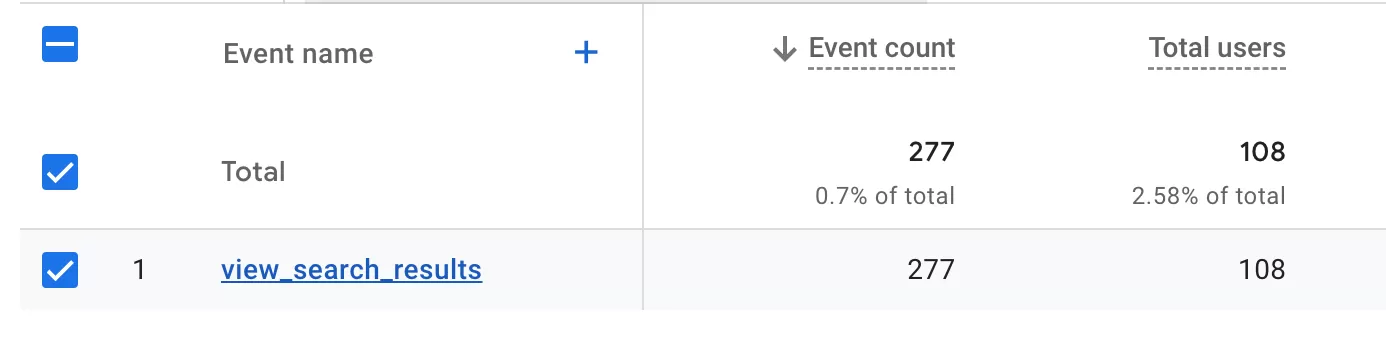
But here’s the catch: you can only see how many times users searched. Not what they searched for.
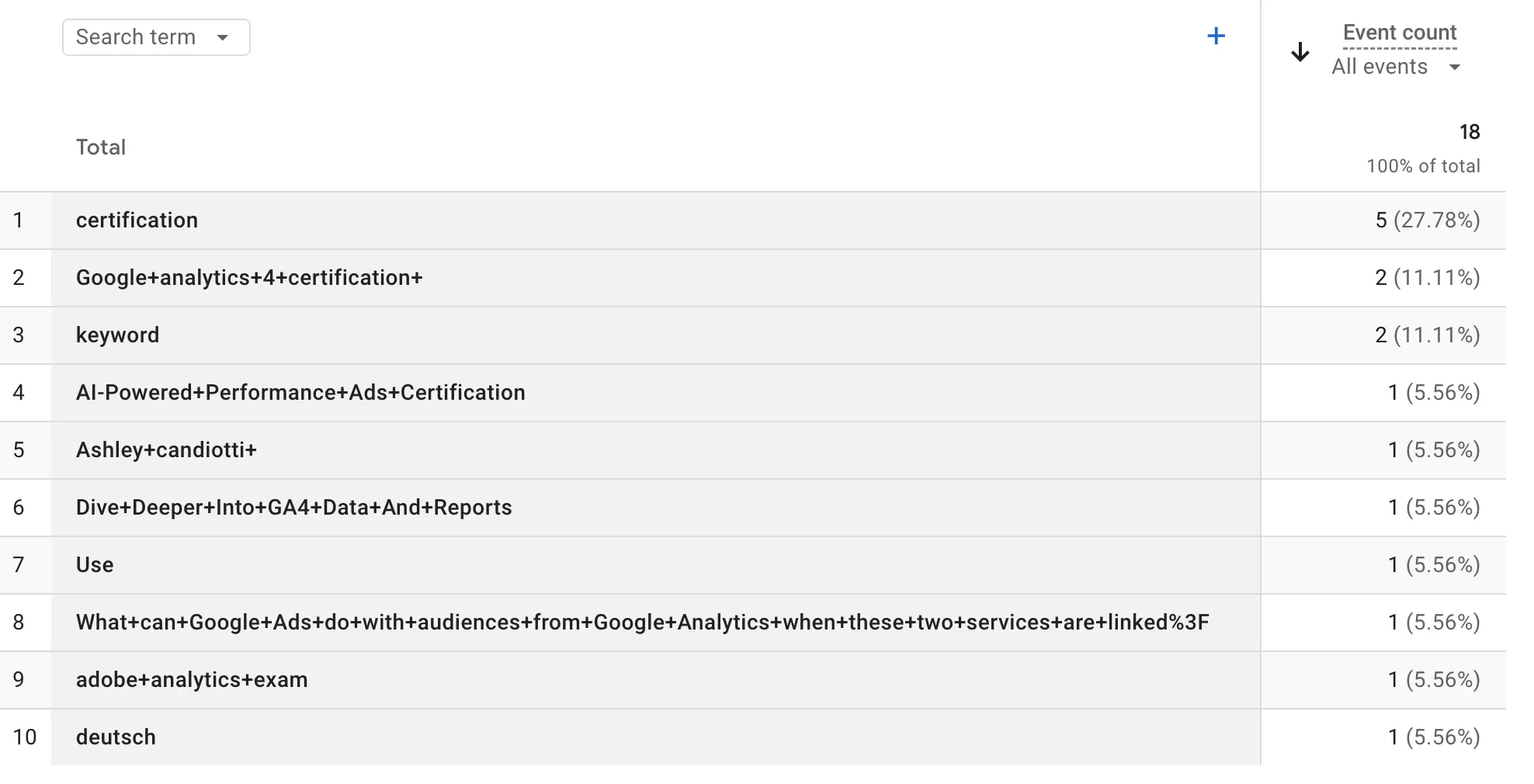
If you want to see the actual keywords, you need to create a detail report. Here’s how:
Go to「Create a detail reports」In「Library」,then configure it like this:
- Dimensions: Search term
- Metrics: Event count
- Report Filter: Event name Contains view_search_results
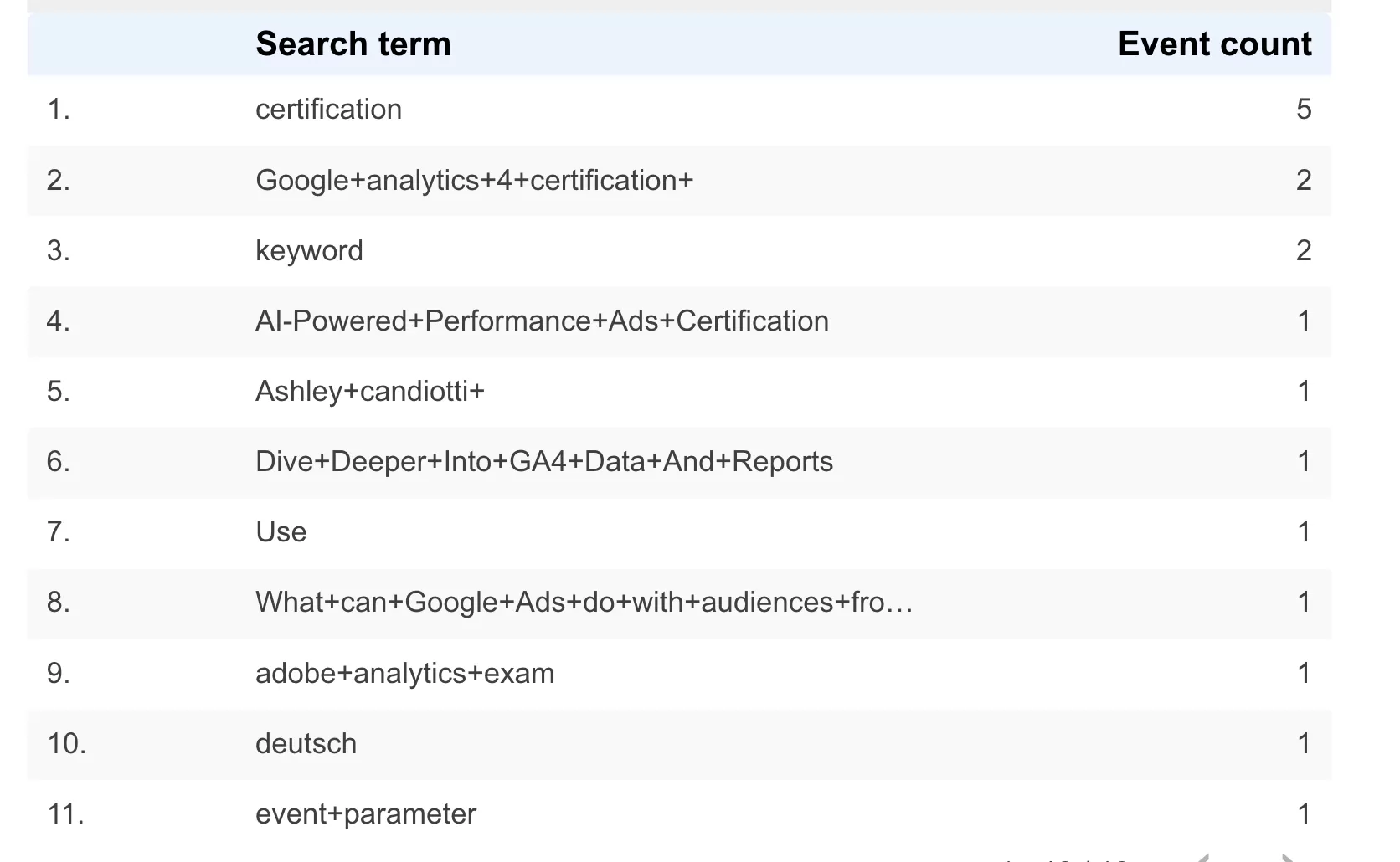
Now you can see how many times each search term was used. Simple enough.
Explore (Advanced Analysis)
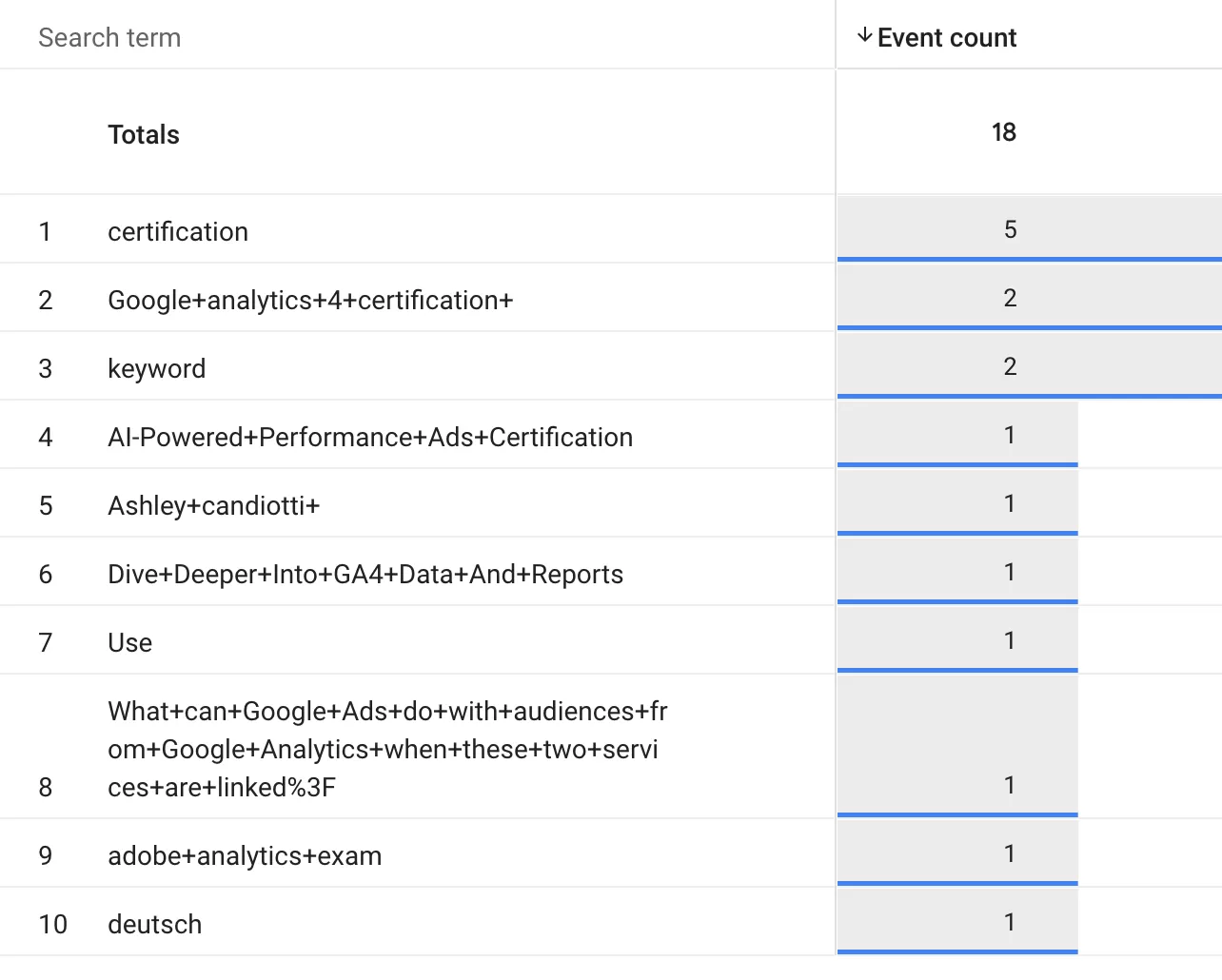
You can also use 「Explore」 —— 「Freeform」 with the same configuration:
- Dimensions: Search term
- Metrics: Event count
- Filters: Event name Contains view_search_results
Boom — you get the count of events for each search term right there in the canvas.
Looker Studio
If you prefer dashboards, hook up the same data in Looker Studio:
- Row: search_term
- Value: Event count
- Filters: Event name Contains view_search_results
That’s it. You’ll see exactly what people are searching for on your site.
Common Issues & FAQ
Most search terms are blank
If the vast majority of your search terms show up as blank , here’s the most likely cause: you’re not filtering by the view_search_results event. Since other GA4 events don’t include search_term, they show up as blank rows when you include them in the report.
Fix: Always apply the filter event_name = view_search_results. That’s it.
view_search_results event is not triggered
If your website is front-end/back-end separated or an SPA, the view_search_results event won’t fire even if the URL seems to meet the requirements. The solution? Go back to Method 3 and use dataLayer.push.
Final Words
I started this article by showing you what people are actually searching for — over 2,000 impressions and zero clicks across the most common queries about GA4 site search. Looking at that data, it’s clear that a lot of people are stuck on the same things: which method to use, how to set it up, and where to actually find the data in the reports. I hope this article helped clear that up.