Update time: March 16, 2026
You’ve created your GA4 property. Now you need to get it on your website. Simple, right?
Well, it would be, except there are four different ways to do it, and depending on who you ask, each one is “the best.” Paste code directly. Use Google Tag Manager. Forward data from another property. Send to multiple properties at once. It’s easy to get stuck before you even start.
I’ve worked with all four methods across different types of websites, and here’s the honest truth: there’s no single “best” method — there’s the one that fits your setup. In this guide, I’ll walk through each installation method step by step, along with when you’d actually want to use it.
Method 1: Install GA4 Using gtag.js
This is the most direct method. You take the GA4 tracking snippet from your property and paste it directly into your website’s HTML — no tag manager, no middleware, just raw code.
Here’s what to do:
Copy the GA4 tracking code from your property.
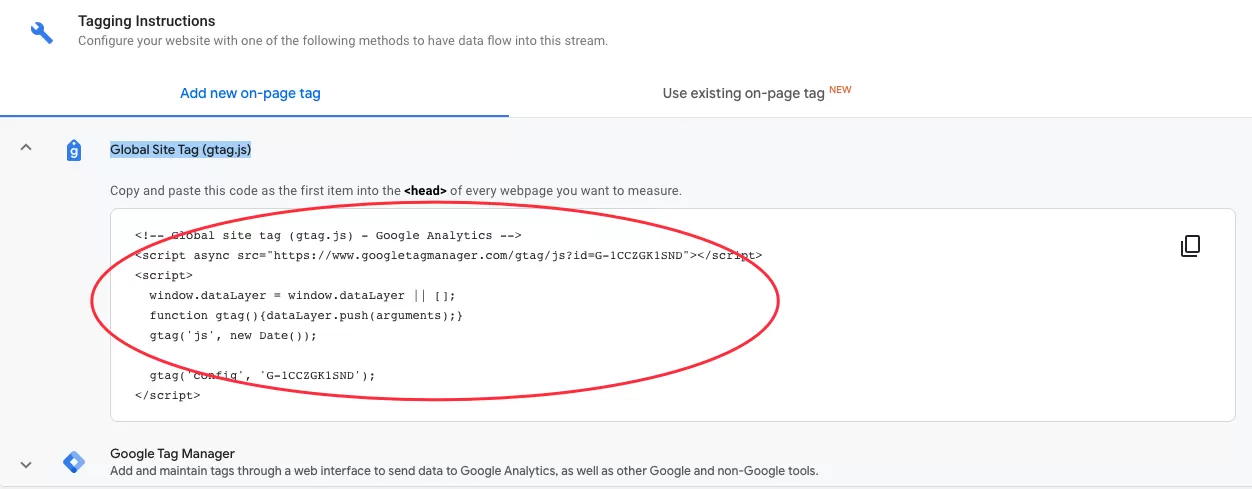
Log in to your server and locate the <head> section of your website template. Paste the code there.
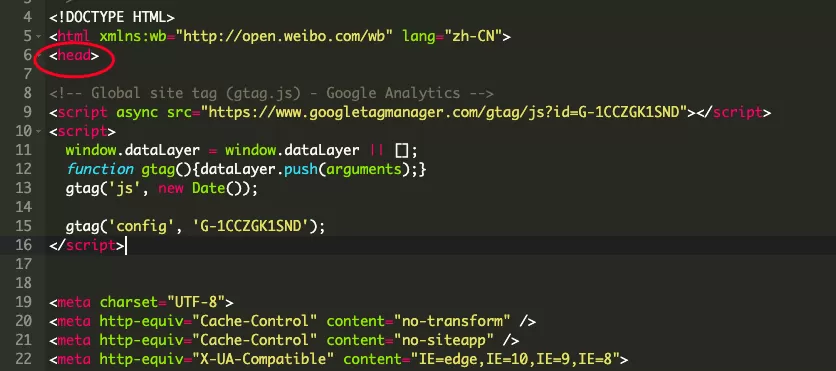
If you don’t have access to your server, just send the code to your developer and ask them to deploy it on your site. It’s a five-minute job for anyone who knows their way around a template file.
When to use this method: You don’t use GTM, or you prefer to keep your tracking code directly in your site templates for simplicity.
Method 2: Install GA4 with Google Tag Manager (Most Recommended)
This is the method I recommend for most people. Why? Because once GA4 is in GTM, adding and managing other tags becomes much easier. Instead of editing your website’s code every time you want to add a new tracking pixel or event, you do it all from inside GTM.
Here’s the setup process.
First, you’ll need your Measurement ID. It looks something like G-4X87W9BLM3.
Second, In GTM, create a Constant variable to store the Measurement ID, go to 「Variable」——「New」——「Choose a variable type to begin setup…」——「Constant」, name it “Measurement ID”, and then make the following settings: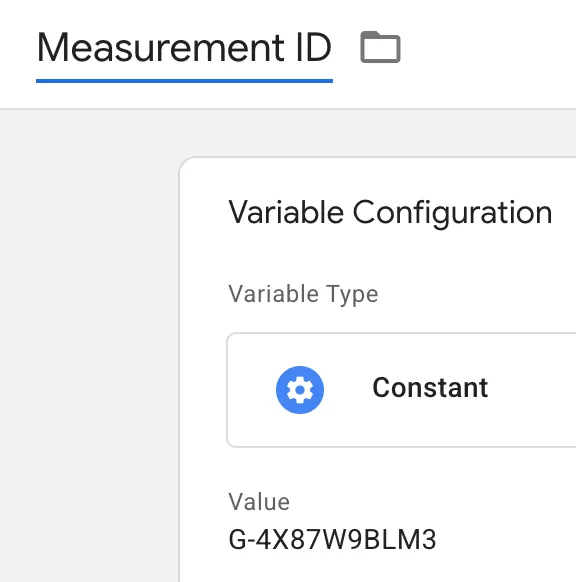
Final,create the actual tag, go to「Tags」——「New」——「Choose a tag type to begin setup…」——「Google Analytics」——「Google Tag」, name it “GA4 Tracking Code”, and then make the following settings:
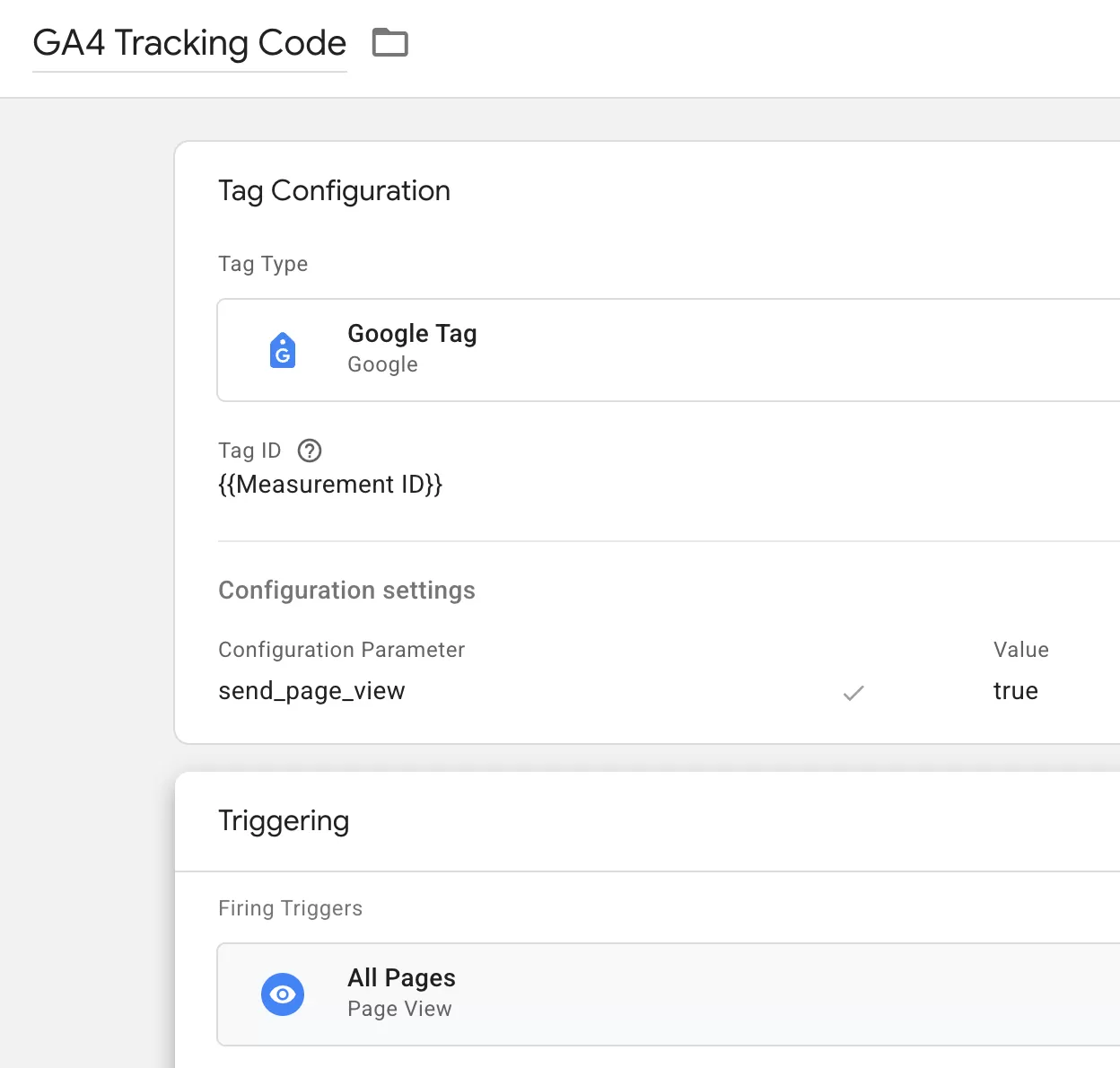
That’s it. Once you publish the container, GA4 will start collecting data.
When to use this method: You want flexibility. GTM makes it easy to add more tags, manage triggers, and make changes without touching your website code.
Method 3: Connected Site Tags
This method is useful when you have one GA4 property that’s already collecting data and you want to forward that data to another GA4 property — for example, if you’re migrating to a new property or you need a secondary property for testing.
There’s one requirement: the source GA4 property must be implemented using gtag.js. Connected Site Tags don’t work with GTM implementations.
You can configure this setting in「Manage connected site tags」——「Web stream details」:
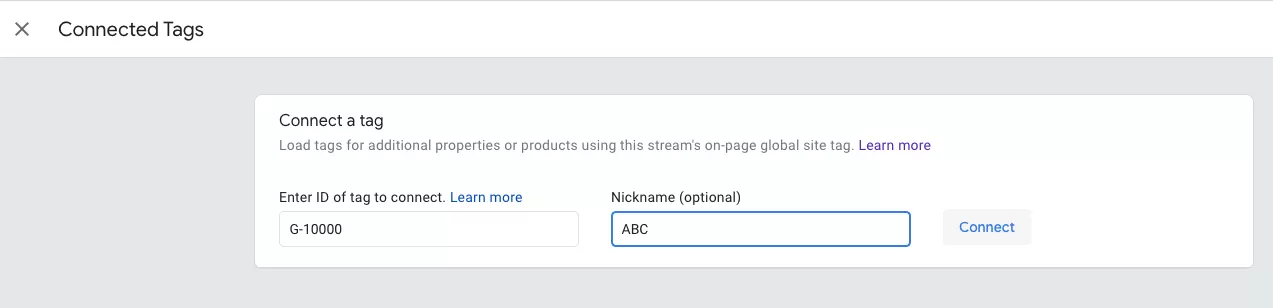
Once configured, the source property will forward incoming data to the destination property automatically.
When to use this method: You have multiple GA4 properties and want to duplicate data from one to another without adding extra tracking code.
Method 4: Send Data to Multiple GA4 Properties
What if you want to send data to multiple GA4 properties simultaneously from a single website? This is where the groups parameter in gtag.js comes in.
When you deploy GA4 with gtag.js normally, the configuration looks like this:
<span style="font-size: 12pt;">gtag('config', 'G-HZ4RDGTX66');
</span>
By default, this is the same as:
<span style="font-size: 12pt;">gtag('config', 'G-HZ4RDGTX66', { 'groups': 'default' });
</span>
To send data to multiple properties, you can assign each one to a different group:
<span style="font-size: 12pt;">gtag('config', 'GA_MEASUREMENT_ID-1', { 'groups': 'group1' });
gtag('config', 'GA_MEASUREMENT_ID-2', { 'groups': 'group2' });
</span>
Then, when you want to send an event only to the first property, you specify the group name:
<span style="font-size: 12pt;">gtag('event', 'generate_lead', { 'send_to': 'group1' });
</span>
Note: This approach currently only works with gtag.js implementations.
How to Install Google Analytics 4: Final Words
So here’s a quick recap of when to use each method:
- Method 1 (gtag.js): For simple, code-only setups without GTM.
- Method 2 (GTM): My recommendation for most cases — it’s the most flexible and future-proof.
- Method 3 (Connected Site Tags): When you need to forward data between existing GA4 properties.
- Method 4 (Multiple properties): For advanced setups that need to send data to more than one GA4 property simultaneously.
If you’re just getting started and you’re not sure which path to take, go with Method 2. GTM takes a little extra setup upfront, but it saves you a lot of pain later when you need to add more tracking.





 thanks again