If you’re new to GA4 the first thing you’ll notice is that it’s nothing like Universal Analytics. No more pageview hits, no more session-based modeling. In GA4, everything is an event.
That shift can feel overwhelming at first. But once you understand how GA4 structures events — the naming rules, the parameter system, and the different event types — everything else falls into place.
In this guide, I’ll give you a complete overview of the GA4 event data model: what events are, how they’re structured, naming rules you need to know, and a breakdown of all four event types with practical examples.
What Is a GA4 Event?
GA4 is an event-driven analytics system. Here’s the core idea: every user interaction — a page view, a click, a purchase, a scroll — is recorded as an event.
Each event has two parts:
- Event name — what happened (e.g., `page_view`, `click`, `purchase`)
- Event parameters — additional details about what happened (e.g., page URL, product name, scroll depth)
A single event can include up to 25 parameters, combining both default parameters (collected automatically) and custom parameters (defined by you).
GA4 Event Naming Rules
Before you start creating events, there are some naming rules you need to know. Get these wrong, and your events might not work as expected:
- Event name is at most 40 bytes in length
- Event names are case sensitive. For example,
my_eventandMy_Eventare treated as two completely different events - Event names can include English and non-English words and letters.
- Do not use reserved prefixes and event names. (Google’s internal event names like `firebase_*`, `google_*`, etc.)
- Event names must start with a letter and use only letters, numbers, and underscores — no spaces
I’ve seen implementations break because someone used a space instead of an underscore, or accidentally used a reserved prefix. Follow these rules from day one and you’ll save yourself a lot of debugging later.
Event Parameters in GA4
As I mentioned above, event parameters provide the context around an event. They come in two flavors:
Default Parameters
These are collected automatically by GA4 for every single event. No setup required.
Web Data Streams (5 parameters):
- page_location(No more than 1000 characters)
- language
- page_referrer (No more than 420 characters)
- page_title (No more than 300 characters)
- screen_resolution
App Data Streams (3 parameters):
- app_version
- firebase_screen_id
- firebase_screen_class
Custom Parameters
These are parameters you define yourself. They need to be registered in GA4 before they show up in reports.
They are divided into two types:
- Text Parameters:register as an Event-scoped Custom Dimension. Max 50 per property, 40 characters per value.
- Numeric Parameters:register as an Event-scoped Custom Metric. Max 50 per property, 100 characters per value.
GA4 Event Types
GA4 organizes events into four categories. Understanding the differences between them is the first step to choosing the right implementation method for your tracking needs.
Let’s go through each one.
Automatically Collected Events
Automatically Collected Events require absolutely no setup. The moment you install GA4 — whether through `gtag.js`, Google Tag Manager, or the Firebase SDK — Google starts collecting these events automatically.
Common examples include:
- page_view
- first_visit
- user_engagement
- session_start
These events form the foundation of your GA4 reporting. You don’t need to do anything to make them work, and you can’t disable most of them.
I covered this in more detail in the Automatically Collected Events guide if you want the full list and parameter details.
Enhanced Measurement Events
Enhanced Measurement events extends automatic tracking with additional website interactions. You enable it in your Web Data Stream settings, and GA4 starts tracking these events without any custom code.
GA4 currently supports seven types of Enhanced Measurement events:
Page Views
Tracks page views whenever a page loads or the browser history changes (for example, in a Single-Page Application).
- Event Name:page_view
- Event Parameters:page_location 、page_referrer
Although `page_view` appears in the Enhanced Measurement settings, it cannot be disabled independently — it’s a core GA4 event.
Scrolls Tracking
Tracks when a visitor reaches approximately 90% of the page height for the first time.
- Event Name:scroll
- Event Parameters:No parameters
Note: The scroll event is triggered only once per page, not every time the user scrolls. So if someone scrolls to 90%, then back up, then down again — you’ll only get one event.
Outbound Clicks
Tracks clicks on links that navigate users away from your current domain.
- Event Name:click
- Event Parameters:link_classes、link_domain、link_id、link_url、outbound (boolean)
This is one of the most useful Enhanced Measurement events, especially if you’re tracking affiliate links or external references.
Site Search
Tracks searches performed using your website’s internal search feature.
By default, GA4 detects search terms from one of the following URL query parameters: q、s、search、query、keyword. You can customize this list by adding up to 10 query parameters.
For example, this URL will be tracked automatically:
https://example.com/search?q=analyticsBut here’s the catch: URLs that use path-based search, like:
https://example.com/search/analytics- Event Name:view_search_results
- Event Parameters:search_term
Video Engagement
Tracks interactions with embedded YouTube videos that have the YouTube IFrame API enabled.
- Event Name:video_start、video_progress、video_complete
- Event Parameters:video_current_time、video_duration、video_percent、video_provider、video_title、video_url visible (boolean)
I’ve covered YouTube video tracking in more detail in a separate post if you need deeper implementation guidance.
File Downloads
Tracks when users click links to download files with supported extensions.
Supported extensions include: pdf|xlsx?|docx?|txt|rtf|csv|exe|key|pp(s|t|tx)|7z|pkg|rar|gz|zip|avi|mov|mp4|mpe?g|wmv|midi?|mp3|wav|wma
- Event Name:file_download
- Event Parameters:file_extension、file_name、link_classes、link_domain、link_id、link_text、link_url
If you need more control over file download tracking (like filtering specific file types or tracking downloads from JavaScript triggers), I’ve written a dedicated guide on how to track file downloads in GA4.
Form Interactions
Tracks when users begin filling out or submit a form on your site.
- Event Name:form_start、form_submit
- Event Parameters:form_id、form_name、form_destination、form_submit_text
Now, here’s where I need to be honest with you. Although convenient, Form Interactions isn’t always reliable.
Here’s why: some third-party scripts — like the Facebook Pixel (Meta Pixel) — can trigger false form events because they submit data using HTML forms in the background. As a result, GA4 may incorrectly record form_start or form_submit events that never actually happened from a user perspective.
If your website uses Meta Pixel or similar marketing tools that manipulate forms in the background, I’d recommend implementing custom form tracking with GTM instead. It’s more work upfront, but the data will be much more accurate.
Recommended Events
Recommended events are predefined by Google for common business scenarios. Unlike automatically collected events or Enhanced Measurement, these must be implemented manually — typically using GTM or `gtag.js`.
The advantage? Once you send data to these events, it automatically shows up in the relevant GA4 reports. No custom dimensions needed.
Let me show you a quick example with the `login` event.
The login event has the following parameter:
| Event Parameter Name | Type | Required | Example value | Description |
|---|---|---|---|---|
method |
string |
No | The method used to login. |
The `method` parameter tells you how the user logged in — Facebook, Google, Email, Phone, etc. You replace it with whatever login methods your users actually use.
Let me walk you through the implementation step by step.
Step 1: Push Event to the Data Layer
When a user logs in, you need to push the event into the data layer using `dataLayer.push()`:
dataLayer.push({"event": "login", "method": "Google" });
This is the same `dataLayer.push()` method I covered in detail in the GA4 Custom Event Tracking with dataLayer.push, so if you need a refresher on how this works, that’s a good place to start.
Step 2: Create a Data Layer Variable
In GTM, we need to capture the method value so we can send it to GA4.
In GTM, click「 Variables」——「New」——「Choose a variable type to begin setup…」——「Data Layer Variable」, name it “dlv-method”, and then set as follows:
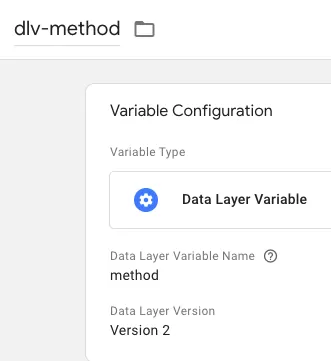 Note:
Note: dlv stands for Data Layer Variable.
Step 3: Create a Trigger
Now we need GTM to listen for the login custom event.
In GTM, click 「Trigger」——「New」——「Choose a trigger type to begin setup…」——「Custom Event」 name it “Custom Event-Login”, and then set as follows:
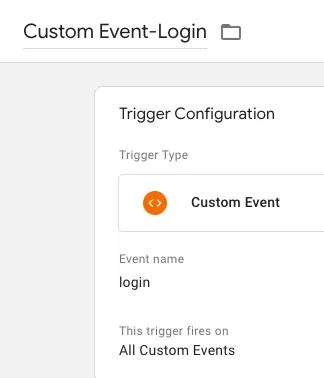
Set the event name to login (matching the dataLayer event)
Step 4: Create a GA4 Event Tag
Now let’s send everything to GA4.
In GTM, click 「Tags」——「New」——「Choose a tag type to begin setup…」——「Google Analytics: GA4 Event」, name it “GA4-Event-Login”, and then do as follows set up:
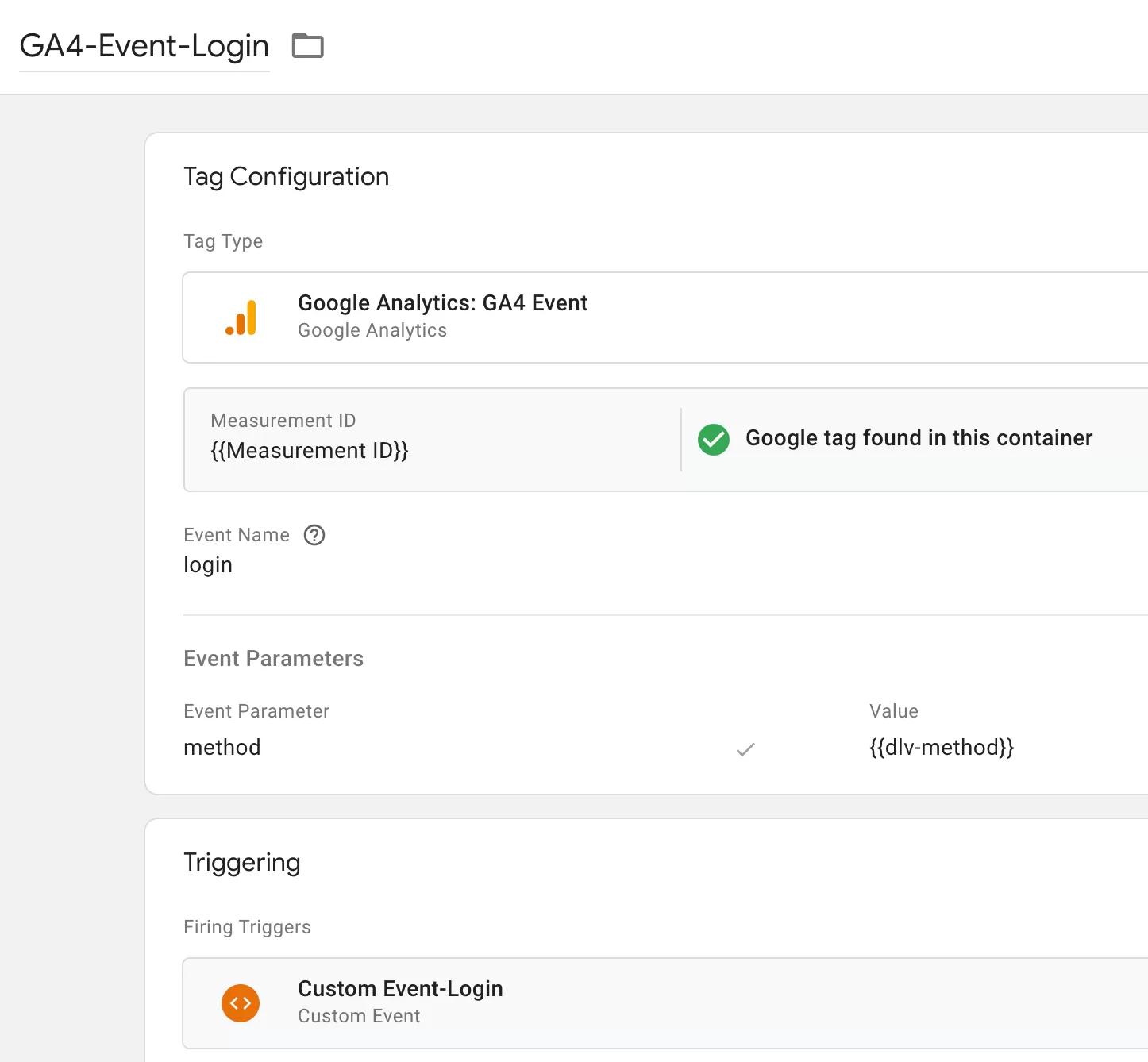
Step 5 : Preview and Publish
Before publishing, test in GTM Preview mode. Log in to your site and check that the `GA4-Event-Login` tag fires correctly with the `method` parameter.
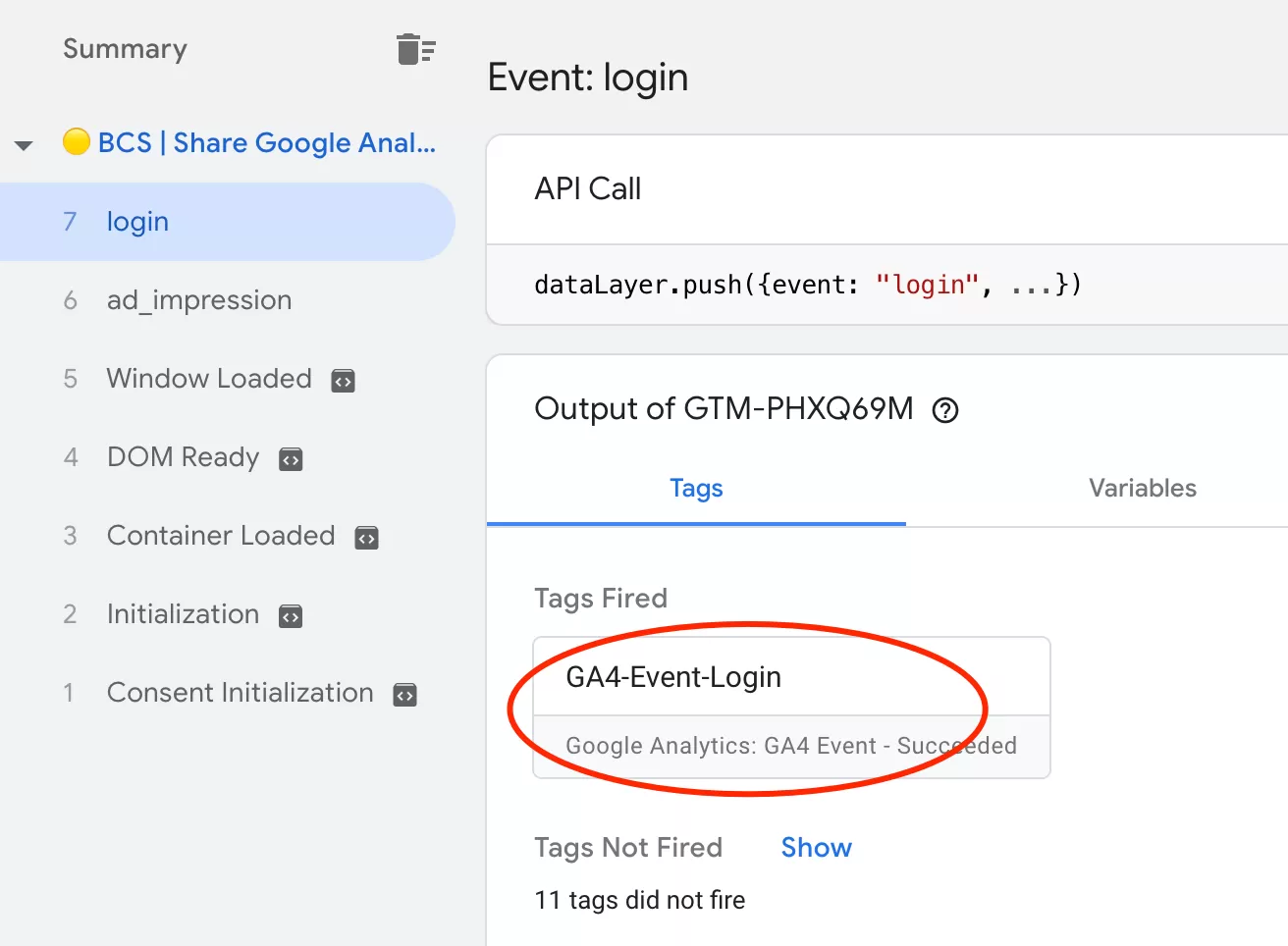
If everything looks good, publish your container.
Step 6 :Verify Data in GA4 Reports
After registration, it typically takes up to 24 hours before the data appears in your GA4 reports. Once it does, you can validate it in Event Reports:

Custom Events
Custom Events are for interactions that are unique to your website or business — things Google hasn’t predefined. If none of the recommended events fit your use case, you create a custom event.
Custom events are typically implemented using `dataLayer.push()` with GTM, or directly with the `gtag()` function.
I’ve covered custom event implementation extensively in this series:
- GA4 Custom Event Tracking with ga-data Attribute
- GA4 Custom Event Tracking with dataLayer.push
- GA4 Custom Event Tracking with jQuery
- GA4 Custom Event Tracking with addEventListener
- GA4 Custom Event Tracking with gtag.js
But there’s another option that doesn’t require any code at all: you can use GA4’s Create Event and Modify Event features to build new events directly from the interface.
Final Words
GA4’s event-based data model is fundamentally different from Universal Analytics. But once you break it down — event names, parameters, and the four event types — it’s not as complicated as it first seems.
Here’s what I want you to take away:
- Automatically collected events give you a foundation with zero effort
- Enhanced Measurement adds useful website interactions with one toggle
- Recommended Events map to standard business scenarios and plug directly into GA4 reports
- Custom Events cover everything else, implemented via GTM or code
Start with what’s free (automatically collected + Enhanced Measurement), add recommended events where they fit, and use custom events for everything unique to your business. That’s the approach I use on every GA4 implementation.
I hope this guide helped you understand the GA4 event data model. If you have questions about a specific event type or use case, feel free to leave a comment and I’ll do my best to help.