If your website sends data to GA4 using gtag.js directly—without Google Tag Manager—you might think custom event tracking is out of reach. GTM makes it easy to add triggers and tags without touching code. But what if GTM isn’t installed on your site?
That’s where the gtag() function comes in.
In this guide, I’ll show you how to send custom events using gtag.js, test them in DebugView, register event parameters as custom dimensions, and decide whether this approach is right for your setup.
When Should You Use gtag.js?
If your website already uses GTM, create your GA4 events in GTM instead of using gtag(). GTM is more flexible, easier to maintain, and doesn’t require code changes every time you add or modify an event.
But not everyone uses GTM. The gtag() approach makes sense when:
- Your website doesn’t use GTM.
- You only need to track a small number of custom events.
- You have direct access to your website’s source code.
If all three are true, gtag() is a valid option. It’s simpler to set up than GTM, and for straightforward tracking needs, it gets the job done without adding another tool to your stack.
However, there’s a trade-off: every event must be added manually to your website’s code. That makes this method less flexible and harder to maintain than GTM. If your tracking needs grow over time—and they usually do—you may eventually outgrow gtag().
This isn’t a bad approach. It’s just important to know what you’re getting into.
How to Send a Custom Event with gtag.js
The basic syntax is simple:
gtag('event', '<event_name>', {
<event_parameters>
});
Where:
- event_name is the name of the event.
- event_parameters contains any additional information you want to send.
Here’s a real example:
gtag('event', 'gtag_method', {
  label: 'test'
});
In this example:
| Item | Value |
|---|---|
| Event name | gtag_method |
| Parameter | label = test |
That’s the entire syntax. One function call, and the event is sent to GA4.
Step 1 :Add gtag Tracking Code
Let me show you this with a concrete example. Suppose I want to track clicks on this link using the `gtag` method:

Original HTML looks like this::
<a href="/" >gtag method demo test</a>
After adding the `gtag()` call as an `onclick` handler:
<a href="/" onclick="gtag('event', 'gtag_method', {'label':'test'});">gtag method demo test</a>
That’s it. Now whenever a visitor clicks this link, GA4 receives the `gtag_method` event with the `label` parameter.
If you need to track more interactions, just add similar `onclick` handlers to the elements you care about.
Step 2: Test the Event
Before publishing your changes to production, you’ll want to verify that the event is actually being sent correctly.
The easiest way to do this is with GA4 DebugView:
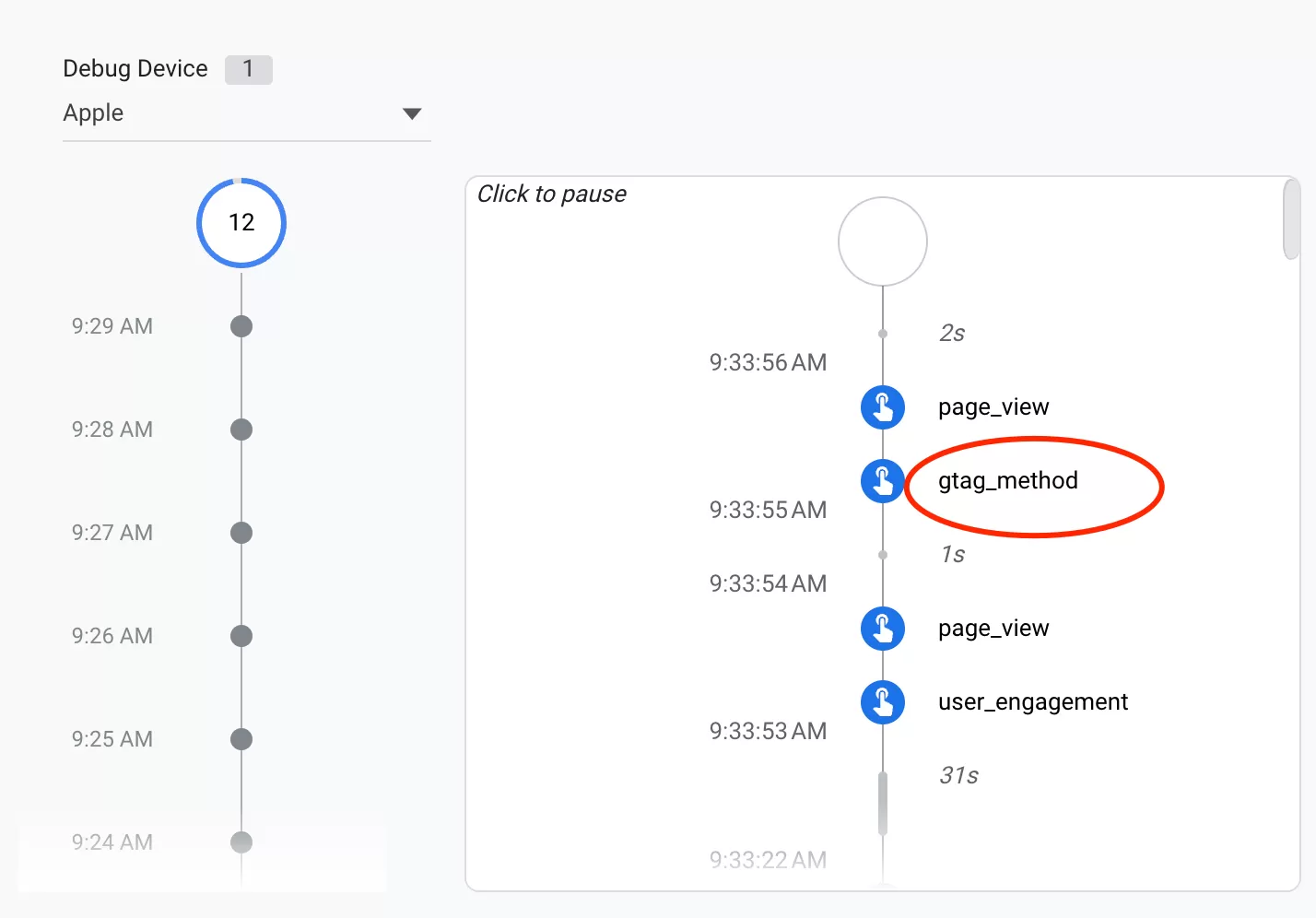
f you see the `gtag_method` event appear, click on it to inspect the parameters. You should see `label = test`.
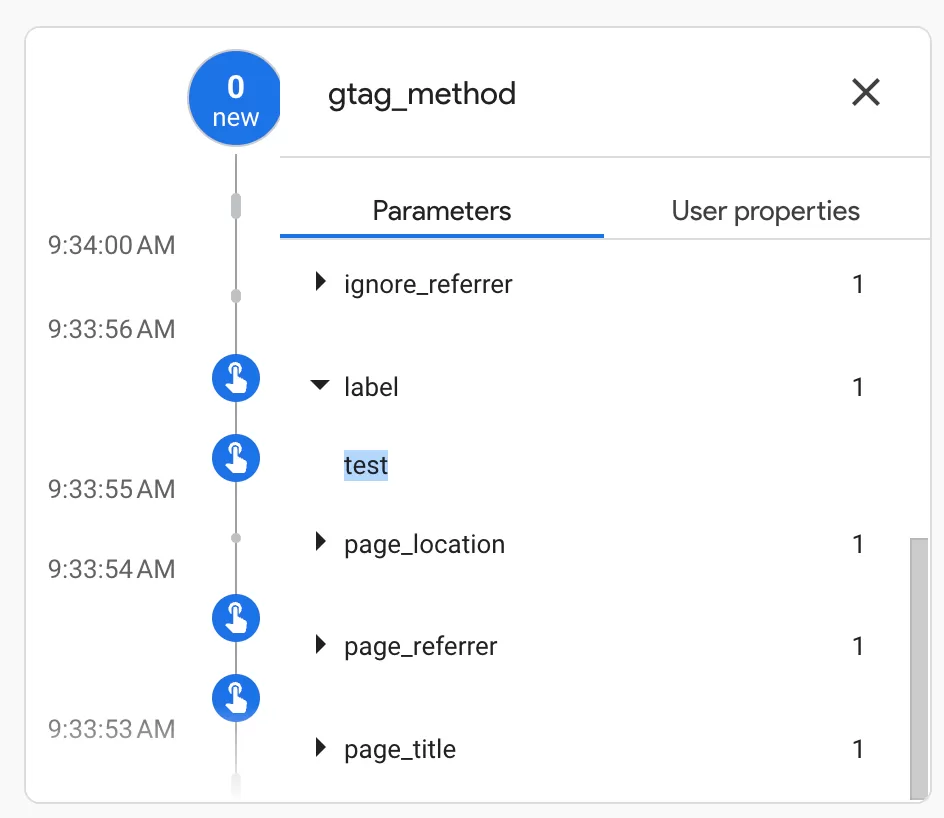
When the event and parameters look correct, you’re ready to publish.
Step 3: Register Custom Dimension in GA4
In this example, our event includes a `label` parameter. If you want `label` to appear in your standard GA4 reports or Explorations, you need to register it as an Event-scoped Custom Dimension.
In GA4,click「Admin」——「Custom definitions」——「Create custom dimension」, then do the following configuration:
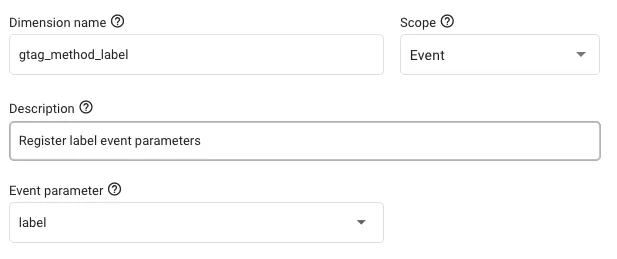
I covered this in more detail in my GA4 Event Parameters guide , but the short version is: if you don’t register a parameter, GA4 won’t store it as a dimension you can use in reports.
Step 4:Verify Data in GA4 Reports
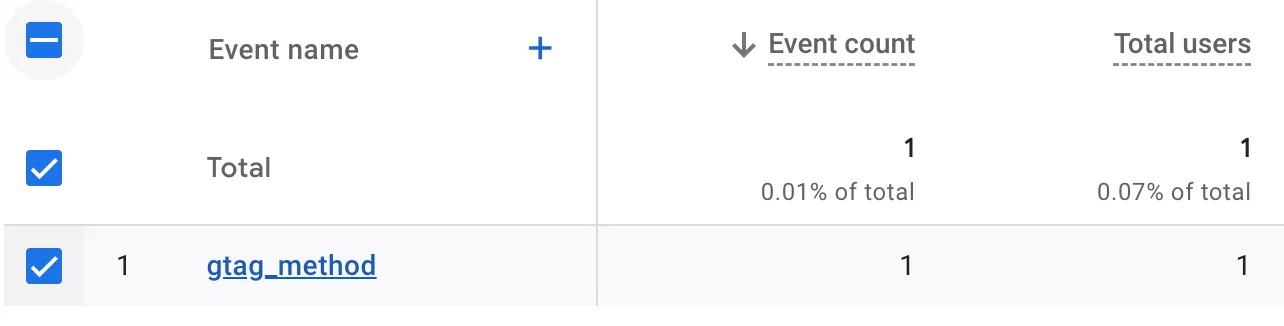
After publishing, it typically takes up to 24 hours before the event appears in your GA4 reports. Once it does, look for `contact_me_attribute_method` in your events list under Event Reports:
Common Questions
Do I need GTM to use gtag()?
No. `gtag.js` works independently of GTM. The `gtag()` function is part of the Google tag library, not GTM.
Can I use gtag() together with GTM?
It’s technically possible, but I wouldn’t recommend it. Google generally recommends using one implementation method to avoid duplicate events. If you already have GTM, create your events there. If you don’t, `gtag()` is fine.
Final Words
The `gtag()` function provides a straightforward way to send custom events to GA4 without using GTM. It’s a good choice for websites with a simple tracking setup, especially if you have direct access to the source code and only need a handful of events.
But let’s be honest about the limitations: every time you want to add or change an event, you need to modify code. For a few events, that’s manageable. For a growing implementation, GTM will save you time and headaches.
Here’s a quick recap of the workflow:
- Add `gtag(‘event’, …)` calls to your HTML elements via `onclick` handlers
- Test the events using GA4 DebugView before publishing
- You register the parameter as a custom dimension in GA4
- Wait up to 24 hours and verify data in Reports
I hope this guide helped you understand how to track GA4 events with `gtag.js`. If you have questions or ran into issues during implementation, feel free to leave a comment and I’ll do my best to help.