Updated: March 16, 2026
If you have published a detailed tutorial, comparison page, or resource library, you have probably wondered whether readers find it valuable enough to save for later. A bookmark suggests genuine interest—but browsers do not notify your website when someone creates one.
There is still a workaround. You can detect when someone presses the common bookmark shortcut—Ctrl + D on Windows or Command + D on macOS—and send that interaction to GA4.
In this guide, you will learn how to track bookmark attempts with GTM, JavaScript, and GA4, plus which limitations to keep in mind.
How Bookmark Tracking Works
Before jumping into the setup, let us take a quick step back.
This method does not track confirmed bookmarks. It tracks a bookmark attempt. When a visitor presses the shortcut, a small script pushes a bookmark_attempt event to the dataLayer. GTM then picks that up and sends it to GA4 as a custom event.
Why would you need this? On its own, a single bookmark-attempt event does not mean much. But when you compare it with other signals—scroll depth, time on page, returning visits—it becomes a useful supporting indicator. A page that consistently triggers bookmark attempts and also has strong engagement metrics is probably content that resonates with your audience.
Important Limitations
Before implementing this method, it is worth understanding what it can and cannot do:
- Browsers do not provide an official API to detect bookmark actions.
- This method only detects when the user presses the bookmark shortcut.
- After the shortcut is pressed, the browser usually shows a confirmation dialog that we cannot interact with.
- We cannot know whether the user confirms and saves the bookmark.
In other words, this method tracks bookmark attempts, not confirmed bookmarks. Keep that distinction in mind as you interpret the data later.
How the setup works
Now let me walk you through the implementation. It takes four steps.
Step 1: Create the Bookmark Listener
In GTM , click「Tags」——「New」——「Choose a tags type to begin setup…」——「Custom HTML」,name the tag “HTML – Bookmark Attempt Listener”, and add the following code: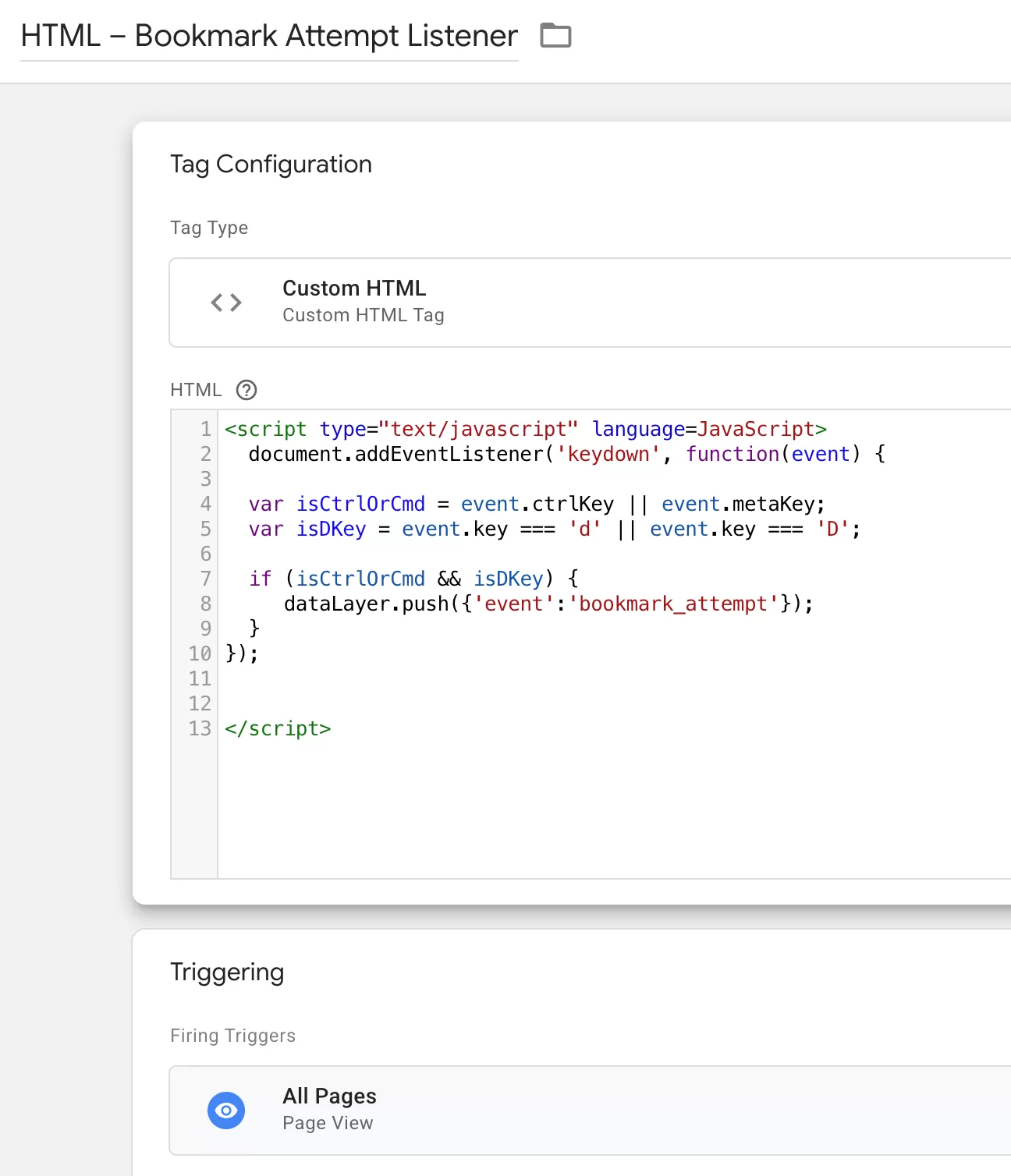
What this does: The script listens for Ctrl + D (Windows) or Command + D (macOS). When the shortcut is pressed, it pushes a bookmark_attempt event to the dataLayer.
What you should see: After saving this tag, you will use it in Preview mode in Step 4. At that point, pressing the bookmark shortcut should trigger the dataLayer push.
Step 2 : Set Up the Trigger
In GTM , click「Triggers」——「New」——「Choose a trigger type to begin setup…」——「Custom Event」,Name the trigger “CE – Bookmark Attempt”, and configure it as shown below:
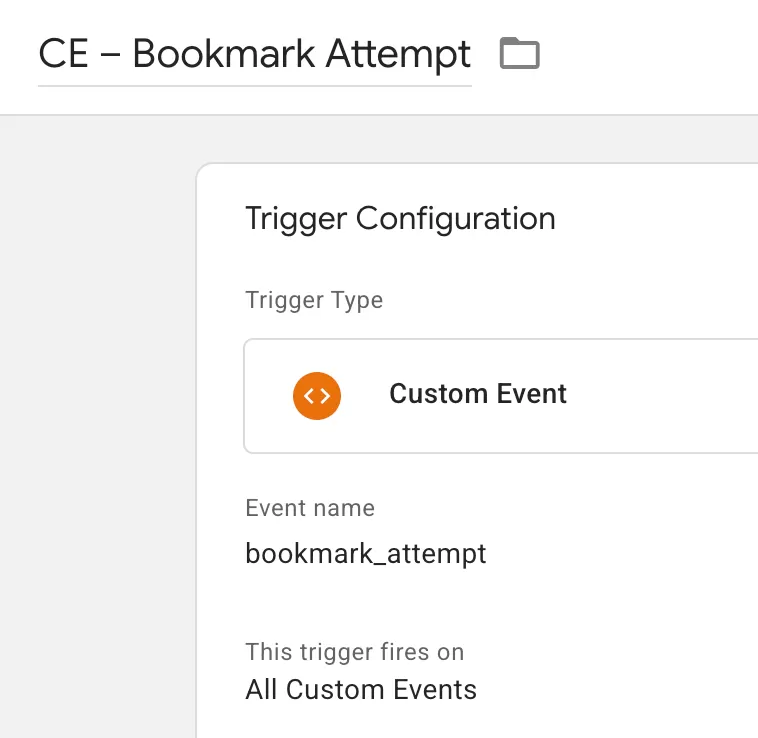
What this does: This trigger fires when the bookmark_attempt event arrives in the dataLayer.
Step 3: Create the GA4 Event Tag
In GTM , click「Tags」——「New」——「Choose a tags type to begin setup…」——「Google Analytics: GA4 Event」Name the tag “GA4-Event-Bookmark Attempt” and configure it as follows: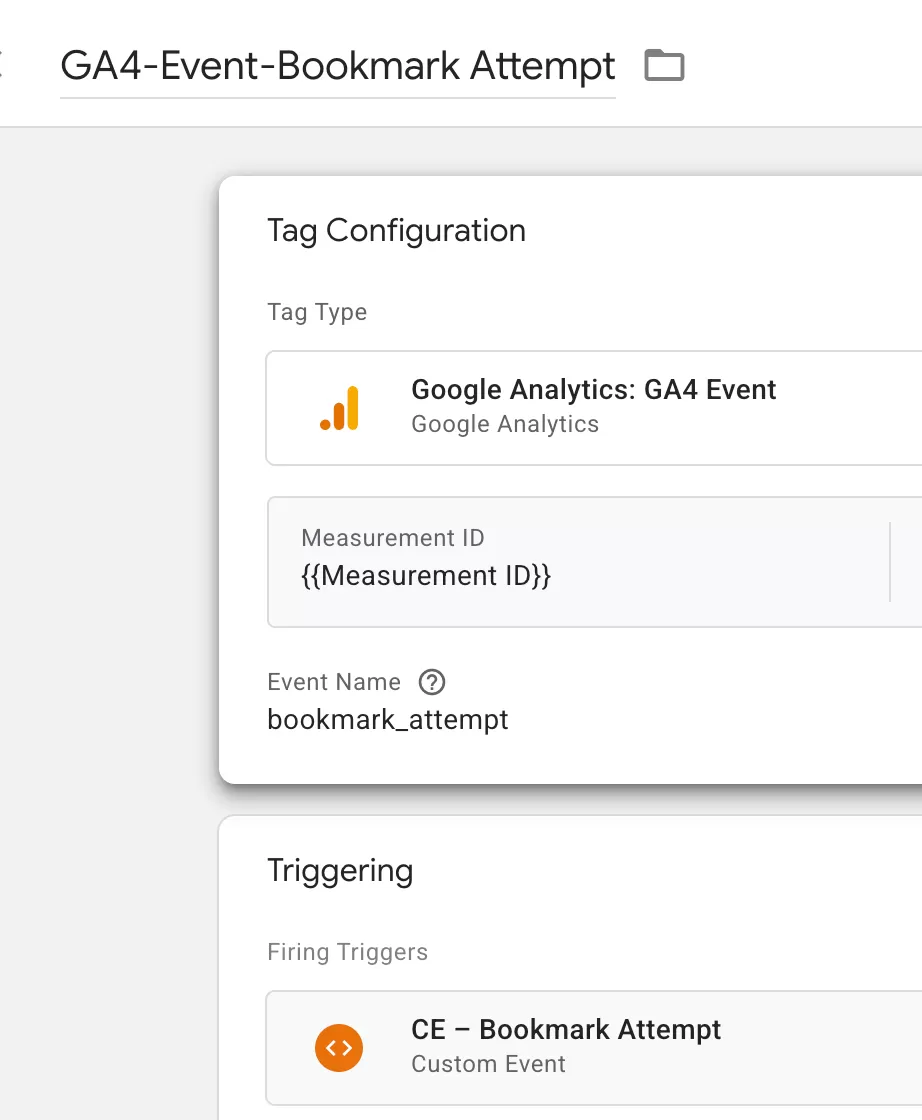
Then select the Bookmark trigger created in Step 2.
Step 4 : Preview and Publish
Click Preview in GTM. Open your website, open the GTM preview panel, and press Ctrl + D or Command + D.
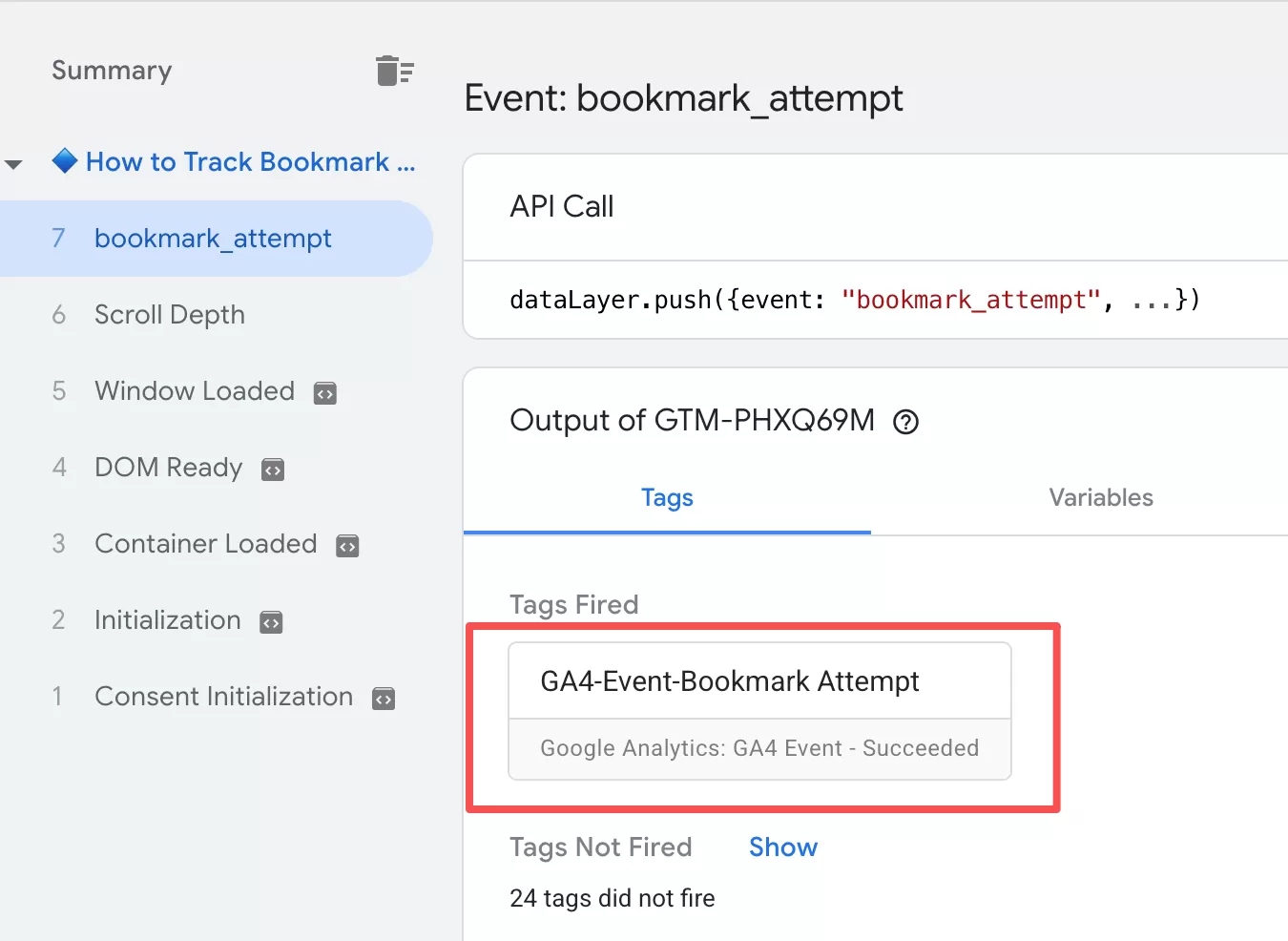
The dataLayer push, trigger, and GA4 tag are all connected correctly. If you see all three fire, you can publish the container.
Step 5: Verify Data in GA4 Reports
In most cases, the event data will appear in GA4 reports within 24 hours.
Final Thoughts
This event does not prove that a visitor saved a bookmark. It also cannot detect bookmarks made from browser menus, the bookmark icon in the address bar, or most mobile browsers. Keep it as one signal among others rather than treating it as a confirmed engagement metric.
I think this method is most useful when you combine it with other data points. For example, a high bookmark-attempt rate paired with strong scroll depth and returning visits might indicate content that genuinely resonates. On its own, though, the event is just a hint—not a proof.