You have GA4 installed. You also have GTM installed. But your GA4 ecommerce reports are still empty, incomplete, or missing product and revenue data.
That usually means pageview tracking is working, but ecommerce tracking has not been set up correctly.
In this guide, I will show you how to set up GTM ecommerce tracking for GA4, including product views, product lists, internal promotions, cart actions, checkout steps, purchases, and refunds.
If you do not want to use GTM, you can deploy GA4 ecommerce tracking directly with gtag.js.
How GA4 Ecommerce Tracking Works With GTM
A good way to think about GA4 ecommerce tracking is this:
Your website knows what happened. GTM listens for that action. GA4 receives the ecommerce event.
For example, when a user adds a product to the cart, your website should push an add_to_cart event into the data layer. GTM detects that event and sends it to GA4.
The flow looks like this:
- A user performs an ecommerce action.
- The website pushes an ecommerce event to the dataLayer.
- GTM uses a Custom Event trigger.
- A GA4 Event tag sends the event to GA4.
- GA4 processes the event and shows it in DebugView and ecommerce reports.
Simple, right? GTM does not automatically know your product name, price, quantity, transaction ID, or coupon. Your website must provide that information.
GA4 Ecommerce Events You Should Know
GA4 has recommended ecommerce events. You do not need to send every event on day one, but you should send the events that match your ecommerce journey.
| Ecommerce stage | GA4 events |
|---|---|
| Product list and product detail | view_item_list, select_item, view_item |
| Internal promotion | view_promotion, select_promotion |
| Cart | add_to_cart, remove_from_cart |
| Checkout | begin_checkout, add_shipping_info, add_payment_info |
| Purchase and refund | purchase, refund |
My recommendation: start with the revenue path first: view_item, add_to_cart, begin_checkout, and purchase. After that works, add product lists, internal promotions, cart removals, shipping/payment steps, and refunds.
How to Set Up GA4 Ecommerce Events in GTM
Take view_item as a complete configuration example
Step 1: DE Send Data Layer
Here is a simple product example:
Step 2: Create Custom Event Triggers
Go to Triggers → New → Custom Event. Create triggers and make the following settings: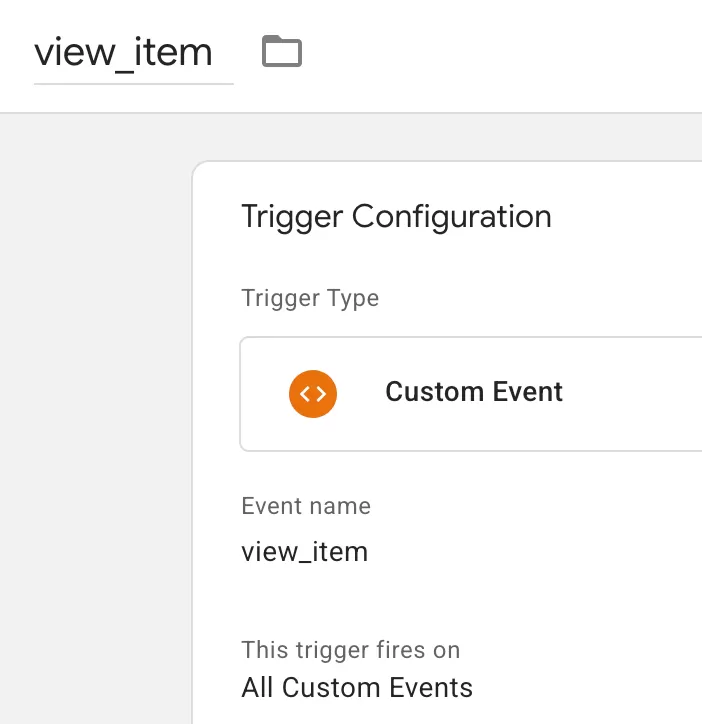
The event name must match the event value in the data layer exactly.
Step 3: Create GA4 Event Tags
Go to Tags → New → Google Analytics: GA4 Event. Create tags and make the following settings:
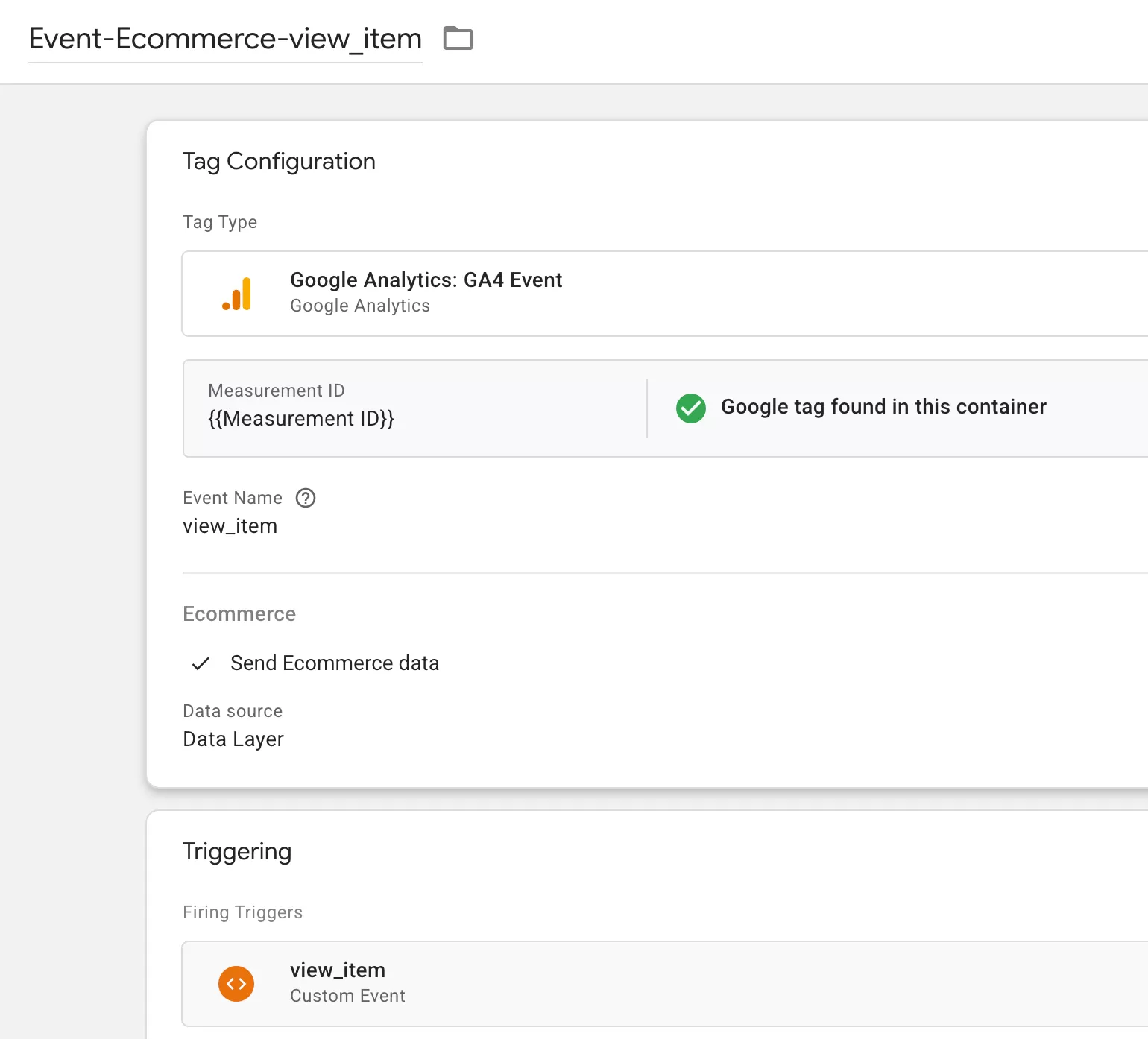
Step 4: Test in GTM Preview Mode
Do not publish ecommerce tracking just because the tag fires. You need to check the data itself.
Open GTM Preview mode and check event names and event parameters are correct.
Complete GTM E-commerce Configuration
Follow the previous example to configure the following e-commerce events.
Product View and Product List Tracking
Product discovery usually has three events:
- view_item_list:A user sees a list of products
- view_item:A user views a product detail page
- select_item:A user clicks/selects a product from a list
view_item_list
Use view_item_list when products appear in a list, such as a category page, search results page, related products block, or homepage product module.
You can send item_list_id and item_list_name at the event level or inside each item. If the list applies to all products in the event, event-level parameters are cleaner. If different items come from different lists, item-level parameters are more precise.
view_item
Use view_item when a user lands on a product detail page.
select_item
Use select_item when a user clicks a product from a product list.
Internal Promotion Tracking
Internal promotion tracking is useful when you want to know whether homepage banners, sale modules, or promotional blocks influence product engagement and revenue.
- view_promotion:
A user sees an internal promotion - select_promotion:A user clicks an internal promotion
view_promotion
select_promotion
Here is the catch: promotion tracking is only useful if the promotion data remains consistent. Do not call the same banner Summer Sale, summer-sale, and Homepage Sale in different places unless you want messy reports.
Shopping Cart Tracking
Cart tracking usually includes:
- add_to_cart:A user adds one or more items to the cart
- remove_from_cart:A user removes one or more items from the cart
add_to_cart
remove_from_cart
Do not skip quantity. Without it, item-level revenue and cart analysis can become less useful.
Checkout, Purchase, and Refund Tracking
Checkout tracking helps you find where users drop off before purchase.
The main events are:
- begin_checkout:User starts checkout
- add_payment_info:User submits or selects payment information
- add_shipping_info:User submits or selects shipping information
- purchase:User completes the transaction
- refund:Full or partial refund happens
begin_checkout
add_payment_info
add_shipping_info
purchase
The purchase event is the most important ecommerce event. Send it only after the order is successfully completed.
Do not generate a new transaction_id every time the confirmation page reloads. Use the real order ID. GA4 uses transaction IDs to help reduce duplicate purchase problems.
refund
Use refund when an order is refunded. For item-level refund reporting, include the refunded items in the items array.
A partial refund includes only the refunded items or quantities.
A full refund should include all refunded items.
Final Thoughts
Here is the workflow I recommend:
- Decide which ecommerce actions you need to measure.
- Ask developers to push GA4-style ecommerce events into the data layer.
- Create Custom Event triggers for each ecommerce action.
- Send the events with GA4 Event tags.
- Test first in GTM Preview mode.
- Verify again in GA4 DebugView.
- Publish only after the product, cart, checkout, purchase, and refund data look correct.
If you are implementing GA4 ecommerce for the first time, do not start with every possible event. Start with the core revenue path: view_item, add_to_cart, begin_checkout, and purchase. Once that works, expand into product lists, promotions, cart removals, shipping/payment steps, and refunds.