Update time: March 13, 2026
Adobe Launch (Adobe Experience Platform Tags) is a leading enterprise tag management system. While it natively supports Adobe Analytics, many organizations also need to deploy Google Analytics 4 (GA4). This guide presents two proven approaches to implement GA4 through Launch.
Method 1: Custom Code with gtag.js
This method uses a custom code block to inject the standard GA4 gtag.js library. It offers maximum control and stability, ideal for teams with advanced tracking requirements.
Step 1:Create a Rule
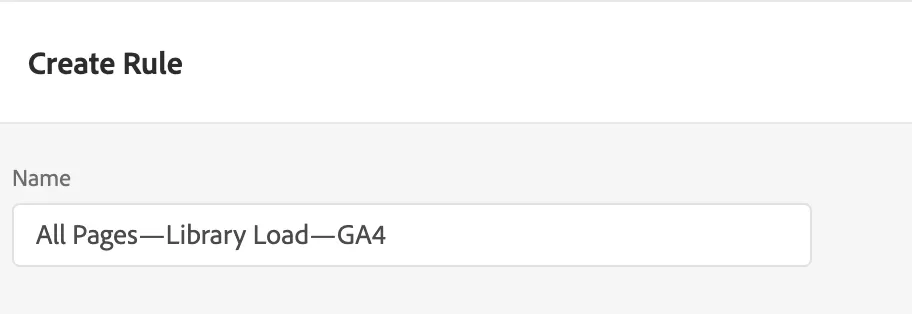
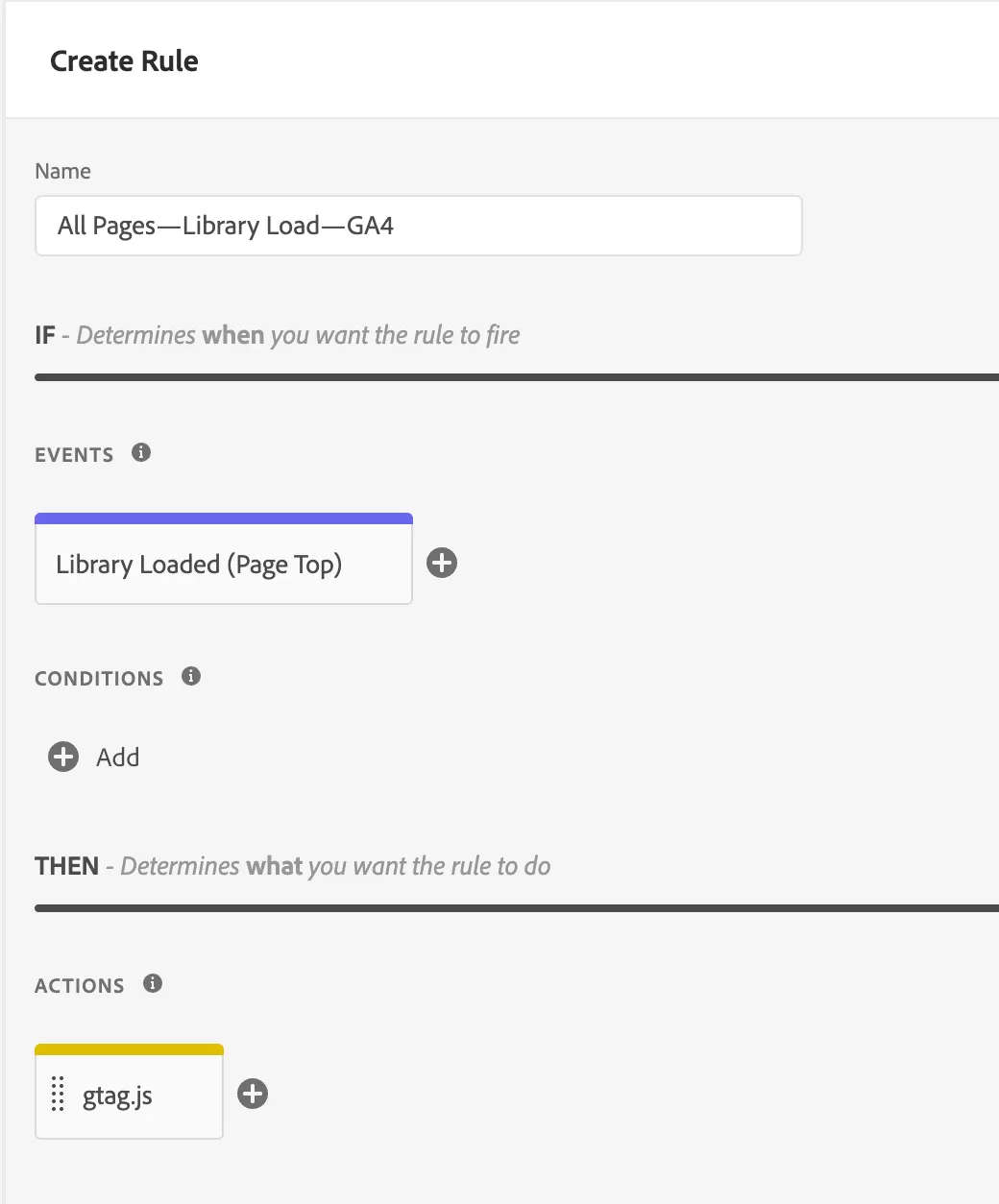
In Adobe Launch,click「Rules」——「Add Rule 」,name it “All Pages—Library Load—GA4”, and configure it as follows:
Step 2:Define the Event
Under EVENT, select Library Loaded (Page Top) or DOM Ready. Here, we choose Core → Library Loaded (Page Top).
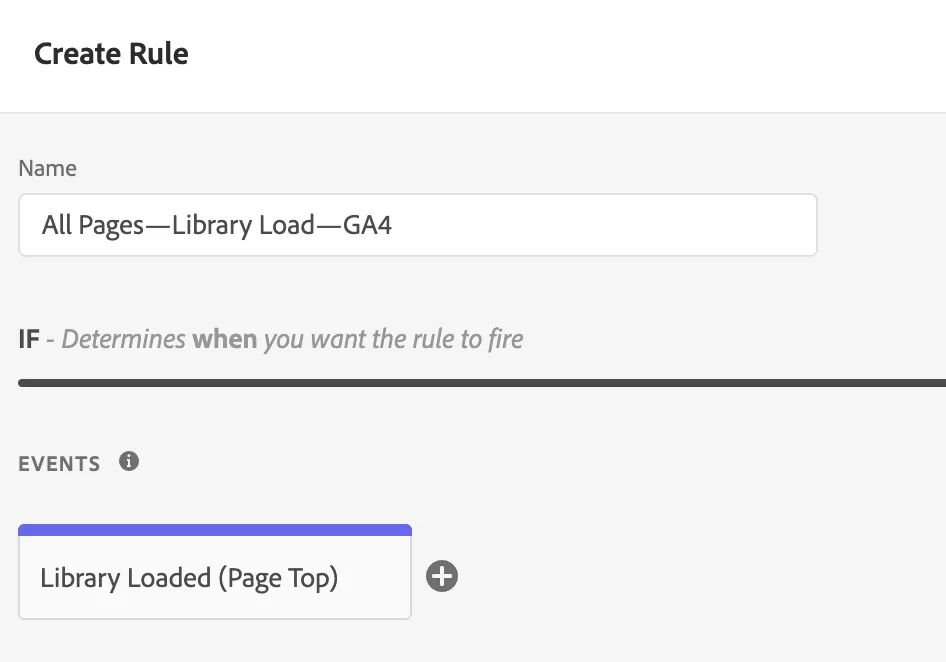
Library Loaded (Page Top) is the better default for a base Google tag because it runs early in the page lifecycle. Google normally recommends placing its tag immediately after the opening <head> element. Loading it at DOM Ready delays initialization and may miss early interactions. Google’s installation documentation describes the standard placement and initialization sequence.
Step 3:Add an ACTIONS
Click EVENTS, and then make the following settings:
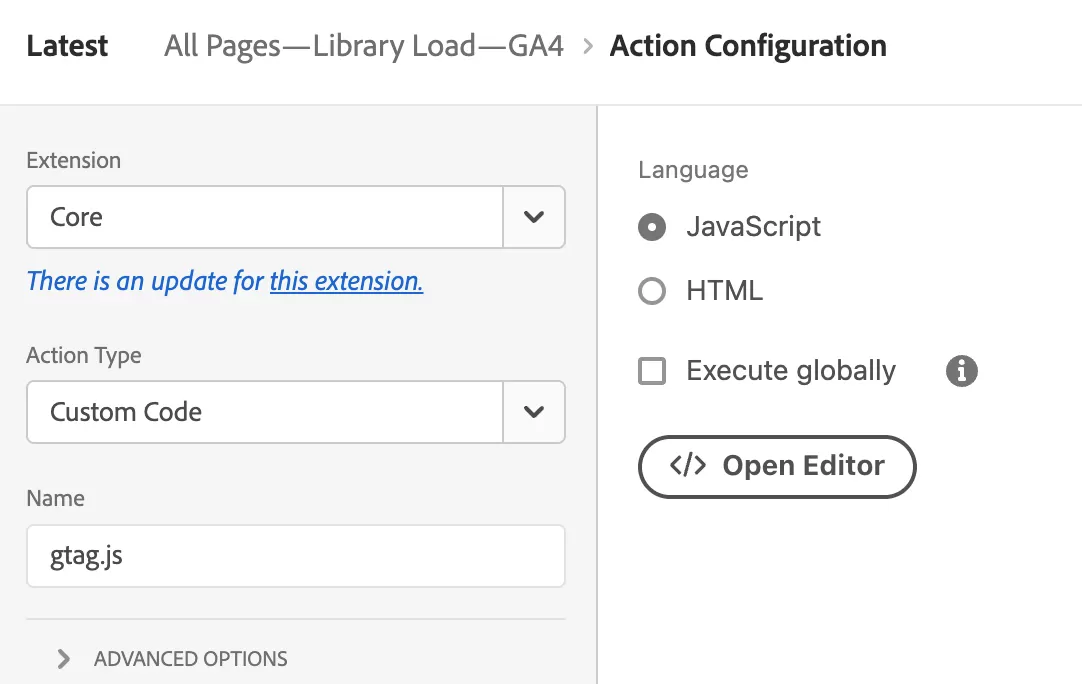
Click 「Open Editor」, then paste the GA4 gtag code into it. You’ll see an error message:
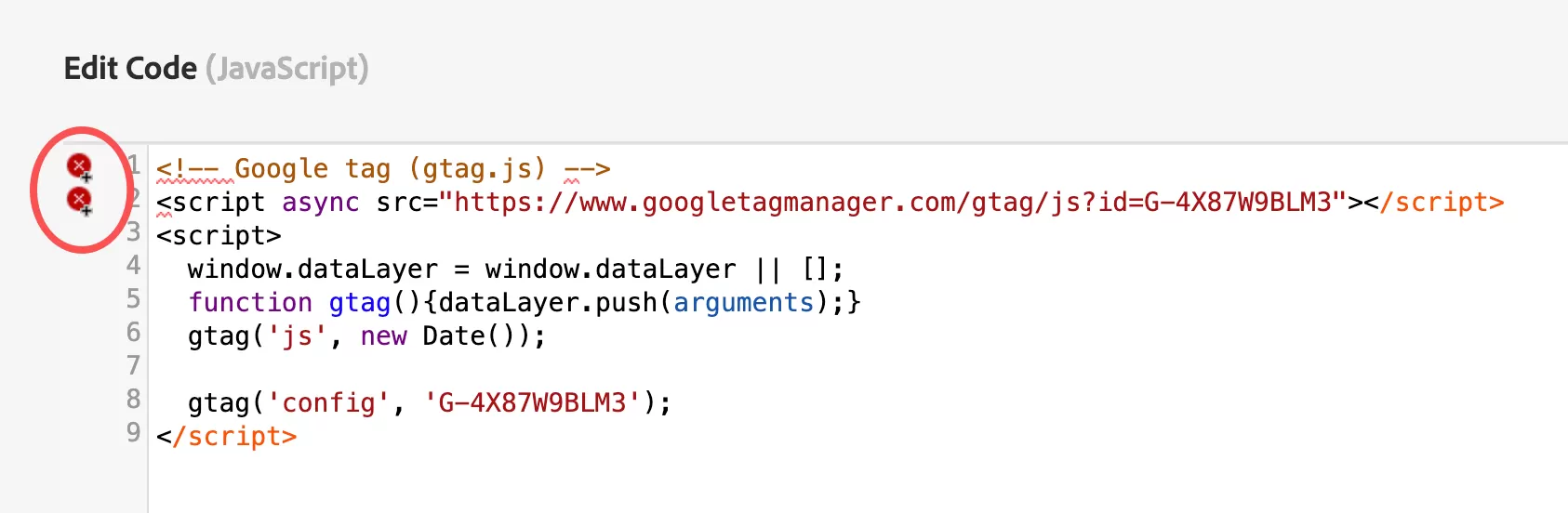
Because Custom Code typically only accepts pure JS code and does not support the <script> tag. Therefore, the code needs to be changed to:
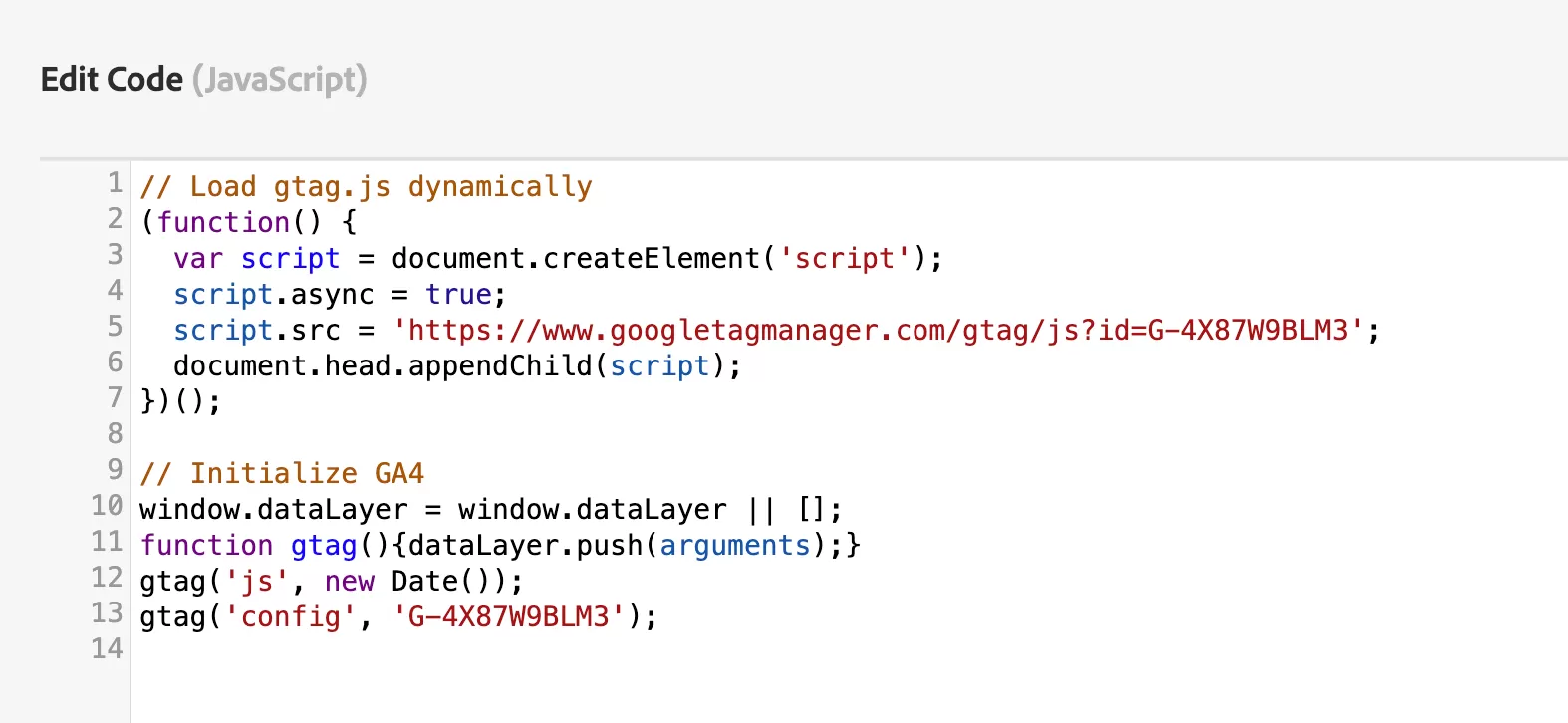
The final effect is:
Step 4: Save and Publish
Save the rule, include it in an active library, and publish.
Pros
- No dependency on third-party extensions — stable for the long term.
- Fully compliant with GA4’s official gtag.js standards.
- Ideal for complex events, custom parameters, Consent Mode, and cross-domain tracking.
Cons
- Requires JavaScript knowledge.
- All events need to be manually implemented and maintained.
Method 2: GA4 Extension
Use this method when: your organization prefers interface-based configuration and has reviewed and approved the extension, its publisher, and its update process.
Adobe currently lists the Google Global Site Tag extension as an available analytics extension. It can send data to Google Analytics, Google Ads, and other Google products.
However, this is not a native Google or Adobe Analytics integration. The current extension is developed by Acronym, and Adobe states that third-party extensions are not warranted by Adobe. Your team should therefore treat extension review and version monitoring as part of implementation governance.
Step 1:Install the GA4 Extension
In Adobe Launch,click「Extesion」——「Catalog 」, then search for “gtag”:
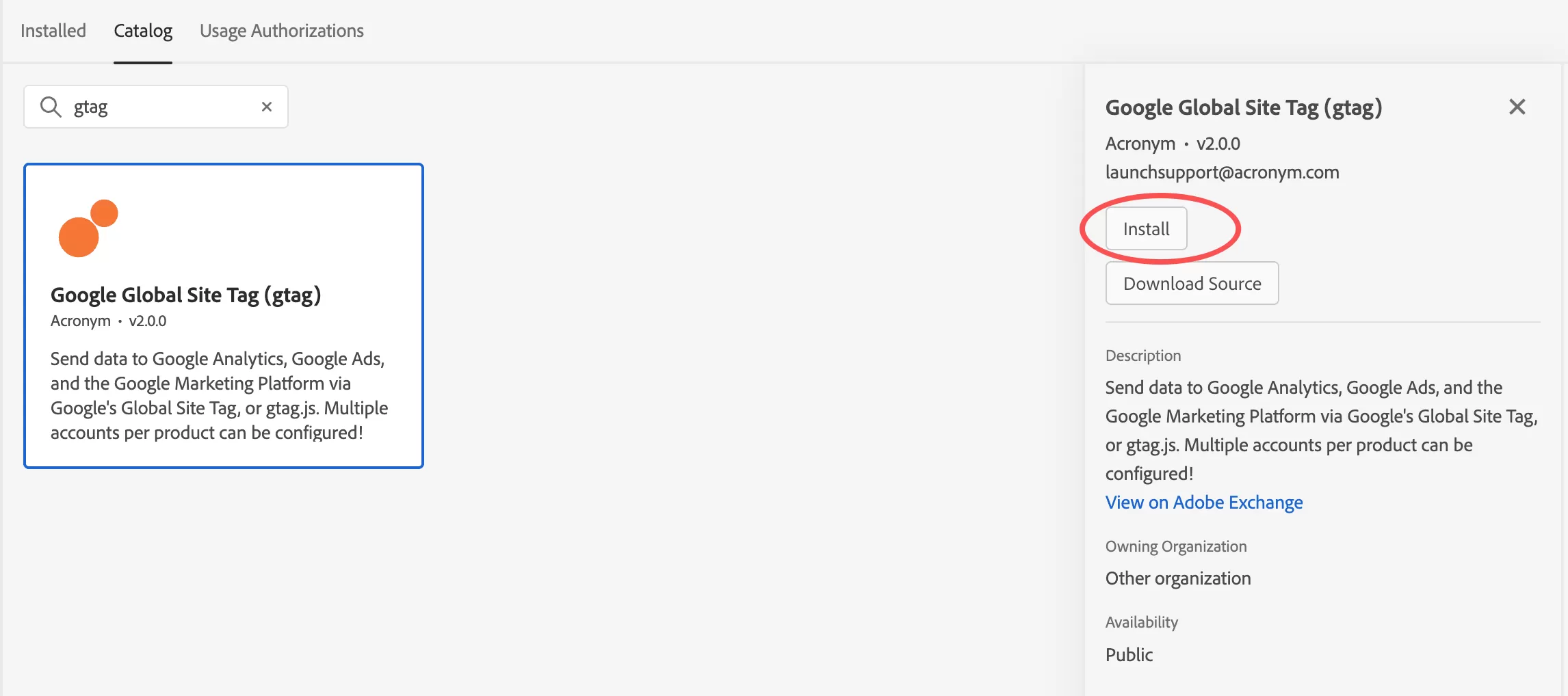
Click「Install」——「Save」,It’s installed now.
Step 2:Configure the Extension
Open Global Site Tag (gtag.js) in the Extensions folder and click 「Add Account」,and then make the following settings:
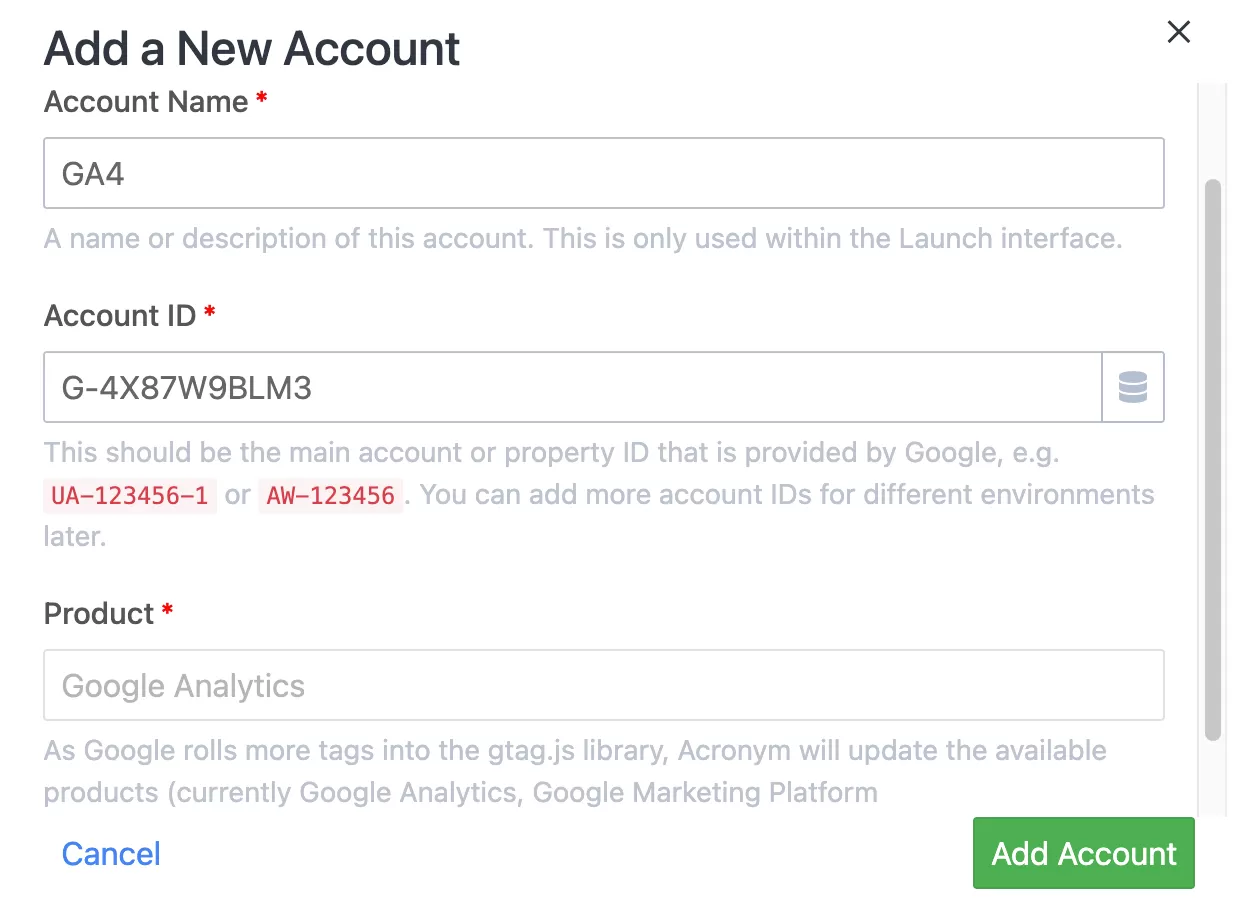
Click「Add Account」——「Save」.
Step 3:Create a Rule
In Adobe Launch,click「Rules」——「Add Rule 」,name it “All Pages—Library Load—GA4”, and configure it as follows:
Step 4:Select the EVENTS
n the EVENT settings, select Library Loaded (Page Top) or DOM Ready. Here, we choose Core → Library Loaded (Page Top).
Step 5:Add an ACTIONS
Click EVENTS, and then make the following settings: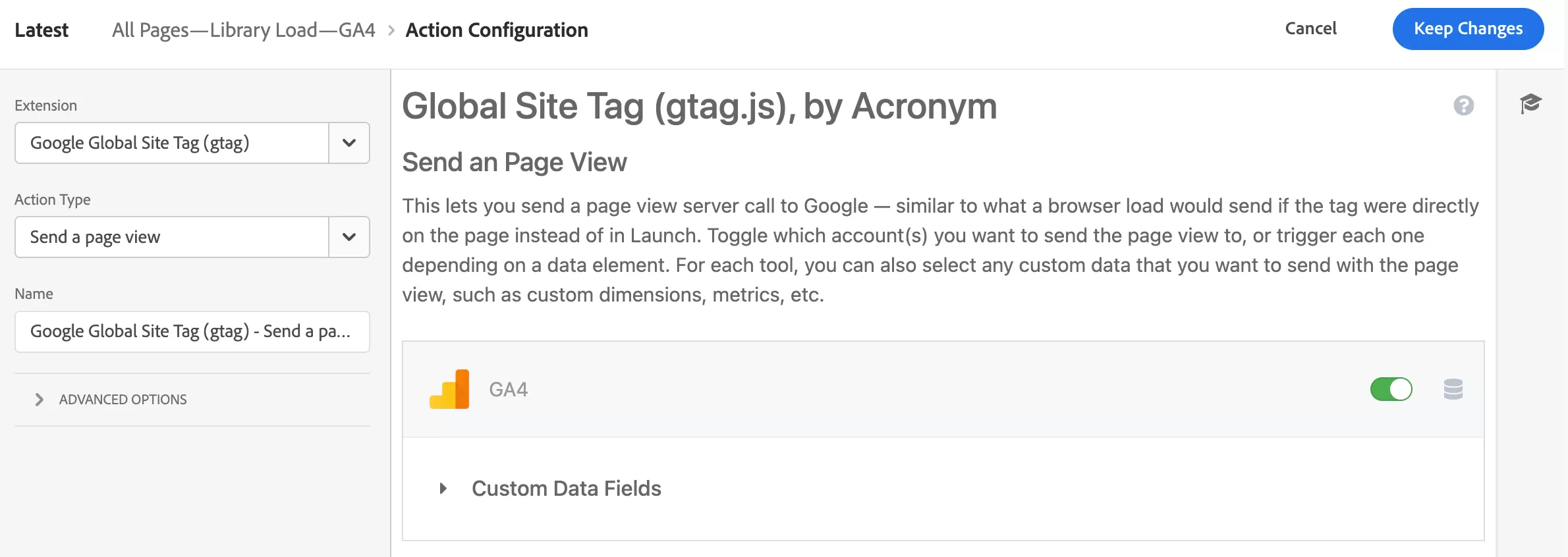
Click「Keep Change」and the final effect is: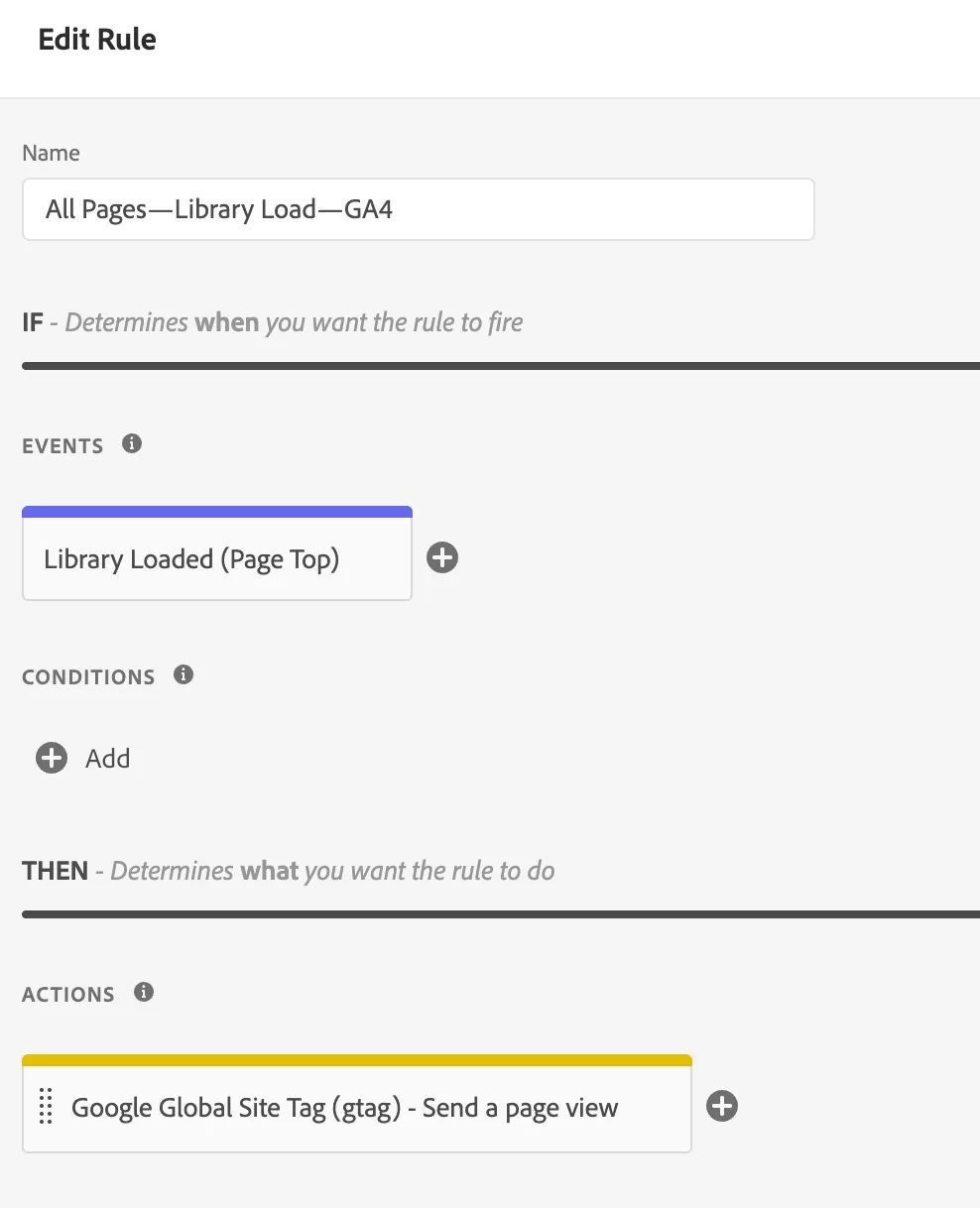
Step 5: Save and Publish
Save the rule, include it in an active library, and publish.
Pros
- No coding required — user-friendly and fast to implement.
- Easy governance for enterprise teams.
- Supports common GA4 features like cross-domain tracking, user properties, and Consent Mode.
Cons
- Less flexibility compared to Custom Code.
- Functionality depends on the Extension provider’s updates.
- Limited for highly dynamic or complex JS-driven events.
Custom Code vs. the GA4 Extension
| Aspect | Custom Code | GA4 Extension |
|---|---|---|
| Initial setup | Moderate | Easier for basic tracking |
| JavaScript knowledge | Required | Limited for basic use; required for some advanced use cases |
| Implementation control | High | Medium |
| GA4 feature access | Direct access to gtag.js |
Depends on exposed actions and custom fields |
| Consent Mode | Fully customizable, but manually implemented | Defaults and updates may require custom code |
| Maintenance owner | Your organization | Your organization plus the extension publisher |
| Extension dependency | None | Yes |
| Interface-based governance | Limited | Stronger for supported actions |
| Best suited for | Technical teams and complex requirements | Audited, standardized, lower-code implementations |
Which Method Should You Choose?
- For teams with strong technical skills and custom tracking needs→ Use Method 1: Custom Code
- For low-code implementation, centralized governance, and ease of maintenance→ Use Method 2: GA4 Extension in Launch
Final Notes
Both methods are production‑ready. For long‑term success, document your implementation, test thoroughly in a staging environment, and periodically review GA4 updates to decide if your chosen method still fits.