You set up your Google Ads conversion tag. You enter Preview mode. You trigger the conversion action. And then you see it — a Failed status on your tag.
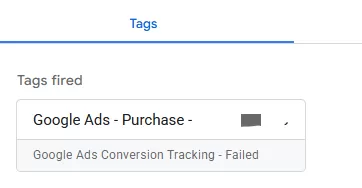
If that sounds familiar, you’ve come to the right place. A “Failed” status in GTM Preview means the tag was evaluated but didn’t fire. The question is why. In this article, I’ll walk through the most common reasons and how to confirm each one.
Reason #1. Tag Configuration Error
This is the easiest to check — and the most embarrassing when you find it.
If the Conversion ID or Conversion Label in your tag doesn’t match what’s in your Google Ads account, the tag will evaluate and show Failed in Preview mode every time.
Open your tag in GTM, copy the ID and label directly from Google Ads (don’t retype them), and compare. One wrong character is all it takes.
Reason #2. Trigger Conditions Not Met
This is probably the most common reason for a Failed in Preview.
Your conversion tag has a trigger attached to it. If that trigger’s conditions aren’t satisfied by the current Preview session, GTM will mark the tag as Failed — because it tried to evaluate but the trigger didn’t pass.
A quick way to confirm: click on the red Failed tag in the Preview Tags tab. GTM will show you exactly which trigger condition failed. If you see something like “Trigger did not evaluate to true,” you’ve found your culprit.
For example, if your trigger is set to fire on a specific button click but you’re testing on a page load, you’ll see Failed. Adjust your trigger conditions or test on the right page.
Reason #3. Consent Mode Blocking the Tag
With consent mode becoming standard, this is increasingly common.
If your CMP (Consent Management Platform) doesn’t pass ad_storage or ad_personalization as granted, GTM will evaluate the tag, see that consent is missing, and mark it as Failed.
In Preview mode, go to the Consent tab (next to Tags and Variables). If ad_storage or ad_personalization shows as denied, that’s your problem. Make sure your CMP is configured to pass the correct consent signals when the user agrees.
Reason #4. Content Security Policy (CSP) Blocking
A strict CSP on your site can block Google Ads scripts from loading. When that happens, the tag can’t communicate with Google’s servers, and Preview mode shows Failed.
Check your browser console for CSP-related errors.
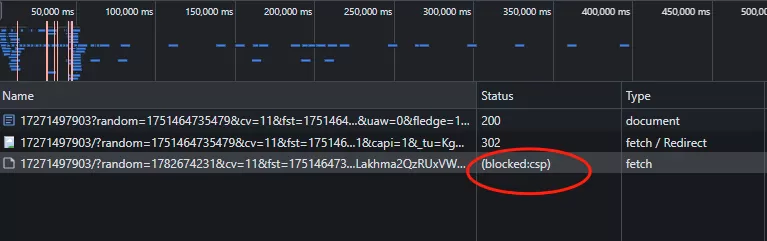
If you find them, add the following to the <head> of your pages:
<meta http-equiv="Content-Security-Policy" content="default-src 'self'; script-src 'self' www.googletagmanager.com www.google-analytics.com; connect-src 'self' www.google-analytics.com; img-src 'self' data: www.googletagmanager.com www.google-analytics.com; style-src 'self'; frame-src 'self' www.googletagmanager.com">
If you manage CSP via HTTP headers, add the same domains there instead.
Reason #5. Missing Conversion Linker Tag
The Conversion Linker tag stores ad click data (like gclid) in first-party cookies. Without it, your Google Ads conversion tag may fail to attribute the conversion correctly and show Failed in Preview mode.
The fix is straightforward: add the Conversion Linker tag in GTM and set it to fire on All Pages. It doesn’t need any additional configuration — just create the tag and publish.
Reason #6. Browser or Ad Blocker Interference
Some browsers (Firefox, Brave) and ad blockers actively block Google Ads scripts. If your tag works in Chrome Preview but shows Failed in Firefox or Brave, this is likely the cause.
There’s no silver bullet here — you can’t force users to disable their ad blocker. But switching to server-side tagging can help reduce the impact in production.
Final Words
A red Failed status in GTM Preview is actually helpful: it tells you the tag was at least evaluated, which means the problem is somewhere in your configuration, not a network issue. The hard part is figuring out which layer is failing — and I hope this guide helps you narrow it down faster.