Updated: May 27, 2026
You open GA4, your bounce rate is 4%. Or 1%. Your traffic didn’t magically get better — something in your config is broken.
And you’re not alone. “why is my bounce rate so low” gets searched hundreds of times a month with almost zero clicks on the results. If that’s you, you’ve come to the right place.
How GA4 Calculates Bounce Rate
Before we talk about what’s going wrong, let’s make sure we’re on the same page about how GA4 defines bounce rate.
In GA4:
Bounce Rate = 1- Engagement Rate=1-Engaged Session/Sessions
And an engaged session is a session that meets any one of these conditions:
- The session lasts longer than 10 seconds
- The session contains at least one key event
- The user views 2 or more pages or screens
That’s where the problem lies. Because of this logic, anything that artificially inflates engaged sessions will automatically crush your bounce rate. And there are two things that do this more than anything else.
Reason #1: Too many events are configured as key events
This is the one I see most often on client audits.
If you mark passive events like page_view, session_start, or scroll as key events, nearly every session becomes engaged. A user lands, scrolls twice, leaves — engaged session. Your bounce rate drops to near zero.
I’ve seen sites where page_view alone was marked as a key event. That means literally every single visit was an engaged session. The bounce rate was basically 0%.
Fix: Go to 「Admin」—— 「 Events」, review which events are key events. Unmark anything that fires automatically on every page load.
Reason #2: The engaged session timer was lowered
By default, GA4 counts a session as engaged when a user stays longer than 10 seconds. If someone lowered it to 5s, 3s, or 1s, almost every session qualifies as engaged.
Check: go tok「Admin」——「Data collection and modification」——「Data streams」to enter theWeb stream details, then click 「Configure tag settings」——「Show more」——「Adjust session timeout」to see: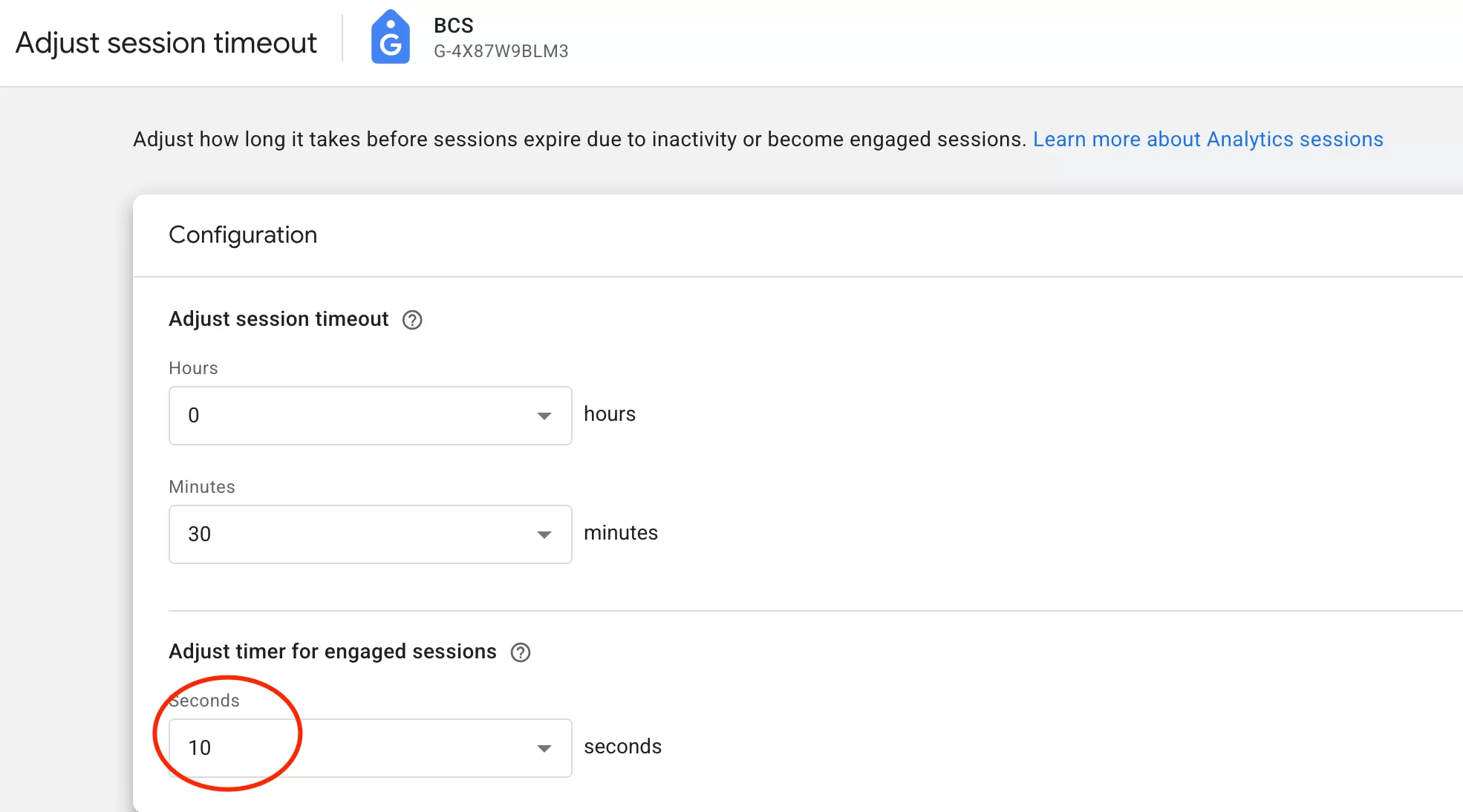
Reset to 10 seconds if it’s been changed.
Final Words
Here’s the bottom line: a bounce rate that drops to 1% or 4% is almost never a sign of improved traffic quality. It’s almost always a configuration issue.
The two things to check:
- Too many key events — including passive or auto-triggered events
- The engaged session timer — lowered from the default 10 seconds
That’s it. Most of the time, the culprit is one of these two.