Updated: October 23, 2024
If you’ve been customizing your GA4 reports and suddenly notice multiple Life Cycle collections showing up in your report navigation
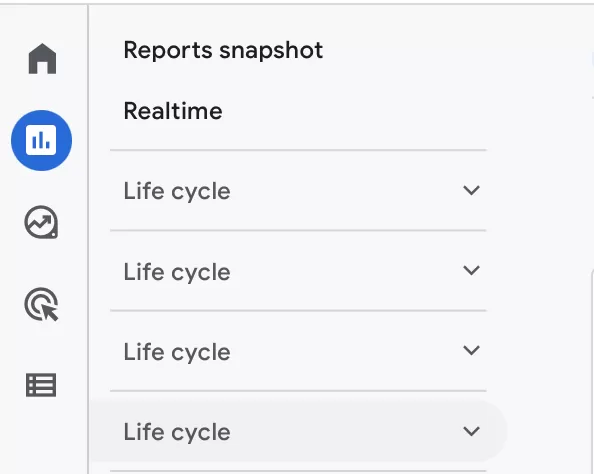
This happens to some users after editing reports in Topics and saving them.
It seems to be an intermittent behavior on Google’s side — not everyone sees it, but when it happens, it’s confusing.
Here’s what’s going on and how to clean it up.
Why Duplicate Collections Appear
When you make changes to a report inside a Topic (in the GA4 Library) and save it to the current report collection, GA4 sometimes generates a new copy of the Life Cycle collection rather than updating the existing one. If you do this across different Topics, you can end up with multiple Life Cycle collections.
It doesn’t happen every time — I’ve seen it on some properties but not others — so it’s an edge case, but one worth knowing about.
How to Remove Them
The fix is straightforward:
- Step 1:Go to Reports in the left navigation.
- Step 2:Scroll to the bottom and click Library.
- Step 3:Find the duplicate Life Cycle collections in the Library. You’ll see more than one listed.
- Step 4:Hover over the ones you don’t need and click the three-dot menu > Delete.
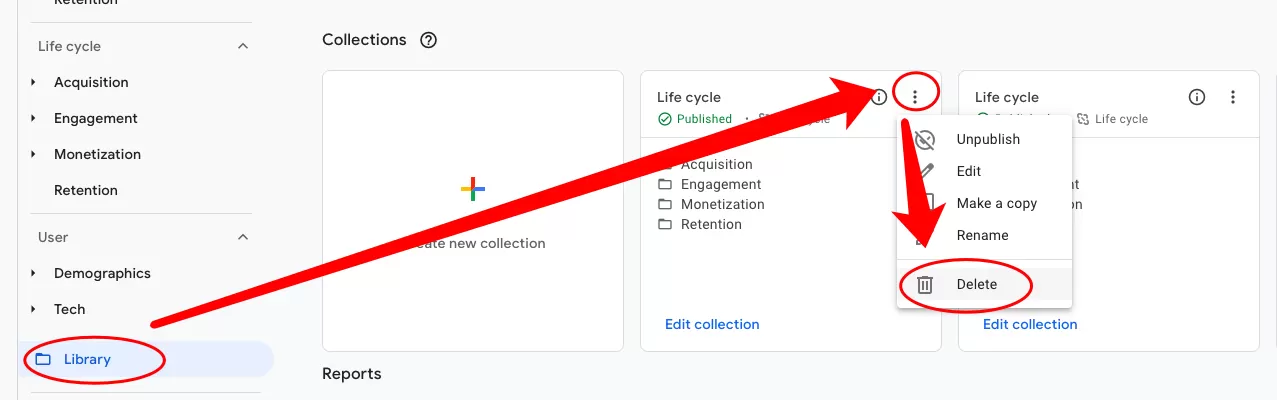
That’s it. The extra collections will be gone, and your report navigation will be back to normal.
Final Words
This isn’t something that breaks your data — it’s just a UI glitch that clutters up your report view. If you run into it, now you know the drill. And if you’ve noticed any other patterns that trigger duplicate collections, drop a comment. The more examples we have, the easier it is to tell what’s really going on under the hood.